

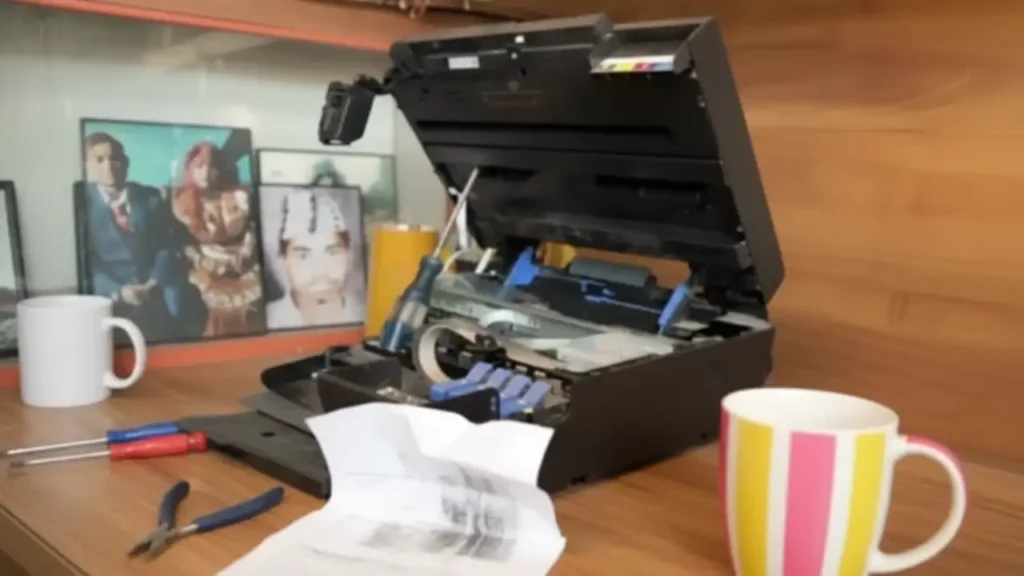
Epson L3210 Print Quality Problems? Fix Faded & Missing Colors
Restore crisp text and vibrant images with these simple troubleshooting steps.
Are you experiencing frustrating print quality issues with your Epson L3210? It’s common to encounter problems like faded prints, missing colors, or noticeable banding across your documents and photos. These issues can stem from various causes, from clogged print heads to incorrect settings. Fortunately, many Epson L3210 print quality issues can be resolved with a few straightforward maintenance steps and checks.
This guide will walk you through identifying the root cause of your poor print output and provide actionable solutions. We’ll focus on common symptoms such as Epson L3210 banding, faded text, and Epson L3210 missing colors. By following these steps, you can aim to restore your Epson L3210 to its optimal printing performance without needing professional help.
Understanding Epson L3210 Print Quality Issues
Poor print quality on your Epson L3210 can manifest in several ways. Faded colors might make photos look dull, while banding – those distracting horizontal or vertical lines – can ruin important documents. Sometimes, entire colors might disappear, leaving your prints looking incomplete or monochromatic. These symptoms often point to a problem with ink delivery or the printer’s internal mechanisms.
The Epson L3210, like other ink tank printers, relies on a consistent flow of ink to produce sharp, accurate prints. When this flow is interrupted, or the print head isn’t functioning correctly, print quality suffers. Common culprits include clogged ink nozzles, low ink levels, using the wrong type of paper, or software settings that aren’t optimized for your print job.

Diagnosing the Problem: The Nozzle Check
The first and most crucial step in troubleshooting Epson L3210 print quality issues is performing a nozzle check. This utility built into your printer’s software will print a pattern that clearly shows if any nozzles on the print head are blocked. If you see gaps, missing segments, or faded lines in the test pattern, it indicates a clog.
You can typically access the nozzle check through your printer’s driver software on your computer. Ensure you have sufficient ink levels before proceeding, as the nozzle check uses a small amount of ink. This diagnostic tool is the key to determining if a Epson L3210 nozzle cleaning cycle is necessary and which colors are most affected.
Step-by-Step: Performing an Epson L3210 Nozzle Cleaning
If your nozzle check reveals gaps or missing sections, an automatic Epson L3210 nozzle cleaning cycle is the next logical step. This process forces ink through the print head nozzles to clear out any dried ink or debris that might be causing the blockage. It’s a fundamental maintenance procedure for maintaining good print quality.
- Access Printer Properties: On Windows, go to “Control Panel” > “Devices and Printers” (or “Printers & Scanners” in newer versions). Right-click on your Epson L3210, select “Printing preferences,” and then navigate to the “Maintenance” tab. On macOS, you’ll usually find similar options within “System Preferences” > “Printers & Scanners,” selecting your printer, and then “Options & Supplies” or “Utility.”
- Initiate Nozzle Check: Within the Maintenance tab or Utility section, find and click on “Nozzle Check.” Print a test pattern to confirm your previous findings.
- Run Head Cleaning: After confirming the need for cleaning, click on “Head Cleaning.” The printer will then perform the cleaning cycle. This process takes a few minutes.
- Repeat if Necessary: After the cleaning cycle completes, print another nozzle check pattern. If the pattern has improved but is not perfect, you might need to run the cleaning cycle two or three times. Avoid running it excessively, as it consumes ink.
Addressing Faded Prints and Missing Colors
Faded prints and Epson L3210 missing colors can be particularly frustrating. While a clogged nozzle is a primary suspect, other factors can contribute to these symptoms. Low ink levels in one or more tanks can lead to weak color reproduction, even if the nozzles themselves are clear. Always ensure your ink tanks are filled adequately, preferably above the minimum line.
The type of paper you use also plays a role. Printing on plain paper with photo settings, or vice-versa, can lead to suboptimal ink absorption and color vibrancy. Always match your paper type in the printer driver settings to the actual paper loaded in the tray. This ensures the correct amount of ink is applied for the best possible color output.
Optimizing Print Settings for Better Quality
Sometimes, the issue isn’t with the printer hardware but with the software settings. When troubleshooting Epson L3210 print quality issues, it’s essential to review your print settings. Ensure you have selected the highest quality print mode available for your selected paper type. This is especially important for photos or graphics where detail and color accuracy are critical.
Many users overlook the “Print Density” or “Color Intensity” settings. If these are set too low, your prints will naturally appear faded. Conversely, setting them too high can sometimes lead to ink smudging, especially on plain paper. Experimenting with these settings, alongside a strong Epson L3210 nozzle cleaning, can yield significant improvements.
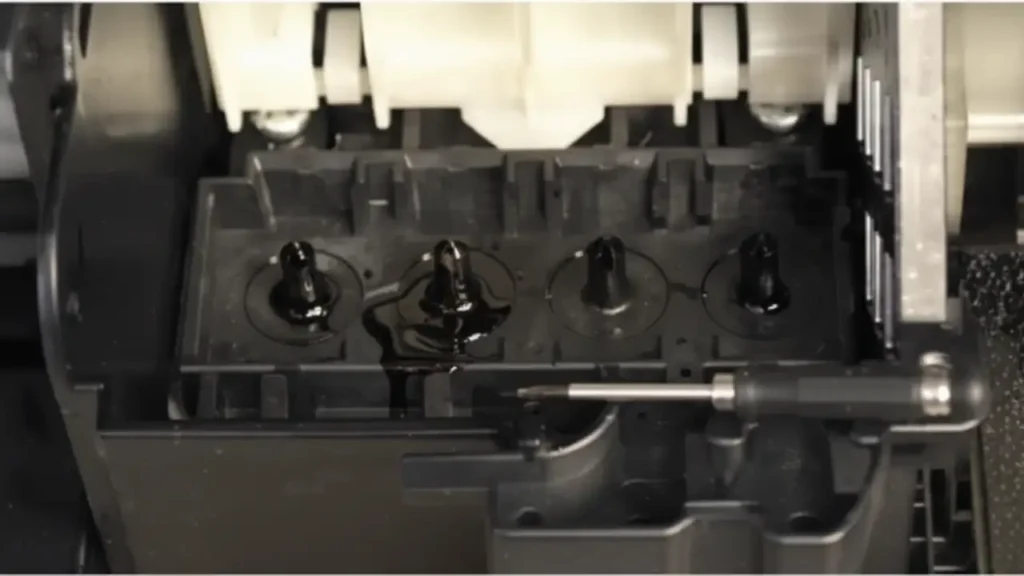
Advanced Troubleshooting: Power Cleaning and Maintenance Box
If standard head cleaning cycles don’t resolve persistent Epson L3210 banding or missing colors, your printer may have a “Power Cleaning” or “Deep Cleaning” option. This is a more intensive cleaning cycle that uses more ink but can clear stubborn clogs more effectively than a standard cleaning. Use this function sparingly, as it significantly depletes ink reserves.
Another factor to consider is the printer’s maintenance box. This box collects waste ink expelled during cleaning cycles. While not typically a cause of print quality issues directly, it has a finite capacity. If the printer indicates the maintenance box is nearing full, it might restrict certain cleaning functions, indirectly affecting print quality. Replacements are usually handled by authorized service centers.
Keeping Your Epson L3210 in Top Condition
Preventive maintenance is key to avoiding future Epson L3210 print quality issues. Regularly print documents or photos, ideally at least once a week, to keep the ink flowing and prevent nozzles from drying out. If you notice slight degradation in print quality, perform a standard nozzle check and head cleaning proactively rather than waiting for severe issues to arise.
Always use genuine Epson inks or high-quality compatible inks specifically designed for the Epson L3210. Using third-party inks not intended for your model can lead to nozzle clogs, color inaccuracies, and potential long-term damage to the print head. Proper handling and environmental conditions, such as avoiding extreme temperatures and humidity, also contribute to printer longevity.
Safety and Warranty Considerations
Before performing any internal maintenance, always ensure your Epson L3210 is turned off and unplugged from the power source. Avoid touching the print head nozzles directly, as this can cause damage. While performing nozzle cleaning and head cleaning is safe for users, opening the printer’s casing or attempting unauthorized repairs can void your warranty.
If you have followed all the troubleshooting steps, including multiple cleaning cycles, and are still experiencing significant print quality problems like Epson L3210 banding or faded prints, it might be time to contact Epson support or an authorized service center. They can diagnose more complex hardware failures or issues that are beyond user-level fixes.
Common questions about Epson L3210 print quality issues
By understanding the common causes and employing the diagnostic and cleaning procedures outlined above, you can effectively address most Epson L3210 print quality issues. Regular checks and mindful usage will help maintain clear, vibrant prints for your documents and photos.
