

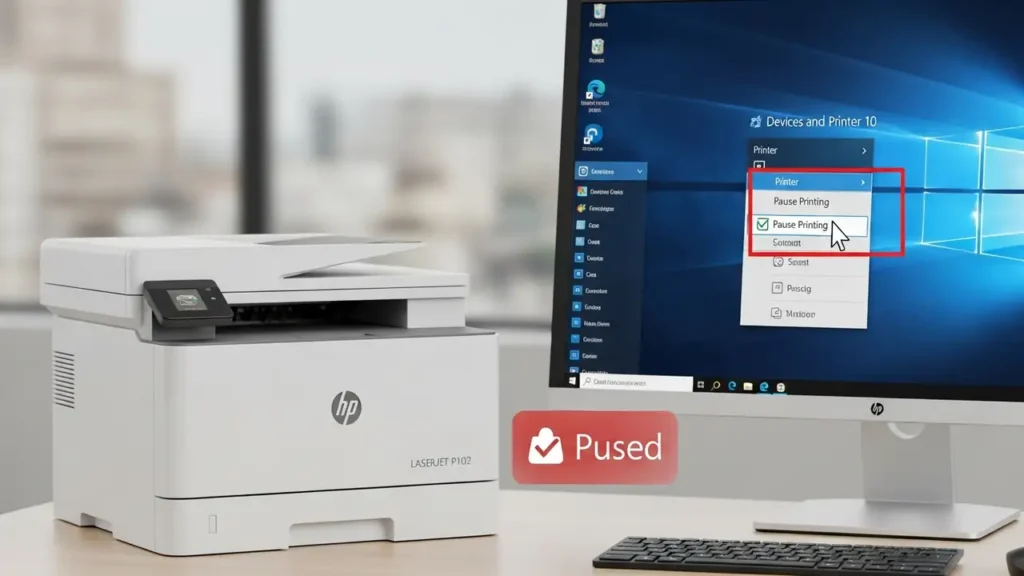
Resolving hp printer paused Status on HP LaserJet P1102
Address the “Paused” status on your HP LaserJet P1102 printer in Windows 10 with these comprehensive troubleshooting steps.
Encountering an hp printer paused status can halt your printing tasks and create frustration, especially when you need to quickly output documents. This common issue indicates that your Windows 10 operating system has paused the print queue for your HP LaserJet P1102. Understanding how to unpause your printer involves checking both software settings within Windows and the physical state of your device. This guide provides a clear, step-by-step approach to return your printer to a ready state and resolve the “printer paused error.”
The “status paused windows 10” message typically appears in the printer queue or in device settings, preventing any documents from printing. While the cause can range from a simple software setting to a connectivity issue, the solutions are straightforward. By carefully following the instructions below, you can effectively manage and correct the hp printer paused condition, restoring full functionality to your HP LaserJet P1102. This allows you to quickly get back to printing without further delays.
Initial Checks for an hp printer paused Device
Before diving into software solutions, it is crucial to ensure that your HP LaserJet P1102 is physically ready to print. Basic physical checks can often resolve simpler “how to unpause” scenarios, or at least rule out straightforward issues that might contribute to a “printer paused error.” These checks confirm the printer’s operational readiness and physical connection to your computer.
- Verify Printer Readiness: Look at your printer for any flashing lights or error indicators. Confirm that there is sufficient paper loaded in the paper tray and that the toner cartridge is properly installed and not empty. Any physical issue like a paper jam or low toner can cause the printer to enter a paused state or prevent it from responding to print commands.
- Inspect Physical Connections: A secure connection between your HP LaserJet P1102 and the computer is vital for communication. Ensure the USB cable is firmly plugged into a functional USB port on your computer and into the corresponding port on the printer. A loose or faulty cable can disrupt communication, leading to the hp printer paused status. Reconnecting the cable can often resolve intermittent connectivity problems.
Unpausing Your Printer via Windows Settings
The most common reason for an hp printer paused status is an inadvertent setting within the Windows printer queue. Windows 10 offers direct controls to manage print jobs and printer status. Correcting these settings is a primary step in learning “how to change printer status” from paused to active. Accessing these options requires navigating through the Control Panel to your printer’s specific queue.
To begin, navigate to the Control Panel on your Windows 10 system. Locate and select “Devices and Printers” from the available options. This section lists all connected printing devices and allows for their management.
Disabling hp printer paused and Offline Modes
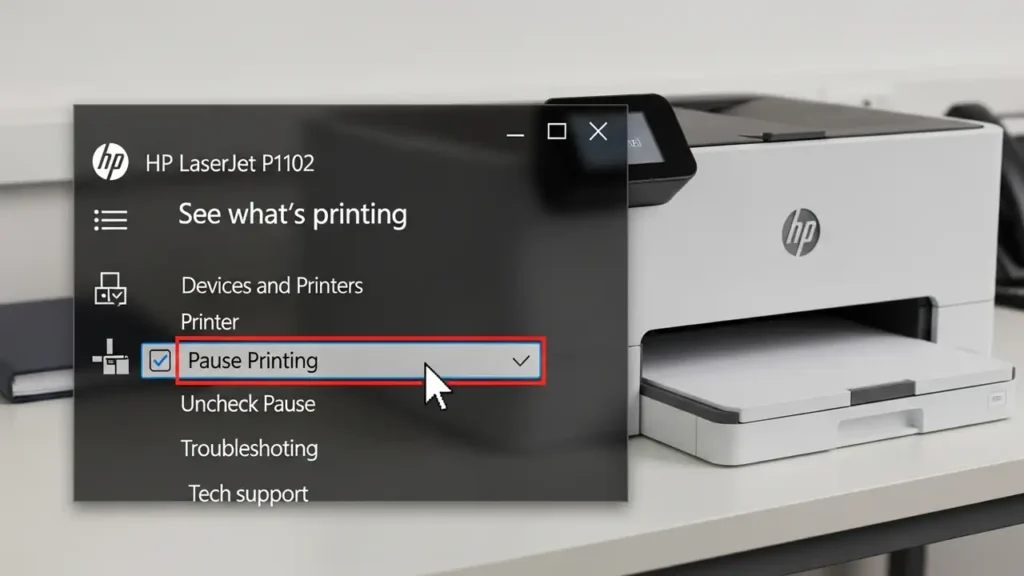
Once in the “Devices and Printers” window, locate your HP LaserJet P1102. Right-click on its icon to reveal a context menu, then select “See what’s printing.” This action opens the print queue window, which displays all current and pending print jobs for your device.
- Access Printer Menu: Within the “See what’s printing” window, find the “Printer” menu option at the top. Click on this menu to drop down further settings.
- Clear Pause and Offline Settings: In the “Printer” menu, you will see two important options: “Pause Printing” and “Use Printer Offline.” If either of these options has a checkmark next to it, it means the feature is active. Click on “Pause Printing” to uncheck it and remove the pause command. Similarly, click on “Use Printer Offline” to uncheck it, ensuring the printer is recognized as available online. Disabling these settings is crucial for resolving the hp printer paused error and allowing print jobs to proceed.
Restarting and Resetting Your HP LaserJet P1102
If the software settings do not resolve the “how to change printer status” issue, a hard reset of your HP LaserJet P1102 is the next logical step. A full power cycle can clear temporary glitches in the printer’s internal memory and resolve persistent hp printer paused conditions. This method involves completely cutting power to the device to ensure a fresh boot-up cycle.
- Power Down Printer: Turn off your HP LaserJet P1102 using its power button. Confirm that the printer’s lights have completely extinguished to indicate it is fully shut down.
- Unplug Power Cord: Disconnect the power cord not only from the printer itself but also from the wall outlet or power strip. This ensures no residual power remains in the system.
- Wait for 60 Seconds: Allow at least 60 seconds for the printer to fully discharge any stored electrical charge. This waiting period is critical for a complete reset.
- Reconnect Power: After the waiting period, plug the power cord back into the wall outlet first, then into the printer.
- Power On Printer: Finally, turn the printer back on. Observe the startup sequence and wait for the printer to initialize completely. Check if the hp printer paused status has cleared.
Managing the Print Queue
Stuck or corrupted print jobs can sometimes contribute to an hp printer paused status, preventing subsequent documents from printing. Clearing the print queue ensures that no erroneous commands are holding up the system. This step is performed within the same “See what’s printing” window used earlier.
- Access Print Queue: Open the “See what’s printing” window for your HP LaserJet P1102 as described in the previous section (Control Panel > Devices and Printers > Right-click P1102 > See what’s printing).
- Cancel All Documents: From the “Printer” menu within the queue window, select “Cancel All Documents.” This action will attempt to remove all pending and current print jobs. Confirm any prompts to clear the queue.
- Restart Computer (Optional but Recommended): After clearing the print queue, it’s often beneficial to restart your computer. This can help refresh the printer spooler service and ensure all old print job data is flushed from the system, potentially resolving any lingering “printer paused error” issues.
Maintaining Printer Health and Preventing Future Pauses
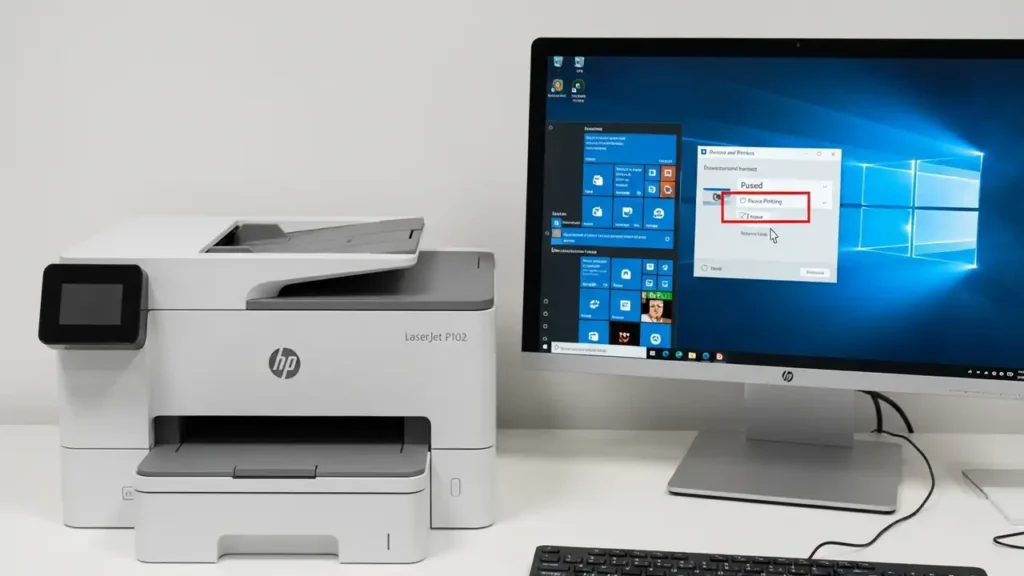
Keeping your HP LaserJet P1102 in good working order not only prolongs its lifespan but also minimizes the occurrence of issues like an hp printer paused status. Adhering to simple maintenance practices and being mindful of your printer’s environment can prevent many common printing problems. Regular checks and careful handling are key to reliable performance.
Always ensure the printer’s power cord and USB cable are securely connected. Avoid placing the printer in areas where cables might be accidentally dislodged or pinched. When performing any troubleshooting that involves physical interaction with the printer, such as checking for jams or replacing cartridges, always power off and unplug the device first for safety. Do not attempt to force parts or remove covers that are not designed for user access, as this could void your warranty or cause further damage. If you are unsure about a step, consider consulting a qualified technician.
Regularly check your printer’s consumables like paper and toner. Proactively refilling paper and replacing low toner cartridges can prevent the printer from pausing due to resource shortages. Periodically reviewing your Windows 10 printer settings and print queue can also help catch and address issues like an hp printer paused status before they escalate. By following these steps, you can effectively resolve and prevent the hp printer paused condition, ensuring your HP LaserJet P1102 remains fully operational.
