

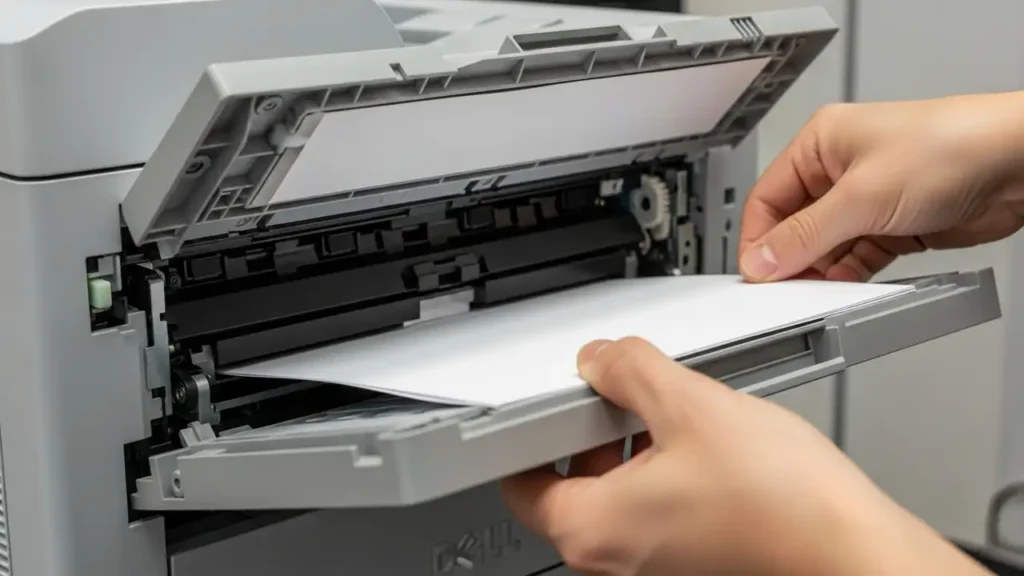
Fix a Dell C2660dn paper jam and Error Code 050-12x
Experiencing a Dell C2660dn paper jam, especially with an accompanying 050-12x error code, frequently indicates an issue within the duplex unit. This guide provides actionable steps to diagnose and resolve paper obstructions in your Dell C2660dn printer, helping you restore normal operation.
When your Dell C2660dn displays the 050-12x error, it signals that paper has become stuck or misfed, particularly during two-sided printing operations. Addressing this promptly can prevent further damage to the printer’s internal mechanisms and ensure print quality.
This comprehensive troubleshooting process will walk you through essential safety precautions, effective methods for clearing existing jams, and practical prevention tips to minimize future occurrences. Follow these instructions carefully to bring your printer back online.
Understanding Common Causes of Dell C2660dn Paper Jam (050-12x)
Several factors can lead to a persistent Dell C2660dn paper jam with the 050-12x error code. Identifying the root cause is crucial for effective resolution and preventing recurrence. These issues often relate to the printer’s paper handling components.
One primary reason is the condition of the rollers. Over time, the paper feed components can accumulate fine dust, making them smooth and less effective at drawing sheets through. This reduced grip often results in the paper failing to advance correctly. If these rollers become worn, their ability to pick up paper diminishes significantly.
Another significant cause involves paper sensors. Positioned in the rear or duplex unit, these sensors can become soiled or obstructed, leading the printer to detect a “ghost” jam where no physical paper exists. A misaligned sensor can also inaccurately report a jam.
Improper loading techniques are also a frequent culprit. If paper guides within the tray are not positioned snugly against the paper stack, sheets can skew and jam. Using damaged, curled, or damp paper can also compromise the smooth feeding process, making it difficult for the printer to handle.
Finally, the type of paper used plays a critical role. Employing media that is either too thick, too thin, or overly glossy for the printer’s duplex mechanism can cause it to misfeed or get stuck. Always ensure your paper type is compatible with duplex printing.
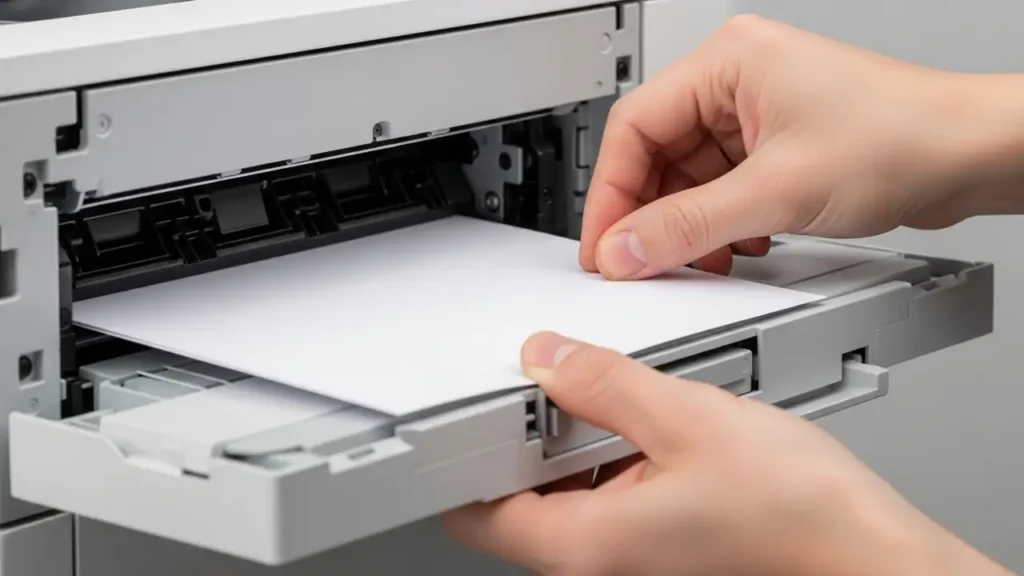
Safety First: Preparing to Clear a Paper Obstruction
Before you begin any physical inspection or cleaning inside your Dell C2660dn, prioritize safety. This initial step is non-negotiable to protect both yourself and the printer. Always handle internal components with care.
First, power off the printer entirely. Locate the main power switch and ensure the device is completely disconnected from its power source. Unplug the power cord from the wall outlet for maximum safety.
Next, allow sufficient time for the fuser area to cool down. This component operates at high temperatures and can cause burns if touched too soon. Wait for at least 30 minutes before attempting to access any internal parts, especially those near the fuser.
Once the printer is cool and powered off, you can proceed with the clearing process. Avoid forcing any components or paper, as this can cause further damage to delicate mechanisms.
Step-by-Step Guide to Clear a Dell C2660dn Paper Jam
Carefully follow these steps to remove any trapped paper and resolve the 050-12x error on your Dell C2660dn printer. Work systematically through each area to ensure all fragments are removed.
- Inspect the Rear Path: Begin by opening the rear access door of your Dell C2660dn. Gently examine the entire paper path visible through this opening. Look for any full sheets of paper or small scraps, paying close attention to the area around the fuser. Carefully pull out any paper in the direction of its normal travel to avoid tearing.
- Examine the Duplexer and Paper Tray: Remove the main paper tray from the printer. Next, detach the duplex assembly. This unit is specifically designed for two-sided printing and is a common site for obstructions. Thoroughly inspect both the tray area and the removed duplexer for any jammed sheets or incorrectly angled paper. If you find paper, carefully extract it.
- Check the Output Bin: Ascertain that the top output bin is also clear of any obstructions. Trapped paper in this area can prevent subsequent pages from exiting correctly, leading to jams. Inspect the rollers in the output bin for any hidden pieces.
Addressing a Dell C2660dn Paper Jam in the Duplexer
The duplex unit is a frequent location for the Dell C2660dn paper jam. Removing and inspecting this specific assembly is a key part of the troubleshooting process. Ensure you have fully removed the main paper tray before attempting to access the duplexer. Once the duplex assembly is out, look for any creases or tears in the paper that might have caused it to snag. Clear the path thoroughly, ensuring no small remnants are left behind.
Cleaning Rollers and Implementing Prevention Strategies
After removing any visible paper, cleaning the paper feed rollers is an essential step to address dirty or worn roller causes. This maintenance helps restore their grip and prevents future jams.
Use a lint-free cloth to wipe down the paper feed rollers. For more stubborn dust and residue buildup, slightly dampen the cloth with water or a mild soap solution. Gently scrub the rollers to remove any slick film. Ensure the rollers are completely dry before reassembling the printer.
Implementing specific practices can significantly reduce the likelihood of encountering another Dell C2660dn paper jam. Proactive measures are key to consistent performance.
- Regular Cleaning: Make it a habit to clean the pickup rollers frequently. This prevents the accumulation of paper dust and debris that can diminish their effectiveness over time, ensuring they maintain proper traction.
- Use Proper Paper: Always use high-quality laser paper recommended for your Dell C2660dn. Furthermore, ensure that the adjustable paper guides within the tray are positioned snugly against the paper stack, preventing sheets from skewing or misfeeding.
- Avoid Overfilling: Never load the paper tray beyond its maximum fill line indicator. Overfilling can lead to excessive pressure on the rollers and cause multiple sheets to feed simultaneously, increasing the risk of a jam.
- Check Media Settings: Verify that the printer’s settings accurately reflect the paper size and weight currently loaded in the tray. Mismatched settings can confuse the printer, leading to incorrect paper handling and potential jams.
-
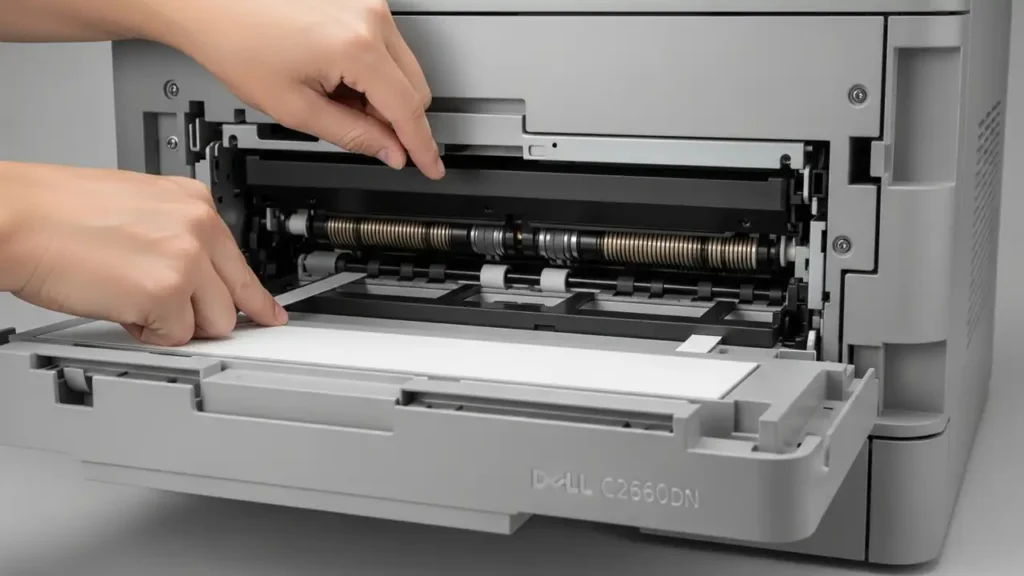
Dell C2660dn paper jam: Fix Error 050-12x in Duplex Unit
Resetting the Printer and Further Action
Once you have meticulously cleared all paper obstructions, cleaned the rollers, and verified proper paper loading, it’s time to reset your Dell C2660dn.
Turn the printer back on. The device will perform its internal checks and should clear the 050-12x error code if the jam has been successfully resolved. Attempt to print a test page to confirm functionality.
If the Dell C2660dn paper jam persists, or the error code reappears despite following all steps, there may be an underlying hardware issue, such as a faulty sensor or severely worn component. In such cases, professional service might be required to diagnose and repair the specific problem.
