

Resolving Your macOS Sequoia 15.3 printer problem
Strategies for restoring printer functionality after the Sequoia 15.3 update.
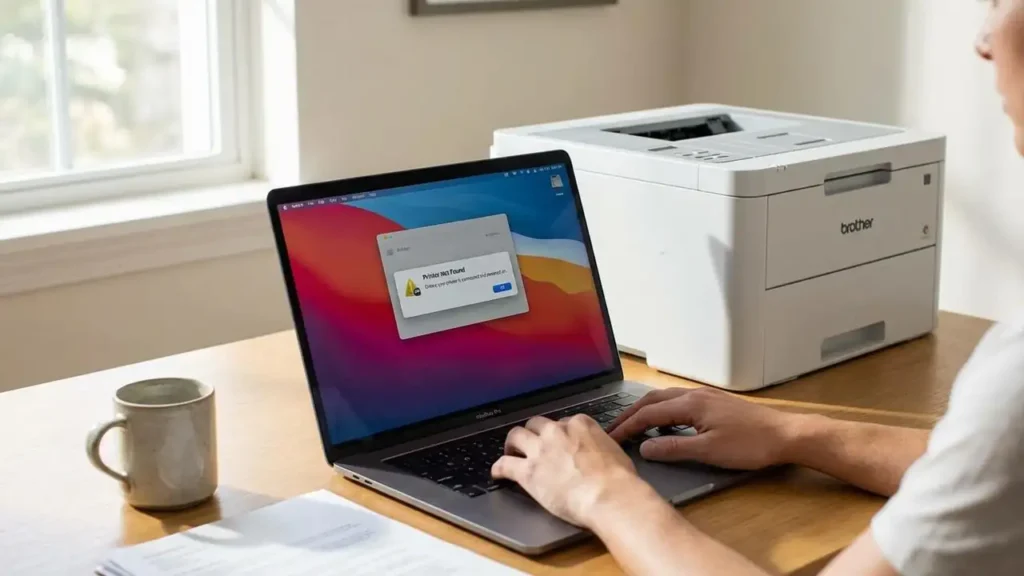
Many users encounter a macOS Sequoia 15.3 printer problem where their laser printer appears offline or is simply not found by the system following the recent operating system update. This issue commonly arises due to breaks in driver compatibility or changes in how macOS Sequoia 15.3 manages security extensions and device communication. When your printer disappears or fails to print, it can be frustrating, but reconnecting it is often achievable through specific troubleshooting steps.
The core of resolving this connectivity challenge typically involves removing the existing printer setup and then re-establishing the connection. Opting for standard protocols like AirPrint or generic drivers often bypasses the compatibility issues associated with proprietary software. This guide details various methods to help you overcome the printer connectivity problems experienced after updating to macOS Sequoia 15.3.
The Quickest Fix: Remove and Re-add Using AirPrint
One of the most effective solutions for a macOS Sequoia 15.3 printer problem is to completely remove the printer from your system and then add it back using a universal driver. This method is often successful because AirPrint is designed for broad compatibility and tends to be less affected by specific driver conflicts.
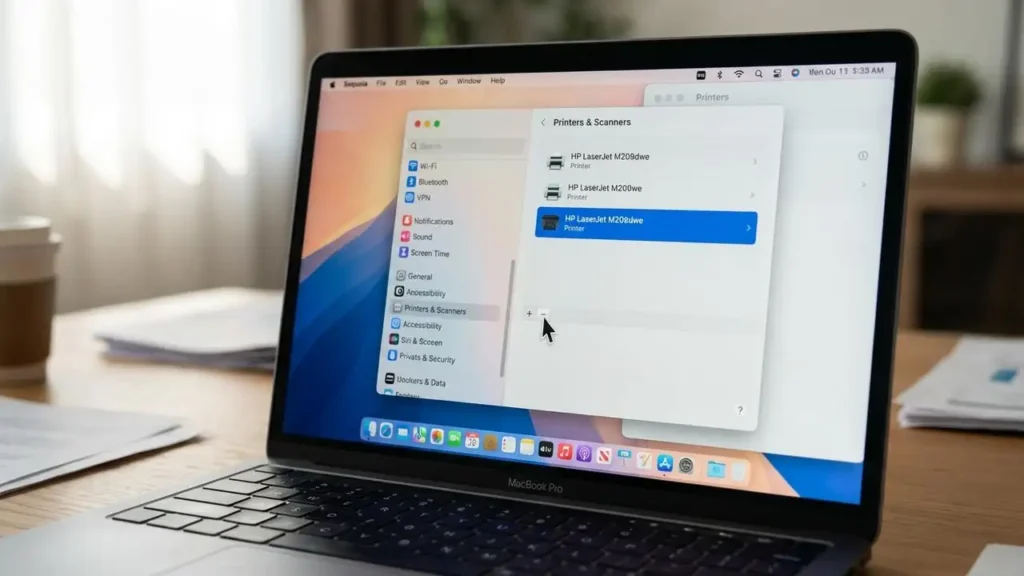
- Navigate to System Settings, then select Printers & Scanners.
- Locate your laser printer in the list. Click on it, then press the “-” (minus) button to remove the existing printer queue. Confirm the removal when prompted.
- Click the “+” (plus) button, labeled Add Printer, Scanner, or Fax…. Your system will search for available devices.
- When your printer appears, select it. Crucially, look for the “Use” dropdown menu. Choose AirPrint or Secure AirPrint from the available options. Avoid selecting a specific HP or Brother driver if those were causing issues previously.
- Click Add to complete the setup. Test the printer to ensure it is functioning correctly.
Manual IP Connection for Network Printers
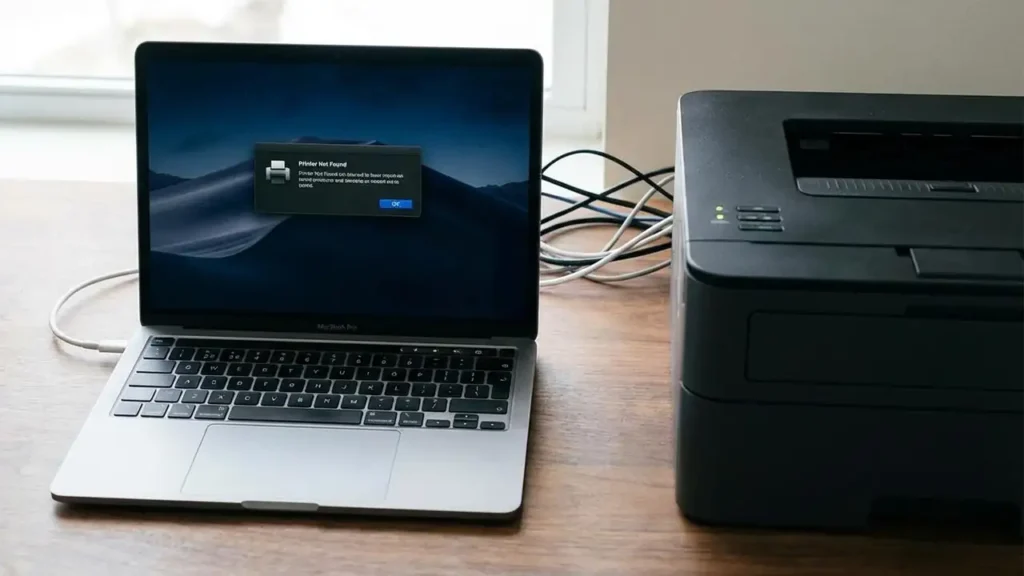
If your network printer is not automatically detected, or if using AirPrint does not resolve the issue, you can manually add the printer using its network IP address. This approach bypasses discovery services that might be encountering difficulties after the update, directly establishing communication with the device. This method is particularly useful if your printer disappeared on Mac.
- First, obtain your printer’s IP address. This is typically found by printing a network configuration page directly from your printer’s control panel. Consult your printer’s manual if you are unsure how to do this.
- Go to System Settings, then select Printers & Scanners. Click the Add Printer, Scanner, or Fax… button (the “+” sign).
- In the Add Printer window, click the IP icon (which usually looks like a globe).
- Enter the printer’s IP address into the Address field.
- For the Protocol dropdown, choose Line Printer Daemon (LPD) or Internet Printing Protocol (IPP). Either option can often provide a stable connection.
- In the “Use” field, select Generic PCL Laser Printer or Generic PostScript Printer. These generic drivers are widely compatible and can mitigate issues related to proprietary drivers.
- Provide a name for your printer and click Add. Attempt a test print to confirm the connection.
Addressing Security Permissions After macOS Sequoia 15.3 Printer Problem
After updating to macOS Sequoia 15.3, system security protocols might restrict network communication for certain applications, including printer software. This can prevent your Mac from properly finding or interacting with your printer. Adjusting these permissions might be necessary to resolve your macOS Sequoia 15.3 printer problem.
- Open System Settings and navigate to Privacy & Security.
- Scroll down and select Local Network. Here, you will see a list of applications requesting local network access.
- Ensure that any software associated with your printer, such as HP Device Monitor or HP Utility, is toggled ON. This grants the necessary permissions for printer communication.
- Alternatively, for specific helper applications that might be installed with your printer’s software, you could try enabling Full Disk Access within the Privacy & Security settings. This provides broader permissions, though it should be done with caution and only for trusted applications.
Resolving Network Communication for Your macOS Sequoia 15.3 Printer Problem
When printer drivers or utilities cannot communicate across your local network, it often manifests as a printer not found error. By explicitly granting network access, you can allow these applications to function as intended, directly addressing a common cause of connectivity issues after a major macOS update. Regularly review these permissions after system updates.
Resetting the Printing System on macOS Sequoia 15.3
If the previous methods do not resolve your macOS Sequoia 15.3 printer problem, a more comprehensive step is to reset the entire printing system. This action clears all printer configurations, queues, and settings, providing a fresh start for your printing environment. This can be particularly useful if you have multiple printer setup attempts or corrupted configurations.
- Open System Settings and go to Printers & Scanners.
- Find an empty space within the printer list area. Right-click (or Control-click) in this empty region.
- From the contextual menu that appears, select Reset Printing System. Confirm this action when prompted.
- This process will remove all printers and their associated queues from your Mac.
- Once the reset is complete, restart your Mac.
- After restarting, return to System Settings > Printers & Scanners and add your printer again, preferably using the AirPrint or manual IP connection methods outlined earlier with generic drivers.
Alternative Approaches and Drivers
When standard troubleshooting does not yield success, a few alternative strategies can help address persistent printer connectivity issues or specific printing anomalies. These workarounds tackle different aspects of the problem, from connection type to driver choice.
- Use USB Connection: If your wireless or network connection continues to fail, try connecting your laser printer directly to your Mac using a USB cable. This bypasses network-related problems and can confirm if the printer itself is functional. Many users report that this is a reliable way to get a printer working quickly.
- Install Gutenprint Drivers: For older printer models, proprietary drivers might not be updated for macOS Sequoia 15.3. Gutenprint drivers are an excellent open-source alternative that supports a wide range of printers. Download and install Gutenprint drivers, then try adding your printer again, selecting the appropriate Gutenprint driver during the setup process.
- Print as Image: If you can add the printer but it prints scrambled text or garbled characters, the issue might be with how the document is rendered. In the print dialog box (e.g., in Adobe Acrobat or Preview), look for an option to “Print as Image.” Selecting this can sometimes resolve text rendering problems by sending the document to the printer as a graphic rather than text.
- HP Smart App: For users with HP printers, the HP Smart app might offer improved compatibility with macOS Sequoia 15.3 compared to traditional driver installations. If you are experiencing an HP printer drivers for macOS Sequoia issue, consider installing and managing your printer through this application.
Safety and Maintenance Notes
Before attempting any physical connections, such as connecting via USB, ensure your printer and Mac are powered off and disconnected from their power sources. This prevents potential electrical issues or damage. If you are ever unsure about a specific troubleshooting step or suspect a hardware fault, it is advisable to consult a qualified technician to avoid voiding any product warranties or causing further issues.
To potentially prevent future printer connectivity problems following macOS updates, consider using AirPrint or generic drivers whenever possible. These universal solutions often offer greater stability across system versions compared to manufacturer-specific drivers that may not be updated as frequently. Regularly reviewing your printer’s software and permissions after major macOS upgrades can also help maintain seamless operation.
Frequently Asked Questions
The macOS Sequoia 15.3 printer problem can be addressed through a series of systematic steps, ranging from simple re-adding of the device to adjusting security permissions or utilizing alternative driver sets. By methodically working through these solutions, you can restore full functionality to your laser printer.
