

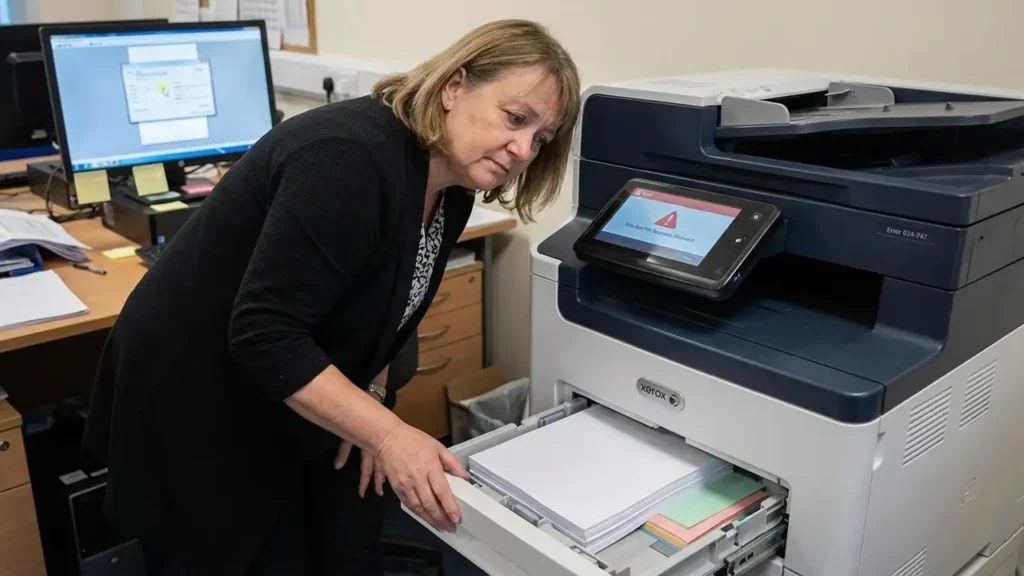
How to Resolve Xerox Printing Failures and Correct the 024-747 Parameter Mismatch
Encountering a print job failure can disrupt the workflow of any office environment, particularly when the hardware identifies a conflict between the digital instructions it has received and its physical configuration. The error 024-747 is a common indicator of this specific type of technical friction. It serves as a notification that the printer is unable to execute a task because the parameters provided by the print driver do not align with the actual state of the paper trays. Understanding the nuances of this communication breakdown between software and hardware is the first step toward restoring full functionality to your device.
The Nature of the error 024-747 Parameter Conflict
At its core, the error 024-747 is a logic mismatch. Modern printing systems rely on a strict set of handshake protocols where the computer tells the printer exactly what it needs, and the printer confirms it has the resources to comply. When a user sends a document, the print driver includes metadata regarding the required paper size and the specific media type. If the printer looks at its loaded trays and finds that no tray matches those specific requirements, it triggers this error to prevent a misprint or potential hardware jam.
This error is frequently triggered by small discrepancies that might seem insignificant to a user but are critical for the machine’s processing logic. For instance, a document formatted for a specific regional standard may conflict with the paper physically sitting in the tray. This mismatch in incompatible parameters effectively halts the queue, as the machine prioritizes accuracy over simply outputting the job on whatever paper is available. By identifying that the error 024-747 is a matter of alignment rather than a mechanical failure, users can focus their troubleshooting efforts on settings and configurations.
Matching Physical Paper to Digital Document Requests
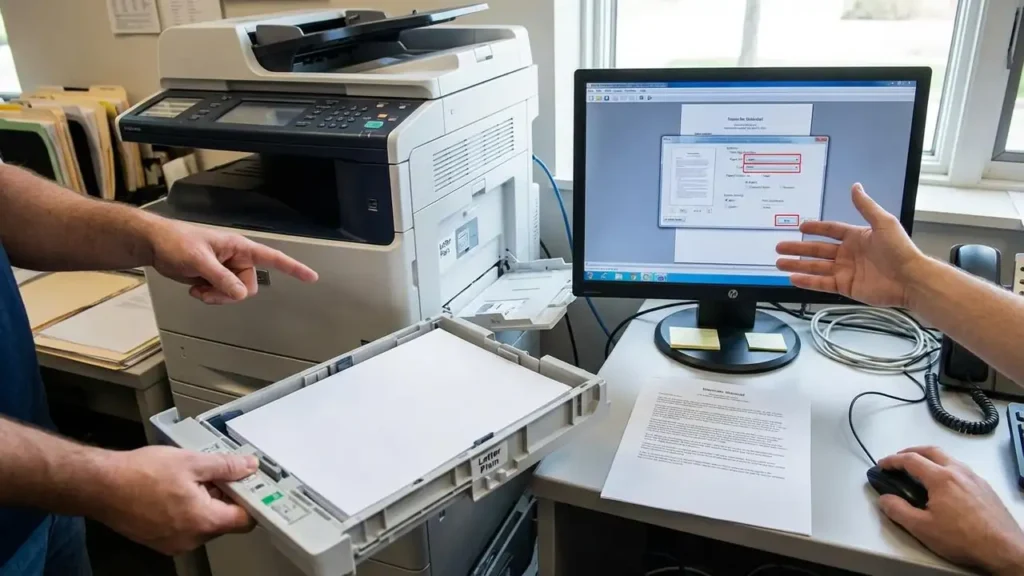
The most frequent cause of a print interruption in this category is a simple disagreement over paper size and type. If a print driver is set to request Letter-sized paper while the tray is physically loaded with A4, or vice versa, the system will often report the error 024-747. The printer is designed to ensure that the document fits perfectly on the page, and a size mismatch prevents this from occurring. Beyond dimensions, the “Type” parameter is equally vital. The printer needs to know if it is handling Plain paper, Letterhead, or another specific media type to adjust its internal rollers and heat settings.
To resolve this, users must verify that the paper size and type selected in the print driver are an exact match for what is physically inside the machine. If the tray contains Plain Letter paper, the document settings on the computer must reflect those exact details. Even a minor variation, such as selecting “Bond” when “Plain” is loaded, can be enough to trigger the error 024-747. Aligning these settings ensures that the printer recognizes the job is compatible with its current loadout.
Refining Software Configurations for Print Success
Often, the source of the issue lies within the software being used to send the document rather than the printer hardware itself. Different applications handle print commands in various ways, and some may override the default settings of the print driver, leading to unexpected conflicts.
Adjusting Adobe Reader and Acrobat Settings
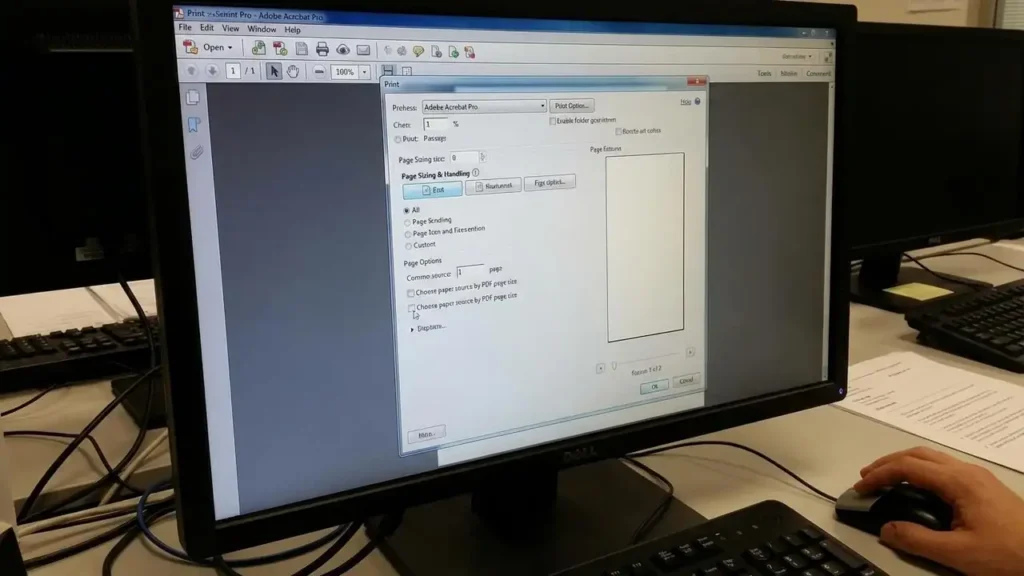
Applications like Adobe Reader and Adobe Acrobat are powerful tools for document management, but they have specific settings that can lead to a print mismatch. One common culprit is a feature labeled “Choose Paper Source by PDF Page Size.” When this is checked, the software ignores the manual tray selections or driver defaults and instead attempts to force the printer to find a tray that perfectly matches the PDF’s internal dimensions. If the PDF was created with non-standard dimensions, the printer may report an error 024-747 because it cannot find a corresponding physical tray. Unchecking this option allows the printer to follow the driver’s manual instructions instead of the PDF’s internal metadata.
Addressing error 024-747 Through Proper Driver Management
If adjusting individual application settings does not clear the issue, the print driver itself may require closer inspection. Drivers act as the translator between your computer and the printer. If a driver is outdated or corrupted, it may send garbled or incompatible parameters that the machine cannot interpret correctly. Verifying that you are using the correct and most current print driver for your specific model is a vital step in troubleshooting the error 024-747. In some cases, updating the driver to the latest version provided by the manufacturer can resolve persistent logic errors that cause the machine to reject standard print jobs.
Investigating Advanced Tray Settings and Dedicated Trays
The control panel of the printer contains its own set of rules for how it handles incoming jobs. Sometimes, a tray is configured in a way that prevents it from being used for general tasks, leading to the error 024-747 even if it appears to have the correct paper loaded. One specific setting to look for is the “Dedicated Tray” configuration. When a tray is set to “Dedicated,” it is essentially reserved for a specific type of job or paper and may ignore general requests unless they match every single attribute perfectly.
Users should navigate the printer’s control panel to verify that the tray settings are not set to a type that differs from the job being sent. If the tray is configured for a specific paper type that is not being called for in the print driver, the machine will act as if it has no available paper for the task. Ensuring that the tray is not in a restricted or dedicated mode that conflicts with the document settings can immediately clear the error 024-747 and allow the job to proceed.
Managing Finishing Options and Hardware Conflicts
Beyond the paper itself, the error 024-747 can also be a result of conflicting finishing requests. Modern Xerox machines often have advanced capabilities such as stapling, hole punching, or booklet creation. If a print job is sent with a request for a finishing option that is either unavailable on the current machine or set incorrectly in the driver, a conflict arises.
For example, if a user requests a staple on a document but the stapler unit is empty or the specific tray chosen does not support stapling for that paper size, the machine may report the error 024-747. Reviewing the job settings to ensure that no impossible finishing options have been selected is an essential part of the troubleshooting process. If the machine does not have the hardware to support the request, the parameters are considered incompatible, and the job will fail until the settings are adjusted to match the machine’s physical capabilities.
Clearing the System Through Restarts and Server Cycles
When settings have been verified and the error remains, the system may be stuck in a state where it is still trying to process a corrupted or confused job. A simple restart can often clear the temporary memory and allow the machine to start fresh. Performing a standard power off and on sequence is the best way to clear any stuck jobs that might be maintaining the error 024-747 state.
For environments that utilize a Fiery server to manage print workflows, the restart process must be more comprehensive. A Fiery unit acts as a separate brain for the printer, and it can occasionally hold onto error states even after the main printer has been cycled. If you are using a Fiery server, restarting that unit specifically is a necessary step if the error 024-747 persists. This ensures that both the print controller and the hardware are synchronized and ready to receive new, compatible parameters.
