

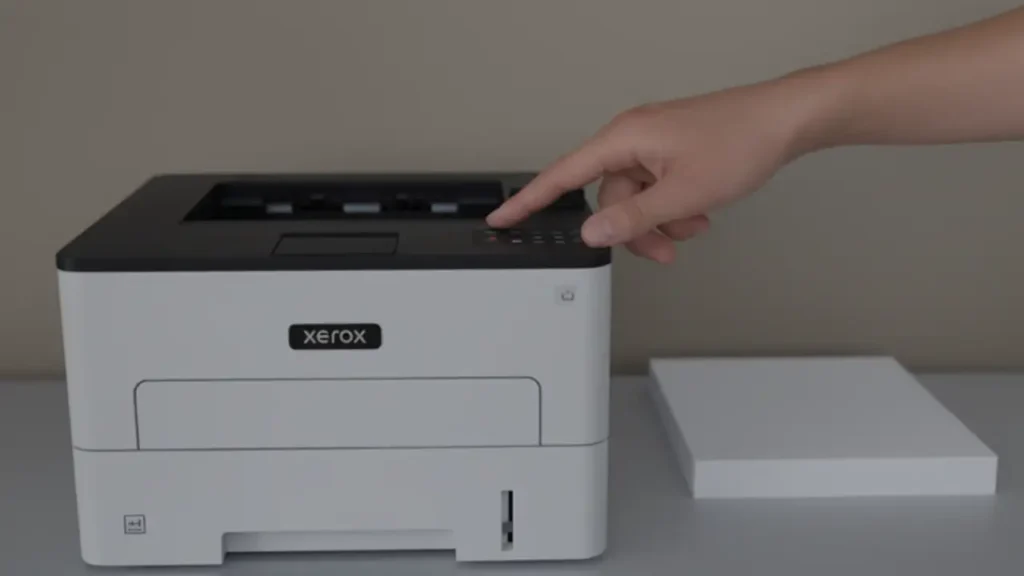
Xerox Phaser 3020: Expert Troubleshooting
A complete guide to quickly fixing common Xerox Phaser 3020 issues.
Key points:
- Diagnose and resolve Xerox Phaser 3020 paper jams.
- Troubleshoot connectivity problems with your Xerox Phaser 3020.
- Fix toner cartridge errors and blinking red lights on your Xerox Phaser 3020.
Xerox Phaser 3020 Overview
Xerox Phaser 3020 printers are known for their compact design and efficiency, making them ideal for small offices and home use. However, like any electronic device, they can experience occasional glitches. From paper jams to connectivity issues, understanding common problems and their solutions can save you time and frustration. This guide provides practical steps to keep your Xerox Phaser 3020 running smoothly.
Core Insights & Best Practices
Diagnosing and Resolving Paper Jams
Paper jams are a frequent issue with any printer. The Xerox Phaser 3020 is no exception. The key is to approach the problem methodically to avoid damaging the printer.
- Identify the Jam Location: Check the paper tray, the output tray, and the inside of the printer (usually accessible through a back panel).
- Gently Remove the Paper: Pull the jammed paper out slowly and steadily, avoiding any tearing.
- Check for Small Pieces: Ensure no small fragments of paper are left inside the printer. These can cause further jams or damage the internal components.
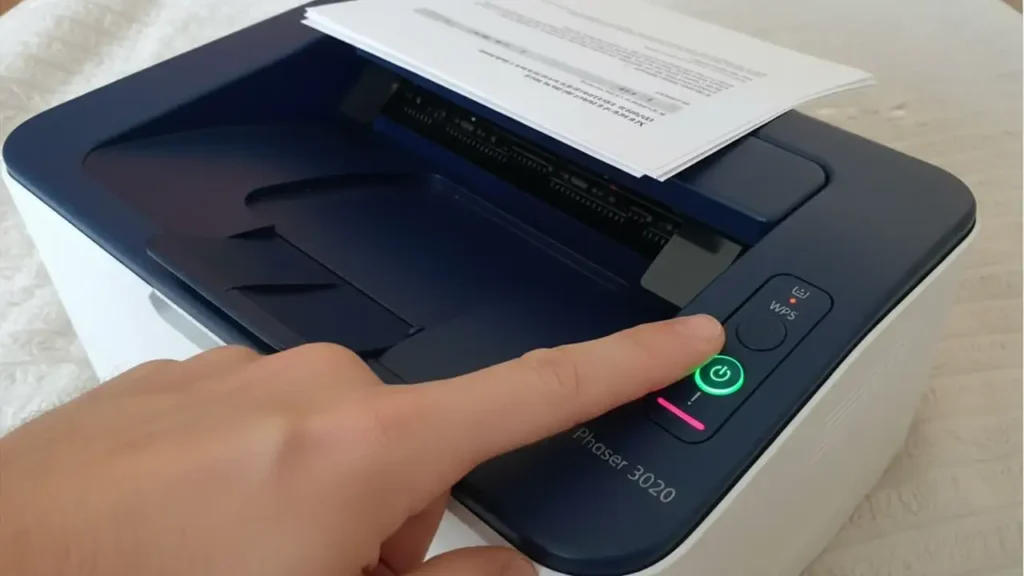
Addressing Connectivity Issues
Connectivity problems can stem from various sources, including USB connections, Wi-Fi configurations, or driver issues.
- Check the USB Connection: If you’re using a USB connection, ensure the cable is securely plugged into both the printer and your computer. Try a different USB port to rule out port issues.
- Verify Wi-Fi Settings: For Wi-Fi connections, confirm that the printer is connected to the correct network. You might need to re-enter the Wi-Fi password.
- Update Drivers: Outdated or corrupted printer drivers can cause connectivity problems. Visit the Xerox website to download and install the latest drivers for your Xerox Phaser 3020.
Toner Cartridge Errors and Red Light Issues
A blinking red light on your Xerox Phaser 3020 often indicates a toner cartridge issue.
- Check Toner Levels: Ensure the toner cartridge isn’t empty. Replace it if necessary.
- Reseat the Cartridge: Remove the toner cartridge and reinsert it firmly to ensure it’s properly seated.
- Clean the Cartridge Contacts: Use a clean, dry cloth to wipe the contacts on both the cartridge and inside the printer.
Common Pitfalls
One common mistake is using excessive force when removing jammed paper, which can damage the printer’s internal components. Another is neglecting to update printer drivers, leading to connectivity and printing errors. Always use gentle and methodical approaches when troubleshooting your Xerox Phaser 3020.
Actionable Steps
- Power Cycle: Turn off the Xerox Phaser 3020, wait 30 seconds, and turn it back on. This can resolve many minor glitches.
- Print a Test Page: After troubleshooting, print a test page to confirm that the issue has been resolved.
- Check the Error Log: Consult the printer’s error log (if available) for specific error codes that can provide more insight into the problem.
Safety & Warranty
Always unplug the Xerox Phaser 3020 before performing any internal maintenance. Be cautious of electrostatic discharge (ESD) when handling internal components. Refer to your OEM warranty for coverage details.
Advanced Tips
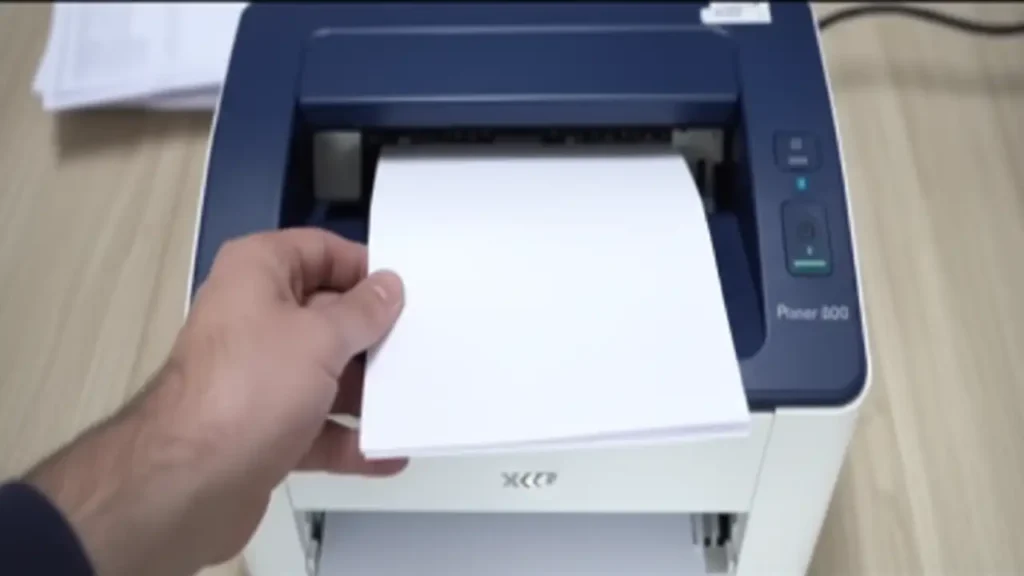
For persistent issues, consider resetting the printer to its factory defaults. This can often resolve software-related problems. If the problem persists after trying these steps, it may be necessary to contact Xerox support or a qualified technician. Regularly cleaning the printer’s internal components can also prevent future problems.
Frequently Asked Questions
Bottom Line
Xerox Phaser 3020 printers, while reliable, can occasionally experience issues such as paper jams, connectivity problems, and toner errors. By following the troubleshooting steps outlined in this guide, you can quickly diagnose and resolve most common problems, ensuring your Xerox Phaser 3020 continues to deliver dependable performance. Don’t forget that Xerox Phaser 3020 is a workhorse.
