

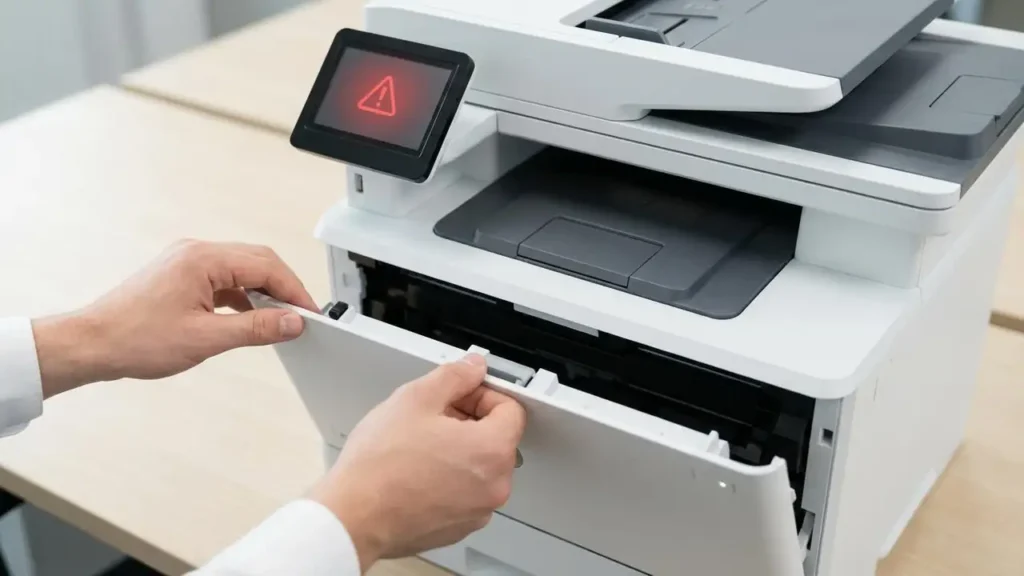
Replace Waste Toner Box Error
Stop printing errors and get your laser printer working again.
Many laser printer users have encountered a frustrating error message: “Replace waste toner box” or “Waste toner bottle full.” This message often appears even when the waste toner box appears to be empty or hasn’t been in the printer long. This situation can bring your printing workflow to a sudden halt, especially in busy office environments where timely document production is crucial. Understanding how waste toner systems work and how to address this common message is key to resolving the issue efficiently.
This guide will walk you through the common reasons behind the replace waste toner box message, even when it seems empty, and provide practical steps to resolve it for major brands like Brother, HP, and Samsung. We’ll cover how to safely clean sensors, correctly reseat the waste toner container, and reset the printer’s internal counter. By following these steps, you can often avoid costly service calls and get your printer back to printing reliable documents.
Understanding the Waste Toner System
Laser printers use toner powder to create images on paper. During this process, a small amount of excess toner is not fused to the paper and is collected in a dedicated container called the waste toner box or bottle. This component is essential for maintaining print quality and preventing toner dust from accumulating inside the printer’s sensitive mechanisms.
The waste toner box is designed to capture this excess powder, keeping the printer clean and ensuring consistent print output. Over time, this box fills up, and the printer’s sensors detect when it’s nearing capacity. When the printer indicates it’s time to replace waste toner box, it’s usually a signal that this internal reservoir is full or the printer believes it is full based on its internal counter.
Why the “Full” Message Appears Prematurely
Several factors can cause your printer to display the “Waste toner bottle full” message even if you’ve visually confirmed the box isn’t full. The most common culprits include a full internal toner collection system that isn’t directly part of the removable box, a misaligned sensor, or simply an internal counter that needs resetting. In some cases, the toner cartridge itself might have a chip that communicates its status to the printer, and this communication can sometimes be misleading.
Another frequent cause is the printer’s internal page count. Most laser printers track the number of pages printed and estimate when the waste toner box will be full based on this count, rather than solely relying on a direct sensor reading. If your printer has printed a high volume of pages, it might trigger the message based on its internal counter, regardless of the actual physical state of the waste toner box. This is a common scenario when you replace waste toner box but the error persists.
Safely Accessing and Cleaning the Waste Toner Area
Before attempting any troubleshooting, it’s crucial to prepare safely. Ensure the printer is turned off and unplugged from the power source to prevent electrical shock or damage. Allow the printer to cool down for at least 30 minutes, as internal components like the fuser can get very hot. Consult your printer’s manual for the specific location and method of accessing the waste toner box, as procedures vary by brand and model (e.g., Brother vs. HP vs. Samsung).
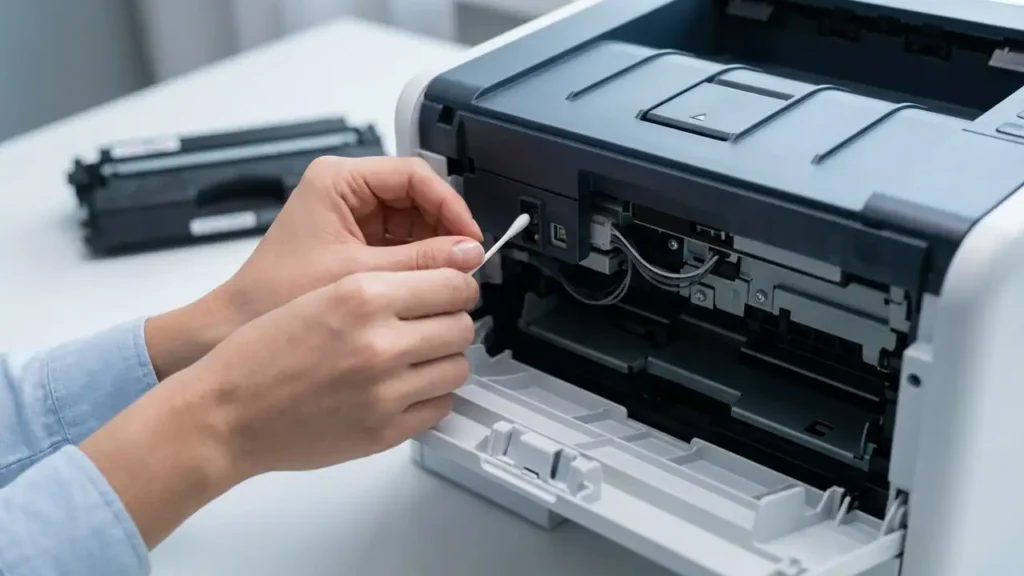
When opening printer panels, avoid touching the drum unit directly with your fingers, as oils from your skin can damage its sensitive surface. Use a soft, lint-free cloth if you need to wipe any surrounding areas. If you are cleaning sensors, use a dry cotton swab or a soft brush. Be gentle; these components are delicate and can be easily scratched or damaged by excessive force or abrasive materials.
Reseating the Waste Toner Box and Checking Sensors
Often, the replace waste toner box error can be resolved by simply removing and reinserting the waste toner container. This process can help reseat any connection it has and clear a temporary communication glitch. Open the printer’s access panel, carefully slide out the waste toner box, inspect it for any visible damage or toner leaks, and then firmly slide it back into its slot until it clicks into place.
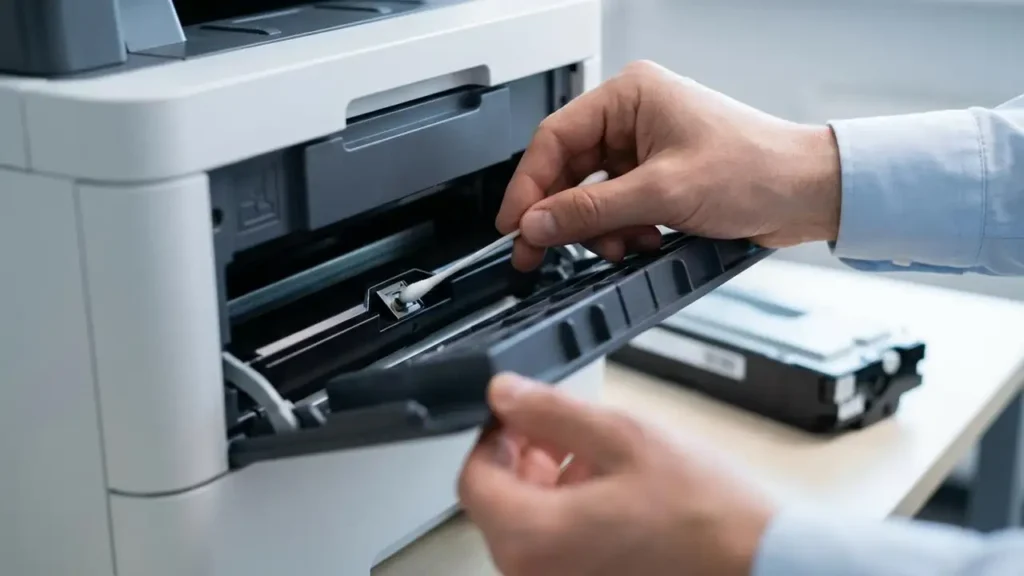
After reseating, check any visible sensors in the area where the waste toner box sits. These sensors are typically small optical or physical triggers that the printer uses to determine the box’s position or fill level. Gently clean them with a dry cotton swab or a soft brush to remove any fine toner dust that might be interfering with their function. Ensure no debris is left behind.
Resetting the Waste Toner Counter
For many laser printers, simply replacing or reseating the waste toner box isn’t enough; the printer’s internal counter needs to be manually reset to acknowledge the change. This reset procedure is often specific to the printer brand and model and might involve a combination of button presses or accessing a maintenance menu. For example, Brother printers often require a specific sequence to enter a maintenance mode for resetting consumables.
To find the exact procedure for your printer, it is best to refer to your printer’s user manual or search online for “[Your Printer Model] reset waste toner counter.” A common method involves pressing and holding certain buttons while powering on the printer or navigating through a hidden service menu. Successfully resetting the counter tells the printer that a new or reset waste toner box is installed, clearing the persistent error message.
Troubleshooting Specific Brands: Brother, HP, and Samsung
While the general principles apply across brands, specific models might have unique quirks. For Brother printers, the waste toner bottle full but empty symptom is often addressed by reseating and then performing a manual counter reset, typically through the machine’s menu system. HP printers might have a similar counter mechanism, or the error could be tied to the toner cartridge itself; ensure both are correctly installed.
Samsung printers, which often share technology with HP models, may also require a specific reset sequence. Some models might also have a separate toner collection unit or a different type of sensor mechanism. Always check your specific model’s documentation or reliable online forums for model-specific advice when encountering a replace waste toner box error message. Ignoring the message can lead to reduced print quality or even printer damage.
When to Consider a New Waste Toner Box
If you have tried reseating the existing box, cleaning sensors, and resetting the counter, but the error message persists, it is likely time to replace the waste toner box itself. Even if it doesn’t look completely full, the internal collection mechanism might be compromised, or the box might be past its intended lifespan. Purchasing a new, genuine waste toner box from the manufacturer is the safest bet to ensure compatibility and optimal performance.
When installing a new waste toner box, follow the manufacturer’s instructions precisely. Ensure you remove any protective seals or tabs before insertion. After installation, power cycle the printer (turn it off, unplug it, wait a minute, then plug it back in and turn it on) to allow it to recognize the new component. The error message should clear upon successful initialization.
Frequently Asked Questions About Waste Toner Issues
Maintaining Your Printer for Optimal Performance
Regular maintenance can help prevent premature waste toner messages and ensure your printer operates smoothly for years. Keep your printer in a clean environment to minimize dust accumulation. Regularly check the waste toner box indicator if your printer has one, and be prepared to replace it as needed. Always use high-quality toner cartridges and waste toner boxes, preferably from the original manufacturer, to avoid compatibility issues.
By understanding the function of the waste toner system and following these troubleshooting steps, you can effectively manage and resolve the “Replace waste toner box” error. This proactive approach ensures your printer continues to deliver crisp, clear documents without unnecessary interruptions. Many common errors related to the replace waste toner box warning are user-fixable with a bit of care and patience.
