

Printer Needs Attention? Clear HP Error States Now
Stop frustrating printing interruptions and get your HP printer back online with this essential troubleshooting guide.
The dreaded “Printer needs attention” or “User intervention required” message can halt your productivity instantly, especially on HP printers which are common in homes and small offices. This alert typically signifies a minor issue that prevents the printer from proceeding with a job, but it can be confusing to diagnose. Often, the solution is simpler than you might think.
This guide will walk you through the most common reasons your HP printer status might say needs attention. We’ll cover everything from simple paper jams and consumable checks to driver updates and resetting the printer’s internal state. By following these steps, you can resolve most printer needs attention alerts without needing professional help, ensuring your HP printer runs smoothly again.
Printer Needs Attention: Understanding the Common Causes
When your HP printer displays a needs attention message, it’s the machine’s way of telling you it can’t continue without your input. The most frequent culprits are physical obstructions within the printer, such as a paper jam, or an issue with the ink or toner cartridges. Other possibilities include a misaligned component, an open access door, or even a problem with the print queue or driver on your computer.
Identifying the exact cause often requires a systematic approach. We’ll start with the most accessible checks that a user can perform easily. Many printer needs attention alerts are resolved by clearing a visible blockage or ensuring consumables are correctly installed. It’s crucial to approach these steps methodically to avoid further complications.
Clearing Physical Obstructions and Jams
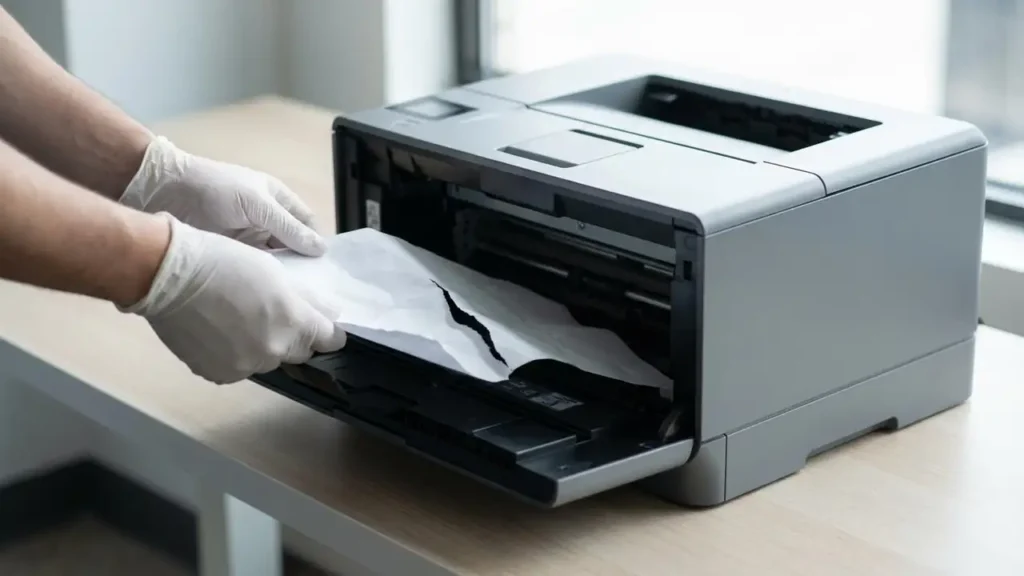
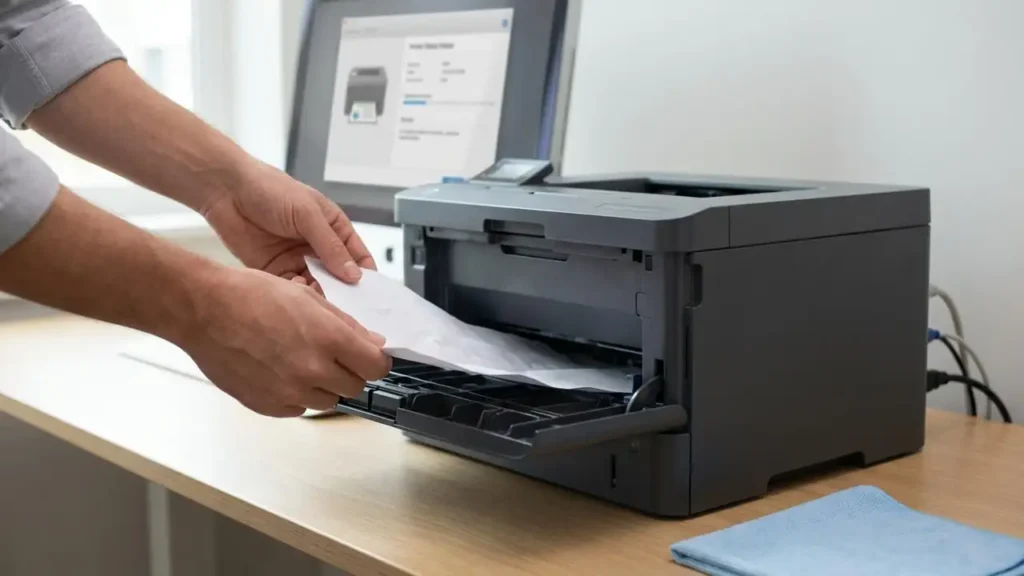
Paper jams are the most common reason for an HP printer attention required message. Even a small torn piece of paper lodged deep within the rollers can trigger this alert. Always start by carefully inspecting all accessible areas of the printer for any jammed paper or foreign objects.
Steps to Clear Jams:
- Power Off and Unplug: For safety, turn off your printer and unplug it from the power source. Wait at least 60 seconds before proceeding.
- Open All Access Doors: Carefully open all covers and trays that provide access to the paper path, including the rear access door if your model has one.
- Locate and Remove Jammed Paper: Gently pull out any visible jammed paper. Avoid tearing the paper; if it tears, try to remove all fragments. Use a flashlight if needed to inspect rollers and internal pathways.
- Check Paper Trays: Ensure the paper in the tray is not wrinkled, curled, or loaded incorrectly. Remove and re-stack the paper neatly.
- Close Doors Securely: Make sure all access doors and trays are firmly closed. An improperly closed door can also trigger a needs attention alert.
- Power On and Test: Plug in and turn on your printer. It should attempt to clear the error.
Verifying Consumables and Cartridge Issues
Ink or toner cartridges can also cause your HP printer to display user intervention required printer. This often happens if a cartridge is not seated correctly, is faulty, or if a chip on the cartridge is not recognized by the printer. Ensure you are using genuine HP cartridges or reputable compatible ones.
Check the printer’s display for specific error messages related to cartridges if available. If the message is generic, removing and reinserting the cartridges is the first troubleshooting step. Always handle cartridges carefully to avoid damaging the contacts or printheads.
Steps for Cartridge Check:
- Power Off the Printer: Turn off your HP printer and unplug it.
- Access Cartridge Area: Open the cartridge access door. The print carriage should move to a position where you can reach the cartridges.
- Remove Cartridges: Gently press down on the tab or lever that secures each cartridge and lift it out.
- Inspect Cartridges: Look for any visible damage, dried ink (for inkjet), or bent contacts. Clean contacts gently with a lint-free cloth if they appear dirty.
- Reinstall Cartridges: Carefully slide each cartridge back into its correct slot until it clicks into place. Ensure they are fully seated.
- Close Door and Power On: Close the cartridge access door, plug in, and turn on your printer. Wait for it to complete its initialization sequence.
Troubleshooting Driver and Software Glitches
Sometimes, the printer status needs attention windows 11 (or other OS) error isn’t a hardware problem at all, but a software issue. A corrupted print job in the queue, an outdated driver, or a communication error between your computer and the printer can all lead to this alert. Reinstalling the printer driver is a common fix for these software-related issues.
Ensuring your printer driver is up-to-date is crucial for optimal performance and compatibility. You can usually find the latest drivers on the official HP support website for your specific printer model. Always download drivers directly from the manufacturer to avoid malware.
Steps for Driver Reinstallation:
- Remove Printer from System: On your computer, go to your printer settings (e.g., “Printers & Scanners” in Windows). Select your HP printer and choose “Remove device” or “Delete printer.”
- Download Latest Driver: Visit the HP support website, enter your printer model, and download the most recent driver and software package.
- Install New Driver: Run the downloaded installer. Follow the on-screen prompts, which will guide you through reconnecting your printer and installing the necessary software.
- Restart Computer: After installation, restart your computer to ensure all changes take effect.
- Test Print: Try printing a test page to see if the printer needs attention message is resolved.
Resetting the Printer’s Internal State
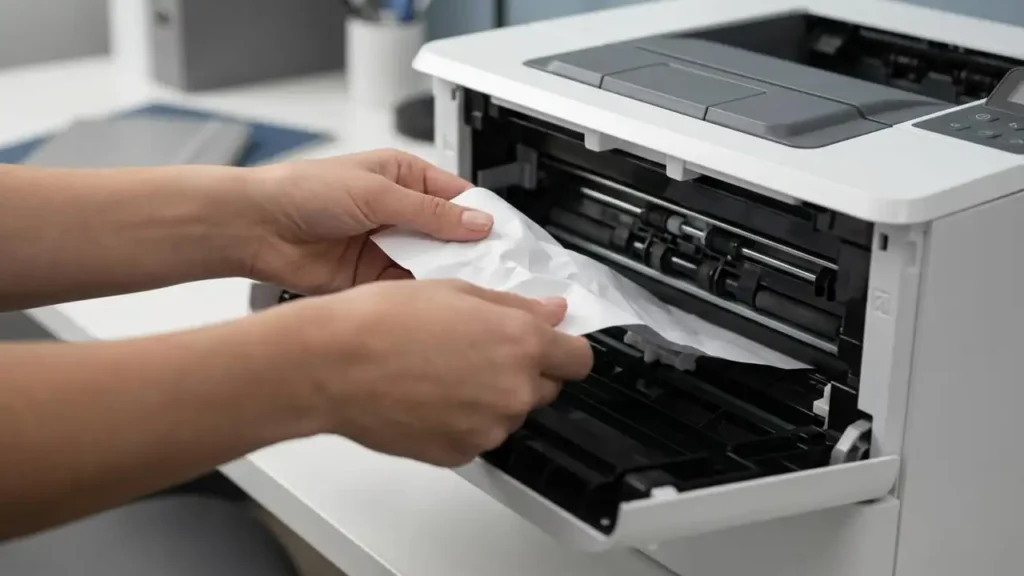
If physical checks and driver updates haven’t solved the error state printer message, a full printer reset might be necessary. This process can clear temporary glitches or memory issues within the printer’s firmware that might be causing the persistent alert. A power cycle is a simple form of reset, but a more thorough reset often involves specific button combinations or accessing a service menu, which can vary by HP model.
Always refer to your specific HP printer’s manual for instructions on how to perform a factory reset or hard reset, as incorrect procedures could potentially cause further issues. For most home users, a simple power cycle is safe and often effective.
Steps for a Power Cycle Reset:
- Turn Off Printer: Switch off your HP printer using its power button.
- Unplug Power Cord: Disconnect the power cord from the printer and the wall outlet.
- Wait: Leave the printer unplugged for at least 2–5 minutes. This allows any residual power to dissipate and resets internal components.
- Plug In and Turn On: Reconnect the power cord to the printer and the wall outlet, then turn the printer back on.
- Observe Initialization: Let the printer complete its startup routine without interruption. Check if the printer needs attention message has cleared.
Preventive Maintenance for Reliable Printing
To minimize future instances of your HP printer displaying printer needs attention, implementing a routine maintenance schedule is key. This includes keeping the printer clean, using appropriate paper, and monitoring consumable levels proactively. Regular care can prevent most common errors and extend the life of your device.
Proper handling of consumables and occasional cleaning of internal components can significantly reduce the likelihood of jams and error states. By being proactive, you ensure your printer is always ready when you need it.
Maintenance Tips:
- Clean Regularly: Dust and debris can accumulate inside the printer. Use compressed air to clean rollers and accessible areas periodically.
- Use Quality Paper: Always use clean, dry paper suitable for your printer type. Avoid using damaged or excessively thick/thin paper.
- Monitor Consumables: Keep an eye on ink and toner levels. Replace cartridges promptly when they are low or empty.
- Update Firmware: Occasionally check the HP website for firmware updates for your printer model, as these can improve performance and fix bugs.
Frequently Asked Questions About Printer Needs Attention
When facing a printer needs attention alert on your HP device, remember that most issues are resolvable with patience and systematic troubleshooting. By following the steps outlined above, you can effectively diagnose and clear the problem, restoring your printer to full functionality. Keep these maintenance tips in mind to ensure fewer interruptions in the future.
Safety and Warranty Note: Always unplug your printer from the power source before attempting any internal cleaning or component removal. Avoid touching sensitive parts like the print head, drum, or fuser directly with your fingers, as oils and debris can cause damage. Opening your printer or attempting repairs beyond what is described in the user manual may void your manufacturer’s warranty. If you are uncomfortable performing any of these steps or if the problem persists, contact HP customer support or an authorized service provider.
