

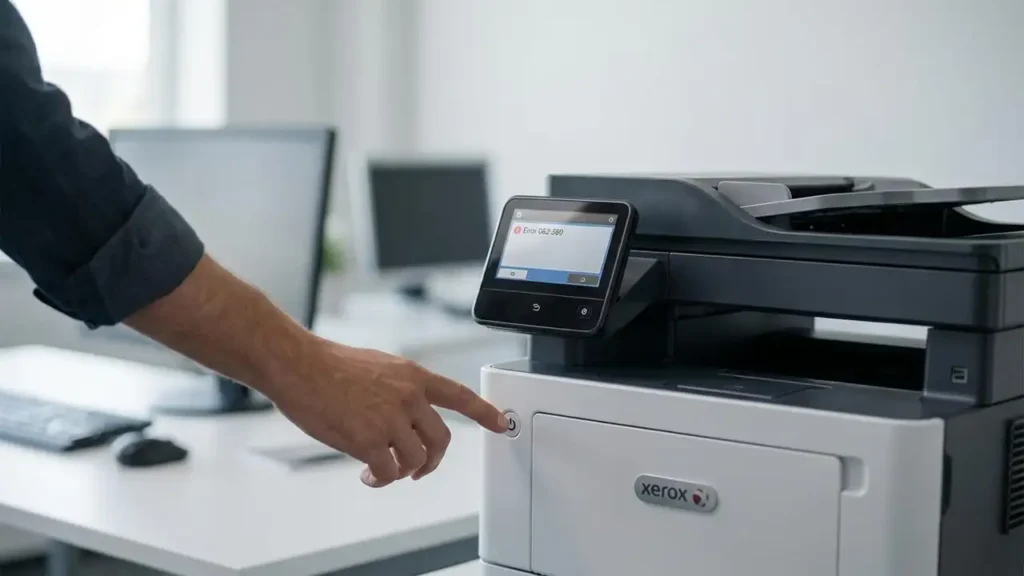
Xerox Error 062-380: Causes, Fix Steps, and When to Service
If your Xerox printer displays Error 062-380, the issue is commonly linked to the scanner subsystem (calibration/illumination/scan lamp behavior). In many cases, a clean restart and a few basic checks can clear it—but if it persists, it may require service.
This guide walks you through safe troubleshooting steps in the right order.
Quick Fix (Try First)
-
Power cycle
-
Turn the printer OFF
-
Unplug for 60 seconds
-
Plug in and turn ON
-
Check covers and paper path
-
Make sure all covers are fully closed
-
Remove any stuck paper or small scraps
-
Let the printer fully initialize
-
Wait 2–3 minutes after startup before testing again
If the error returns, continue below.
What Error 062-380 Usually Indicates
On many Xerox models, 062-380 is often associated with scanner calibration/illumination problems (for example, insufficient lamp brightness or a calibration failure).
Because Xerox devices differ by model family, the exact wording may vary, but the troubleshooting approach below remains valid.
Safe Troubleshooting Steps (Beginner → Advanced)
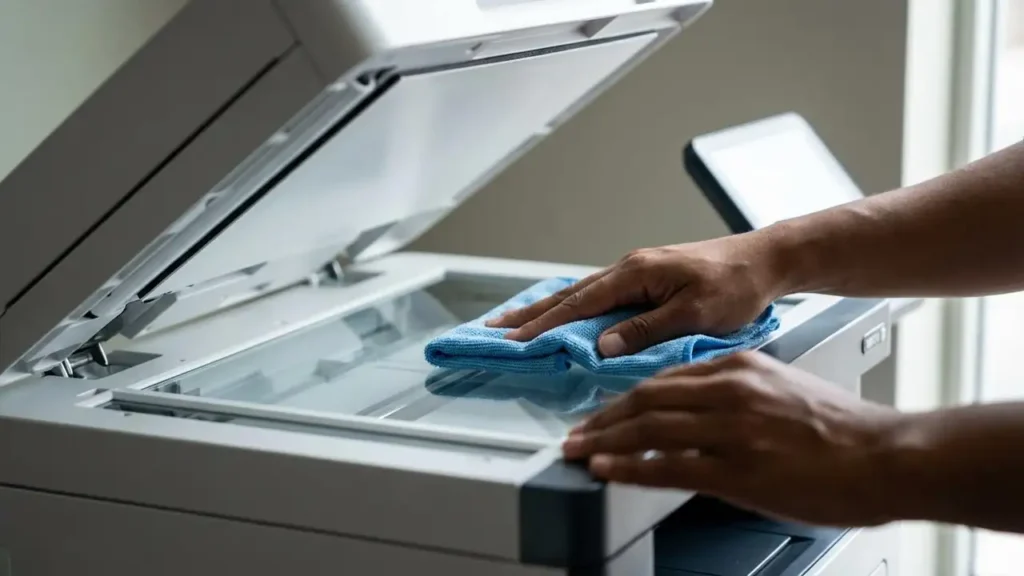
Step 1) Clean the Scanner Glass (Simple but Effective)
Dust or residue can disrupt calibration.
-
Power the printer off
-
Clean the scanner glass gently with a soft lint-free cloth
-
Dry it completely, then restart
Step 2) Remove External Causes
-
Disconnect any unnecessary USB devices
-
If networked: ensure the printer has stable power and network (avoid power strips that cut power)
Step 3) Run a Copy Test (If Available)
Try making a basic copy:
-
If copying fails immediately and the error appears, it reinforces a scanner-related issue.
Step 4) Check for Overheating / Warm-Up Behavior
Some units trigger scanner faults during warm-up:
-
Turn off for 10 minutes
-
Turn on and test once cool
Step 5) Firmware / Software Consideration
If the error started after an update or driver change:
-
Reinstall the official driver
-
Avoid random “driver packs”
-
Consider checking Xerox’s official support resources for model-specific updates
(Do not interrupt firmware updates once started.)
When You Should Stop Troubleshooting and Service It
If 062-380 returns after the steps above, it may indicate a hardware-level issue such as:
-
scanner lamp/illumination failure
-
calibration sensor problems
-
scanner motor/cable issues
At this point, professional servicing is recommended—especially for office-grade Xerox machines.
