

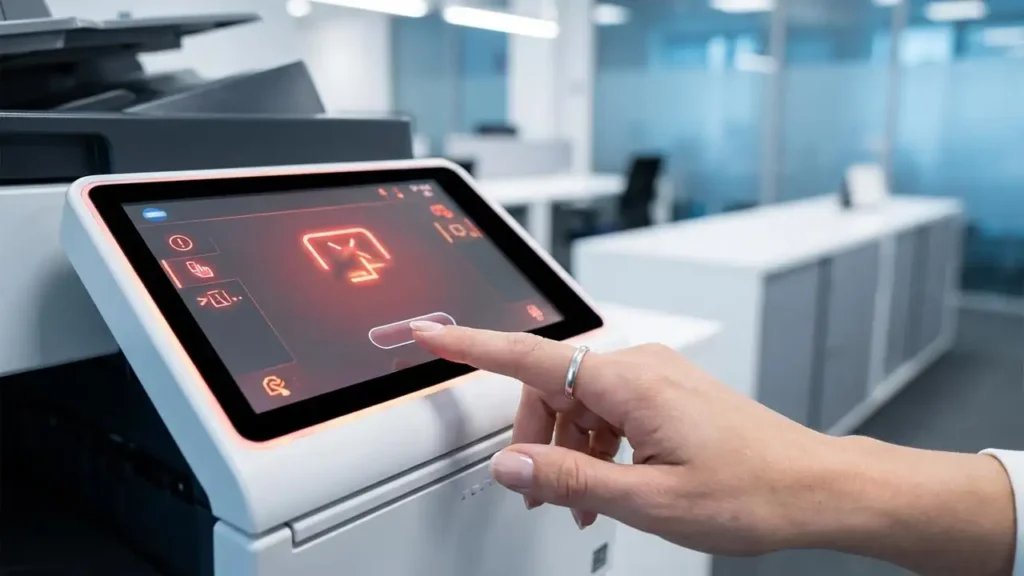
How to Reset Konica Minolta Error Code on Bizhub Copiers
Quickly resolve frustrating error messages and restore your Konica Minolta Bizhub’s functionality.
Encountering an error code on your Konica Minolta Bizhub copier can halt your printing operations, causing significant inconvenience in any office environment. These codes, such as C-3451 or C-2557, indicate a variety of issues, from minor sensor glitches to more serious hardware malfunctions. Fortunately, performing a reset Konica Minolta error code can often clear the message and allow you to resume work, at least temporarily. This guide outlines the most effective methods to clear these alerts, helping you get back to productivity swiftly.
Understanding Konica Minolta Error Codes
Konica Minolta Bizhub copiers are sophisticated machines designed to alert users to problems through specific error codes. These codes are not just random numbers; they are diagnostic messages pointing towards a particular issue, such as a fuser error, an imaging unit problem, or a sensor malfunction. While a reset Konica Minolta error code can momentarily remove the alert, it’s crucial to understand that it does not resolve the underlying physical or mechanical cause.
The temporary nature of a reset means that if the core problem persists, the error code will likely reappear. Therefore, after performing a reset, it is always recommended to investigate the specific code if it returns. A successful reset indicates that the issue might have been a transient glitch, but recurring codes necessitate further troubleshooting or professional service.
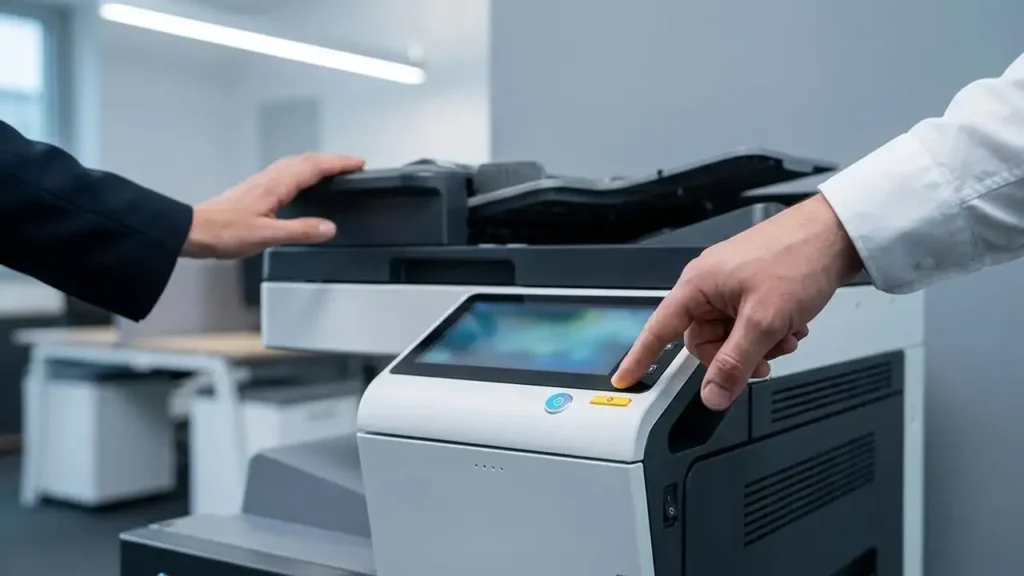
Reset Konica Minolta Error Code Using the Universal Button Method
Many Konica Minolta Bizhub models, including the C224, C258, and C353 series, share a universal method for clearing error codes, often referred to as a “Trouble Reset.” This approach involves a simple power cycle combined with pressing a specific button on the control panel. It is typically the first method you should attempt when faced with an error.
To perform this universal reset Konica Minolta error code:
- Locate the main power switch on your copier. This is usually found behind the front door or on the side panel. Turn the machine completely off.
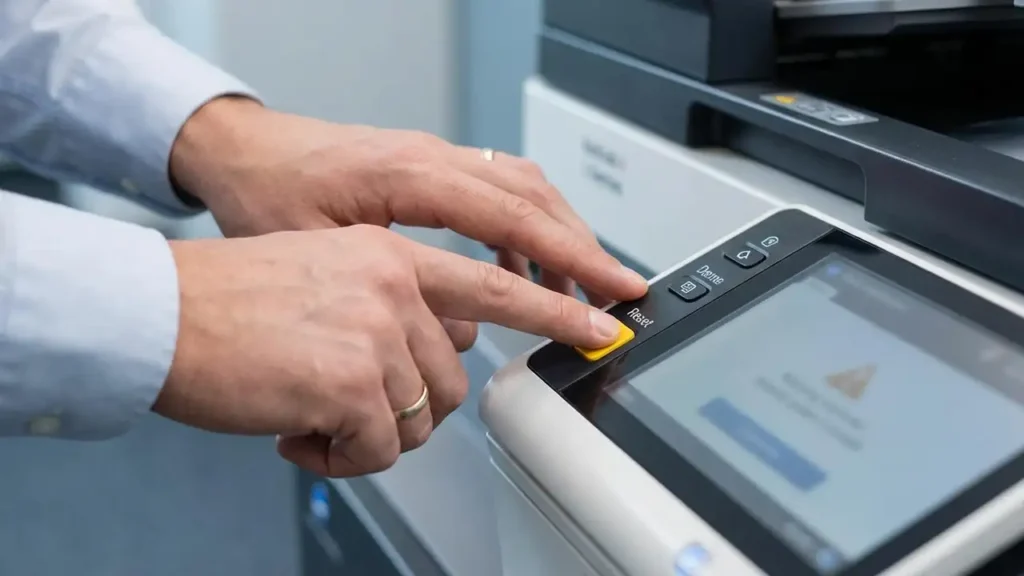
- While the machine is off, press and hold the Utility/Counter button or the dedicated yellow physical Reset button on your control panel.
- Continue holding the button down while you turn the main power switch back on.
- Keep the button pressed until you see a black dot appear in the upper right corner of the screen or the message “Trouble Reset” is displayed.
- On the touchscreen, tap the [Trouble Reset] button. Confirm that “OK” appears on the screen.
- Turn the copier off again, wait for about 10 seconds, and then turn it back on to complete the reset process.
Advanced Konica Minolta Reset Error Code via Service Mode
If the universal button method does not resolve the error or isn’t applicable to your specific model, you can often access a hidden Service Mode to perform a deeper Konica Minolta reset error code. This mode grants access to various system settings and initialization options, including the trouble reset function.
Follow these steps carefully to access Service Mode and clear the error:
- Ensure the copier is powered on and displaying the error code or is in a ready state.
- On the control panel, press the following sequence: Stop → 0 → 0 → Stop → 0 → 1. Alternatively, try the sequence: Stop → 0 → 7 → 1 → 3 → 9. The screen should change, indicating you have entered Service Mode.
- Navigate through the Service Mode menu. Look for an option like [System 1] and then [Initialization].
- Within the Initialization menu, you should find and select [Trouble Reset]. Confirm your selection when prompted.
- Once the reset is confirmed, exit Service Mode (often by powering off and on, or selecting an exit option).
- Turn the machine off and then back on after a few seconds to complete the reset Konica Minolta error code and allow the system to restart normally.
Special Cases: Konica Minolta Hard Reset for i-Series Models
Newer Konica Minolta Bizhub models, particularly the i-Series (such as C450i–C650i), may require a slightly different approach for a Konica Minolta hard reset. These models often feature a physical reset switch located on the circuit board, accessible by removing a cover. This method is a more direct way to clear persistent errors.
To perform a hard reset on i-Series models:
- Turn off the Konica Minolta unit completely using its main power switch.
- Carefully locate the plastic cover typically positioned directly under the control panel. This cover needs to be removed to expose the internal circuit board.
- Once the cover is off, you should see a small yellow physical “Reset” touch button on the exposed circuit board.
- Press and hold this physical yellow button while simultaneously turning the printer back on.
- Continue holding the button until the reset menu appears on the control panel screen. Follow any on-screen prompts to perform the trouble reset.
- After confirming the reset, release the button, replace the plastic cover, and then turn the printer off and on again to finalize the clear error code Konica Minolta operation.
Beyond the Reset: Identifying the Root Cause
While a reset Konica Minolta error code can get your Bizhub operational again, it is a temporary fix if a genuine hardware fault exists. If the error code reappears quickly after a reset, it’s a strong indicator that a more serious underlying issue needs attention. Ignoring recurring error codes can lead to further damage or system instability.
For persistent issues, consult the konica-minolta error codes list specific to your model. This list, usually found in your machine’s manual or on the Konica Minolta support website, provides detailed explanations for each code. Identifying the specific error (e.g., C-3451 for fuser overheat, C-2557 for transfer roller issues) will help you or a technician diagnose the faulty component and perform the necessary repair.
Safety, Warranty, and Professional Assistance
When attempting any reset procedure that involves opening the machine or pressing internal buttons, always prioritize safety. Ensure the printer is completely unplugged from the power outlet before accessing any internal components. Avoid touching sensitive parts like the fuser unit, drum, or circuit boards, as they can be hot or easily damaged.
Be aware that opening your Konica Minolta Bizhub, especially on newer models, may void your warranty. If you are unsure about any step or if the error persists after multiple reset attempts, it is highly recommended to contact an authorized Konica Minolta service technician. They possess the expertise and specialized tools to safely diagnose and repair complex issues without risking further damage or compromising your warranty.
Common Questions About Reset Konica Minolta Error Code
Successfully performing a reset Konica Minolta error code can often resolve minor interruptions, allowing your Bizhub copier to return to normal operation. While these steps provide a valuable first line of defense, remember that recurring errors point to deeper issues requiring professional attention. Always prioritize safety and consult your specific model’s documentation for detailed troubleshooting.
