

How to Fix Brother print unable 0A or 0B Errors
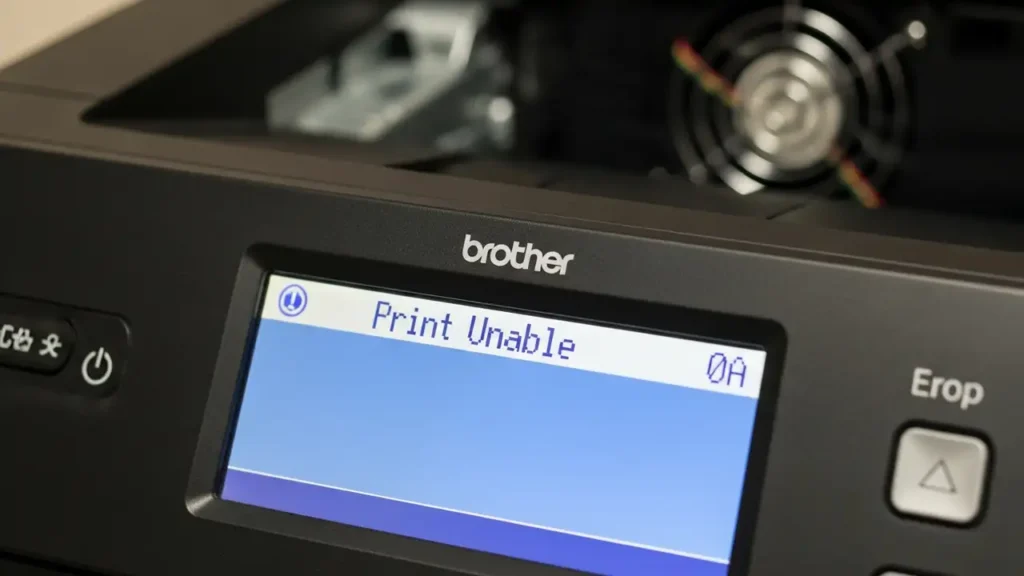
Encountering a “Print Unable 0A” or “0B” message on your Brother device signals an internal mechanical or hardware issue, preventing normal operation. These specific error codes indicate that the printer cannot properly initialize key components, effectively stopping any printing tasks. Understanding the distinct meaning of each code is the first step toward effective troubleshooting.
The “0A” designation typically points to an internal fan or motor problem. This might mean an internal blower is obstructed by accumulated dust or a foreign object, or a sensor associated with these moving parts is not functioning correctly. On the other hand, the “0B” error specifically relates to the drum unit or a high voltage problem. This could stem from an issue with the drum itself, an electrical discharge, or an inadequate connection along the corona wire, which is crucial for the imaging process.
Understanding Brother print unable Error Codes
When your Brother printer displays a “Print Unable” message followed by “0A” or “0B,” it signifies an internal fault rather than a simple software glitch or paper jam. These errors indicate that critical components responsible for the physical act of printing are not operating as expected. Such messages prevent the printer from continuing any print jobs, requiring immediate attention to diagnose and resolve the underlying mechanical or electrical fault.
Diagnosing Brother print unable 0A vs. 0B
The “0A” error code on a Brother print unable notification typically suggests an issue with the printer’s internal cooling fan or a motor essential for moving components. A common cause for this is an obstruction preventing the fan from spinning freely, such as dust buildup or small debris. Alternatively, a sensor monitoring the fan or motor’s operation might be faulty, incorrectly reporting a problem. Resolving this often involves inspecting and clearing any blockages within the device’s ventilation or moving parts.
Conversely, the “0B” error points to an issue within the printer’s high voltage system or drum unit. This could manifest as a problem with the drum unit itself, which is responsible for transferring toner to the paper. It might also indicate a high voltage leakage, which can disrupt the electrostatic process required for printing. A poor electrical connection on the corona wire, a thin wire inside the drum unit that charges the photoreceptor drum, is another frequent cause. Addressing this error usually involves cleaning or reseating the drum unit and its related components.
Initial Troubleshooting: Power Cycle and Checks
Before delving into specific component checks, a comprehensive power cycle can often resolve transient errors by resetting the printer’s internal state. Following this, a visual inspection and reinstallation of consumables can help rule out common physical issues.
- Perform a Full Power Cycle (Hard Reset):
- Begin by powering off your Brother printer using its physical power button.
- Next, disconnect the power cord completely from the wall outlet.
- Allow the device to remain unplugged for at least 15 to 30 seconds. Some technical guidelines suggest waiting up to two full minutes to ensure all internal capacitors fully discharge.
- Reconnect the power cord directly to a wall outlet. Avoid using power strips, surge protectors, or extension cords, as these can sometimes interfere with power delivery.
- Finally, power on the printer. Observe if the Brother print unable error persists.
- Inspect for Internal Obstructions (Specifically for 0A):
- Carefully open the appropriate covers of your printer to access its interior.
- Thoroughly examine the inside for any foreign objects, stray pieces of paper, or accumulated debris that might be blocking gears, fans, or other moving parts.
- If you feel confident and capable, gently inspect the air vents to ensure they are not heavily clogged with dust, which could impede the internal blower’s function.
- Reseat Drum Unit and Toner Cartridges:
- Incorrect recognition of consumables can sometimes trigger these errors.
- Open the front cover and remove the drum unit and toner cartridge assembly.
- Then, firmly remove each individual toner cartridge and drum unit.
- Reinstall each component, ensuring they are securely seated and make proper electrical contact within their slots. Close the printer covers.
Addressing Specific Error Conditions
Certain errors require targeted attention to specific printer components. The “0B” error, for instance, often necessitates cleaning a particular part within the drum unit.
- Clean the Corona Wire (Specifically for 0B):
- Begin by opening the front cover of your printer.
- Carefully remove the drum unit and toner cartridge assembly from the machine.
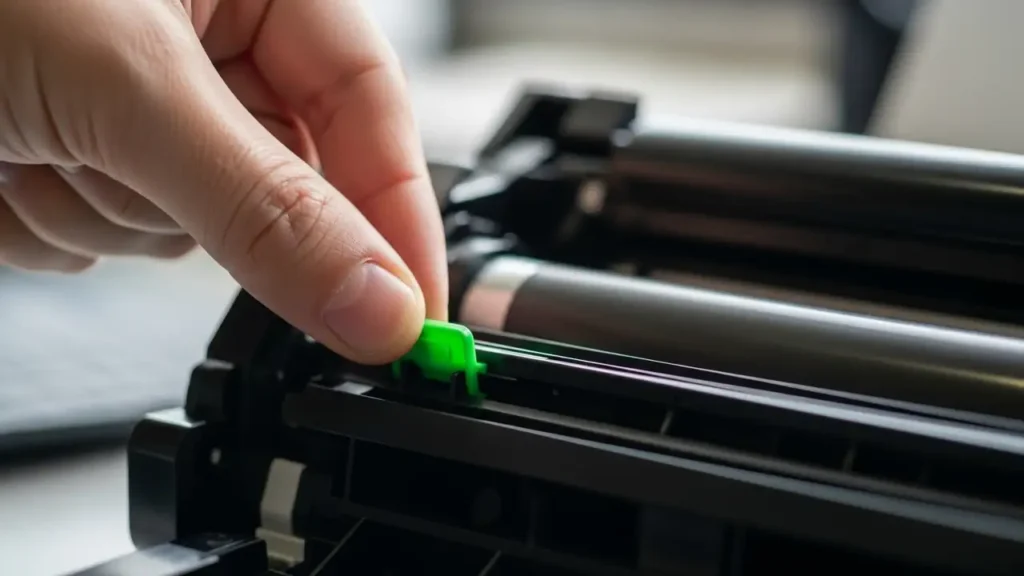
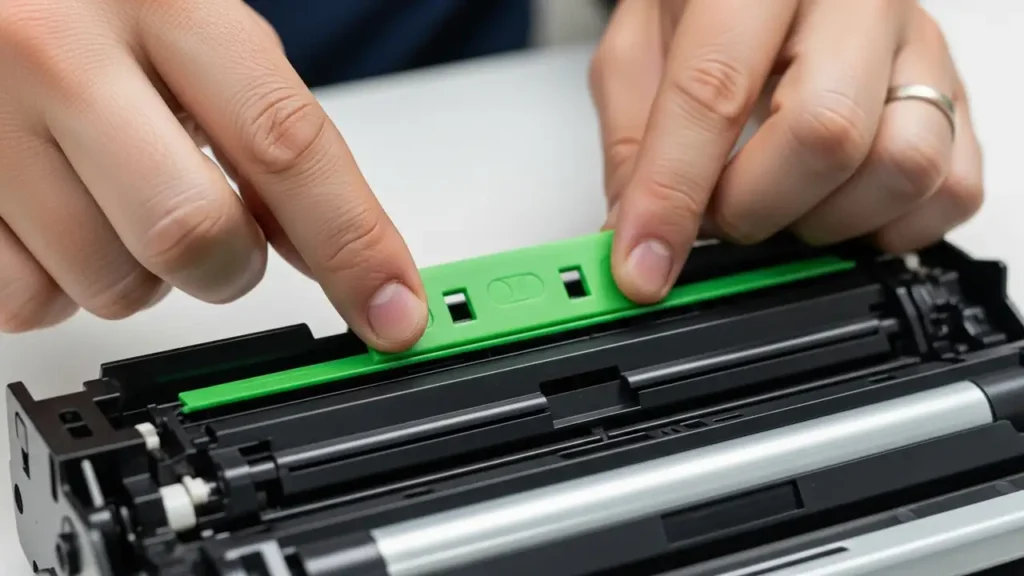
- Locate the green tab on the drum unit. This tab is used to clean the corona wire.
- Gently slide the green tab back and forth several times, from the left side to the right side, along the guide. This action helps to clean any toner or dust from the delicate corona wire.
- Crucially, after cleaning, ensure you return the green tab to its original, home position. A small triangle mark on the tab usually aligns with a corresponding mark on the drum unit, indicating the correct resting place. Failing to return it to this position can lead to continued print quality issues or error messages.
When to Seek Professional Support
If the “Print Unable” error, whether 0A or 0B, immediately reappears after you have completed all the troubleshooting steps outlined, it strongly indicates a more serious underlying hardware malfunction. This could point to the failure of a specific component such as a fuse, a motor, or even a critical part of the main motherboard. At this stage, user-level troubleshooting is typically exhausted, and professional intervention is required.
It is important to check your device’s warranty status. If your Brother machine is less than one year old, it is usually still under the manufacturer’s warranty. In this situation, directly contact Brother Support. They should be able to arrange a free repair or a replacement unit, depending on their policy and the nature of the fault. For printers that are no longer covered by warranty, a visit to an authorized service center will be necessary. Technicians at these centers possess the expertise and specialized tools to accurately diagnose and replace the defective part, restoring your printer to working condition.
Frequently Asked Questions about Brother print unable
By systematically working through the provided troubleshooting steps, from a full power cycle to specific component checks, you can often resolve the “Print Unable 0A” or “0B” issues on your Brother printer. These errors, signifying internal mechanical or electrical problems, require a careful approach. If the problem with Brother print unable persists, remember that it likely points to a hardware failure, necessitating contact with Brother Support if under warranty or a visit to an authorized service center for out-of-warranty machines.
