

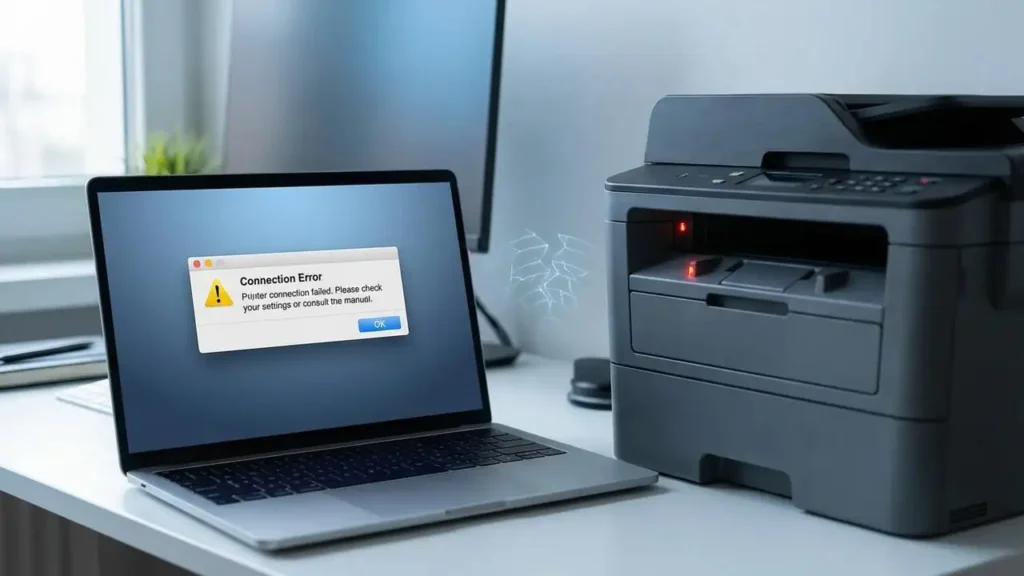
Fix Mac Printing: Resolving mac filter failed printer and Authentication Issues
Encountering printing issues on a Mac can be frustrating, especially when you face errors like “mac filter failed printer“ or “Hold for Authentication.” These messages indicate underlying problems with drivers, system settings, or network credentials preventing your documents from printing. This guide provides step-by-step solutions to restore your printer’s functionality, addressing both common error types with clear, actionable advice.
Understanding Common Mac Printing Errors
Two primary error messages frequently stop printing jobs on macOS. The “Filter Failed” status typically points to issues with the printer’s software components, often related to an outdated or corrupted driver that processes the print data. Conversely, “Hold for Authentication” means the print queue requires login credentials that are either incorrect, missing, or not being accepted, halting the task until proper access is granted. Addressing these specific messages requires distinct troubleshooting approaches to get your printer working correctly again.
Resolving mac filter failed printer by Resetting
One of the most effective initial troubleshooting steps for persistent printing issues, especially a mac filter failed printer error, involves completely resetting the macOS printing system. This action clears out all configured printers, associated settings, and any pending print jobs, providing a clean slate for reinstallation. This comprehensive reset can often resolve stubborn driver conflicts or corrupted configurations that lead to the filter failure message.
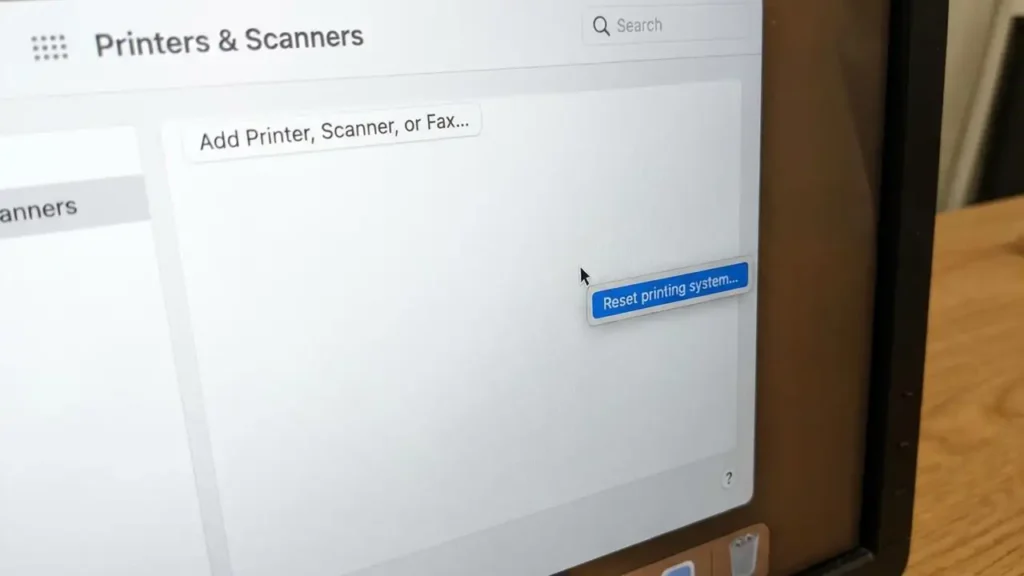
How to Reset the Printing System for mac filter failed printer
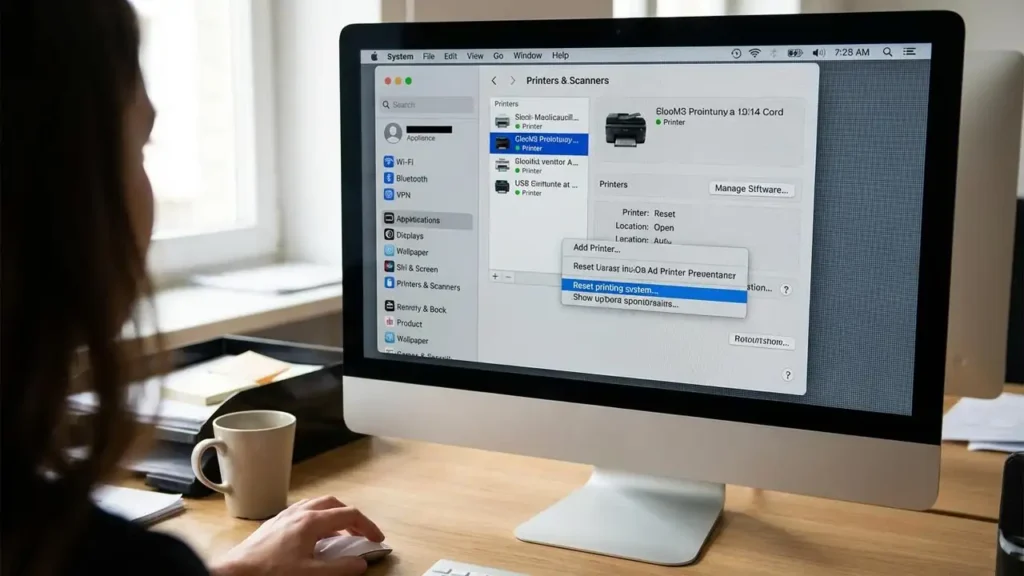
To perform a full reset of the printing environment on your computer:
- Navigate to the Apple Menu, then select System Settings.
- Locate and click on “Printers & Scanners” in the sidebar.
- Within the list of devices, perform a Control-click (or right-click) anywhere in the empty space of the printer list.
- From the contextual menu that appears, choose “Reset printing system.”
- Confirm the action when prompted. Be aware that this process will remove all installed printers, scanners, and any customized settings you may have configured.
- Once the reset is complete, restart your Mac.
- After your computer reboots, return to “Printers & Scanners” and re-add your printer. Download and install the latest drivers from the manufacturer’s website if available, rather than relying on generic options.
Addressing “Hold for Authentication”
When your print jobs are held for authentication, it indicates that the system is unable to verify your permission to use the printer. This usually happens due to incorrect or expired login credentials.
- Clear Saved Credentials: Open “Keychain Access” on your Mac. Use the search bar to find any entries related to your printer’s name or its network address. Delete any saved credentials you find for the printer. This ensures that the system prompts you for new information.
- Re-enter Credentials: Attempt to send a document to the printer again. A prompt should appear, requesting a username and password. Enter the correct authentication details for the print queue. This might be your local computer’s password or a network ID, depending on how your printer is configured.
- Restart Printer: Power down the physical printer completely. Wait for approximately 60 seconds, then power it back on. This clears its internal memory and any jobs that might be stuck in its queue, allowing it to communicate fresh with your Mac.
Advanced Fixes for mac filter failed printer (Driver and System Issues)
If the mac filter failed printer error persists after a system reset, the problem likely lies deeper within the printer’s software components or the core printing service.
- Reinstall or Update Driver: Begin by removing the printer from your Mac again, similar to the initial reset steps. Next, visit the official website of your printer’s manufacturer (e.g., Canon, HP, Epson). Download and install the very latest driver specifically designed for your printer model and current macOS version. Avoid using generic drivers or those automatically provided by AirPrint/CUPS if a dedicated manufacturer driver exists.
- Utilize Postscript Driver: For certain printer models, especially when using M1/M2 Mac computers, a Postscript driver can offer better compatibility than a PCL driver. If your current installation uses a PCL driver, try replacing it with a Postscript version if one is available from the manufacturer. This change can sometimes resolve communication issues that lead to filter failures.
- Restart CUPS (Advanced): The Common Unix Printing System (CUPS) is the underlying print spooler for macOS. Restarting this service can resolve deep-seated system issues. Open the “Terminal” application (found in Applications > Utilities). Type the following commands, pressing Enter after each one, and provide your administrator password when prompted:
sudo launchctl stop org.cups.cupsdsudo launchctl start org.cups.cupsd
This sequence will stop and then restart the core printing service, which may clear up any internal hang-ups causing the filter error.
Updating Printer Software
For specialized printing devices, such as specific label printers (e.g., Rollo), ensuring their dedicated software is current is crucial. These devices often rely on custom drivers that must be specifically updated to maintain compatibility with the newest macOS versions. Always check the manufacturer’s support page for the latest software releases and firmware updates to prevent performance issues and error messages. Installing these updates can prevent a mac filter failed printer message by ensuring the printer’s communication protocols are in sync with your operating system.
Safety and Maintenance Considerations
When troubleshooting printer issues, always prioritize safety. Before physically handling your printer for restarts or disconnections, ensure it is powered off and unplugged from the wall outlet. Avoid attempting repairs or opening the printer casing, as this could void warranties or expose you to electrical hazards. If you are uncertain about any step or if issues persist, contacting a professional technician or the printer manufacturer’s support is recommended.
Prevention Tips
To minimize future printing problems, regularly check for driver updates from your printer manufacturer. Always download drivers directly from the official source, not third-party sites. When setting up a new printer, establish a strong, stable network connection. For network printers, ensure your Mac has consistent access and correct network credentials saved.
Frequently Asked Questions
Resolving common Mac printing errors like “Filter Failed” and “Hold for Authentication” often involves a systematic approach, starting with basic credential checks and leading to more comprehensive system and driver resets. By following these steps, you can typically address the underlying causes of a mac filter failed printer message and restore smooth operation.
