

Complete Steps for a Xerox admin password reset
A comprehensive guide to restoring administrative access to your printing equipment.
When an organization loses access to its printing infrastructure, performing a Xerox admin password reset becomes a critical task for the IT department. Administrative credentials are required to modify network paths, update firmware, or manage user permissions. If the current login information is lost or was never recorded, you must utilize the built-in recovery paths provided by the manufacturer. This guide outlines the specific steps required to regain control of your device using internal menus, default keys, or official support codes.
The first step in any troubleshooting process involves verifying if the system is still using its factory-shipped credentials. Many devices remain on their original settings, which can bypass the need for a complex Xerox admin password reset entirely. Before attempting more invasive procedures, check the standard login pairs. The administrative username is universally set to “admin” and requires specific attention to its case-sensitive nature. Entering this in uppercase or with incorrect capitalization will result in a failed login attempt.
Initial Access via Xerox admin password reset
If the machine is currently using its factory defaults, you should test three primary password variations. The most common initial code for older units is 1111 or the extended version 11111. If these do not grant entry, look for the unique Serial Number of the machine. On modern hardware, this identifier serves as the default administrative key to ensure higher security out of the box. You must enter the Serial Number exactly as it appears on the device sticker, as these characters are typically case-sensitive.
If these default credentials fail to provide access, it indicates that the password was modified during the initial setup. The machine is designed to prompt users to change the starting code at every login if it remains set to the factory default. If this prompt no longer appears and the standard codes fail, you must proceed with a formal Xerox admin password reset. There are several methods to achieve this depending on whether you have access to the physical control panel or require remote assistance.
Standard Procedures for Xerox admin password reset
The most direct way to manage internal credentials is through the physical interface on the front of the machine. Most contemporary models include a specific menu for installing new features that also doubles as a portal for security overrides. Navigating this menu requires a precise sequence of selections within the system tools. This method is the primary recommendation before escalating to a service call, as it utilizes the local firmware capabilities to clear existing lockouts.
Using the Control Panel for Xerox admin password reset
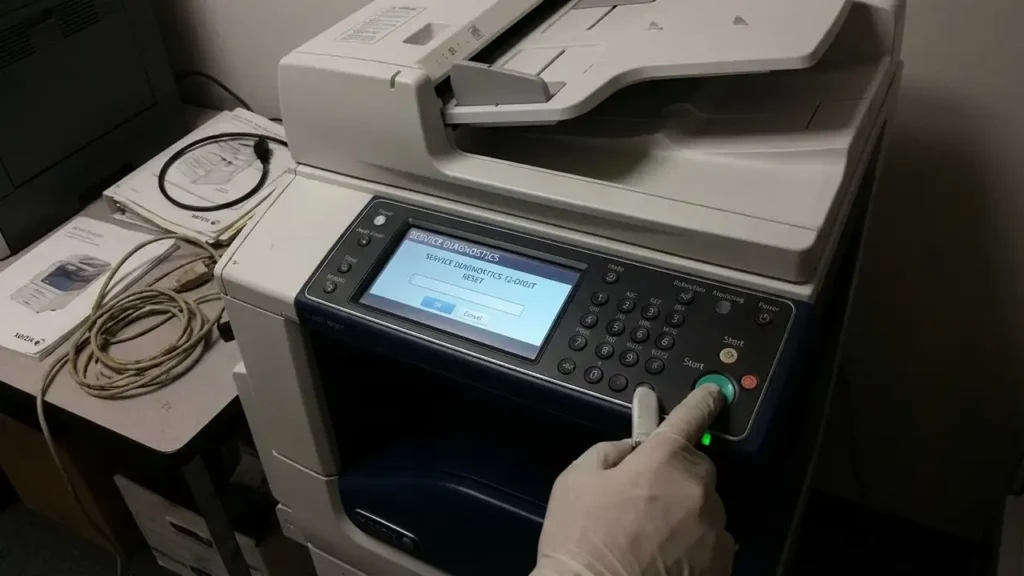
To begin this process, approach the physical screen and select the Device icon. From there, you must locate the Tools menu to find the underlying configuration options. Inside Tools, navigate to the Device Settings category and then select General. Within this sub-menu, you will find an option labeled Feature Installation. This area is specifically designed to accept configuration strings that can modify the administrative state of the printer.
If you have obtained a 12-digit reset code from official manufacturer support, this is the location where it must be entered. This specialized numeric string communicates directly with the security layer of the device to authorize a Xerox admin password reset. If the code is accepted, the administrative account will revert to its original state, allowing you to log in with the default “admin” username and the standard factory passwords mentioned previously.
Advanced Recovery and Factory Defaults
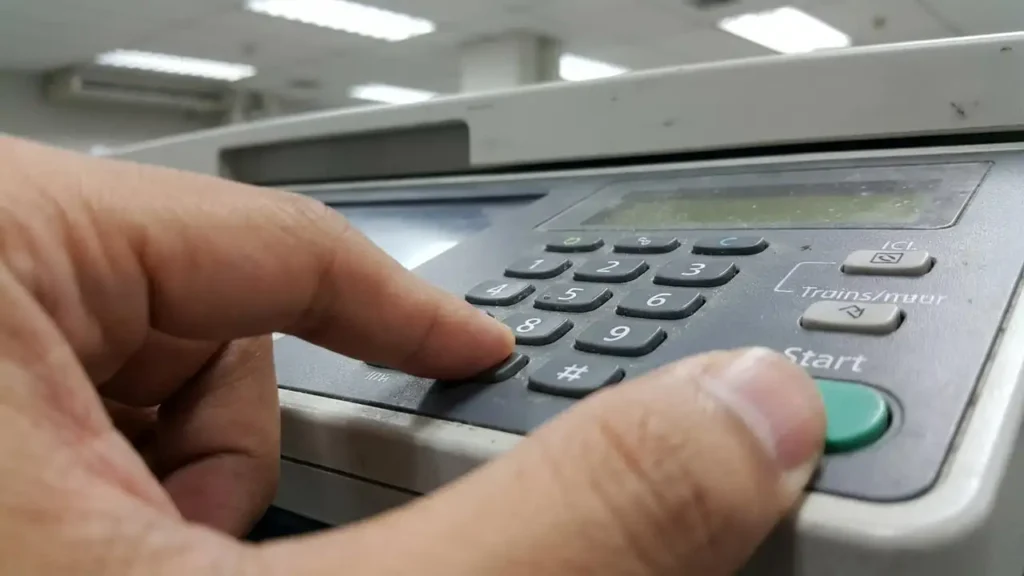
In situations where the standard menus are inaccessible or do not respond to basic inputs, you can attempt to enter a specialized service environment. This mode bypasses the standard user interface to allow for deeper system changes. To trigger this, you must press and hold the 0 key on the physical numeric keypad for at least ten seconds. Without releasing the 0 key, you must then press the Start button. If timed correctly, the device will prompt you for a secondary access code.
Entering the numeric sequence 6789 into this prompt grants entry to the restricted service mode. Once inside, you must navigate to the authentication settings section. From here, you can select the option to restore the administrator credentials to their factory default values. This action specifically targets the login database without necessarily wiping other machine data. However, if the lockout persists, a more comprehensive factory reset may be required through the Settings menu by selecting Device and then choosing to Restore Factory Defaults. Be aware that a full factory reset clears all customized settings, including network addresses and scan-to-email destinations.
Escalating Your Xerox admin password reset
There are specific security constraints that might prevent a local user from performing these actions. If the security settings of the machine have been configured to disable the reset feature entirely, local attempts will be blocked by the firmware. In this scenario, the only path forward is to contact an authorized service representative. These technicians have the tools to perform a forced reset of the system, though this level of intervention may involve service fees or additional costs for the organization.
If you have already attempted to use a 12-digit reset code provided by support and it has failed to unlock the device, this also necessitates a professional service call. A failed code entry often indicates a deeper corruption of the NVRAM or a physical hardware lockout that cannot be resolved through the software interface alone. Ensure that you have the machine’s Serial Number ready when calling for assistance, as this is required to generate any valid recovery keys or to schedule a technician visit.
Frequently Asked Questions
Maintaining the security of your office equipment is a balance between protection and accessibility. Once you have regained access, it is vital to set a new, secure password that is documented in a safe location for future administrative needs. If you find yourself unable to clear the lockout using the Feature Installation or Service Mode methods, a professional technician remains the final option for restoration. Following these steps ensures a successful Xerox admin password reset for your office environment.
