

Fixing scan to folder not working on Windows 11
Restoring network communication between multifunction printers and modern workstations
Recent security updates in the Windows 11 environment, specifically those introduced in version 24H2, have modified how network protocols interact with peripheral hardware. These changes often lead to a situation where the scan to folder not working error occurs because the operating system now enforces stricter authentication and encryption standards. If your multifunction printer (MFP) relies on older communication methods, it will fail to deliver files to your shared directory without specific configuration adjustments.
When the operating system deprecates legacy protocols, it effectively severs the link between your copier and your computer. Many older devices utilize the SMBv1 protocol, which is no longer active by default due to security vulnerabilities. Consequently, the workstation rejects the incoming file transfer from the printer. Understanding these underlying protocol shifts is the first step toward resolving the scan to folder not working issue on your local network.
To restore functionality, you must align the security settings of your Windows 11 PC with the capabilities of your HP, Xerox, or Konica Minolta device. This process involves modifying internal system policies, creating dedicated authentication credentials, and ensuring your printer hardware is running the latest available software. Following these precise steps will bypass the current blocks and allow for seamless document transmission.
Windows 11 System Adjustments for scan to folder not working
The primary reason for communication failure is the default blocking of unauthenticated guest access. If your printer attempts to connect to a shared folder without providing specific credentials, Windows 11 will terminate the connection. To fix this, you must modify the Lanman Workstation policy through the Group Policy Editor.
- Press Win + R and enter gpedit.msc to open the editor.
- Navigate through the directory tree to reach Computer Configuration, then Administrative Templates, followed by Network, and finally Lanman Workstation.
- Locate the policy named Enable insecure guest logon and set its status to Enabled.
- Apply the changes and restart the workstation to ensure the new network policy is active.
Once guest access is managed, you must address the account types used for authentication. Microsoft accounts frequently trigger failures in the scanning workflow. Instead of using a cloud-linked account, establish a dedicated local user account on the PC specifically for the printer. Name this account “scanner” and assign it a standard password. When configuring the destination folder, go to the Sharing and Security tabs and grant this “scanner” account Full Control permissions. This ensures the printer has the necessary authority to write files to the disk.
The network profile also plays a critical role in whether the workstation accepts incoming printer data. If your Ethernet or Wi-Fi connection is set to a Public profile, the system blocks the incoming connections required for SMB transfers. Change your network profile to Private within the system settings. This adjustment lowers the firewall barriers for trusted local devices while maintaining security against external threats.
Printer Specific Solutions for scan to folder not working
Different manufacturers require distinct configurations to overcome the updated Windows security hurdles. For example, forced SMB encryption can prevent many MFPs from completing a file transfer. You can manage this by using PowerShell with administrative privileges. Execute the command Set-SmbServerConfiguration -RejectUnencryptedAccess $false -Force to allow the server to accept unencrypted data packets. This is often necessary when the scan to folder not working problem persists despite correct sharing permissions.
Troubleshooting HP Devices when scan to folder not working
HP multifunction printers often require specific firmware updates to maintain compatibility with Windows 11. If you are using an older version, the device may be restricted to SMBv1, which the workstation will continue to block. HP recommends installing firmware version 6.123 or higher. This update enables support for SMBv2 and SMBv3, allowing the printer to communicate using the modern protocols required by the latest operating system builds.
In the HP Printer Assistant or the embedded web server (EWS), avoid using the computer’s hostname for the destination path. DNS resolution errors frequently occur, leading to the scan to folder not working symptom. Instead, input the static IP address of the target PC. If the scan completes but experiences a 30-second delay, check your OneDrive settings. Folders that are only synced to the cloud can cause lag; ensure the destination folder is configured to “Keep on this device” to facilitate immediate local writing.
Protocol and Pathing Fixes for Xerox and Konica Minolta
Xerox devices require specific port and path configurations to function correctly with Windows 11. Ensure that the device is set to use Port 445 for SMBv2/v3 communication. Port 139 is reserved for legacy systems and is often ineffective in modern environments. Furthermore, if the standard backslash format fails in the Xerox EWS, attempt using forward slashes in the path, such as //PC_name/folder, to establish the connection.
On the Windows side, disabling the Sharing Wizard in File Explorer options can help enforce the stricter authentication that Xerox devices need. For Konica Minolta Bizhub systems, the SMB Signature setting is a frequent point of failure. Access the network settings on the Bizhub and set the SMB Signature to either Disabled or On Demand. This prevents the signature mismatch conflicts that occur with new Windows 11 security policies.
Konica Minolta devices also rely heavily on the NTLMv2 protocol. You must ensure that your Windows environment is not exclusively forcing higher security versions that lack backward compatibility with NTLMv2. Like the HP configuration, replacing the PC hostname with a static IP address in the Bizhub address book is a reliable way to bypass resolution problems. These targeted adjustments resolve the scan to folder not working error by aligning the copier’s transmission method with the workstation’s expectations.
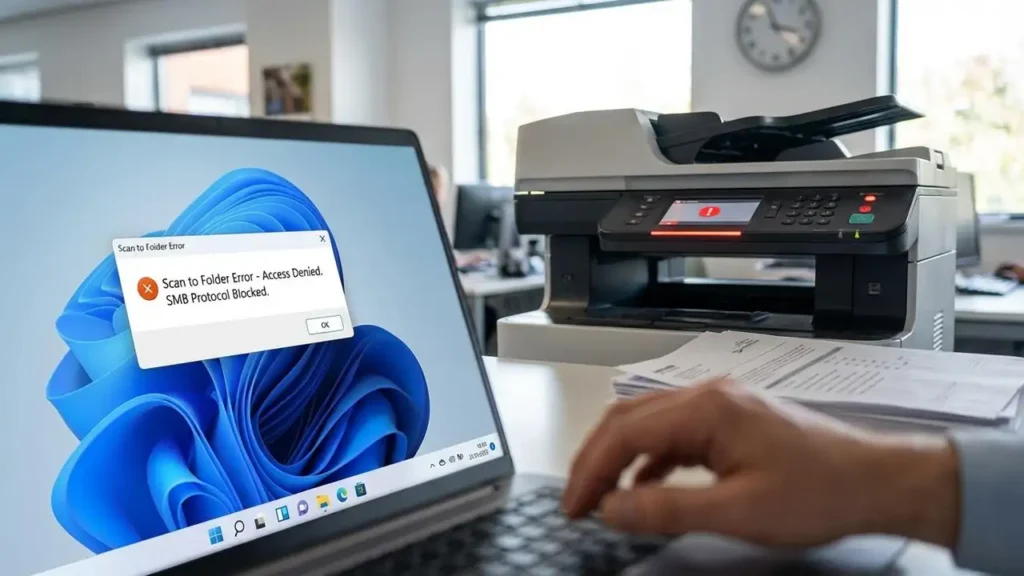
FAQ for scan to folder not working
Maintaining Your Scan to Folder Connection
To ensure your scanning workflow remains stable, you must observe basic safety and maintenance protocols. Always power off or unplug your multifunction printer before performing any physical maintenance or checking internal connections. Avoid touching sensitive electronic parts or glass surfaces during the troubleshooting process. If you are unsure about modifying system registries or group policies, consult with a technical professional to avoid voiding your device warranty or compromising system stability.
Preventing the scan to folder not working error in the future requires keeping your software environment updated. Regularly check for firmware updates from your printer manufacturer, especially after major Windows feature updates. Maintaining a static IP address for your workstation prevents the printer from losing the destination path when the network refreshes. By aligning your hardware and software settings, you can maintain a reliable document digitization process.
If the scan to folder not working problem occurs after a network change, re-verify your network profile. Always ensure the connection remains set to Private to allow the necessary SMB traffic. Consistent monitoring of these settings will prevent common communication failures between your multifunction printer and your Windows 11 PC.
