

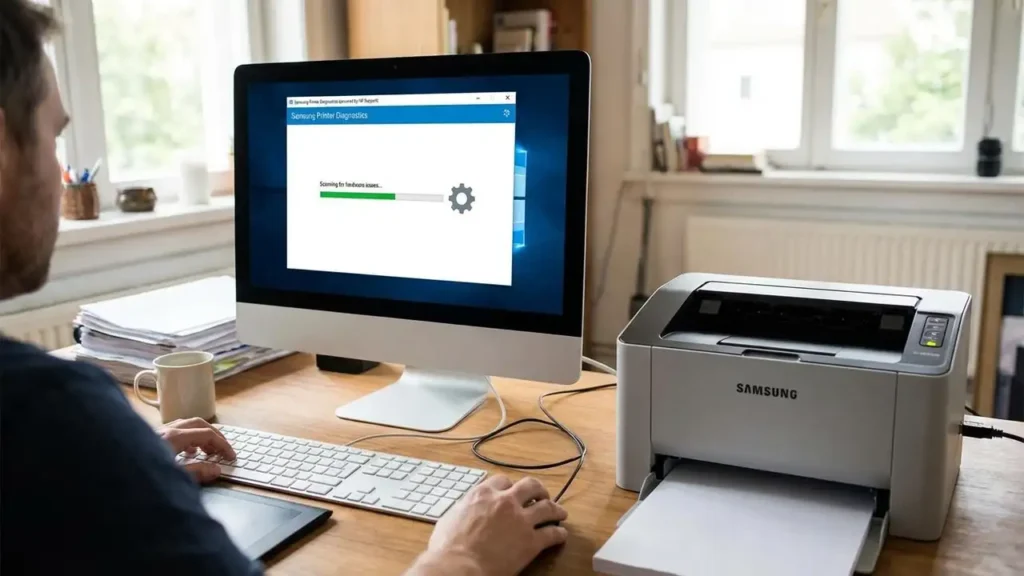
How to Use Samsung Printer Diagnostics for Support in 2026
Official software for legacy laser equipment is now managed through a single portal. If you need to resolve hardware errors or retrieve new files, utilizing the Samsung Printer Diagnostics utility is the most effective method for maintaining your device.
By the year 2026, the landscape for technical assistance regarding these units has undergone a complete transition. Hardware maintenance responsibilities were moved by the original manufacturer to HP, meaning that legacy web portals no longer host the necessary files. Owners must now navigate to the HP Software and Driver Downloads page, which acts as the main digital location for all older printing hardware. Attempting to source files from retired web addresses may lead to outdated software or security risks, so always prioritize the official HP support environment.
Within this centralized hub, users can locate specific resources like the Samsung Printer Diagnostics tool. This specialized software is designed to bridge the gap between older hardware and modern operating systems. Whether you are searching for a specific V3.93 release for Mac or need universal files for a Windows environment, the centralized HP repository remains the only authorized source for these downloads. Maintaining a stable connection between your workstation and the printing unit requires these validated assets.
Accessing Official Samsung Printer Diagnostics
To begin the support process, you must recognize that the support infrastructure is no longer shared between companies. Since the ownership shift is complete, all technical documentation and software packages are hosted exclusively on HP servers. If you are operating a model such as the SL-M2026, typing this specific identifier into the HP search bar will reveal every available software package, including the latest utility versions required for 2026 compatibility.
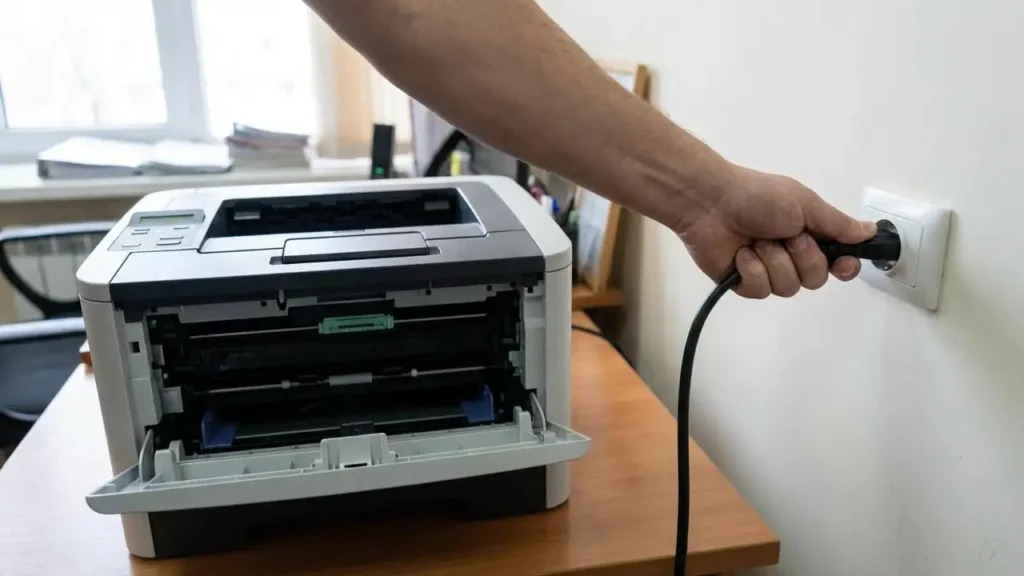
The Samsung Printer Diagnostics application is a standalone download that simplifies the management of your printing ecosystem. Once you arrive at the HP support site, look for the section dedicated to utility software. This tool is essential because it serves as the primary interface for applying stability updates. Without this utility, manually identifying which firmware version matches your specific hardware revision can be difficult.
Downloading the correct Samsung Printer Diagnostics version ensures that your system recognizes the printer properly. This is especially important for users who have recently upgraded their computer hardware or operating system. The utility is engineered to scan your current setup and provide a direct path to the necessary files, such as a Samsung Xpress driver or a dedicated Samsung scanner driver for multifunciton devices. By centralizing these functions, the tool reduces the need for multiple manual downloads.
Troubleshooting with Samsung Printer Diagnostics
If your hardware encounters operational errors, the first step is to launch the automated support tool. You can find this utility by navigating to the Samsung Printers folder located within your installed applications. Once opened, the Samsung Printer Diagnostics interface provides a suite of automated options to address common mechanical and digital failures. This is the preferred method for resolving a Samsung printer offline fix without requiring manual configuration of network ports or IP addresses.
The diagnostic software is capable of analyzing the current state of your hardware to identify why a job might be stalled. If the unit is not responding to commands, the tool checks the communication path between the computer and the device. It also addresses issues related to output quality, such as streaks or light prints, by running internal calibration routines. This automated approach ensures that users can maintain their equipment without specialized technical knowledge.
Updating Firmware via Samsung Printer Diagnostics
One of the most critical functions of this software is managing the internal code of the printer. You must use the Samsung Printer Diagnostics tool to check for any available firmware updates that improve device stability. Firmware acts as the core operating system for the printer, and keeping it current is vital for preventing communication errors with modern computers. When the utility identifies an available update, it handles the download and installation process to ensure the code is applied correctly.
Applying these updates through Samsung Printer Diagnostics minimizes the risk of a failed installation, which could otherwise render the hardware unusable. The software verifies the integrity of the firmware file before beginning the transfer. This is a key part of long-term maintenance in 2026, as firmware often contains patches that allow older laser units to function with the latest security protocols found in newer office networks.
Modern Installation Protocols
For a clean setup on a new workstation, the Samsung Printer Software Installer is the recommended tool provided by HP. This installer is designed to automatically detect any connected devices and determine which software components are required. It effectively packages the necessary drivers and the Samsung Printer Diagnostics utility into a single setup process. Using this automated installer prevents the common mistake of installing incompatible software versions that do not match the specific hardware revision.
During the installation, the software will ask for the specific model name, such as the SL-M2026. Providing this information allows the installer to pull the exact configuration files from the HP cloud. This process is much more reliable than trying to manually move files from an old computer or using third-party driver databases. The installer ensures that the Samsung Printer Diagnostics tool is placed in the correct directory for future troubleshooting needs.
Once the installation is finished, verify that the Samsung Printer Diagnostics app appears in your program list. Having this tool ready allows for immediate response if the printer stops appearing on the network or if print quality begins to degrade. Regular use of the utility to check for software refreshments can prevent many common errors before they impact your workflow.
Safety and Warranty Guidelines
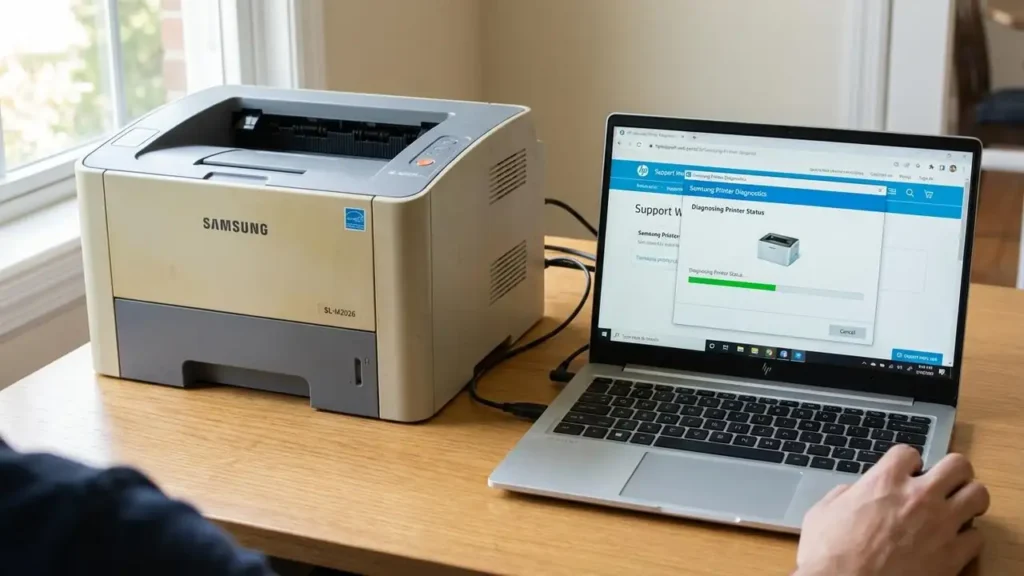
When performing any physical checks or maintenance suggested by the diagnostic software, always prioritize safety. Before inspecting the internal components of a laser printer, power off the unit and unplug it from the electrical outlet. Internal parts can remain hot for several minutes after use, and high-voltage components are present inside the chassis. Avoid touching sensitive electronic boards or the imaging drum, as oils from your skin can cause permanent damage to the print quality.
Be aware that performing unauthorized physical repairs or using non-official firmware from third-party sites may void any remaining warranty or service agreements. Always use the Samsung Printer Diagnostics tool for software-related fixes, as this is the only method supported by the current hardware owners. If the diagnostic tool indicates a hardware failure that cannot be resolved through automated cleaning or software updates, seek professional service from an authorized HP technician.
Frequently Asked Questions
To ensure your equipment remains functional throughout 2026, rely exclusively on the HP support ecosystem. The transition of ownership means that all legacy resources are now consolidated in one place for your convenience. By keeping the Samsung Printer Diagnostics tool installed on your system, you can handle firmware updates and connectivity issues with confidence, ensuring your laser printer continues to deliver high-quality results.
