

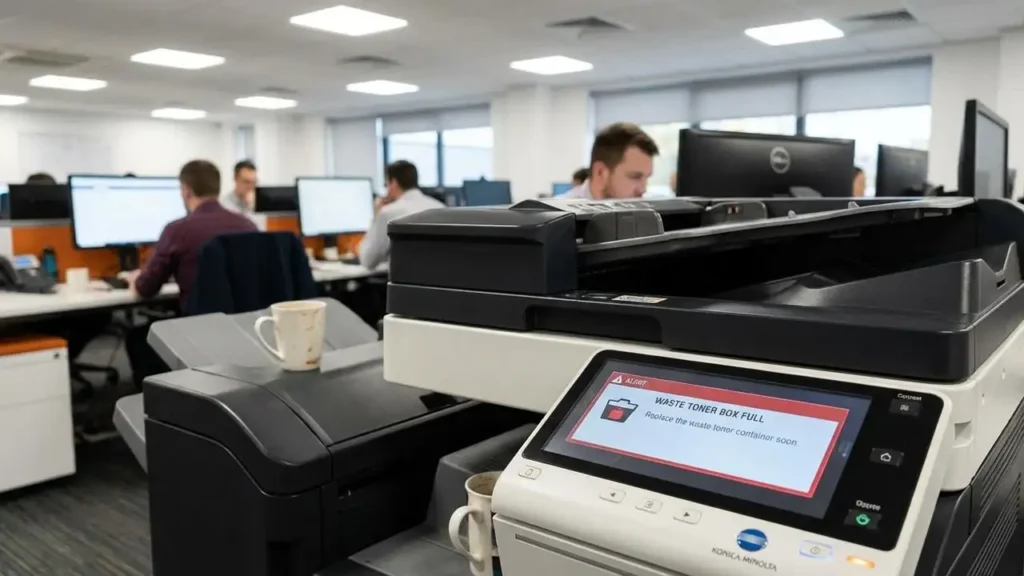
Addressing the Konica waste toner box full Warning
Understanding why your copier has stopped printing and how to manage the hardware sensors.
When your printing workflow stops suddenly, the cause is often a physical hardware notification rather than a digital glitch. Seeing a Konica waste toner box full message indicates that the internal collection vessel has reached its maximum volume limit. While many users look for a software bypass or a hidden button to clear this notification, such an option does not exist. The system utilizes hardware-level detection to ensure that no overflow occurs inside the delicate internal components of the imaging system.
Believing that a software-based command or a service menu button provides a solution for this alert is a common misunderstanding. The system relies on physical detection mechanisms, such as optical or mechanical sensors, to monitor the powder levels. This prevents devastating internal overflows that could ruin the machine. If you are facing a Konica waste toner box full status, you must address the physical state of the container and its sensors to resume normal operations.
Why the Konica waste toner box full Error Appears
The primary trigger for this status is the physical volume of waste powder inside the container. As the machine operates, excess toner is scraped away and deposited into this dedicated bin. Once the material reaches a specific height, it triggers a sensor that immediately halts the printing process. This is a protective measure intended to prevent the powder from backing up into the transfer belt or imaging units.
If the integrated detection hardware monitors the internal powder volume and determines it has reached its upper threshold, the software will refuse to allow new print jobs. This is not a timer-based warning but a live reading of the bin’s capacity. Even a forced restart of the equipment will not clear the message if the hardware still detects an obstruction or high powder levels.
Physical Sensors and Detection Logic
Konica Minolta machines utilize a sophisticated approach to monitoring consumables. Unlike some parts that use simple page counters, the waste container uses an optical or mechanical sensor path. This path must be clear for the machine to verify that the bin is ready for use. If toner dust blocks the sensor’s line of sight, the system assumes the container is at maximum capacity.
This detection logic is the reason why a “reset” command is ineffective. The machine constantly polls the sensor status. If the physical conditions inside the container housing do not change, the software flag remains active. On modern hardware, such as the i series, the system is designed to recognize a clean container immediately upon insertion. This automatic detection removes the need for manual intervention once the physical requirements are met.
Managing the Konica waste toner box full Status
The official recommendation from Konica Minolta Business Solutions Australia is to replace the container with a brand-new part. A new bin ensures that the detection window is perfectly clear and that the internal seals are intact. To manage the current status, you must decide between an official replacement or temporary physical maintenance.
- Confirm the error by checking the display panel for the specific container warning.
- Open the front or side access panel where the waste toner container is located.
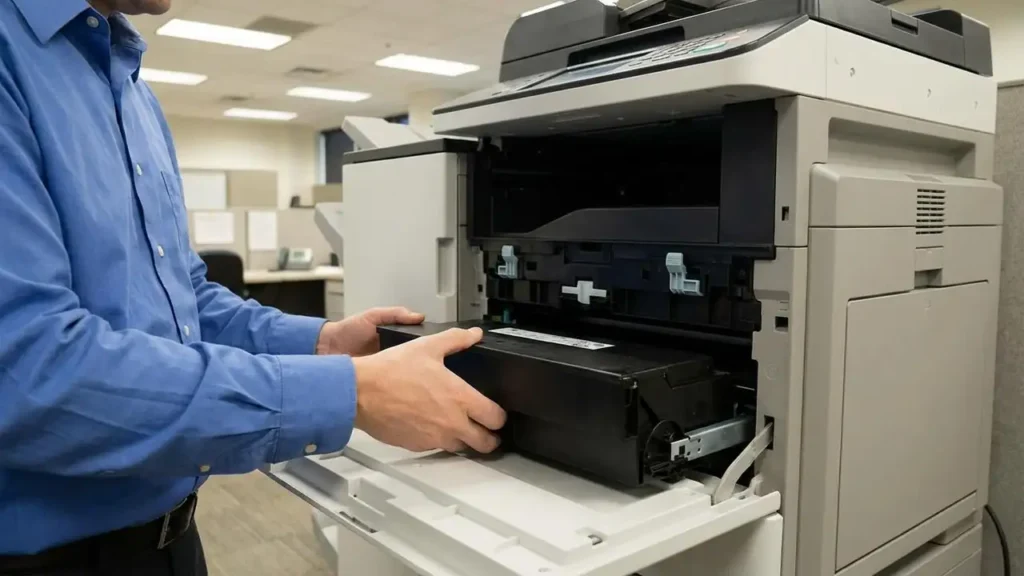
- Carefully remove the container by unlocking the plastic tabs or levers.
- Inspect the container for a small transparent window or a mechanical shutter.
- Check the internal housing of the machine for any loose toner dust that might block the sensors.
- Decide whether to install a new unit or perform a temporary cleaning of the current part.
Crucial Cleaning for the Konica waste toner box full Resolution
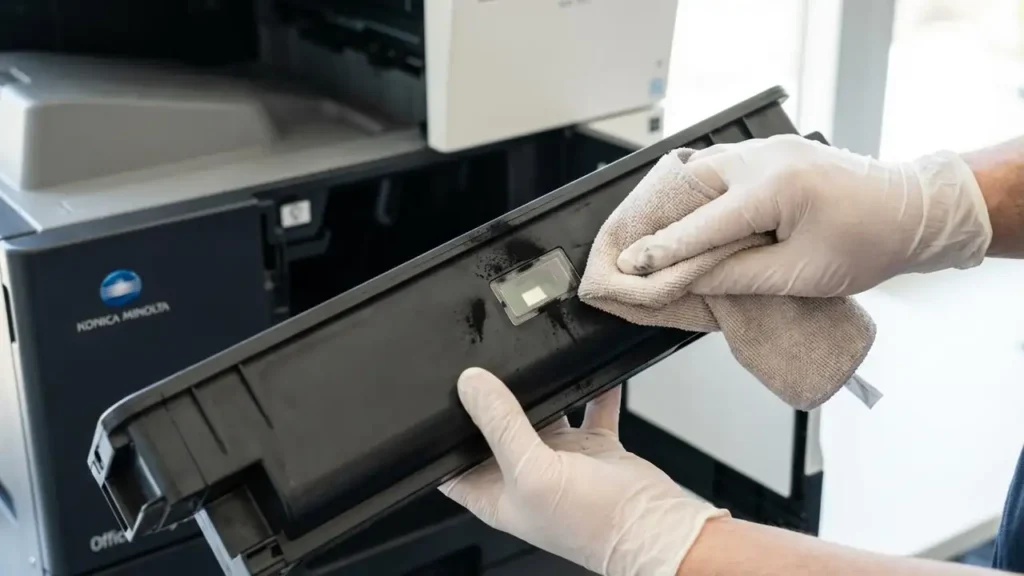
If you choose to perform maintenance on the existing bin, focus your efforts on the detection ports. The container often features a small transparent window that the machine uses to “see” the current level of waste. Even a thin layer of dust on this window can trigger a permanent error. Use a soft, dry cloth to wipe this area until it is completely clear of any residue.
In addition to cleaning the bin itself, you must address the machine area where the bin sits. Use a dry cloth to clean the sensors located inside the container housing. If the optical path inside the machine is contaminated with stray powder, the Konica waste toner box full message will persist even if you install a brand-new part. Maintaining a clean sensor environment is the only way to satisfy the hardware’s detection logic.
Safety and Maintenance Risks
Handling toner requires specific safety precautions because the substance is highly volatile. If you attempt to empty the container manually, you must do so with extreme caution. Transfer the contents into a secure, airtight plastic bag to prevent breathing in microscopic toner dust. Konica Minolta Business Solutions Europe GmbH emphasizes that using a new part is the safest standard to avoid respiratory risks.
Beyond health concerns, reusing an old container presents mechanical risks to the copier. The seals on these containers are designed for a single life cycle. Once a bin is emptied and reinstalled, the seals may no longer be airtight. This leads to internal leakage, which can contaminate expensive components like the transfer unit or imaging units. The cost of repairing a machine after a major toner leak is significantly higher than the cost of a replacement waste bin.
Frequently Asked Questions
Maintenance Standards for Reliable Printing
Maintaining your copier requires adhering to the physical requirements of the hardware sensors. The myth of a software reset button often leads to frustration when the machine continues to refuse print jobs. By understanding that the system uses optical or mechanical logic to protect itself, you can focus on the physical state of the waste container.
Whether you follow the manufacturer’s recommendation to replace the part or choose to clean the sensor windows manually, the goal remains the same: ensuring a clear path for the detection system. Addressing the Konica waste toner box full alert properly ensures the longevity of your imaging units and prevents the costly repairs associated with internal powder leaks.
