

Fix Brother Printers Not Working After a Windows 11 Update
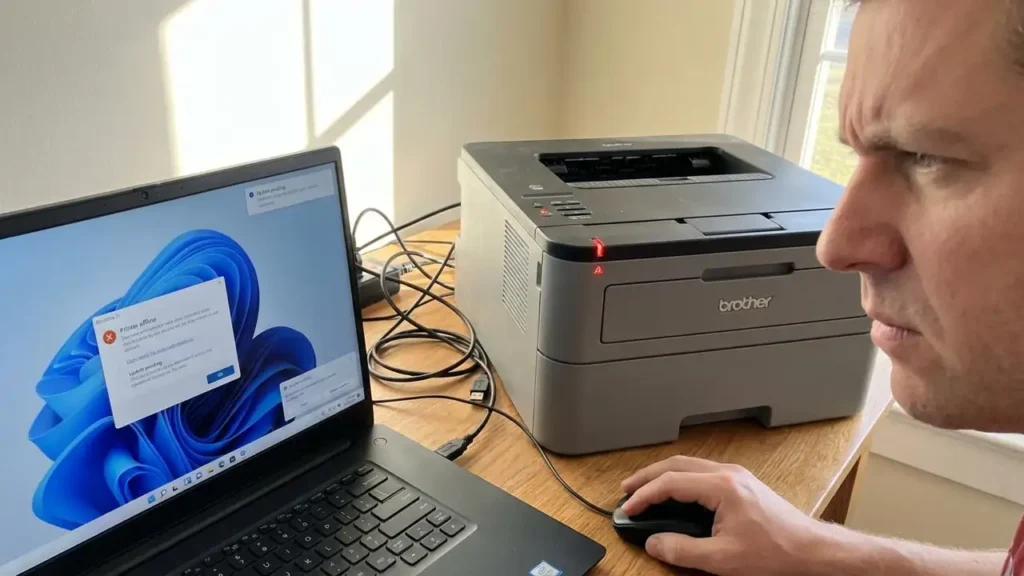
Windows 11 updates are designed to enhance security and improve system performance, but they frequently introduce unexpected friction with peripheral hardware. One of the most common complaints following a major system patch is the sudden loss of printing capabilities. When you attempt to fix Brother printers that have stopped responding after an update, the challenge often lies in the way the operating system handles driver signatures and print spooler services. This disruption can halt productivity, leaving users with “Offline” status messages or documents stuck indefinitely in the queue.
Understanding how to navigate these software conflicts is essential for restoring your workflow. While it might seem like a hardware failure, the reality is usually a communication breakdown between the updated Windows kernel and the existing printer drivers. By systematically addressing the print environment—from the spooler service to the specific network ports used for communication—you can resolve these errors without needing professional repair services.
What This Issue Means
When a Windows 11 update breaks a printer connection, it essentially means the handshake between the computer and the device has been invalidated. In technical terms, the update might have reset the Print Spooler service, enabled a new security feature like Windows Protected Print Mode, or replaced a functional manufacturer driver with a generic Microsoft IPP class driver.
For the user, this translates to a printer that appears in the device list but refuses to execute jobs. You might see errors indicating the printer is “offline” despite being powered on and connected to the network. In other cases, the printer may start a job only to stop halfway through, or it might print gibberish due to a language mismatch between the new OS settings and the legacy hardware. Addressing these symptoms requires a look into the background services that manage the flow of data from your applications to the printer hardware.
Why It Happens When You Fix Brother Printers
The primary reason these issues surface after an update involves the modernization of the Windows print architecture. Windows 11 has moved toward a more restrictive driver model to prevent vulnerabilities. For instance, if the operating system detects that a driver is unsigned or uses outdated protocols, it may block the driver entirely to protect the system.
Furthermore, updates often overwrite custom port settings. Many users find that their printer has been switched from a stable IP-based connection to a Web Services for Devices (WSD) port, which is notorious for losing connectivity after a system sleep or reboot. Additionally, the update process can occasionally corrupt the cached files in the print queue, leading to a logjam where no new documents can pass through the spooler until the old, corrupted files are manually purged.
How to Fix It
To effectively fix Brother printers and restore full functionality, follow these structured troubleshooting steps. These methods address the most likely software and configuration failures triggered by Windows 11.
- Restart the Print Spooler Service: This is the most immediate fix for service-level hangs. Press the Win + R keys on your keyboard, type
services.mscinto the box, and hit Enter. Scroll down the list until you locate the Print Spooler. Right-click on this service and select Restart. This refreshes the printing environment and can often clear temporary communication blocks. - Reinstall or Update Drivers (The Best Fix): Updates often break the link to existing drivers. To do this properly, navigate to Settings > Bluetooth & devices > Printers & scanners. Select your Brother printer and choose Remove. Once removed, visit the official Brother Support Website and download the latest “Full Driver & Software Package” specifically for Windows 11. Running this installer ensures that the latest compatibility patches are applied to your system.
- Disable Windows Protected Print Mode: This new security feature in Windows 11 can block third-party drivers in favor of a universal, limited print set. If your printer is not responding, go to your Windows settings and search for Windows Protected Print Mode. If it is active, toggle it off. Alternatively, if you must use this mode, ensure you are using the specific Brother-provided driver packages that are explicitly labeled as compatible with this security standard.
- Clear the Print Queue Manually: If documents are stuck, restarting the computer often isn’t enough. Open
services.mscagain and Stop the Print Spooler. Then, open File Explorer and navigate toC:\Windows\System32\spool\PRINTERS. Delete every file inside this folder. These are the cached print jobs that are likely corrupted. Once the folder is empty, return to the Services window and Start the Print Spooler again. - Roll Back the Windows Update: If the printer stopped working immediately after a specific update and no other fix works, you may need to revert the OS. Go to Settings > Windows Update > Update history > Uninstall updates. Identify the most recent “Update for Microsoft Windows” and click Uninstall. This is a temporary measure to regain functionality while waiting for a more stable patch from Microsoft or Brother.
- Change the Network Port from WSD to IP: WSD ports are prone to “Offline” errors. Go to Printers & scanners, click on your printer, and select Printer properties. Navigate to the Ports tab. If a “WSD” port is selected, click Add Port, select Standard TCP/IP Port, and enter the static IP address of your Brother printer. This provides a much more dedicated and stable connection path.
- Address USB Connection Glitches: If you are connected via cable, the update might have affected the USB controller power management. Unplug the USB cable from both ends. Restart your computer and the printer. Plug the cable back into a different USB port—ideally one directly on the motherboard rather than a USB hub—to ensure the device receives a clean signal and enough power.
Additional Checks
Beyond the core software fixes, Windows 11 updates can occasionally reset localized settings that affect print output. One common issue is the Paper Size Reversion. After an update, the default paper size may revert to “Letter” or “11×17” depending on regional defaults, causing the printer to throw a “Paper Mismatch” error. To fix this, go to Printing Preferences in the printer properties and ensure the default size is set to your actual loaded paper, such as A4 or Letter.
Additionally, verify the Offline Status manually. In the “Printers & scanners” menu, open the print queue for your device. Click on the “Printer” menu at the top left and ensure that “Use Printer Offline” is not checked. Updates can sometimes toggle this setting if the printer was not detected during the initial reboot after the patch.
How to Prevent It
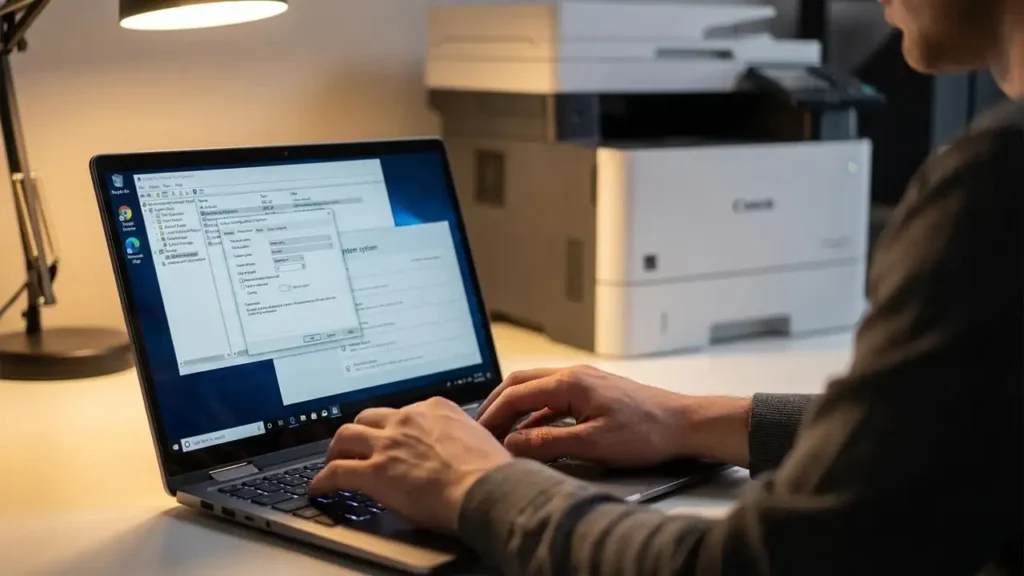
While updates are unpredictable, you can minimize future disruptions by maintaining a clean driver environment. Avoid using the “Add a printer” wizard within Windows for initial setups; always use the standalone installer from the manufacturer’s website, as these packages include necessary monitor tools that Windows’ generic drivers lack.
Another preventative measure is to assign your printer a Static IP address through your router settings. By doing this, even if Windows 11 changes how it discovers devices on the network, the underlying IP address remains constant, preventing the “Printer Not Found” errors that frequently occur when DHCP leases expire or change following a system update.
