

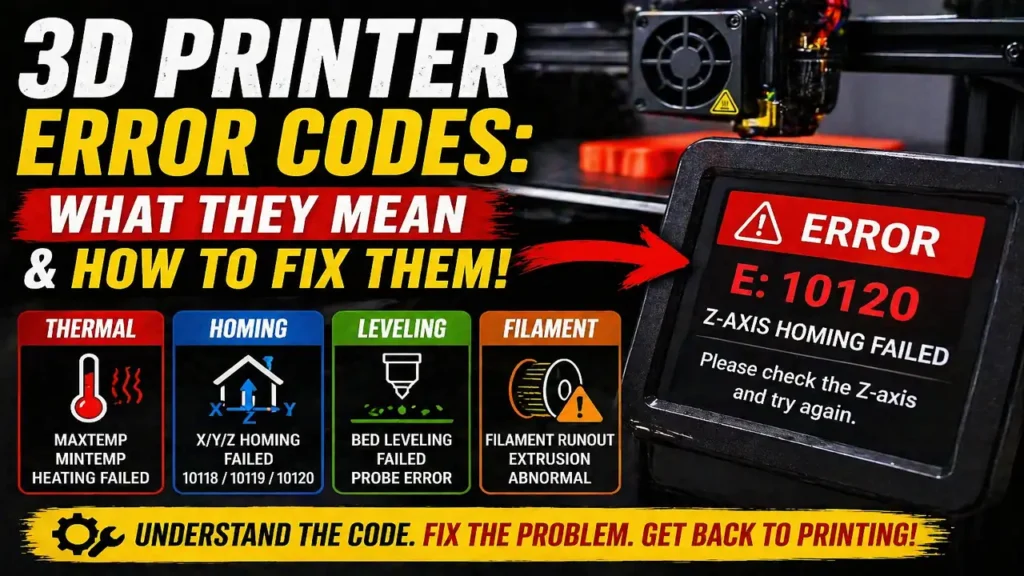
3D Printer Error Codes: What They Mean and How to Fix Them
3D printer error codes are the machine’s way of telling you exactly where the print failed or what system stopped behaving normally. The problem is that these messages often look cryptic at first. You might see MAXTEMP, MINTEMP, a homing failure, a bed leveling warning, or a long manufacturer-specific number that gives you no obvious clue what to do next.
The good news is that most 3D printer error codes fall into a few predictable categories. They usually point to heating faults, sensor faults, motion and homing problems, leveling problems, or filament feed issues. Once you understand which family the error belongs to, troubleshooting becomes much faster and much less random.
The first rule for reading 3D printer error codes
The most useful way to approach 3D printer error codes is not to focus on the number alone. Start by asking what system the printer was using when the error appeared.
If the printer failed while heating up, the issue is probably thermal.
If it failed while moving to home, the issue is usually axis motion, motor response, or a sensor problem.
If it failed during probing or before the first layer, the issue is often bed leveling or nozzle contamination.
If it failed during filament loading or changing, the problem is more likely feed resistance, clogging, or a sensor path issue.
That simple approach helps you diagnose the machine by behavior, not just by code.
Thermal 3D printer error codes: MAXTEMP, MINTEMP, and heating faults
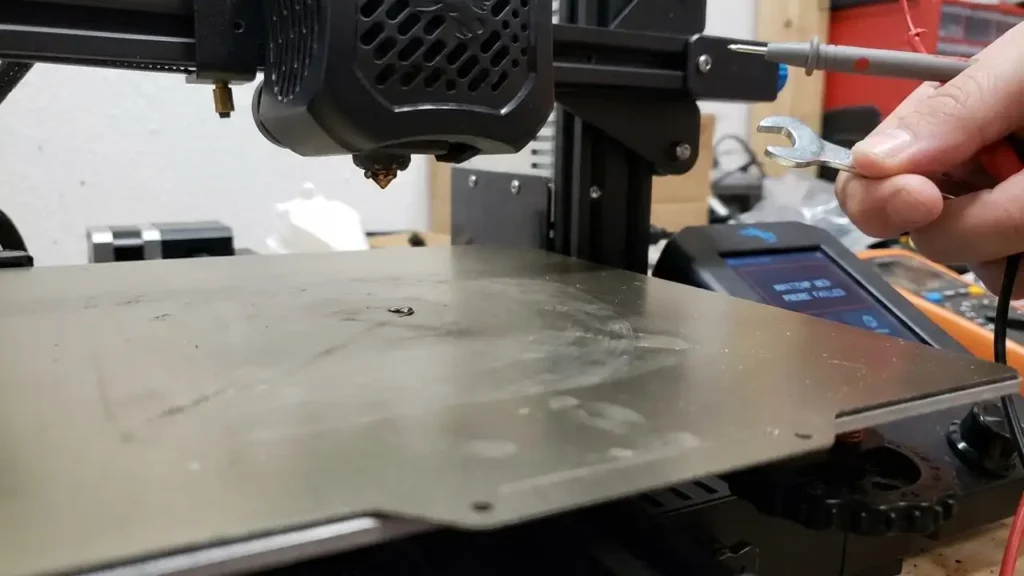
Some of the most important 3D printer error codes are the thermal ones, because they are tied to safety. Errors like MAXTEMP, MINTEMP, heating failed, or thermal runaway usually mean the printer no longer trusts the temperature reading or the heater response.
A MINTEMP error usually points to a disconnected, damaged, or misreading thermistor. A MAXTEMP error usually points to a shorted thermistor, a wiring issue, or a temperature reading that jumped far too high. Heating-failed or thermal-runaway warnings usually mean the nozzle or bed did not heat the way the firmware expected.
In practical terms, the first checks are almost always the same:
- inspect the thermistor wiring
- inspect the heater cartridge wiring
- make sure connectors are fully seated
- check that the heater block is assembled correctly
- look for damaged insulation, pinched cables, or loose terminals
With thermal 3D printer error codes, random restarting is not enough. You need to verify the temperature path physically and electrically before printing again.
Homing-related 3D printer error codes
Another major group of 3D printer error codes involves homing. These happen when the printer tries to move the X, Y, or Z axis to its reference position and cannot complete the move correctly.
On newer Anycubic machines, for example, codes like 10118, 10119, and 10120 point to X-axis, Y-axis, and Z-axis homing failures. In practical terms, that usually means the motor did not move correctly, the axis did not detect the expected stall or origin event, or something mechanical prevented smooth travel.
When homing-related 3D printer error codes appear, check:
- belt tension
- axis movement resistance
- pulleys and set screws
- motor wiring
- limit-switch or sensor wiring where applicable
- whether the axis is physically blocked by debris, loose cable, or skew
A homing error is rarely fixed by slicing changes. It is usually mechanical, electrical, or sensor-related.
Bed leveling and probing 3D printer error codes
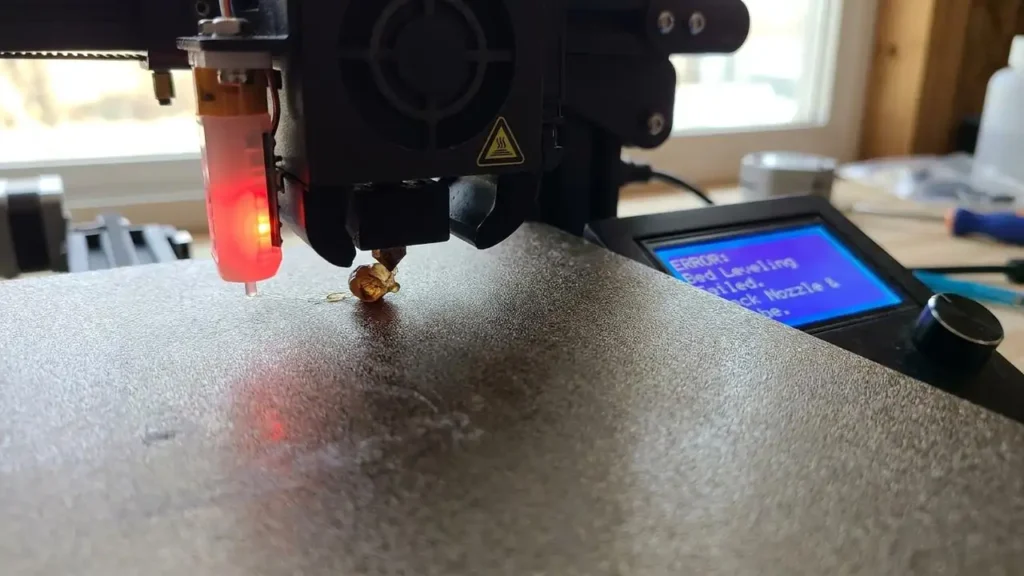
Bed leveling failures are another extremely common class of 3D printer error codes. These often appear before the print begins, when the machine is probing the bed or trying to establish a reliable first-layer reference.
On Prusa machines, leveling and probing failures are often linked to dirty nozzles, incorrect probe readings, mechanical interference, or loadcell or PINDA-related issues. On Creality K1-series machines, some 25xx codes are associated with leveling-board, strain-gauge, or nozzle-related detection problems.
When these 3D printer error codes appear, the smartest checks are:
- clean the nozzle tip completely
- make sure there is no filament blob on the nozzle
- verify the build plate is seated correctly
- check that the bed surface is flat and clean
- inspect the probe, loadcell, or strain-sensing hardware
- make sure custom start G-code is not interfering with the printer’s own probing routine
A lot of users waste time blaming firmware first. In reality, bed leveling 3D printer error codes are often caused by dirty nozzle residue or mechanical interference during the probing phase.
Creality K1 and K1C error codes
Creality K1-series 3D printer error codes often follow a pattern where the code family points toward a subsystem. A 2505 error is commonly associated with TMC or motor-drive abnormal behavior, which can be tied to overheating, board cooling, or driver-side trouble. A 2506 code points more toward toolhead communication trouble, often making cable and connector inspection a priority.
On these machines, some leveling and strain-related codes are also tied to the nozzle and toolhead path. That is why a clean nozzle, a properly seated toolhead cable, and a quick restart after inspection can solve more than people expect.
With Creality-specific 3D printer error codes, the most common practical causes are cable seating, nozzle contamination, toolhead communication problems, and motion-system stress rather than one universal firmware bug.
Anycubic Kobra and S1 error codes
Anycubic’s newer machines present 3D printer error codes in a more structured way. The 10118, 10119, and 10120 range points to homing failures on the X, Y, and Z axes. The 10121 to 10124 range points more toward hotbed heating, extruder heating, and NTC sensor abnormalities.
Anycubic also uses 11511 for extrusion abnormal conditions. In practice, that means the machine did not detect filament entering the printhead as expected, which usually points to a clog, feed resistance, filament path issue, or a filament diameter problem.
So when Anycubic 3D printer error codes appear, read them by system:
- 1011x often means motion, homing, or startup behavior
- 1012x often means heating or sensor behavior
- 1151x often means filament movement or ACE-related feed problems
That pattern makes these codes much easier to understand once you stop looking at them as random numbers.
Bambu Lab HMS error codes
Bambu Lab handles 3D printer error codes differently through its HMS system, but the principle is the same. Some HMS_0300 errors point to build-plate placement, nozzle wrapping, waste-chute filament buildup, or other print-environment problems. Some HMS_0700 errors point to AMS feed and motor overload conditions.
In practical terms, Bambu-related 3D printer error codes often tell you to check:
- build plate seating and orientation
- filament buildup in the waste chute
- AMS motor resistance
- filament tangles
- spool drag or improper spool fit
- abnormal load during feeding
These systems are often more descriptive than older printers, but the fix still comes down to basic mechanics, feed resistance, and sensor verification.
The fastest way to diagnose 3D printer error codes
The best workflow for 3D printer error codes is simple:
- Identify the system that failed: heat, motion, leveling, or filament.
- Power off the printer if the error is thermal or mechanical.
- Inspect cables, connectors, and moving parts before changing settings.
- Remove debris, nozzle blobs, and obvious mechanical interference.
- Retry only after the physical checks are complete.
- If the same code returns immediately, stop guessing and focus on that subsystem specifically.
This matters because many users jump between slicing, firmware, and hardware all at once. A better method is to isolate the failing subsystem first.
Frequently Asked Questions
Once you understand how 3D printer error codes are grouped, they stop looking mysterious. Most of them are not random at all. They are warnings from the heater system, motion system, probe system, or filament path. Read the code by subsystem, inspect that subsystem carefully, and you will solve the issue much faster than by guessing.
