

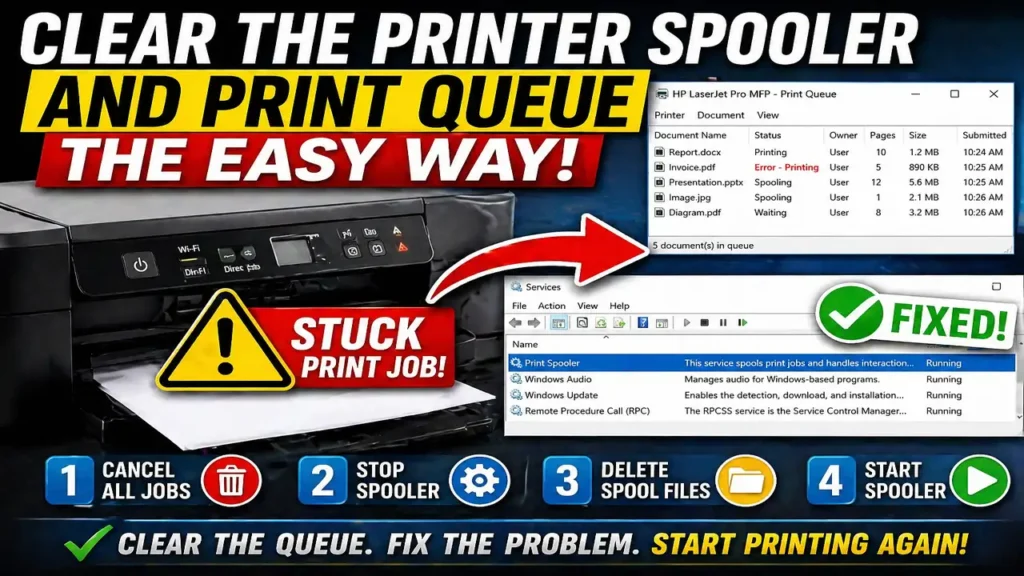
Clear the Printer Spooler and Print Queue the Easy Way
If you need to clear the printer spooler, it usually means one thing: a print job is stuck, the queue is frozen, or your printer has stopped responding even though it still appears online. This is one of the most common printer problems on Windows, and it can make printing fail completely until the blocked jobs are removed.
The good news is that learning how to clear the printer spooler is not difficult. In many cases, you can fix the problem in a few minutes by canceling stuck jobs, restarting the Print Spooler service, and removing the files trapped in the print queue. Once that is done, the printer often starts working normally again.
What the printer spooler actually does
Before you try to clear the printer spooler, it helps to understand what it is. The printer spooler is the background service that manages print jobs between your computer and your printer. Instead of sending every page instantly and directly, Windows places the jobs into a queue and lets the spooler organize them.
When everything works correctly, you never notice it. But when a job gets corrupted, freezes, or fails to finish, the spooler can get stuck. That is when print jobs pile up, documents stay in “Printing” or “Error” status, and nothing new comes out of the printer.
That is why clearing the queue often fixes the whole problem. You are not repairing the printer itself. You are removing the blocked jobs and letting the spooler start fresh.
Start by canceling the print jobs normally
The first way to clear the printer spooler is the easiest one. Open your printer queue from Windows settings and cancel every pending print job. If the jobs delete normally and disappear from the list, that may be enough to solve the issue.
This method works best when the queue is only lightly stuck. If the printer is still responsive and Windows lets you remove the jobs, you may not need anything more advanced.
After clearing the queue, give the printer a few seconds, then try printing a simple one-page document. If it works, the problem was likely just one damaged or frozen print job.
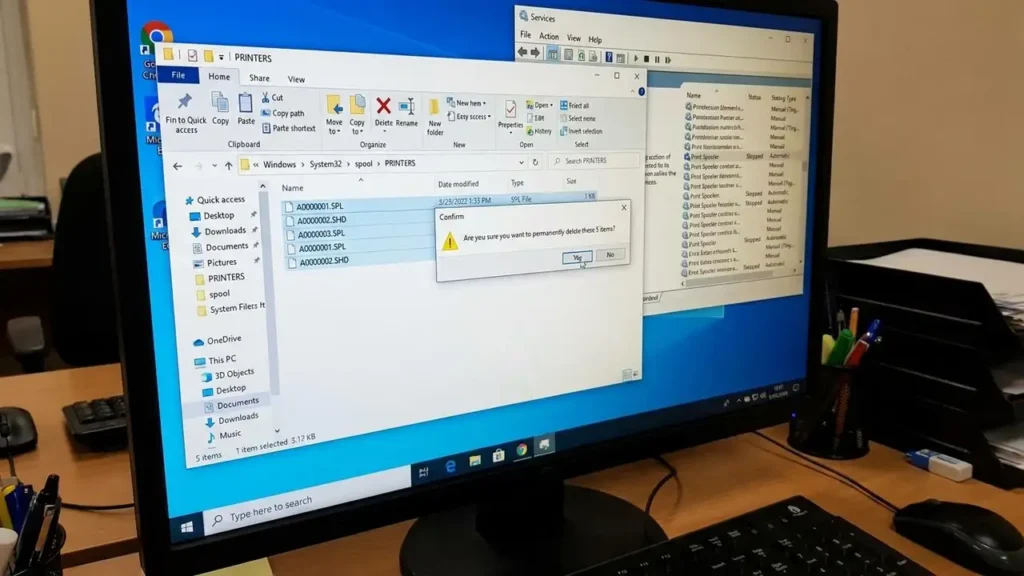
When normal canceling does not work
Sometimes Windows refuses to remove the stuck jobs. They stay in the queue no matter how many times you cancel them, or they reappear after restart. This is the point where you need to clear the printer spooler more deeply.
The next step is to restart the Print Spooler service itself. On Windows, open the Services panel, find Print Spooler, then stop or restart it. This interrupts the stuck process and often frees the queue.
If restarting the service alone fixes it, that is great. But if the queue still shows blocked jobs, then the spooler files themselves usually need to be deleted manually.
How to clear the printer spooler manually in Windows
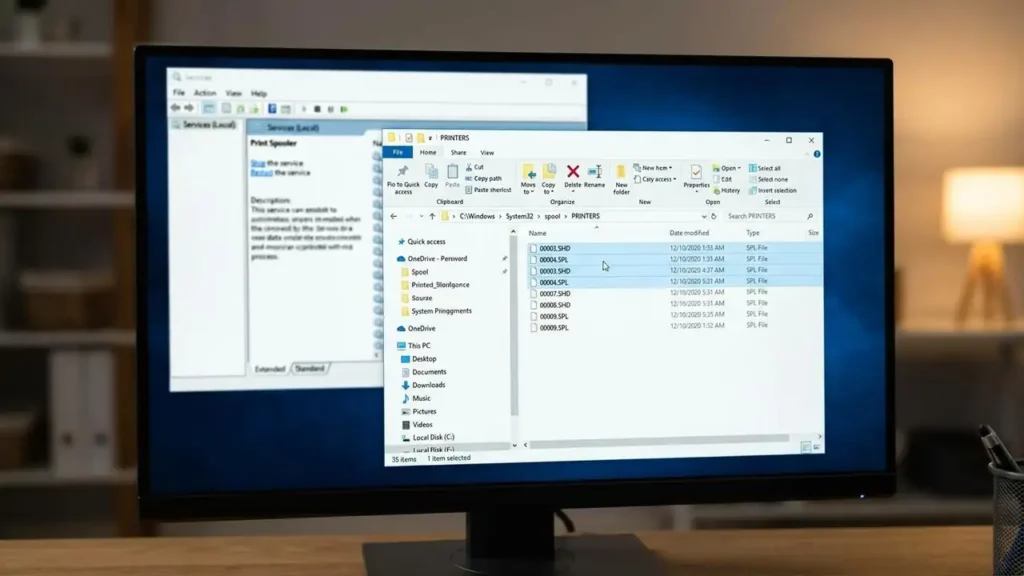
This is the most reliable method when the queue is badly stuck. First, stop the Print Spooler service. Once it is stopped, open File Explorer and go to the spool folder inside Windows. In that folder, you will see the temporary print job files.
Delete everything inside that printer queue folder, then go back to Services and start the Print Spooler again.
This method works because it removes the jobs directly from the place where Windows stores them temporarily. If a print job is damaged, half-finished, or locked in the queue, this is often the step that finally clears it.
When people say they need to clear the printer spooler, this manual cleanup is usually the real fix that solves the problem.
Clearing the printer spooler with Command Prompt
Some users prefer a faster method, especially if the issue happens often. In that case, you can clear the printer spooler through an elevated Command Prompt.
The process is simple in principle:
- stop the spooler service
- delete the print job files from the spool folder
- start the spooler service again
This is useful because it avoids clicking through several windows. It can also be a more dependable method when the graphical tools are slow or unresponsive.
For users comfortable with Windows commands, it is one of the quickest ways to reset the queue completely.
How to clear the print queue on a Mac
Mac does not use the Windows Print Spooler system in the same way, but print jobs can still get stuck. If that happens, you can clear the queue from the printer list or use Terminal to cancel all jobs at once.
If the jobs refuse to disappear, removing and re-adding the printer is often the next best step on macOS. In other words, the idea is similar even though the process is different: remove the stuck jobs, reset the connection, and start with a clean queue.
So while most people search for how to clear the printer spooler because of a Windows problem, Mac users still have their own version of the same issue.
What usually causes a stuck print spooler
A printer spooler problem is often triggered by one of these issues:
- a corrupted document
- a failed print driver
- a printer connection problem
- a print job sent while the printer was offline
- outdated printer software
- multiple stuck jobs piling up in the queue
This is why clearing the spooler works so often. It removes the broken traffic jam instead of forcing the printer to keep retrying the same failed job.
If the problem happens repeatedly, though, you should also look at the driver, printer connection, and Windows updates. Clearing the queue fixes the symptom, but sometimes the underlying trigger is still there.
What to do after you clear the printer spooler
Once you successfully clear the printer spooler, do not immediately resend ten large jobs. Start with a simple test page or one small document first. That helps confirm the spooler is working normally again.
If the printer responds correctly, then you can continue printing as usual. If the queue freezes again right away, pay attention to what triggered it. A single PDF, an old driver, or a network interruption may be the real cause.
You should also check that the printer is powered on, connected correctly, and free from obvious hardware errors such as paper jams or low ink warnings. A queue problem and a printer-side problem can exist at the same time.
When clearing the spooler is not enough
If you repeatedly need to clear the printer spooler, the issue may be bigger than one stuck file. In that case, consider updating or reinstalling the printer driver, removing and re-adding the printer, or using the built-in Windows printer troubleshooter.
If the spooler service itself keeps stopping, crashing, or refusing to restart, that points more toward a Windows-side service or driver issue than a normal queue problem. At that stage, the printer may still be fine, but the software environment around it needs repair.
Frequently Asked Questions
If you need to clear the printer spooler, the fastest path is to start simple, then move deeper only if needed. Cancel the jobs, restart the Print Spooler service, and if the queue still refuses to clear, delete the stuck files manually. That method fixes most spooler-related printing problems without much effort.
