

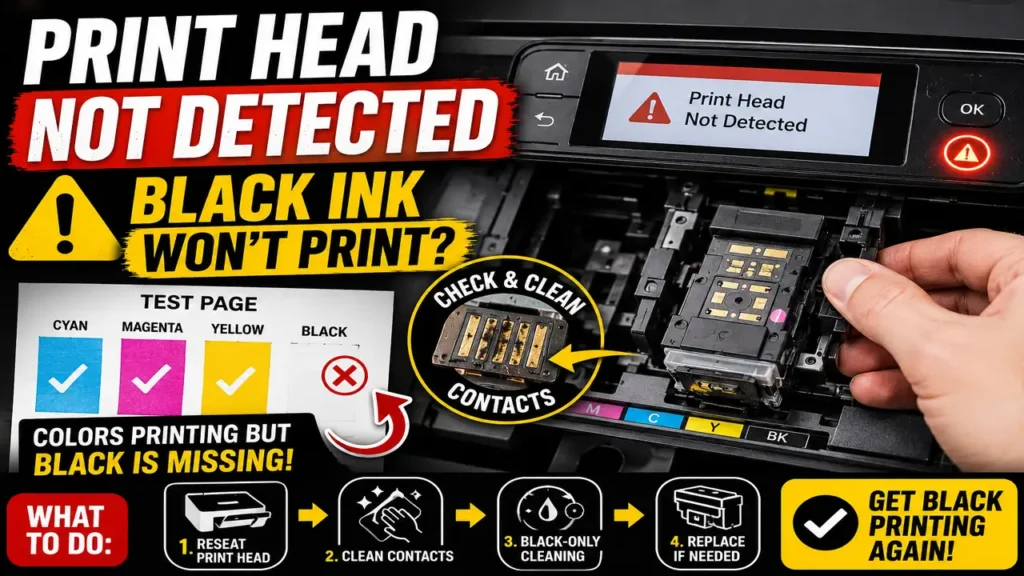
Print Head Not Detected: What to Do When Black Ink Won’t Print
When a printer shows print head not detected and the black ink is completely missing from the test page, the issue is usually more serious than an ordinary clogged nozzle. If cyan, magenta, and yellow are still printing but black is gone, and the printer also says the print head is not installed or not detected, the machine is often failing to recognize the printhead electrically or mechanically rather than simply struggling with ink flow. Canon’s support articles for “print head not installed” errors explicitly point first to checking that the print head is seated correctly and that the locking cover or related retaining parts are fully secured, while HP’s printhead-error guidance similarly starts with reseating and checking the printhead installation.
That matters because many users start by running repeated cleaning cycles. Cleaning can help when black is missing because of a clog, and Brother’s own guidance says missing colors or blank sections can come from incorrectly installed cartridges or clogged printheads, with black-only cleaning available on many models. But when the printer is also showing print head not detected, the first priority is not heavy cleaning. The first priority is making sure the printer can actually see the printhead correctly.
Why black disappears when the printer says print head not detected
A black-only failure with a print head not detected message usually points to one of four problems. The printhead may be seated incorrectly. The electrical contacts may be dirty or oxidized. The installed printhead may be the wrong type or damaged. Or the printer may use cartridges with integrated printheads, in which case the black cartridge itself may be the failed part. Canon’s support notes for codes such as 1470, U051, U052, and related “print head is not installed” messages all center on incorrect installation, incorrect type, or a damaged printhead. HP’s printhead-error documentation also emphasizes correct installation, printhead cover closure, and clean electrical contacts.
This is why the message itself is so important. If the printer only had faded black, light text, or gaps, a clog would be the leading suspect. But print head not detected changes the diagnosis. It suggests the machine does not trust the printhead connection or identity enough to print normally. That is a different class of problem.
The safest first thing to do
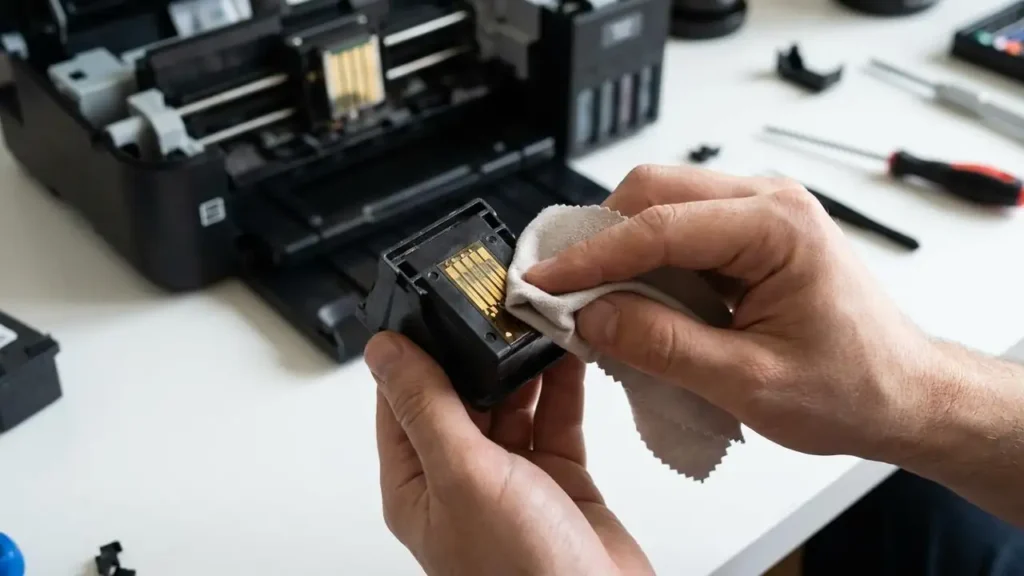
The best first step is to turn the printer off completely, unplug it if the manufacturer allows, and reopen the cartridge or printhead access area once the carriage is in a safe position. Then remove the black cartridge or the full printhead assembly, depending on your design, and inspect the contacts carefully. Canon’s installation guidance specifically says to reopen the cover and push the printhead locking cover firmly into place, while HP’s printhead guidance stresses reseating and cleaning the electrical contacts.
If your printer uses a user-removable printhead, remove it carefully and reinstall it firmly, making sure the latch or locking cover fully closes. If your printer uses cartridges with built-in printheads, reseat the black cartridge first because the failed “head” may actually be part of that cartridge. Do not touch the nozzles more than necessary, and avoid using anything wet on contacts unless the manufacturer specifically recommends it.
Clean the contacts before assuming the head is dead
Dirty or oxidized contacts are one of the most common reasons for print head not detected. HP’s support guidance specifically says cleaning the printhead electrical contacts and the corresponding contacts inside the printer can resolve printhead errors. That is a strong clue because it shows the problem is often electrical recognition, not ink supply.
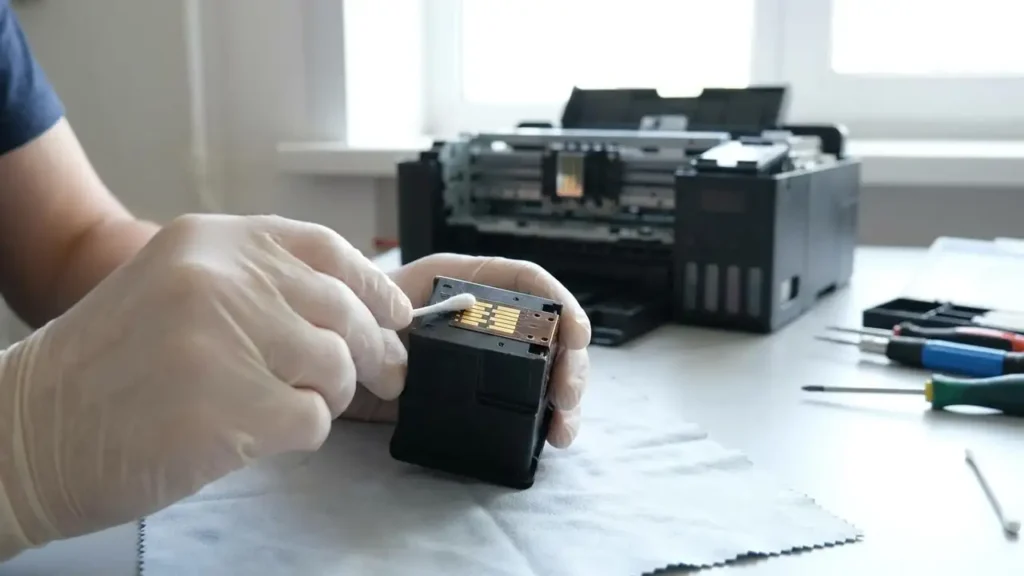
Use a soft, lint-free cloth or swab and clean the contact area gently. Let it dry fully, reinstall the part, close the latch firmly, and restart the printer. If the message disappears, print a nozzle check or test page before doing any heavy cleaning cycle. That helps you confirm whether the problem was contact-related or whether black is still absent for a second reason, such as clogging.
When to run a black-only cleaning cycle
If the print head not detected message goes away after reseating but black still does not print, that is the time to run a black-only cleaning cycle. Brother’s official guidance is especially useful here because it specifically says that when one color is missing or blank, you should clean only the affected color when the printer supports that option.
This matters because cleaning all colors wastes ink and does not target the black channel specifically. Run one cleaning cycle, print a check sheet, and see if black returns. If there is improvement, one more cleaning may help. If there is no improvement and the printer still intermittently complains about print head not detected, the issue is more likely a failing printhead or cartridge than a simple clog.
Can you buy the part and install it yourself?
Sometimes yes, but not always. This depends completely on the printer design. Some Canon and HP printers use user-removable printheads, and the manufacturers provide install or replacement procedures that involve opening the access cover, releasing the latch, inserting the printhead, and locking it down properly. Those are generally self-installable if you are careful and buy the exact correct part.
Other printers do not treat the printhead as a normal user-replaceable part. On those models, the black printhead may be integrated into the cartridge, or the full assembly may be considered a service component. In that case, replacing the black cartridge may solve the problem, or a technician may be the better option. So the answer to “Can I install it myself?” is: yes, if your model has a user-removable printhead and you get the exact correct part. If the machine uses cartridge-integrated heads, replacing the cartridge is effectively the replacement procedure.
When replacement is the right move
Replacement becomes the right next step when the printer still shows print head not detected after proper reseating and contact cleaning, or when the black channel remains completely absent after the message clears and targeted cleaning does nothing. Canon’s support pages explicitly note that the printhead may be damaged when installation has already been checked, and HP’s guidance likewise includes replacement paths when reseating and cleaning do not solve the error.
At that point, do not keep forcing repeated deep cleanings. They consume a lot of ink and do not fix an electrical recognition failure. If the head is damaged, the practical path is replacement.
Frequently Asked Questions
If your printer says print head not detected and black ink is completely absent, start with installation and contact checks, not endless cleaning cycles. Reseat the printhead or black cartridge, clean the contacts, lock everything firmly, and test again. If the error persists, the part may indeed need replacement, and on many consumer printers that replacement is something you can do yourself as long as you buy the exact correct printhead or cartridge for the model.
