

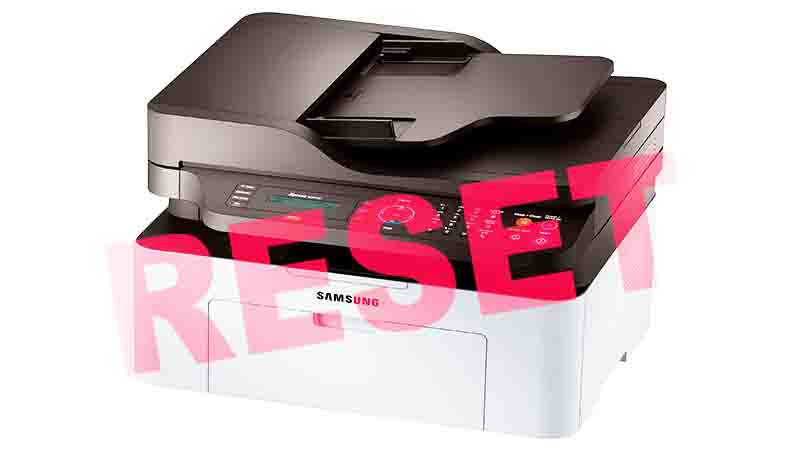
I need to reset my Samsung printer firmware because it hasn’t been updated in a while. Additionally, I’ve been experiencing some printing problems, so I believe that resetting the printer firmware is the most effective way to resolve these issues. Can someone provide me with guidance on how to reset the Samsung printer firmware in the simplest manner? Your assistance would be greatly appreciated!
Fundamental Samsung Printer Factory Reset
Step 1: To start, quickly press the following keys: 1, 9, 3, 4.
Step 2: Upon pressing these keys, a message reading “TECH” will appear.
Step 3: Next, select the Menu key and then press Enter.
Step 4: You will now see “TECH MODE” displayed on the screen.
Step 5: Now, you need to press the “<” key twice. When you see “NEW CARTRIDGE” on your operator panel, press the Enter key.
Step 6: On the panel, you will encounter the option “Yes.” Press the Enter key, and to exit this mode, press the keys 1, 9, 3, 4 in sequence.
Reset Samsung Printer Manually
Step 1: To manually reset your Samsung printer, start by holding down the Power button until the LED light switches off.
Step 2: Prior to proceeding to the next stage, please ensure that your Samsung printer is powered off.
Step 3: Next, disconnect the power cable from the rear of the Samsung printer and leave the printer unplugged for a duration of 10 minutes.
Step 4: After the 10-minute interval, reconnect the power supply to your Samsung printer.
Step 5: Finally, press and hold the stop button for 5 seconds until the demonstration page begins to print.
You can opt for either of these methods to reset your Samsung printer as both are extremely straightforward. Should you encounter any issues during the Samsung printer reset process, please don’t hesitate to reach out for assistance.