

Turn printer into Wi-Fi printer: A Step-by-Step Guide
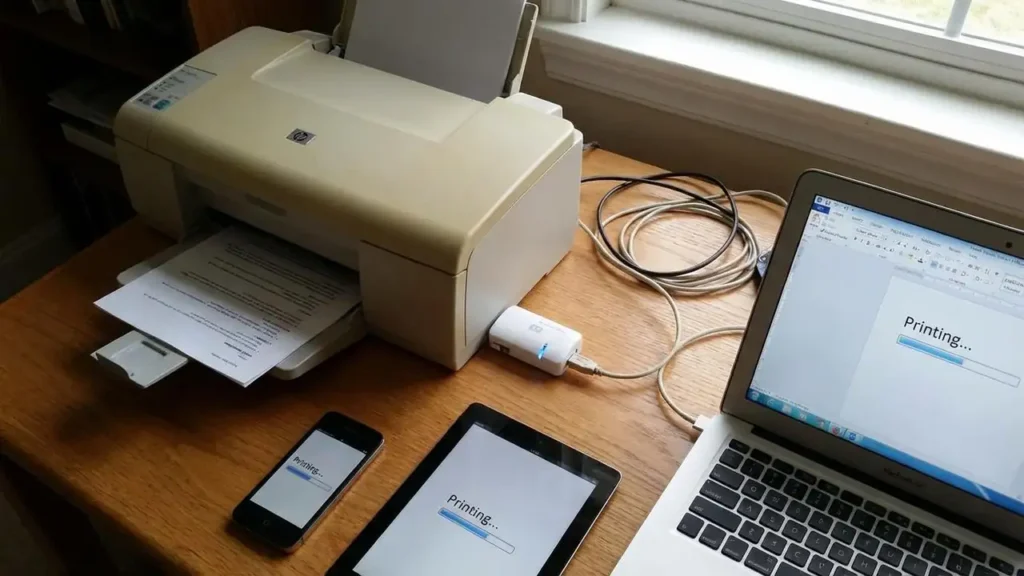
turn printer into Wi-Fi printer projects are a smart way to extend the life of an older machine without replacing it. If your printer still works well but only supports USB or wired connections, adding wireless access can make daily printing much easier. Instead of connecting one computer at a time, you can send print jobs from laptops, phones, and tablets across the same network. For homes, small offices, and shared workspaces, this upgrade can save time, reduce cable clutter, and make an ordinary printer feel modern again.
The good news is that in many cases, you do not need to buy a brand-new printer to enjoy wireless printing. Depending on your model, you can usually turn printer into Wi-Fi printer using one of three methods: a wireless print server, a router with USB printer-sharing support, or a shared computer connected to the printer. Some printers also support an internal wireless module, but that is less common and usually more complex.
Why people want to turn printer into Wi-Fi printer
A traditional USB printer works fine when it is connected to a single computer. The problem begins when more than one person wants to use it. Wireless printing solves that by allowing devices on the same network to access the printer without physically reconnecting cables.
Main benefits of wireless printing
-
More than one device can print without moving the USB cable
-
Laptops and desktop PCs can print from different rooms
-
Phones and tablets can join the workflow more easily
-
Desk space stays cleaner with fewer connection limits
-
Older printers stay useful for longer
For many users, the goal is simple: keep the reliable printer, lose the annoying cable dependency.
Check compatibility before you start
Before you try to turn printer into Wi-Fi printer, verify what your printer and network can actually support. Not every model behaves the same way, and a quick compatibility check can save a lot of frustration.
What to check first
-
Does the printer already have Ethernet but no Wi-Fi? If yes, wireless sharing becomes much easier.
-
Does your router include a USB port with printer-sharing support?
-
Is the printer driver still available for your operating system?
-
Does the manufacturer offer any optional wireless module for your model?
-
Will you be printing only from Windows, or also from macOS, Android, or iPhone?
If your printer is very old and driver support is poor, it may still work, but setup can become more awkward than expected.
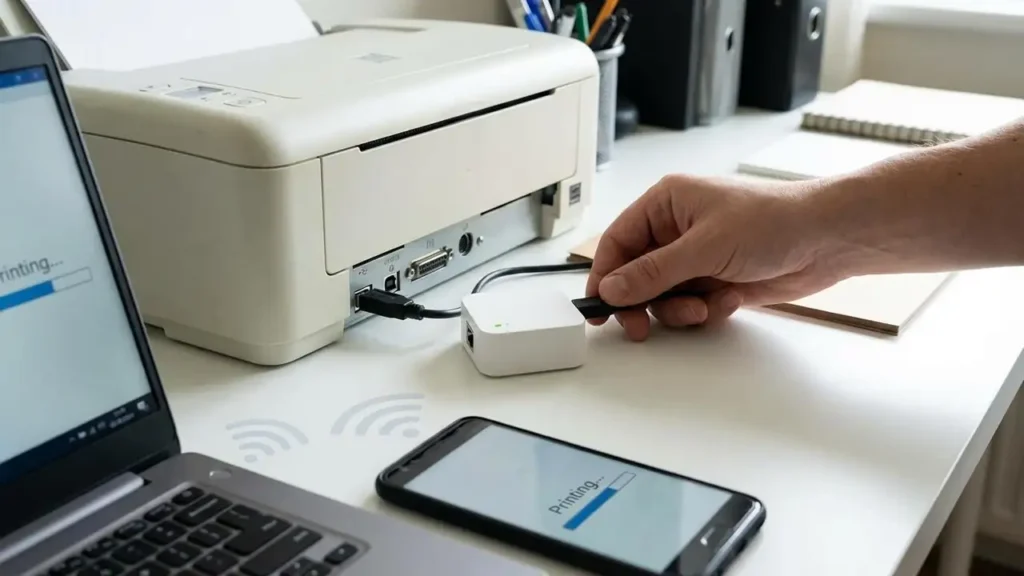
Method 1: Use a wireless print server
This is one of the most common ways to turn printer into Wi-Fi printer. A wireless print server is a small device that connects to the printer’s USB port and links it to your Wi-Fi network.
How it works
The print server acts as a bridge between your printer and the network. Once configured, devices on the same Wi-Fi can see the printer and send jobs to it.
Basic setup steps
-
Connect the print server to the printer’s USB port.
-
Power on the print server.
-
Connect it to your Wi-Fi network using its setup tool or web interface.
-
Install the printer on each computer using the correct driver.
-
Print a test page to confirm communication.
Pros and cons
A print server is often the cleanest solution, but it depends heavily on compatibility. Some models work beautifully, while others behave like tiny plastic philosophers asking difficult questions at 2 a.m.
Method 2: Use a router with USB printer sharing
Some routers include a USB port designed for storage or printer sharing. If your router supports that feature, this can be an easy way to turn printer into Wi-Fi printer without buying an additional adapter.
Setup overview
-
Connect the printer to the router’s USB port.
-
Log into the router settings.
-
Enable printer sharing or print server mode.
-
Install the printer on each device using the router’s instructions and your printer driver.
-
Run a test print.
When this method works best
This method is great for home networks where the router is stable and centrally located. However, router printer sharing sometimes works better for basic printing than for advanced features like scanning or status monitoring.
Method 3: Share the printer through a computer
Another simple way to turn printer into Wi-Fi printer is to keep the printer connected to one computer and share it over the network. This costs nothing, but that computer must stay turned on whenever others need to print.
Steps for shared printing
-
Connect the printer to a desktop or laptop with USB.
-
Install the correct printer driver.
-
Open printer sharing settings in the operating system.
-
Enable sharing and assign a simple printer name.
-
Add the shared printer on other devices connected to the same network.
Limitations
This method is cheap, but not elegant. If the host computer sleeps, restarts, or leaves the network, the printer disappears. Still, for light use, it is a perfectly practical option.
Can you install a built-in wireless module?
Some printers support an internal wireless card or module, but this is less common than people think. If your printer was designed with an optional Wi-Fi kit, the manufacturer documentation usually says so clearly.
Important warning
Do not open the printer and start improvising with hardware unless you know the model supports it. Random surgery on office equipment is how one turns “simple upgrade” into “expensive lesson.”
Network setup tips after you turn printer into Wi-Fi printer
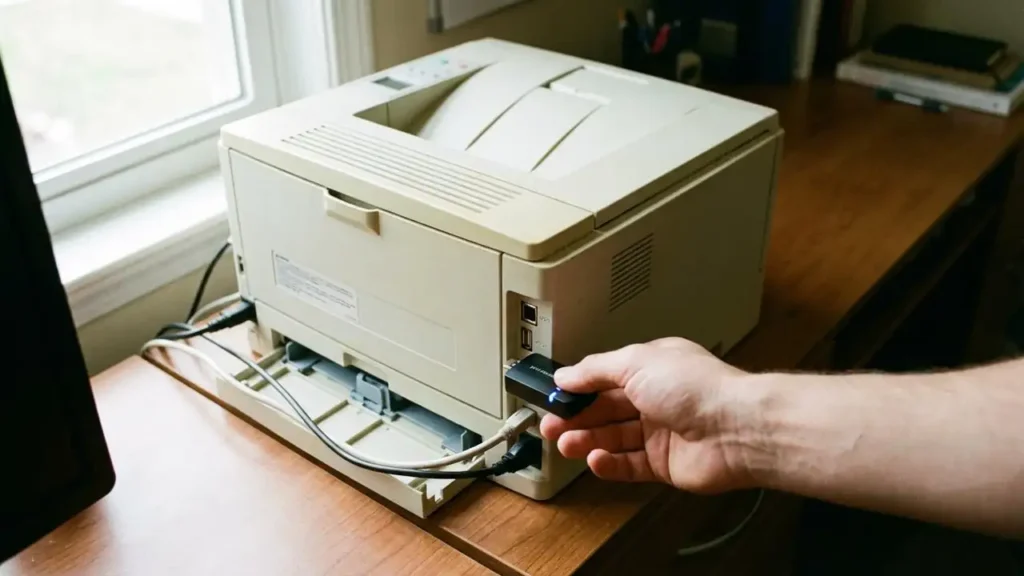
Once your printer is on the network, assign it a stable IP address if possible. This helps prevent devices from “losing” the printer after reboots or DHCP changes.
Best practices
-
Place the printer within good Wi-Fi coverage
-
Use strong Wi-Fi security and a reliable password
-
Keep firmware updated if the device supports updates
-
Install the correct driver, not a generic guess, when possible
-
Print a test page from each major device you plan to use
Troubleshooting common issues
Even after you successfully turn printer into Wi-Fi printer, a few common problems can appear.
Printer is not detected
-
Restart the printer, router, and computer
-
Confirm all devices are on the same network
-
Reinstall the driver using the network option
Print jobs get stuck
-
Clear the print queue
-
Restart the print spooler/service
-
Re-add the printer using its network address if needed
Printing works, but scanning does not
This is common with shared or router-based methods. Printing may work while scanning features remain limited, especially on multifunction printers.
