

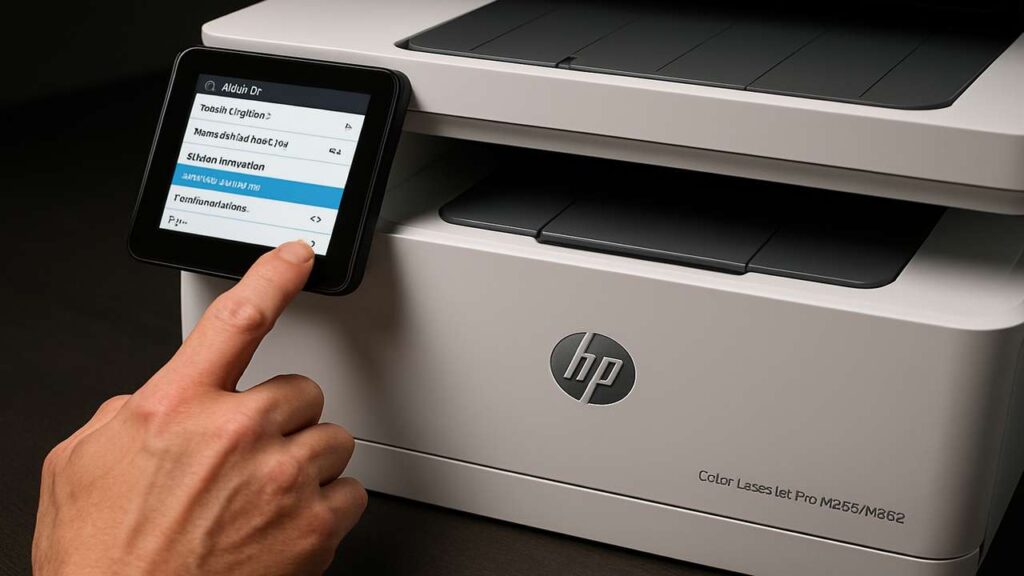
disable automatic firmware updates hp m255 m282 (207A) — safe, permanent setup
disable automatic firmware updates hp m255 m282 is the fastest way to stop surprise firmware that can change cartridge behavior on HP Color LaserJet Pro M255/M282 (207A series). Use our disable automatic firmware updates hp m255 m282 guide to turn off auto-update from the front panel, lock it down in the Embedded Web Server (EWS), verify from HP Smart, and optionally block Internet access for a rock-solid setup.
Why disable automatic updates on 207A models
Updates can improve security and reliability—but they can also change how chips are validated. For workshop and small-office fleets that rely on predictable supplies, the best practice is: manual updates on your schedule, after quick testing.
disable automatic firmware updates hp m255 m282 — front-panel method
Menu names vary slightly by firmware; the flow is the same:
-
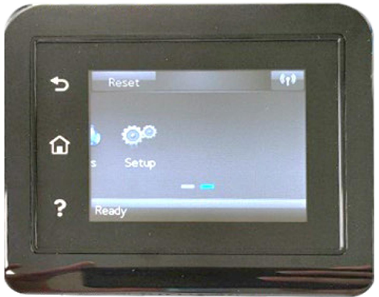
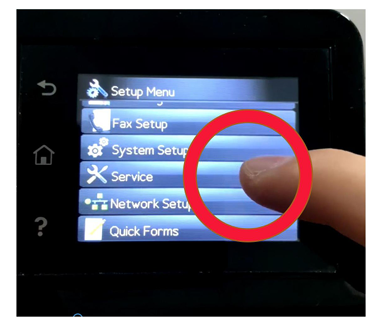
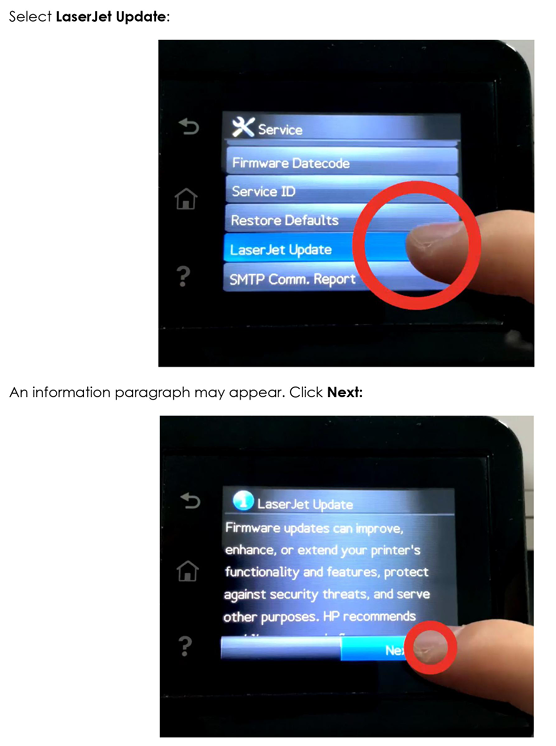
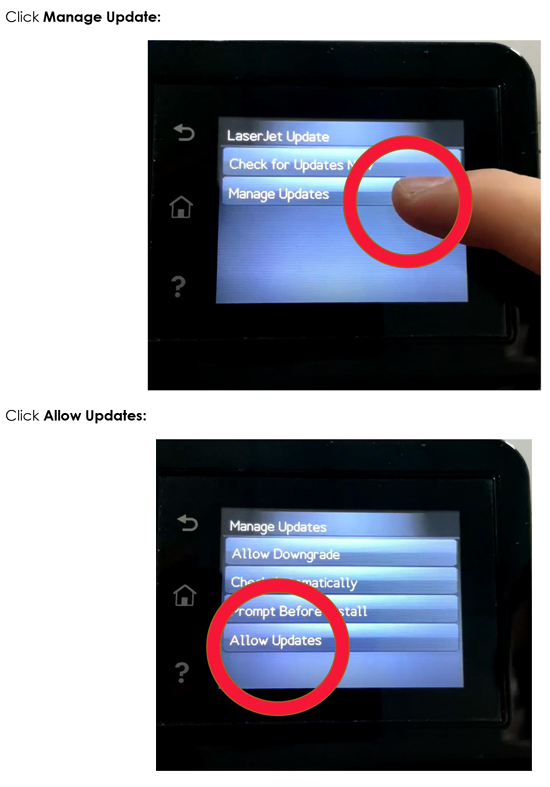
On the printer screen: Setup → Service (or Printer Maintenance) → LaserJet Update.
-
Open Manage Updates.
-
Set Allow Updates = No, Prompt Before Install = Always Prompt, Check Automatically = Off.
-
Restart the printer and confirm no update prompts appear.
If you see Update Firmware only, look for Update Options / Printer Update Options and choose Off or Alert When Available (no auto-install)
disable automatic firmware updates hp m255 m282 — EWS (web) lock-down
This is the most reliable place to enforce the policy.
-
Print a Network/Configuration page and note the printer IP address.
-
On a PC/phone browser, open
http://<printer-IP>→ Embedded Web Server (EWS). -
Sign in as Administrator (use the PIN from the printer label if prompted).
-
Go to General / System → Firmware Update or Tools → Printer Updates.
-
Turn Off any Automatic checks/installs; set updates to Manual or Alert Only.
-
Apply/Save, then reboot the printer.
HP Smart app — double-check
In HP Smart → Printer Settings → Advanced Settings, you’ll land in the same EWS pages. Confirm that automatic checks and automatic install are disabled.
Optional: network safeguard (keeps settings honest)
-
In your router, assign the printer a DHCP reservation and block Internet/WAN for that device (allow local LAN only).
-
Printing and scanning continue over LAN; the printer simply can’t reach update servers.
-
If you need cloud features, skip the block and rely on the EWS/front-panel settings only.
How to update safely (when you actually want to)
-
Create a pilot: re-enable updates on one device or use manual file upload from EWS.
-
Print a few test pages; verify supplies behave normally.
-
Then update the rest, or keep firmware frozen if there’s no benefit.
Troubleshooting after disabling
-
Still getting prompts? Recheck EWS Printer Updates/Firmware Update page and set everything to Manual/Off, then reboot.
-
Updates install anyway: Clear any HP Update utilities on PCs that push updates, and ensure the printer still has WAN blocked (if you chose that route).
-
Cartridge rejected after a recent update: Your printer already took the update. Stabilize settings now; you may need compatible chips for the new build.
Step-by-step table (print this)
| Step | Action | Why it helps | Time |
|---|---|---|---|
| 1 | Front panel → LaserJet Update → Manage Updates | Disables auto checks/installs at the device | 1–2 min |
| 2 | EWS → Firmware/Printer Updates = Manual/Off | Enforces policy at admin level | 2–3 min |
| 3 | HP Smart → Advanced Settings check | Verifies the same EWS settings from the app | 1 min |
| 4 | (Optional) Router: block WAN for printer IP | Prevents any silent background calls | 2–5 min |
| 5 | Reboot printer; print status page | Confirms policy persisted after restart | 1 min |
| 6 | Schedule manual updates on a pilot device | Safe testing before fleet rollout | 5–10 min |
FAQs
Will disabling auto updates break features?
No—local printing/scanning work normally. Cloud/ePrint features may require updates or Internet access.
Is it safe to block the printer from the Internet?
Yes, if you don’t use cloud features. Many offices run printers LAN-only for stability.
Can I re-enable updates later?
Any time. Flip the settings back in EWS or the front panel.
Do I need to change Cartridge Policy or Protect Cartridges?
Those are separate features. This guide targets firmware updates only.
Quick checklist
-
Front panel: Allow Updates = No, Check Automatically = Off
-
EWS: Firmware/Printer Updates set to Manual/Off
-
HP Smart: settings match EWS
-
Optional router WAN block in place
-
Manual pilot update process documented
Conclusion
The reliable way to disable automatic firmware updates hp m255 m282 is to set no auto-check and no auto-install in both the front panel and EWS, then—if you want maximum certainty—block Internet for the printer. Keep a manual update routine and you’ll print on your terms, not on a surprise schedule.
