

Epson L3210 End of Service Life Reset
Stop printing errors and reclaim your Epson L3210 with this essential guide.
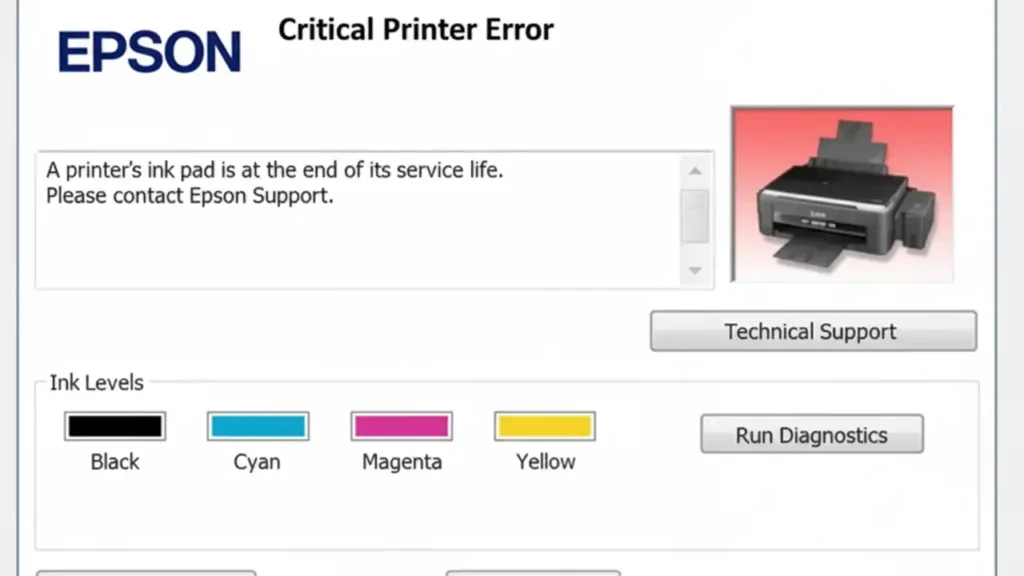
The dreaded “end of service life” message on your Epson L3210 printer can be a significant roadblock, stopping you from printing important documents. This warning typically indicates that the printer’s waste ink pad, also known as the ink absorption pad, has reached its saturation point. It’s a protective measure designed by Epson to prevent ink from overflowing and causing damage. However, this message often appears before the pad is truly full, leading to a printer that’s still functional but unusable.
This guide will walk you through the process of safely resetting the Epson L3210 ink pad end of service life counter. We’ll explain why this error occurs, how to perform the reset using a specialized tool, and what steps you can take to prevent the issue from recurring. Understanding the Epson L3210 service required message is key to keeping your printer running smoothly and avoiding unnecessary replacement costs.
Understanding the Epson L3210 Waste Ink Pad
Your Epson L3210, like many inkjet printers, uses a system to manage ink during various operations, including printing, cleaning cycles, and initial setup. During these processes, a small amount of ink is expelled and collected in a special absorbent pad located within the printer. This Epson L3210 waste ink pad serves a crucial purpose: it catches excess ink, preventing it from leaking inside the printer and causing mess or damage.
However, this pad has a finite capacity. The printer’s internal software keeps track of how much ink has been absorbed. Once this counter reaches a predetermined limit, the printer displays the Epson L3210 ink pad error or “end of service life” message. This is a software lock designed to prompt a service visit, but often the pad itself is not yet problematic.
Why the “End of Service Life” Message Appears
The Epson L3210 end of service life warning isn’t always about an immediate physical problem. The printer calculates this based on print volume and frequency of cleaning cycles. Every print job, power-on, and head cleaning cycle contributes to the waste ink counter. Even if you haven’t printed extensively, frequent cleaning cycles – which can be triggered by occasional print head clogs or user-initiated maintenance – will also increase the counter.
Many users find that their Epson L3210 printer still prints perfectly well when this message appears. The primary issue is that the printer’s firmware prevents further operation to avoid potential ink overflow, thus requiring a reset of the internal counter. This is where the Epson L3210 waste ink pad counter reset becomes essential for continued use.
How to Perform the Epson L3210 Waste Ink Counter Reset
The most common and effective way to resolve the Epson L3210 service required error is by using a dedicated Epson Adjustment Program, often referred to as a service tool. This software allows you to communicate directly with your printer’s hardware and reset specific counters, including the waste ink pad counter.
Important Note: Before proceeding, ensure you have downloaded a reliable version of the Epson L3210 Adjustment Program. Many unofficial versions exist, and using an incorrect or malicious one can damage your printer. Search reputable printer support forums or websites for safe download links. Always scan downloaded software with your antivirus.
- Download and Extract the Adjustment Program: Locate and download the correct Epson Adjustment Program for your Epson L3210. Once downloaded, it’s usually in a compressed (.zip or .rar) format, so you’ll need to extract the files to a dedicated folder on your computer.
- Disable Antivirus Software (Temporarily): Many antivirus programs flag these utility tools as potentially unwanted programs. For the reset to work, you will temporarily need to disable your antivirus software. Remember to re-enable it after completing the reset.
- Run the Adjustment Program: Navigate to the extracted folder and find the executable file (often named “AdjProg.exe” or similar). Right-click on it and select “Run as administrator” to launch the program with the necessary permissions.
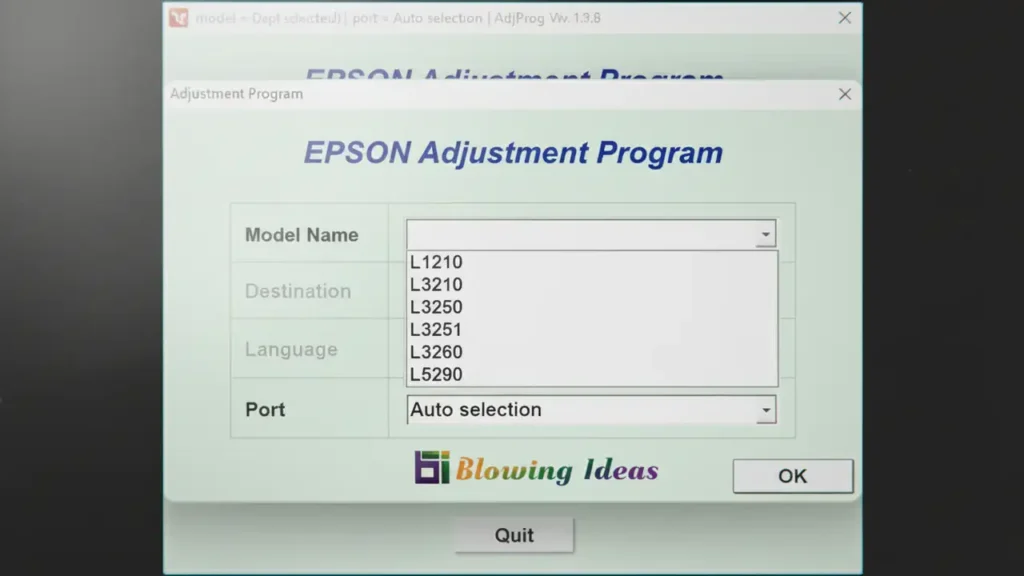
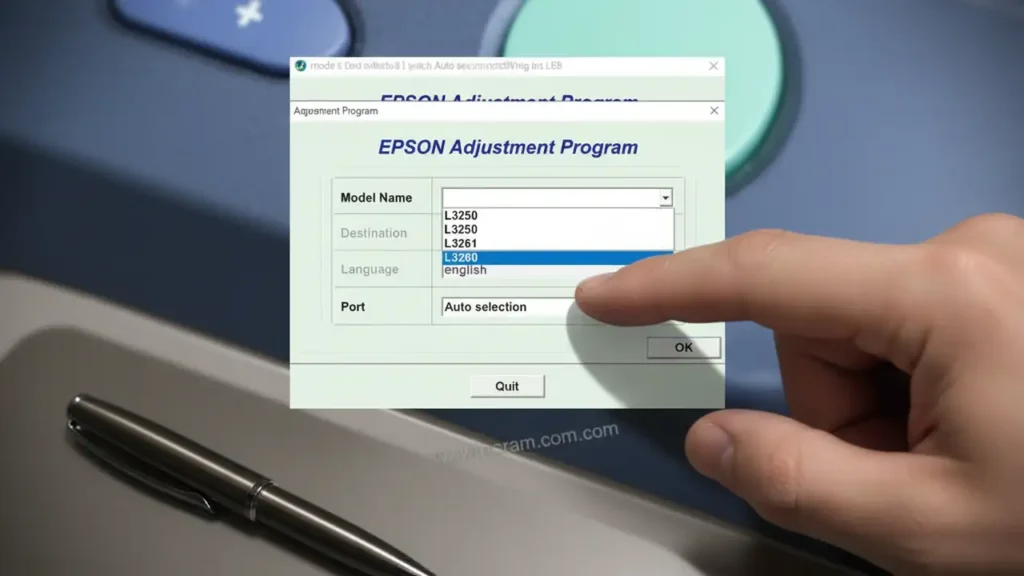
- Select Your Printer Model: In the Epson Adjustment Program window, click on “Select”. A new window will appear. Choose your printer model (Epson L3210) from the dropdown menu. Select the correct port your printer is connected to (usually USB). Click “OK”.
- Navigate to “Particular Adjustment Mode”: Back in the main window, click on “Particular Adjustment Mode”. This will open a list of available adjustment options for your printer.
- Choose “Waste Ink Pad Counter”: From the list of particular adjustments, select “Waste Ink Pad Counter”. Then, click “OK”.
- Reset the Counters: In the “Waste Ink Pad Counter” screen, you will see several counters, most importantly the “Main pad counter” and potentially an “Ink pad counter”. Check the boxes next to the counters you wish to reset. Then, click the “Initialization” button.
- Confirm and Restart: A confirmation message will appear. Click “OK” to confirm. The program will likely prompt you to turn off your printer and then turn it back on. Follow these instructions precisely.
- Verify the Reset: After restarting the printer, try printing a test page. The “end of service life” or Epson L3210 ink pad error message should be gone. You might also want to run the Adjustment Program again and check the “Waste Ink Pad Counter” section to ensure the values have reset to near zero.
What is the “Ink Pad End of Service Life” Status?
The Epson L3210 ink pad end of service life status is a software flag indicating that the printer’s internal counter for absorbed waste ink has reached its maximum capacity. It doesn’t necessarily mean the physical pad is saturated and overflowing. The counter is a conservative estimate used by the printer’s firmware to prompt maintenance or replacement.
When this message appears, the printer stops functioning to prevent potential damage from ink overflow. By resetting this counter using the Adjustment Program, you are essentially telling the printer that the waste ink pad has been serviced and cleared, allowing it to resume normal operation. It is crucial to understand that this action does not physically clean or replace the ink pad itself.
Preventing Future Epson L3210 Ink Pad Errors
While resetting the Epson L3210 waste ink pad counter can fix the immediate problem, it’s wise to take steps to reduce the rate at which it fills up. Preventing excessive waste ink generation can help avoid the Epson L3210 service required message appearing again too soon.
- Print Regularly: Avoid leaving the printer idle for extended periods. Regular printing, even just a few pages a week, can help keep the print heads clear and reduce the need for intensive cleaning cycles.
- Avoid Unnecessary Cleaning Cycles: Only run the print head cleaning utility when you notice a decline in print quality (e.g., streaks, missing colors). Excessive cleaning is a major contributor to filling the waste ink pad.
- Perform Printer Maintenance Wisely: When printing, especially if you’ve had issues with nozzle clogs, consider printing a few pages of solid color after running a cleaning cycle. This helps push ink through the system effectively.
- Consider the Pad’s Physical State: If you reset the counter multiple times, and especially if you notice any ink leakage around the printer, it might be time to consider the physical replacement of the waste ink pad. This is a more involved process, often requiring professional service.
Safety and Warranty Considerations
Before attempting any internal reset or maintenance on your printer, always prioritize safety. Ensure the printer is unplugged from the power source before opening any panels or accessing internal components. Avoid touching sensitive parts like the print head nozzles or electronic circuits directly, as static electricity or physical damage can occur.
It is important to note that using third-party software to reset internal counters, such as the Epson L3210 waste ink pad counter reset tool, may void your printer’s warranty. Epson does not officially support these reset procedures. If your printer is still under warranty and you encounter this error, it is best to contact Epson customer support or an authorized service center for assistance. Proceeding with a self-reset is done at your own risk.
Frequently Asked Questions
By understanding the causes behind the Epson L3210 ink pad end of service life message and performing a careful reset, you can extend the useful life of your printer. Remember to combine this with good maintenance practices to keep your Epson L3210 printing efficiently for longer.
