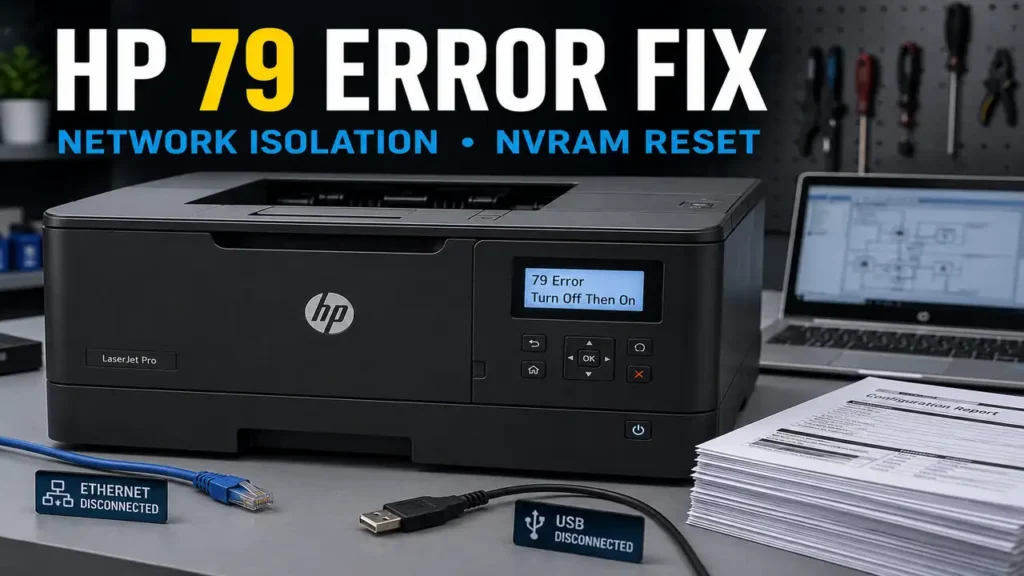
An HP 79 Error Fix is a highly requested diagnostic procedure within the enterprise printer maintenance community.
When HP LaserJet and Color LaserJet models halt and display the “79 Error Turn Off Then On” message, the printer is typically experiencing an internal firmware, communication, or accessory-related processing error.
While official documentation often suggests standard reboots or contacting service centers, independent technicians rely on strict network isolation and queue clearing.
By isolating the printer from external print data and clearing stored configuration or corrupted internal states, technicians can determine whether the fault is software-driven or hardware-related.
This technical manual details a hands-on diagnostic approach for an HP 79 Error Fix, including network isolation, spooler clearing, and NVRAM initialization.
Safety Warning and Official Stance: According to HP documentation, a continuous 79 Error may require contacting an authorized service center. The software and hardware interventions described below may erase custom configurations and could affect warranty or support status if unsupported hardware changes are performed. This guide is intended strictly for educational and troubleshooting purposes. Proceed at your own risk.
Before You Start: Essential Expectations
To align with professional diagnostic standards, please review the following limitations before attempting this procedure:
-
Unofficial workaround: This is a community-reported diagnostic method, not a guaranteed manufacturer repair protocol.
-
Data loss warning: Executing an NVRAM initialization will permanently erase stored IP addresses, network settings, and custom administrator passwords.
-
Model-specific procedures: Button combinations vary significantly by model. Always verify the exact reset procedure in the official service manual before attempting NVRAM initialization.
-
Variable success rates: Success is not guaranteed. If the formatter board has sustained physical damage, this isolation protocol will not resolve the boot loop.
Supported Printer Architectures
This diagnostic isolation method has been commonly reported by repair communities across several HP LaserJet families that frequently experience rendering panics.
| Printer Series | Notable Models (Community Reported) | Primary Processing Unit |
| HP LaserJet Pro 400 | M401, M402, M425, M428 | Standard Formatter Board |
| HP Color LaserJet Pro | M252, M277, M452, M479 | SoC Formatter Assembly |
| HP LaserJet Enterprise | M506, M605, M608, M527 | High-Performance ECB/Formatter |
| HP Color LaserJet Ent. | M553, CP4025, CP4525 | Complex Rendering Formatter |
Diagnosing the Communication Anomaly
The HP Formatter Board is essentially a highly specialized computer. It is responsible for receiving raw network data and rendering complex files into printable images.
When a computer sends a corrupted PDF, a damaged font file, or an outdated network protocol, the formatter board attempts to process the illegible data.
This can overwhelm the formatter’s processing pipeline or memory handling, triggering the 79 Error failsafe.
Because the corrupted print job remains stuck in the computer’s network queue, the printer immediately downloads the bad file again the second it reboots. This creates a catastrophic boot loop.
Phase 1: Network Isolation and Spooler Clearing
To successfully execute an HP 79 Error Fix, you must completely sever the printer’s connection to the corrupted data stream. This is often the most critical and effective diagnostic step.
-
Power down the printer via the main physical switch.
-
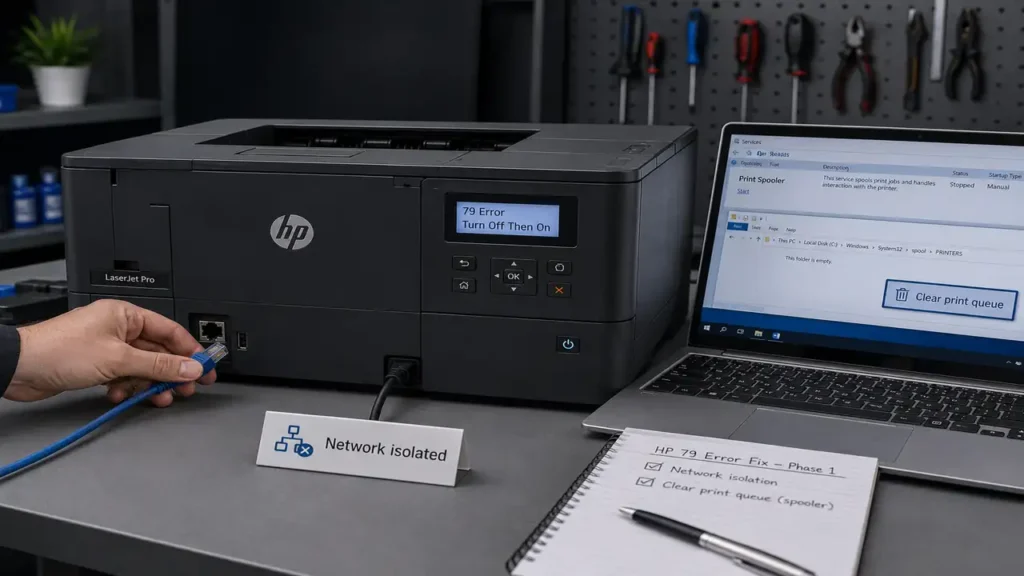
Disconnect the Ethernet and USB cables. If the printer is connected wirelessly, temporarily isolate it from Wi-Fi through the network settings, or power down the access point only in a small/home environment.
-
Power the printer back on in absolute isolation.
-
If the printer reaches the “Ready” state without crashing, the hardware is functional. This strongly suggests the fault is related to an external print job, network data stream, or host-side queue issue.
-
On the host Windows computer, navigate to Services.msc and stop the Print Spooler service.
-
Navigate to
C:\Windows\System32\spool\PRINTERSand permanently delete all files within this folder. Restart the Print Spooler service.
(Read more: How to Clear the Windows Print Spooler Safely)
Phase 2: Peripheral and DIMM Extraction
If the printer continues to loop even when fully isolated from the network, a hardware peripheral may be triggering the HP 79 Error Fix requirement.
Note: This phase applies only to models with removable formatter accessories, DIMM slots, EIO cards, or storage modules.
-
Verify the printer is completely powered off and unplugged.
-
Remove any external USB flash drives plugged into the chassis.
-
Locate the formatter board access panel (usually on the rear or right side of the machine).
-
Remove the metallic access panel to expose the expandable memory slots.
-
Carefully unclip and extract any aftermarket RAM (DIMM) modules or internal EIO hard drives.
-
Failing aftermarket memory modules are a primary cause of processing errors. Power the machine on without the extra memory to evaluate stability.
Phase 3: The NVRAM Initialization Protocol
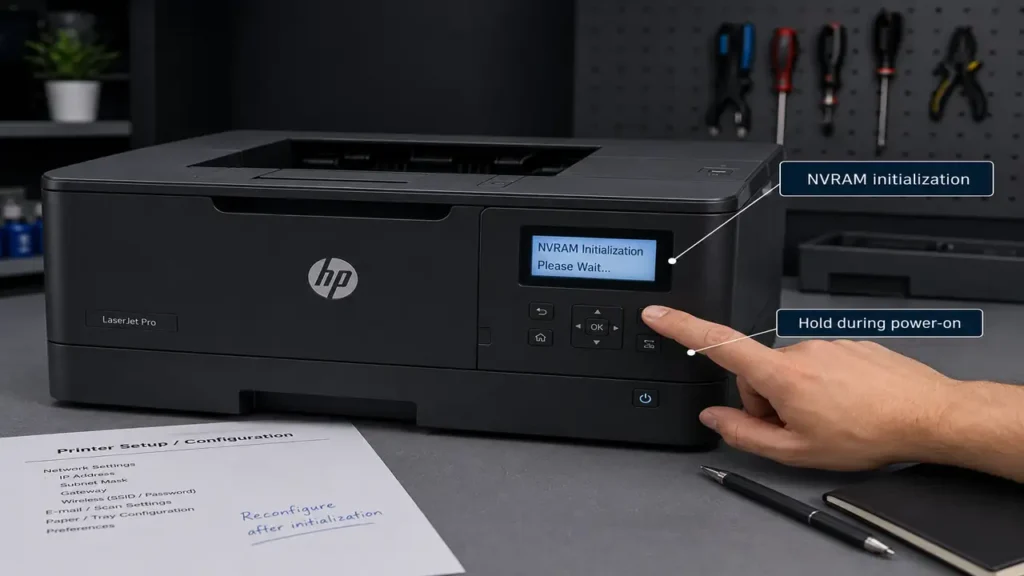
If isolation fails, the fault may involve corrupted persistent settings, stored jobs, or a firmware state that survives normal power cycling. You may need to force an NVRAM initialization to execute the HP 79 Error Fix.
-
Power the printer off.
-
Model-Specific Action: The physical button combination varies heavily by model. For many standard HP LaserJet Pro models with a touchscreen, press and hold the bottom right quadrant of the touchscreen while turning the power on.
-
For models with physical keypads, press and hold the Right Arrow and the Cancel (X) buttons simultaneously while powering on.
-
Hold the buttons until the display reads “Permanent Storage Init” or “NVRAM Initialization.”
-
Release the buttons. The printer will clear its internal cache, wipe its network configurations, and return to factory defaults.
Phase 4: Firmware Flash and Reconfiguration
If the NVRAM initialization stabilizes the machine, the final phase of the HP 79 Error Fix is ensuring the printer firmware is up to date.
-
Re-establish the network connection (plug in the Ethernet cable).
-
Because the printer was reset to factory defaults, it will likely pull a new IP address from your DHCP server. Print a configuration page to locate it.
-
Download the latest firmware revision for your specific printer model directly from the official HP support repository.
-
Access the printer’s Embedded Web Server (EWS) by typing the IP address into a web browser, and upload the new firmware.
-
Updated firmware may resolve known rendering, networking, or job-processing bugs that can contribute to recurring 79 errors.
(Read more: Step-by-Step Guide to Updating HP Printer Firmware Safely)