

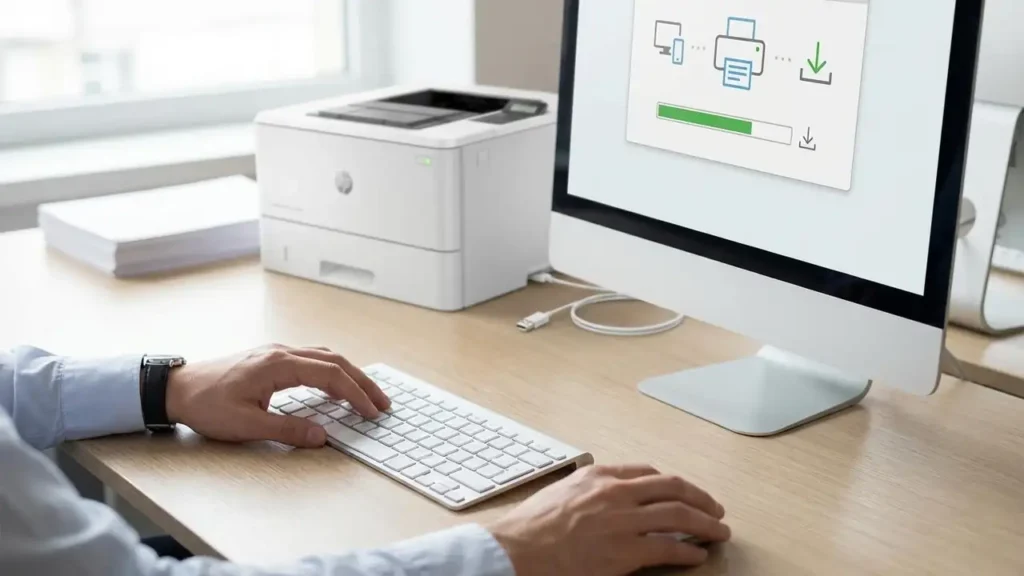
hp m180 m181 firmware downgrade: How to Roll Back HP Firmware Safely
If you’re searching for hp m180 m181 firmware downgrade, you’re probably dealing with a familiar headache: the printer worked fine, you updated firmware, and suddenly you’re seeing new errors (supply communication problems, printing blocks, or strange behavior that wasn’t there before). Firmware updates are meant to improve stability and compatibility, but sometimes they introduce unexpected issues—especially if your printer environment includes older drivers, different operating systems, or supplies that were previously recognized without trouble.
This guide explains how to update firmware correctly, how a downgrade works on HP LaserJet models like the M180/M181, what to check before you roll back, and how to keep your printer stable afterward—without relying on risky files or questionable sources.
What firmware controls on the HP M180 / M181
Firmware is the printer’s internal “operating system.” It controls how the device:
-
Starts up and initializes hardware
-
Communicates with the computer (USB/network)
-
Reads and validates supply data (toner information and cartridge status)
-
Handles error logic and warning messages
-
Applies security and reliability improvements
When firmware changes, the printer’s behavior can change instantly—even if you did not change the toner, paper, or settings. That’s why hp m180 m181 firmware downgrade can be a valid solution when a firmware version causes new problems you didn’t have before.
Before you update or downgrade: prepare the right way
Even though this process is usually straightforward, a little preparation prevents 90% of mistakes.
1) Print a configuration/status report
Before you do anything, print a configuration or information report and keep it for reference. This helps you confirm:
-
Current firmware version/date code
-
Network settings (if applicable)
-
Device serial/model information
2) Note your custom settings
Write down any important settings you might want to restore later:
-
Wireless configuration (SSID/IP settings)
-
Paper size defaults
-
Sleep/power settings
-
Any special print preferences you use regularly
3) Use stable power and a reliable connection
Firmware changes should never be interrupted. For best results:
-
Plug the printer into a stable outlet (avoid flaky power strips)
-
Prefer a direct USB connection during firmware changes if possible
-
Avoid doing firmware work during storms or unstable electricity conditions
How to update firmware on HP LaserJet M180 / M181 (safe method)
A firmware update can be helpful if you’re fixing bugs or improving compatibility. Use this path when you want the newest version and you’re not currently stuck with new post-update errors.
Step-by-step firmware update
-
Download the latest firmware package for your exact model (M180 or M181) from HP’s official support resources.
-
Connect the printer to your computer using USB (recommended for firmware operations).
-
Power on the printer and wait until it is fully ready (no blinking error lights).
-
Run the firmware installer/utility on your computer and follow the on-screen prompts.
-
Wait patiently until the process completes—do not power off the printer.
-
Restart the printer after completion.
-
Print a configuration report to confirm the firmware version changed successfully.
Best practice
If your printer is working fine right now, avoid “updating just because.” Firmware updates are valuable, but in the real world, stability matters more than novelty.
When hp m180 m181 firmware downgrade makes sense
Downgrading is not something you do casually. It’s typically the right move when:
-
The printer worked normally before the update
-
The issue started immediately after the update
-
Basic troubleshooting didn’t help
-
You want to return to a known stable firmware behavior
Quick troubleshooting checklist (do this before downgrading)
-
Power reset: turn off, unplug for 60 seconds, plug back in
-
Reseat toner: remove and reinstall the toner cartridge firmly
-
Clean contacts: gently wipe cartridge chip area and accessible contacts
-
Try a different cable/USB port if the printer is not communicating reliably
If the problem appeared only after firmware changed, hp m180 m181 firmware downgrade can restore the previous behavior.
How to perform an HP firmware downgrade (the correct approach)
The exact downgrade capability depends on firmware policy and model behavior. Some printers allow installing older firmware; others restrict it. The safest method is always to use official firmware packages that match your exact device.
Step 1: Confirm the current firmware version
Print or view the firmware version so you can confirm later that the downgrade actually happened.
Step 2: Enable downgrade (if your printer has the option)
Some HP devices include firmware policy settings that can block older firmware installations. If your printer menu includes something like firmware update controls or downgrade prevention, you may need to allow older firmware temporarily. Not every model exposes this setting clearly, so don’t assume it exists—just check.
Step 3: Get the correct older firmware for your exact model
This step is critical. Choose an older firmware version that matches:
-
HP LaserJet M180 or M181 (exact model)
-
Correct regional variant (if applicable)
-
The correct firmware format for that printer family
Avoid random downloads or “repacked” firmware. Firmware is not the place to gamble.
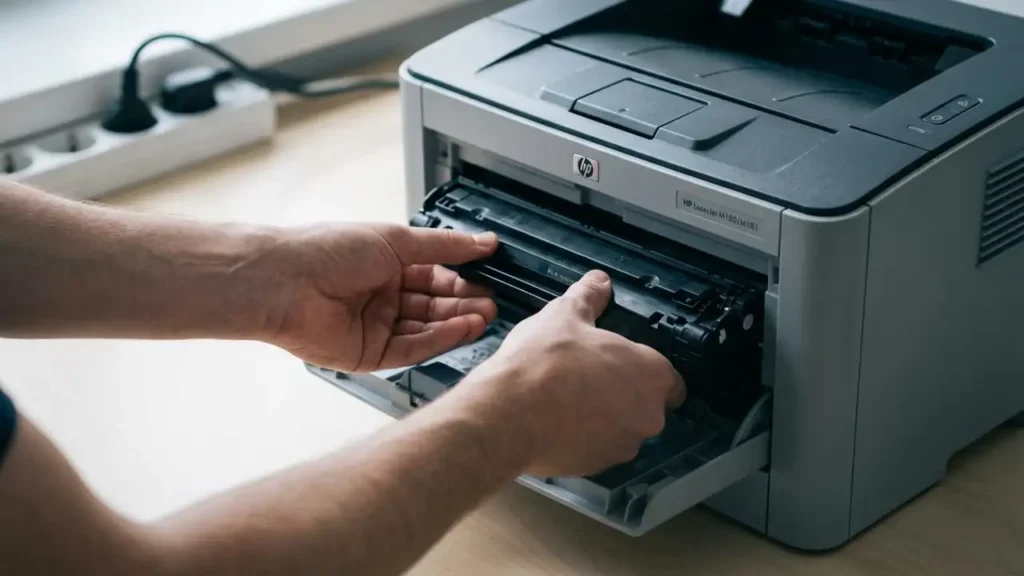
Step 4: Apply the downgrade tool
-
Connect the printer via USB for maximum reliability.
-
Run the older firmware file/utility on your computer.
-
Select your printer from the list if prompted.
-
Start the process and wait for the status bar to finish completely.
-
Exit only after the utility confirms completion.
-
Restart the printer.
Step 5: Verify and test
After restart:
-
Print a configuration report to verify the firmware version changed
-
Print a test page
-
Confirm the error you had is gone (or at least improved)
If the downgrade is blocked or fails
Sometimes the printer refuses older firmware. If that happens, your best options are:
-
Try a different official firmware version that is still accepted
-
Reset printer settings (only if you can safely reconfigure afterward)
-
Use official support troubleshooting paths for the specific error
-
Verify that the issue is not caused by a failing cartridge/chip/contact problem
If your printer is stable but you fear the problem returning, the next section is the real long-term win.
Prevent problems from coming back
Once you restore stability, protect it:
-
Set firmware updates to manual/notify-only if your model allows it
-
Avoid “automatic background” firmware updates
-
Keep the printer drivers consistent with your OS version
-
Don’t interrupt the printer during updates or maintenance operations
Stability is a strategy, not luck.
Frequently Asked Questions
Firmware file Downloaded 👇👇👇
Hp m180 / Hp m181 printer firmware downgrade. Download
