
web analytics
Shadow

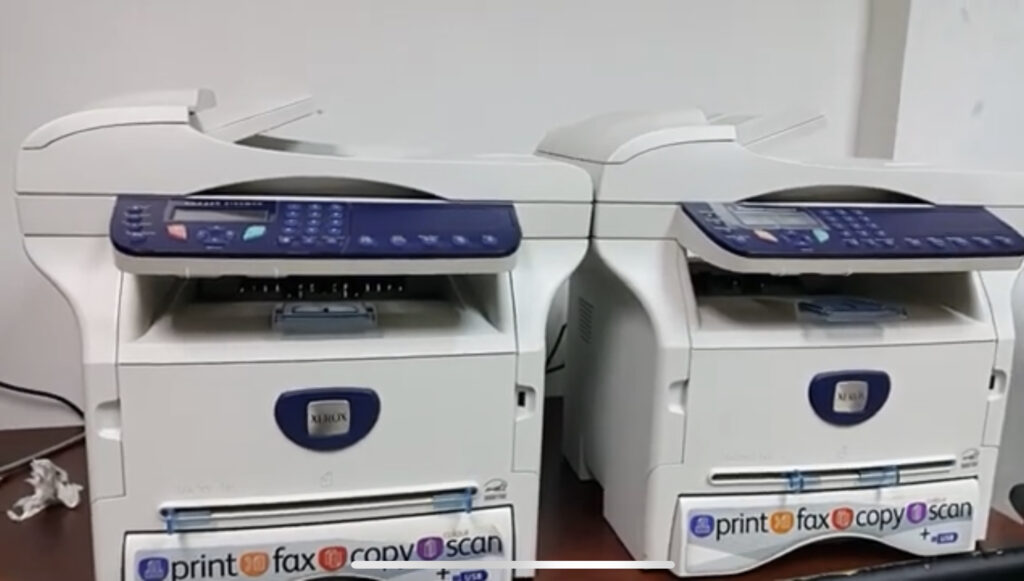
Xerox Phaser 3100 MFP bourrage paper

Take out the paper tray and check if the paper pickup roller is in motion or not. Initiate the printing of the document and inspect the MFP from the underside.
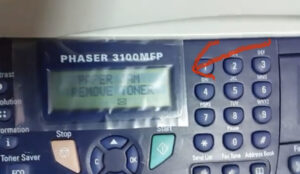
Xerox Phaser 3100 MFP bourrage paper

Once the document is sent for printing, the clutch on the paper feed roller axle is supposed to activate, causing the roller to rotate. However, in this scenario, that doesn’t occur, and the roller remains stationary.

Moreover, the device fails to recognize the absence of paper. We removed the tray, expecting it to be indicated.

Let’s try printing using manual paper feed. We insert the sheet and send the document for printing. The printer is printing.
Xerox Phaser 3100 MFP bourrage paper

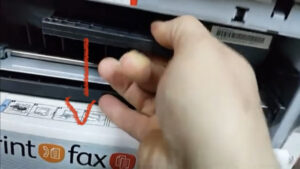
The issue lies with the manual paper feed sensor. Open the front cover and take out the cartridge. Locate the sensor beneath the metal roller, as depicted in the photo below.

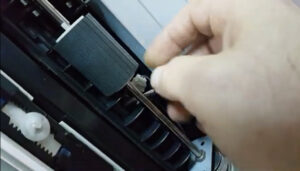
The second image in the gallery displays a detailed view of a jammed sensor, while the third photo illustrates the correct position for the sensor. You should use a pointed object to shift the sensor to the right.
Xerox Phaser 3100 MFP bourrage paper

Once you’ve restored the sensor to its proper position, insert the cartridge and shut the front cover.

The “No paper” message appeared instantly. The sensor began functioning, detecting the presence or absence of paper. After reinserting the paper tray, the message disappeared. Let’s proceed with a print test. The machine now successfully retrieves paper from the tray

The paper feed problem has been resolved.

Author

  • Helen J. Halladay is a technical writer and printing technology researcher specializing in printers, toner cartridges, imaging systems, and office printing solutions. She creates detailed, research-based content designed to help users diagnose printer problems, understand hardware components, compare printing technologies, and make informed purchasing decisions.
    Her work covers a broad range of topics, including laser and inkjet printer troubleshooting, print quality issues, toner and ink cartridge compatibility, maintenance procedures, firmware behavior, error code analysis, and long-term printer reliability. Every article is carefully reviewed to ensure technical accuracy, practical value, and clear explanations suitable for both everyday users and IT professionals.
    Helen follows manufacturer documentation whenever available and complements it with industry best practices, technical references, and hands-on repair knowledge. Her goal is to publish reliable, easy-to-understand resources that solve real printing problems while maintaining high editorial standards.
    Through Tonercom.net, she contributes authoritative educational content focused on printer maintenance, office printing technology, consumables, and device optimization, helping readers extend the lifespan and performance of their printing equipment.

Leave a Reply

Your email address will not be published. Required fields are marked *