

how to reset brother tn650 is the fix you’re looking for when your Brother printer keeps showing “Toner Low” (or even blocks printing with “Replace Toner”) even though you’ve got usable toner left, you’ve refilled the cartridge, or you installed a compatible TN-650. The good news: on many Brother models, you can manually reset the toner counter so the printer stops nagging and lets you print again.
This guide covers the two reset paths that matter most:
-
Printer-based toner reset (best for HL models that use a GO button and LEDs, like HL-5340D and HL-5370DW)
-
Cartridge/gear reset (common on compatible or refilled TN-650 cartridges that include a reset gear/flag)
Note: Resetting clears the printer’s estimate of toner usage. It does not magically add toner. If prints are genuinely faint or streaky, you may truly be low.
Why the TN-650 “Toner Low” message appears
Brother printers don’t measure toner precisely like a fuel gauge. Instead, they use a page-count estimate and internal logic to decide when to warn you. Over time, that estimate can trigger Toner Low early, especially if you print graphics-heavy pages, use high density settings, or use a refilled/compatible cartridge whose chip/flag doesn’t match the printer’s expectations.
That’s why how to reset brother tn650 works: you’re telling the printer to restart its toner estimate from “new.”
Before you reset: quick checks (do these first)
These take 60 seconds and fix a surprising number of false warnings.
Reseat the toner and drum correctly
-
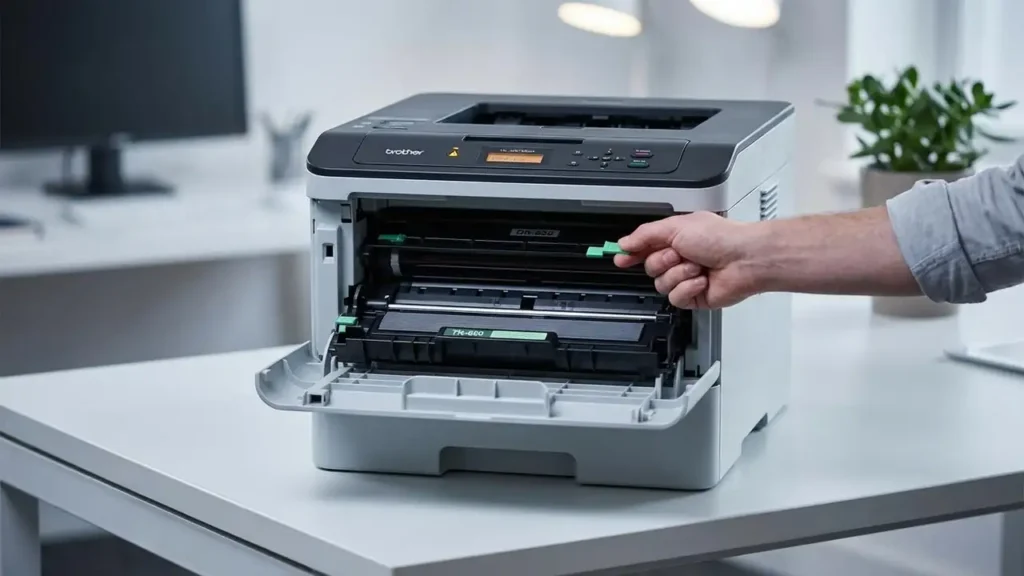
Open the front cover.
-
Pull out the toner + drum assembly.
-
Remove the TN-650 toner from the drum, then reinstall it until it clicks firmly.
-
Slide the green corona wire tab left to right and back (cleaning stroke), then return it to the home position.
-
Reinsert the assembly and close the cover.
If the message persists, move to the reset method that matches your model.
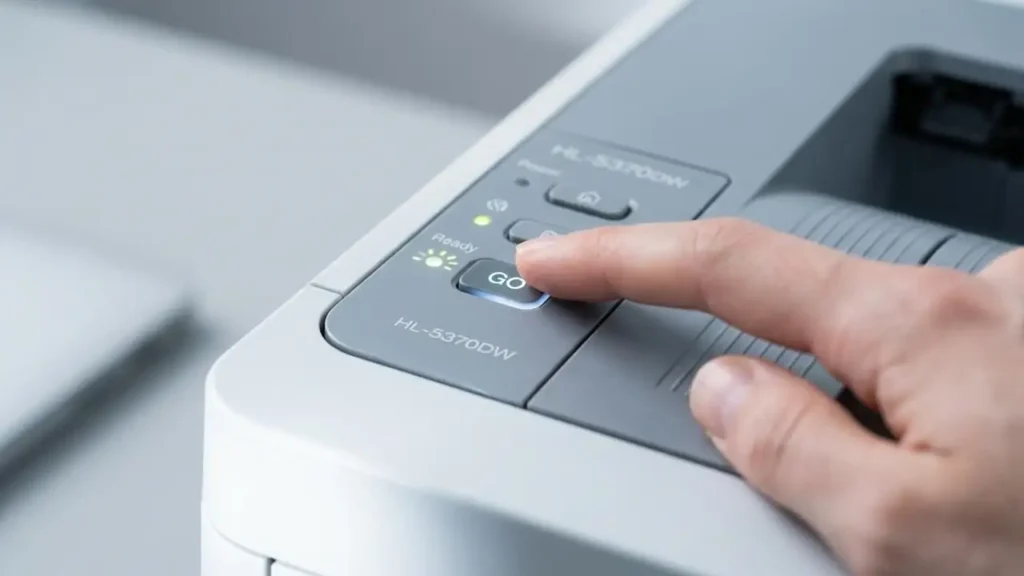
Method 1: Toner reset using the GO button (HL-5340D / HL-5370DW style)
This is the most common “no keypad” reset workflow. It relies on the LEDs and the GO button.
Steps (GO button toner reset)
-
Turn the printer OFF (or open the front cover to stop it).
-
Press and hold the GO button.
-
While holding GO, turn the printer ON.
-
Keep holding until all LEDs light up, then release GO.
-
Press GO twice (quick presses). The LEDs should remain lit/stable.
-
Press GO six times (count carefully).
-
Close the front cover (if it’s open).
If successful, the TN-650 toner counter resets, and the low-toner warning should clear.
If it didn’t work
-
Repeat the steps and be strict with the counts (2 presses, then 6 presses).
-
Make sure the cover position matches what your model expects (some behave better with the front cover opened at the start).
-
Confirm you’re resetting the correct consumable: TN-650 (toner) vs DR-620 (drum). A drum reset is a different routine.
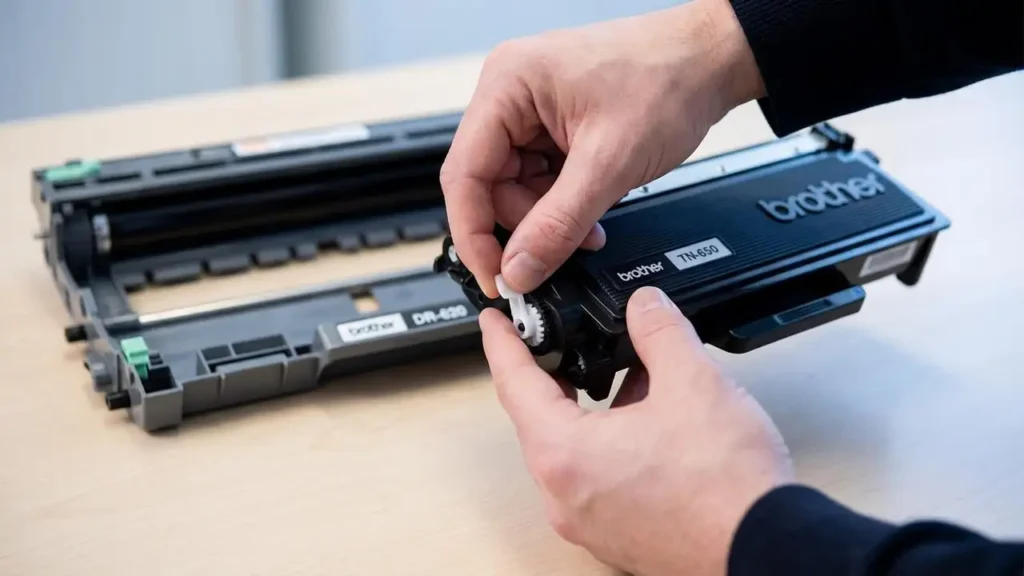
Method 2: Reset gear/flag method (common on refilled/compatible TN-650)
Many compatible or refilled TN-650 cartridges include a reset gear/flag mechanism. When the cartridge is installed, the printer reads that mechanism to decide “new toner” vs “used.”
Steps (gear reset approach)
-
Open the front cover and remove the toner+drum assembly.
-
Remove the toner cartridge from the drum (press the green lock lever).
-
Look at the left side of the toner:
-
If you see a small white gear or a reset flag lever, your cartridge likely supports manual reset.
-
-
Rotate the reset gear fully to the reset position (usually counterclockwise) until it stops.
-
Reinstall the toner into the drum until it clicks.
-
Clean the corona wire with the green tab (one full left-right-left pass).
-
Reinstall everything and close the cover.
Important note
Not every original Brother TN-650 has an easy “turn this gear” reset you can do externally. This method is most reliable on aftermarket cartridges designed to be reset.
What if the printer still says “Replace Toner”?
If how to reset brother tn650 didn’t clear the message, it’s usually one of these:
-
The cartridge is truly empty (print quality will be faint/washed).
-
The cartridge is incompatible or the reset flag is missing/damaged.
-
The printer is reading the drum status instead (drum-life messages look similar).
-
The toner isn’t seated properly in the drum.
Try a known-good toner (even partially used) to confirm whether it’s a cartridge issue or printer logic issue.
Best practices after resetting
Once you reset, keep printing stable and predictable:
-
Use Normal density unless you truly need dark output.
-
Shake the cartridge gently side-to-side if you notice fading (don’t overdo it).
-
Avoid repeated power cycles mid-print (can confuse counters and sensors).
-
If you refill, reset immediately after installing the cartridge so the printer starts fresh.
Frequently Asked Questions
Conclusion
how to reset brother tn650 is a practical way to clear stubborn low-toner warnings and keep printing—especially on Brother models without a keypad. Use the GO-button LED reset for HL series like the 5340D/5370DW, and use the reset gear method when your TN-650 cartridge includes a reset mechanism. If warnings persist, treat it as a compatibility or genuinely-empty-toner issue and troubleshoot from there.
