

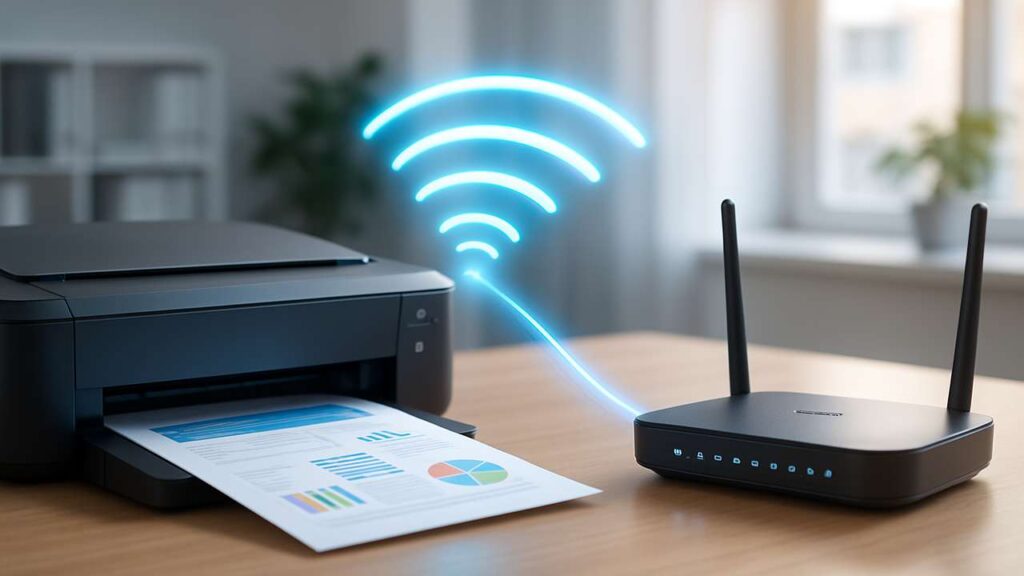
How to Connect Printer to Wi-Fi – Easy Setup Guide for All Brands
Trying to connect your printer to Wi-Fi? Whether you’re using an HP, Canon, Epson, or Brother device, connecting your printer to a wireless network is essential for hassle-free printing in modern setups.
In this guide, we’ll walk you through how to connect your printer to Wi-Fi using simple methods that work on most printer models.
📶 Why Connect Your Printer to Wi-Fi?
Connecting your printer to Wi-Fi offers several benefits:
-
Print from any device wirelessly
-
No need for USB cables
-
Share the printer with multiple users
-
Enable cloud printing and mobile access
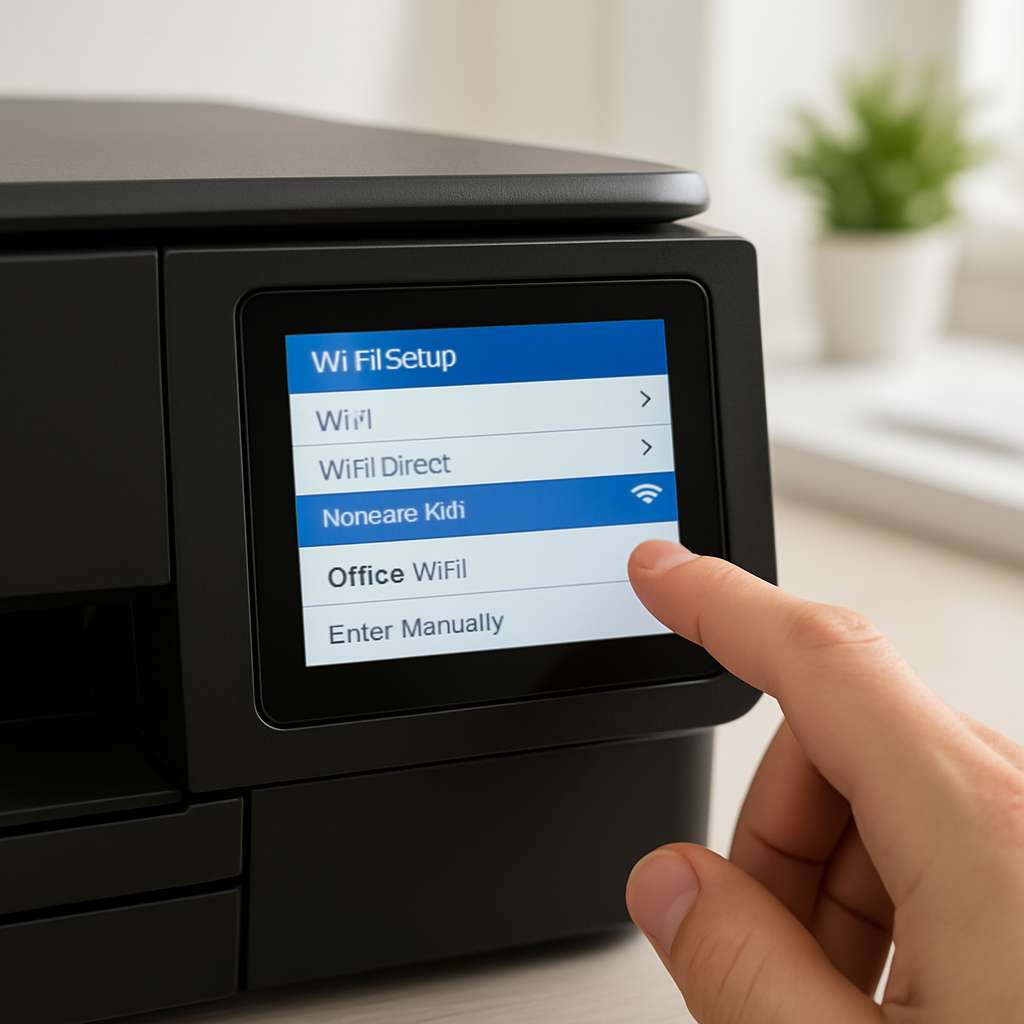
🛠️ Method 1: Connect via Printer Control Panel (For Wi-Fi Enabled Printers)
-
Turn on your printer
-
On the control panel, go to Settings > Network Settings
-
Select Wi-Fi Setup Wizard
-
Choose your Wi-Fi network (SSID) from the list
-
Enter your Wi-Fi password using the on-screen keyboard
-
Confirm and wait for the connection to complete
You’ll usually see a confirmation or a green wireless icon once connected.
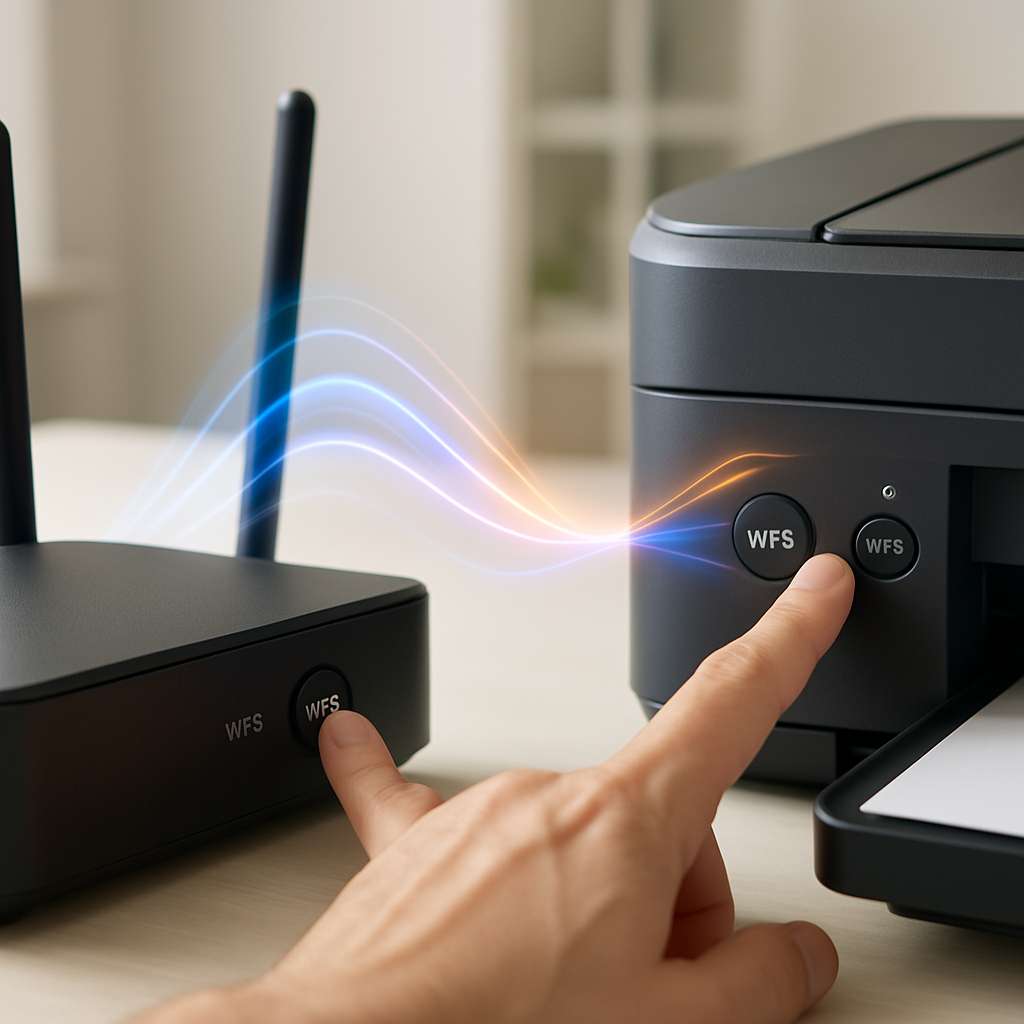
🛠️ Method 2: Connect Using WPS (Wi-Fi Protected Setup)
If your router and printer both support WPS:
-
Press the WPS button on your router
-
Within 2 minutes, press the WPS button on your printer
-
The devices will sync automatically
This method is fast and doesn’t require entering a password.
🛠️ Method 3: Use Printer App or Software
Manufacturers offer setup tools that make it easy to connect:
-
HP Smart App
-
Canon PRINT Inkjet/SELPHY
-
Epson Smart Panel
-
Brother iPrint&Scan
Install the app on your phone or computer, follow the setup instructions, and connect your printer to Wi-Fi in a few taps.
After connecting your printer, you may need to install or update its driver. Check our Driver Installation Guide for help.
Looking for official setup tools? Visit the HP Wi-Fi Setup Help Page for detailed steps.
⚠️ Troubleshooting Tips
-
Ensure your Wi-Fi network is 2.4GHz (some printers don’t support 5GHz)
-
Keep printer close to router during setup
-
Restart your router and printer if connection fails
-
Disable VPN or firewalls temporarily if using software
✅ Best Practices After Setup
-
Print a Network Configuration Page to confirm connection
-
Assign a Static IP Address to avoid disconnections
-
Update printer firmware for better stability
❓ FAQ
Why can’t my printer find my Wi-Fi network?
Ensure your router is broadcasting the SSID, and that the printer is within range. Some printers don’t support 5GHz networks.Is it possible to connect a printer to two Wi-Fi networks?
No, most printers can only connect to one Wi-Fi network at a time.Do I need internet to use Wi-Fi printing?
No. As long as your device and printer are on the same local network, internet isn’t required for printing.
🧼 Final Thoughts
Knowing how to connect your printer to Wi-Fi is essential in today’s wireless world. With the right method—whether via control panel, WPS, or app—you can enjoy seamless printing from any device in your home or office. Take a few minutes to follow the right steps, and you’ll avoid cables, complications, and connection errors for good.