

printer ghosting fix — low-temp fuser & toner charge
printer ghosting fix is what you need when faint duplicates of a previous image reappear further down the page. Use our printer ghosting fix walkthrough to separate fuser low temperature from toner/drum charge issues, then apply the right remedy for clean, crisp output.
printer ghosting fix — fast diagnosis
Ghosting shows up as pale echoes of dark text/graphics that repeat at regular intervals or on the next pages. Pin it down with two quick tests:
-
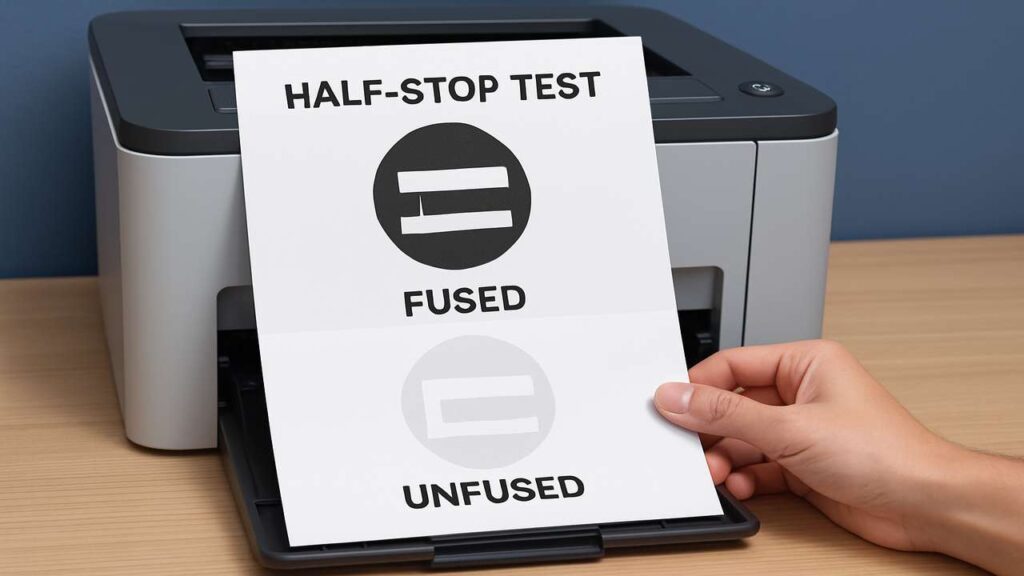
Half-stop test: Start printing and open a door to stop the page mid-path.
-
If the ghost image already exists on the unfused toner, the problem is before the fuser (drum/charge/transfer/toner).
-
If the image looks normal pre-fuse but shows ghosting on the finished page, it’s fuser offset/temperature.
-
-
Repeat-distance clue: Measure center-to-center between identical echoes.
-
~94–96 mm → drum/OPC memory or charge roller.
-
~75–80 mm → fuser roller circumference (offset from low heat/pressure).
-
~56–60 mm → transfer roller effects.
-
Fuser causes — when low temperature mimics everything else
A fuser that’s too cool (wrong media type, tired heater, contaminated sleeve) won’t fully melt toner, so residue sticks to the hot roller and re-prints faintly.
What to do:
-
Set correct media type: Heavy/Thick paper needs a heavier setting so the device increases fuser energy and slows the pass. Using “Plain” on card or labels invites ghosting.
-
Warm-up and environment: Very cold rooms cause marginal fusing. Give the machine 10–15 minutes to stabilize.
-
Inspect the sleeve: Power off and let it cool. Look for glaze, scratches, or toner baked onto the sleeve. Wipe gently with a dry, lint-free cloth (no solvents).
-
Pressure check: If exit pages are wavy or toner rubs off easily, pressure might be low—replace the fuser assembly.
-
Labels/envelopes: Adhesive residue near the fuser entrance can reduce heat transfer; clean the path and switch to laser-rated media only.
Drum/charge causes — when electrostatics echo the image
Aging drums and charge rollers (PCR) can retain part of an image and “re-print” a lighter version.
Fix it like a pro:
-
Avoid touching the drum surface and bright light exposure.
-
Clean contacts for the drum/PCU and gently rotate it—if you see a straight, powdery band, the wiper blade or drum surface is wearing out.
-
Replace the drum unit (or the all-in-one cartridge) if repeats match drum circumference or if cleaning offers only brief relief.
-
Charge roller hygiene: If accessible, clean the PCR with a dry, lint-free swab. Shiny, ink-soaked PCRs cause memory artifacts—replacement is the lasting fix.
Toner & developer — charge quality really matters
Low-charge toner or clumped developer leaves residual particles that re-deposit as ghosts.
Your moves:
-
Level the cartridge: Gently rock side-to-side to loosen and level toner.
-
Swap a known-good cartridge: If ghosting disappears, the original toner’s charge profile is off.
-
Avoid bargain refills that shed “pepper” or leave gray background; consistent particle size and additives matter for hold-and-release.
-
Developer assemblies (where separate): Old developer can over-carry toner, causing echoes—replace the unit if page count is high.
Transfer system — belt/roller effects you can spot
Transfer rollers/belts move toner from drum to paper. Contamination or weak charge leaves residue behind.
-
Mono transfer roller: If it’s dusty, shiny, or flat-spotted, replace it.
-
Color ITB (belt): Clean lightly with a soft, dry cloth—no alcohol. Run a calibration/align routine after service.
-
Blade wear: Stubborn fine lines across the width after cleaning suggest the belt’s cleaning blade is worn—replace the ITB unit.
Paper & environment — the stealth culprits
-
Humidity: Damp stock resists fusing and encourages ghosting. Store reams sealed; pick the exact media type in the driver/panel.
-
Wrong coating: Inkjet or unqualified label stock can shed coatings into the fuser—use laser-rated papers/labels only.
-
Path residue: After jams, clean registration and exit rollers with a lightly damp (water) lint-free cloth; dry fully before printing.
Duplex and long-run ghosting — special notes
-
Duplex heat budget: Back-side images often ghost when the fuser cools between sides. Select a heavier media type or reduce speed if your device offers a “thick/duplex” profile.
-
Long runs of heavy solids: Schedule brief pauses to keep temperatures consistent, or choose “High Fusing”/“Thick” mode for those jobs.

printer ghosting fix — step-by-step summary
-
Half-stop: decide pre-fuser vs post-fuser.
-
Measure repeat to target drum (~95 mm) vs fuser (~78 mm) vs transfer (~58 mm).
-
Media type: match to stock; retry a solid-fill page.
-
Clean/inspect: fuser sleeve (cool), transfer roller/belt, drum wiper zone.
-
Swap consumables in order of probability: toner → drum/PCU → transfer roller → fuser/ITB.
-
Calibrate and print test pages; confirm no rub-off and no repeats.
FAQs
How do I know it’s fuser ghosting and not drum memory?
If the half-stop page (pre-fuse) looks clean but the finished page ghosts, it’s the fuser. Matching the fuser’s repeat distance clinches it.
Can cleaning a fuser fix ghosting permanently?
Light glaze removal helps briefly. Persistent ghosting or sleeve damage needs a new fuser.
Why does ghosting get worse in winter?
Cold rooms and cold paper lower fuser effectiveness and toner charge. Warm-up time and correct media settings help a lot.
Does driver media type really matter?
Yes—media type controls fuser energy and speed. Wrong settings cause poor fuse and ghosting.
Will a high-coverage photo mode cause ghosting?
It can on borderline units. Use heavier media settings or split jobs to keep temperatures stable.
Quick checklist
-
Half-stop test done; repeat distance measured
-
Media type corrected; paper dry and laser-rated
-
Fuser sleeve inspected/cleaned; pressure/heat validated
-
Drum/charge roller checked; wiper wear assessed
-
Toner swapped/leveled; transfer roller/belt cleaned
-
Calibration completed; sample print shows no rub-off or repeats
Conclusion
A solid printer ghosting fix starts with two facts: ghosting is either incomplete fusing or electrostatic memory. Use the half-stop and spacing tests to choose the right path, correct media/fuser settings, refresh worn consumables in order, and your pages will return to deep, even blacks with zero echoes.
