web analytics
Shadow

RESET PRINTER

Resetting ink counters on Brother inkjet printers

Resetting ink counters on Brother inkjet printers

Blog, REPAIR PRINTER, RESET PRINTER
  Procedure for DCP-110C, DCP-115C, DCP-116C, DCP-117C, DCP-120C, DCP-153C, DCP-195C, DCP-310CN, DCP-315CN, DCP-340CW, DCP-350C, DCP- 353C, DCP-560CN: 1. Turn on the machine. 2. Press, successively, ‘Menu’, ‘Mono On’, ‘Menu’, ‘Mono On’ in less than 5 seconds. 3. “│MAINTENANCE 10│” is then displayed. 4. With the up (▲) or down (▼) keys, display “80” and validate with “Menu” or “OK” 5. Press the ‘Mono Start’ button several times until the message “PURGE: 06400” is displayed. (Usually, The value exceeds 6400) 6. To reset the counter to "00000", you must enter the value "2783": successively display the numbers 2,7,8 and 3 with the (▲) or (▼) keys and confirm with the "OK" key each time. times. 7. To exit, press ‘Stop/Exit’ key. 8. Unplug the power cable from the machine for 5 seconds t...
Mastering the Art of Resetting the Smart Chip in a Lexmark Cartridge

Mastering the Art of Resetting the Smart Chip in a Lexmark Cartridge

Blog, RESET PRINTER
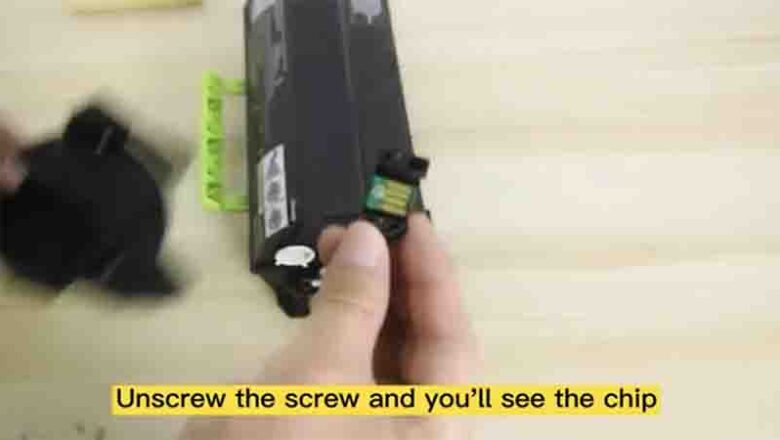
Lexmark printers are known for their reliability and top-notch printing quality. However, to maintain this performance, Lexmark uses smart chips in their ink cartridges. These chips communicate with the printer to monitor ink levels and ensure the quality of your prints. Sometimes, you may want to reset these smart chips, particularly if you've refilled a cartridge or encountered an error message. In this guide, we'll explore how to reset the smart chip in a Lexmark cartridge, helping you get the most out of your printer. Understanding Lexmark Smart Chips Smart chips in Lexmark cartridges serve several essential functions: Ink Monitoring: They track the ink levels in the cartridge, ensuring you know when it's time to replace or refill the cartridge. Quality Assurance: Smart chips...
Mastering the Art of Resetting Ink Levels in Epson L-Series Printers

Mastering the Art of Resetting Ink Levels in Epson L-Series Printers

Blog, RESET PRINTER, resetter software
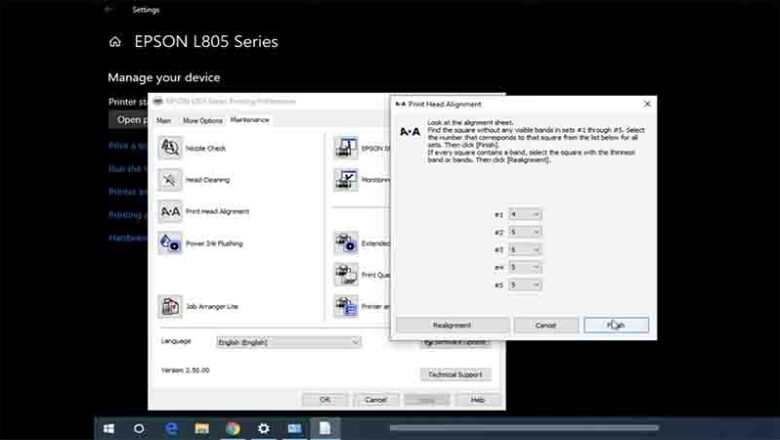
Epson L-series printers are renowned for their cost-effective printing solutions and high-quality results. However, like all inkjet printers, they require ink cartridges to operate. Over time, these cartridges can run low on ink or even display empty status, causing interruptions in your printing tasks. In this article, we'll explore the art of resetting ink levels in popular Epson L-series models like L100, L200, L110, L210, L300, L350, L550, and Epson L800. Understanding the Epson Ink System Epson L-series printers utilize an innovative ink tank system that differs from traditional inkjet cartridges. Instead of replacing the entire cartridge, users fill refillable ink tanks when they run low on ink. Each printer model in the L-series has specific ink tanks for various colors, such as b...
How to Reset Samsung Printer Firmware?

How to Reset Samsung Printer Firmware?

Blog, RESET PRINTER
I need to reset my Samsung printer firmware because it hasn't been updated in a while. Additionally, I've been experiencing some printing problems, so I believe that resetting the printer firmware is the most effective way to resolve these issues. Can someone provide me with guidance on how to reset the Samsung printer firmware in the simplest manner? Your assistance would be greatly appreciated! Fundamental Samsung Printer Factory Reset Step 1: To start, quickly press the following keys: 1, 9, 3, 4. Step 2: Upon pressing these keys, a message reading "TECH" will appear. Step 3: Next, select the Menu key and then press Enter. Step 4: You will now see "TECH MODE" displayed on the screen. Step 5: Now, you need to press the "<" key twice. When you see "NEW CARTRIDGE" on your ...
Summary of Samsung CLP-320/325 Firmware Fix Solution and reset

Summary of Samsung CLP-320/325 Firmware Fix Solution and reset

RESET PRINTER
Resolve Samsung CLP-320/325 Printer Issues: Low Toner, Toner Depleted, Replace Toner/Stop, Install New Cartridge, Repair New Cartridge, Ready Toner, End of Life - Replace New Cartridge, Depleted Toner, Error with Blinking Red Light. Samsung CLP-320N Firmware Solution involves the reprogramming of the printer's firmware by rewriting the permanent memory data. This enables the use of refilled cartridges in your printer, eliminating the need to replace the toner cartridge, perform a hard reset, or resort to a factory reset. Firmware Versions Supported: 19f, 34f, 36f, 38f, 43f, 44f, 46f. Applicable Printer Model: Samsung CLP-320/325. Compatible Cartridges: CLT-K4072S, CLT-C4072S, CLT-M4072S, CLT-Y4072S. What necessitates a reset for the Samsung CLP-320/325:  ...
toner laser vs ink cartridge: Key Differences Explained

toner laser vs ink cartridge: Key Differences Explained

Blog, REFILL TONER, RESET PRINTER
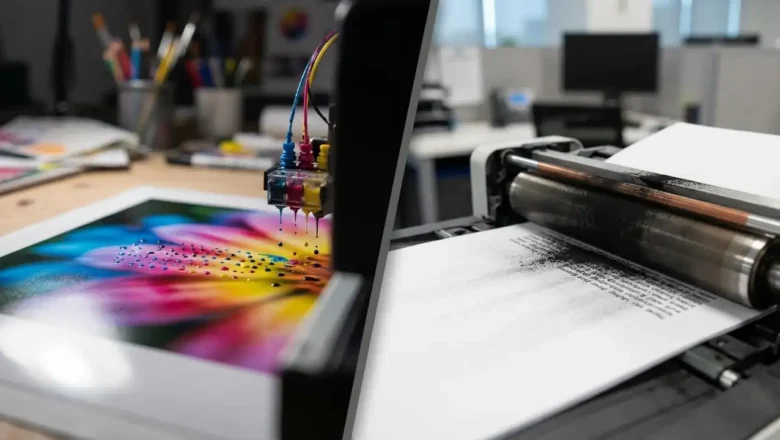
Toner laser vs ink cartridge: What’s the Real Difference? toner laser vs ink cartridge is one of the most common comparisons people make when choosing a printer for home, office, school, or business use. At first glance, both seem to do the same job: they put text and images on paper. But the way they work, how much they cost over time, and the type of results they produce are very different. That difference matters a lot, especially if you print frequently, need sharp documents, or want the best possible photo quality. If you understand the strengths and weaknesses of each option, it becomes much easier to choose the right printer for your needs instead of buying the wrong machine and regretting it later. What an ink cartridge printer is An ink cartridge printer is usually an inkjet...
hp m180 m181 firmware downgrade: Safe Rollback Guide

hp m180 m181 firmware downgrade: Safe Rollback Guide

RESET PRINTER, REPAIR PRINTER
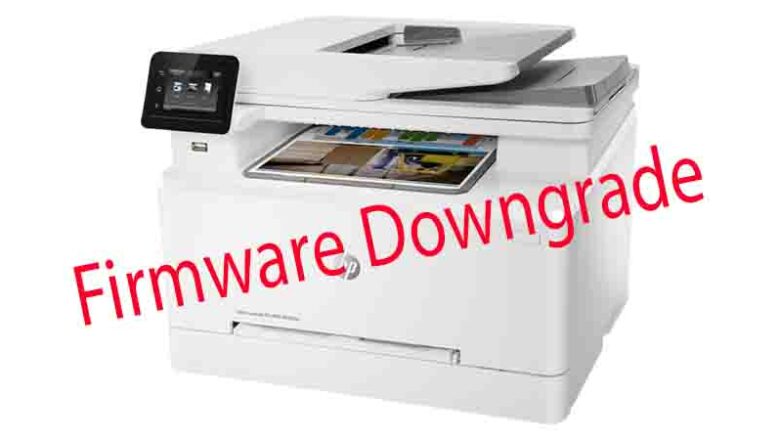
hp m180 m181 firmware downgrade: How to Roll Back HP Firmware Safely If you’re searching for hp m180 m181 firmware downgrade, you’re probably dealing with a familiar headache: the printer worked fine, you updated firmware, and suddenly you’re seeing new errors (supply communication problems, printing blocks, or strange behavior that wasn’t there before). Firmware updates are meant to improve stability and compatibility, but sometimes they introduce unexpected issues—especially if your printer environment includes older drivers, different operating systems, or supplies that were previously recognized without trouble. This guide explains how to update firmware correctly, how a downgrade works on HP LaserJet models like the M180/M181, what to check before you roll back, and how to keep your...
HP Laser Printers M280 M281 Printer Firmware Downgrade

HP Laser Printers M280 M281 Printer Firmware Downgrade

RESET PRINTER
HP printer firmware downgrade: Roll Back to a Previous Version and Fix “Supply problem” (M280/M281) HP printer firmware downgrade is one of the most effective fixes when your HP LaserJet Pro M280/M281 suddenly starts showing a “Supply problem” message right after a firmware update. Many users notice the same pattern: the printer worked perfectly for months, then an update installs, and the device begins complaining that a cartridge is “not communicating successfully,” even if the toner is seated correctly and was printing fine the day before. The key thing to understand is that firmware controls how the printer reads supply chips, handles authentication, and interprets cartridge data. When firmware changes, the printer’s “rules” can change—sometimes leading to false supply alerts, blocke...
samsung printer tech mode: Hidden Service Codes, Reports & Firmware Check

samsung printer tech mode: Hidden Service Codes, Reports & Firmware Check

RESET PRINTER
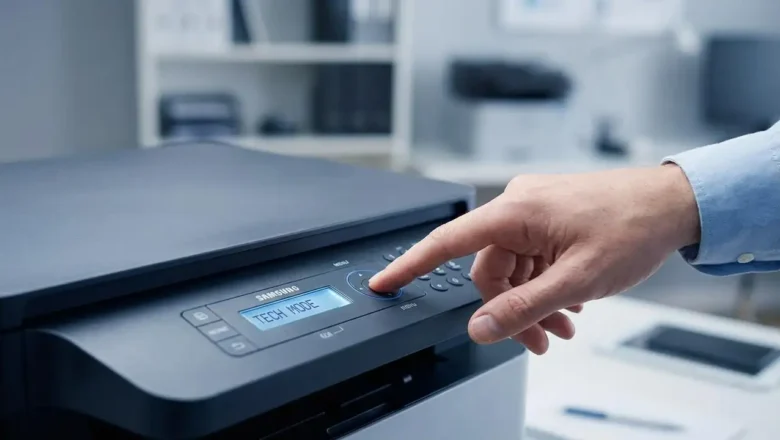
samsung printer tech mode is a hidden maintenance menu built into many Samsung printers and multifunction devices. It’s mainly used by technicians to print internal reports, check supplies information, view usage data, and sometimes read firmware details that don’t appear on standard configuration pages. If you repair printers, refill toner, or troubleshoot “replace toner” messages, learning samsung printer tech mode can save you a lot of time—because it gives you the exact status pages you need without software tools. This guide explains how samsung printer tech mode works, how to enter it on popular Samsung models, what each command does, and how to print the right report for your situation. Everything below is written for practical use, clean formatting, and strong SEO structure—withou...
how to reset brother tn650: Clear “Toner Low” and Keep Printing

how to reset brother tn650: Clear “Toner Low” and Keep Printing

RESET PRINTER
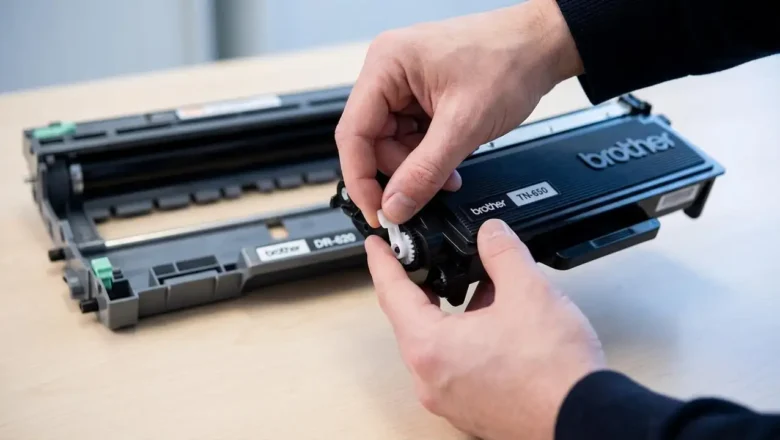
how to reset brother tn650 is the fix you’re looking for when your Brother printer keeps showing “Toner Low” (or even blocks printing with “Replace Toner”) even though you’ve got usable toner left, you’ve refilled the cartridge, or you installed a compatible TN-650. The good news: on many Brother models, you can manually reset the toner counter so the printer stops nagging and lets you print again. This guide covers the two reset paths that matter most: Printer-based toner reset (best for HL models that use a GO button and LEDs, like HL-5340D and HL-5370DW) Cartridge/gear reset (common on compatible or refilled TN-650 cartridges that include a reset gear/flag) Note: Resetting clears the printer’s estimate of toner usage. It does not magically add toner. If prints ar...