

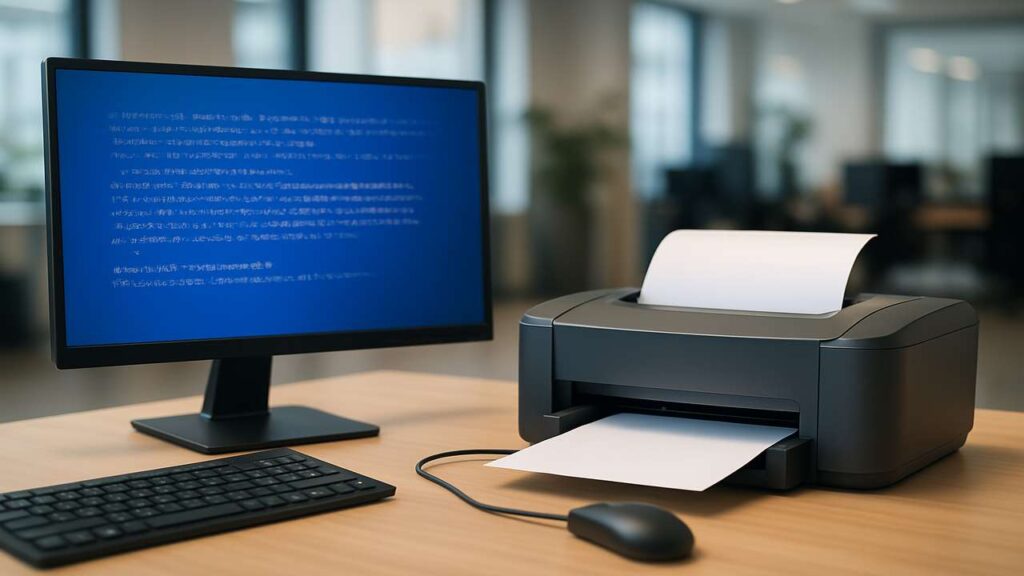
⚠️ Windows Update Printer Issue? Microsoft Just Fixed Random USB Printing Bug
If you’re investigating a Windows update printer issue, you’re not alone. Millions of users experienced their USB printers suddenly printing gibberish or system data after installing recent Windows updates. This frustrating Windows update printer issue disrupted routines at home and in offices alike.
Fortunately, Microsoft has now released a fix, resolving the issue in March 2025 patches. In this article, you’ll understand what went wrong, how to resolve the issue, and how to prevent it in the future.
🧠 What Was the Windows Update Printer Issue?
A serious printer bug appeared after Microsoft released January 2025 updates (KB5050092 and related builds). Devices with dual-mode USB printers (supporting both USB Print and IPP) occasionally printed random IPP headers like:
This problem often occurred when printers were turned on after being idle or reconnected via USB. The bug was eventually patched with the March 2025 cumulative update and a Known Issue Rollback mechanism.
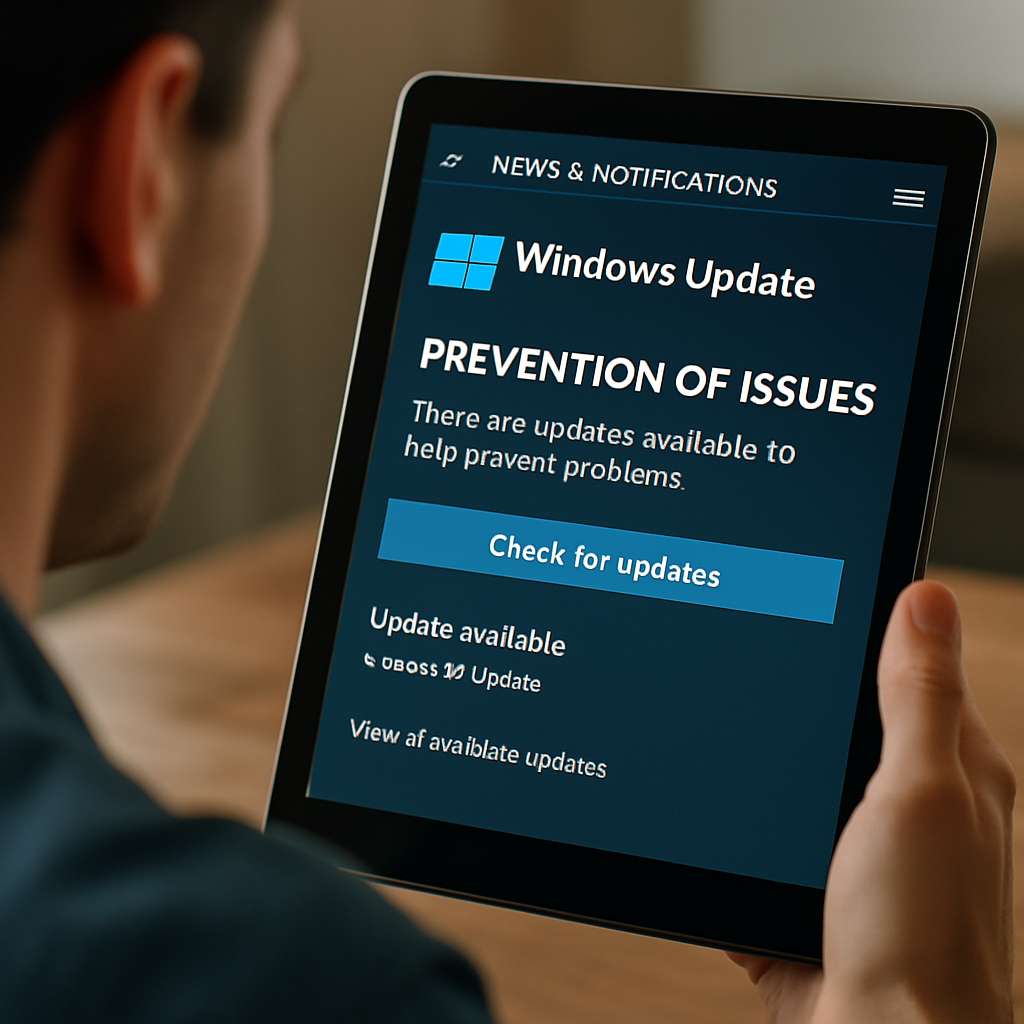
🔧 How to Fix the Printer Issue Now
To address the Windows update printer issue:
-
Update Windows fully — install March 2025 cumulative patches including KB5053643 or KB5053657.
-
Run Windows Update again to ensure Known Issue Rollback (KIR) is triggered automatically.
-
Restart your printer and PC after update—this confirms the fix is applied.
-
Print a test page to verify the printer no longer spouts technical headers or random symbols.
⚠️ Why It Happened in the First Place
-
The update attempted to support IPP Over USB protocol, sending raw packets to the printer.
-
Many USB printers misinterpreted these packets, causing them to print them as plain text.
-
Microsoft acknowledged the glitch and rolled it back for both Windows 10 (22H2) and Windows 11 (23H2 / 24H2).
🛡️ Best Practices to Avoid Future Printer Issues
-
Disable automatic firmware updates on your printer if possible.
-
Prefer wired connections when troubleshooting printer reliability.
-
Monitor Windows Update news to avoid unexpected hardware issues.
-
Consider using USB-only printing if your setup supports it reliably.
🧠 Tips for IT Managers & Home Users
-
IT Managers: Use Group Policy to delay patch rollouts until stability is confirmed.
-
Home Users: Set Windows Update to “Notify before automatic installs” to control update timing.
-
Both groups: Keep driver software current and check manufacturer release notes regularly.
❓ FAQ
How do I know if I’m affected by the Windows update printer issue?
If your printer printed technical headers or random text unexpectedly after Jan 2025 updates, you were impacted.Is reinstalling the printer driver necessary?
Not usually. Installing the update rollback is sufficient. Driver reinstall is optional if the problem persists.Will this issue affect network printers?
Only USB-connected dual-mode printers were affected—network printers generally remained unaffected.
✅ Final Thoughts
This widespread Windows update printer issue caused chaos at many workplaces and homes—even though the cause was simple: a buggy update and miscommunication via IPP over USB. Thankfully, Microsoft resolved it quickly. If you experienced the issue, update your system, restart your devices, and beat it for good 🚀.