

🖨️ Printer Printing Blank Pages? Top Fixes You Can Do Today
Is your printer printing blank pages? You’re not alone—this frustrating issue affects users across brands. Whether it’s an inkjet, laser, or all-in-one device, understanding why your printer is printing blank pages is the first step toward fixing it effectively.
Here are proven solutions that tackle the problem head-on—get ready to end those blank-page headaches!
1️⃣ Check Ink or Toner Levels
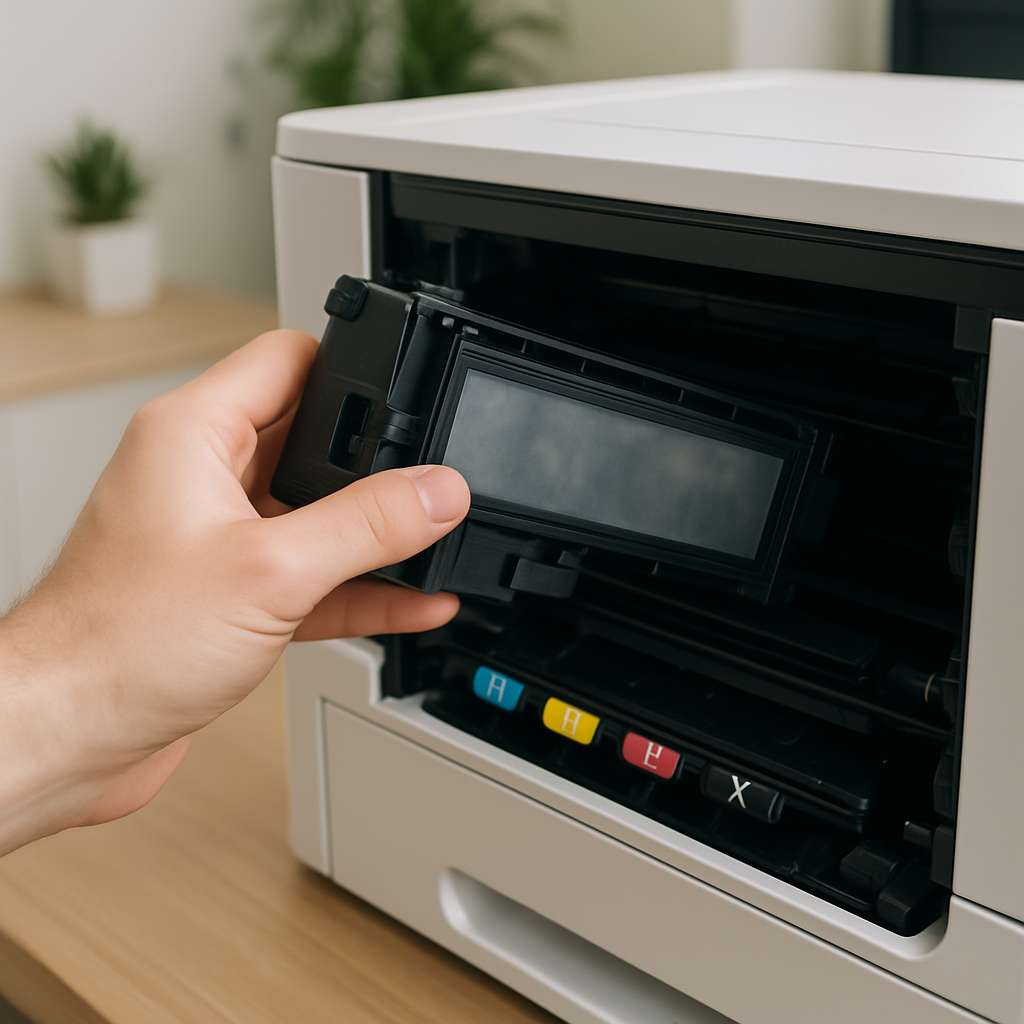
Before doing anything technical, first verify that your printer actually has ink or toner. Sometimes the printer shows “full,” but the cartridge is empty or malfunctioning. Replace cartridges if they’re old or not seated correctly.
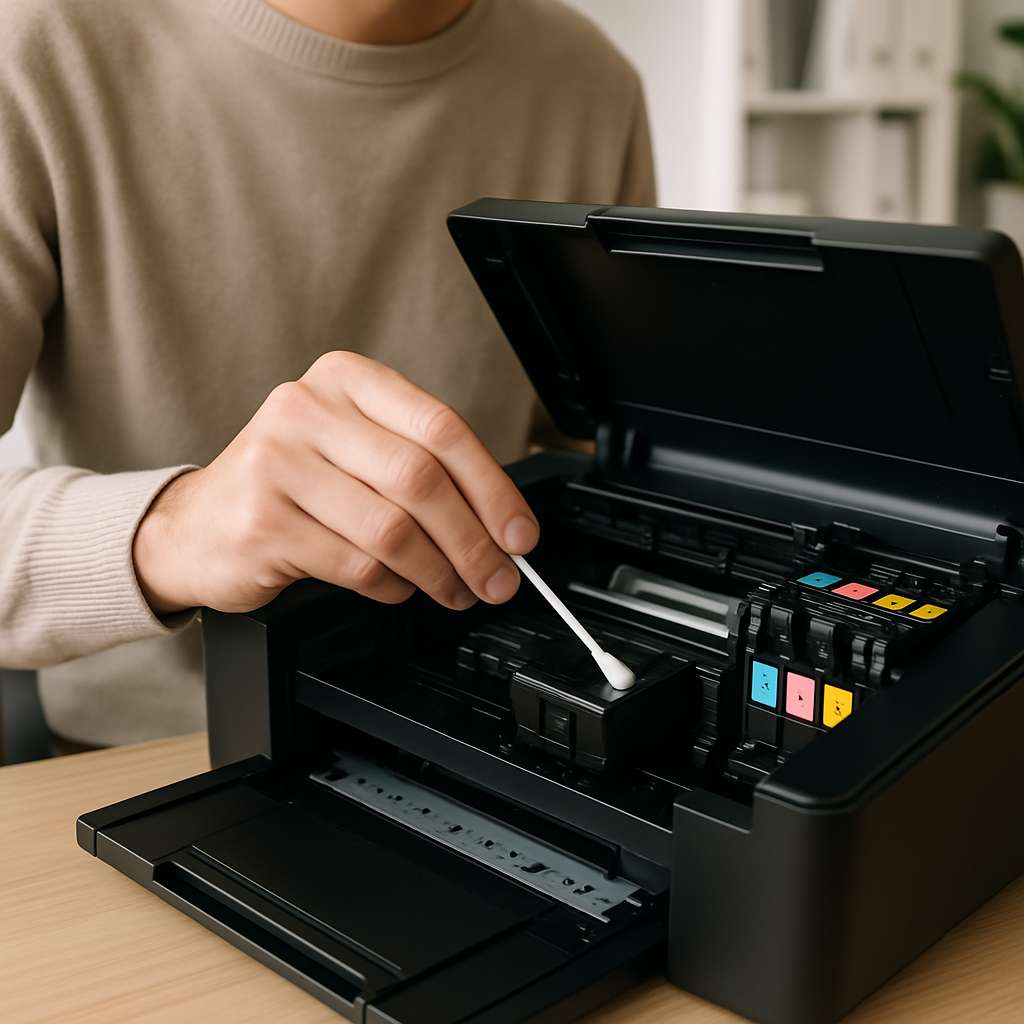
2️⃣ Run Printhead Cleaning & Nozzle Check 🧼
Clogged printheads are a top cause of blank printing. Most inkjet printers offer maintenance options:
-
Navigate to Settings → Maintenance → Printhead Cleaning
-
Optionally run a Nozzle Check or Test Page
-
Repeat until the test pattern is full and colorful
3️⃣ Update or Reinstall Drivers
Outdated or corrupt drivers can break communication between your printer and computer, resulting in blank output. Download the latest driver from the manufacturer’s website and reinstall it for a clean reset.
4️⃣ Verify Print Settings
Accidental draft or grayscale settings can produce blank-looking pages. Double-check:
-
Print quality: set to Standard or Best, not Draft
-
Paper type: appropriate for the cartridge
-
Color mode: ensure it’s not set to grayscale unless intended
5️⃣ Clean the Paper Path & Rollers
Despite having fresh ink, paper jams or debris in the feeding mechanism can result in blank pages. Turn off the printer, remove paper, and gently clean rollers and sensors to restore proper feed.
6️⃣ Perform a Hard Reset 🔄
Sometimes, a full power cycle helps:
-
Power off the printer
-
Unplug it for 60 seconds
-
Plug it back in and power up
-
Try another test page
This clears temporary software or spooler issues.
7️⃣ Examine Firmware or Software Conflicts
Some printer updates or third-party apps introduce bugs that affect printing. If recent changes preceded blank pages, consider rolling back firmware or disabling conflicting software.
8️⃣ Consider Hardware Damage
If none of the above works, the printhead or electronics may have a fault. In this case:
-
Seek maintenance service
-
Or assess replacement options (especially for older printers)
🧠 Additional Insights
-
Manufacturers often recommend professional cleaning after heavy use.
-
Inkjet heads may suffer from dried ink—an internal deep clean might be required.
-
For laser printers, blank pages usually indicate empty toner drums or settings errors—not mechanical damage.
❓ FAQ
Why does my printer print a blank page instead of an error?
Because it believes the cartridge is fine and only communicates via data; no errors mean no visible warnings.Can a driver cause blank printing?
Yes—a faulty driver may send empty data to the printer. Reinstallation usually resolves it.Is DIY printhead cleaning safe?
Yes—as long as you follow manufacturer guidelines and avoid touching sensitive parts directly.
🧼 Final Thoughts
If your printer is printing blank pages, don’t rush to replace it. Most cases are solved easily—check ink, clean the printhead, update drivers, and reset the system. With little effort, you can restore reliable prints without stress or delay.