Reset Printer to Factory Settings – Step-by-Step Guide
Resetting your printer to factory settings can solve a wide range of problems — from network connectivity issues to slow performance and recurring errors. Whether you’re using an HP, Canon, Epson, or Brother printer, performing a reset might be exactly what you need.
In this article, you’ll learn how to reset your printer to factory settings, why it helps, and when it should be done.
🔄 What Does “Factory Reset” Mean?
A factory reset will return your printer to the state it was in when it left the factory. This removes:
-
Wi-Fi settings
-
Paired devices
-
Saved preferences
-
Installed updates (in some cases)
It will not delete your ink or toner levels, but it will erase all configurations.
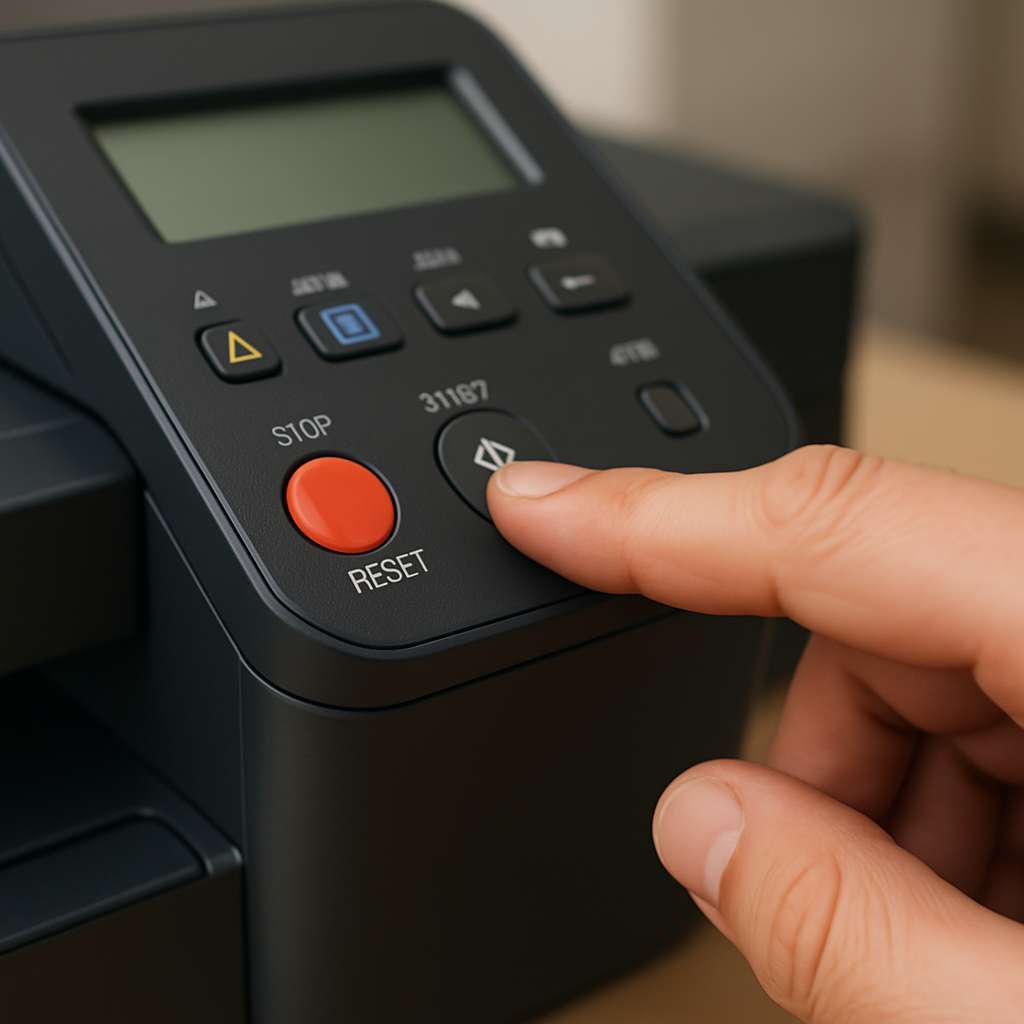
📋 When Should You Reset a Printer?
Resetting a printer can be useful in the following situations:
-
You’re switching networks or changing routers
-
You’re experiencing frequent print errors or connection drops
-
You’re planning to sell or give away your printer
-
You’ve installed conflicting software or updates
🛠️ How to Reset HP Printers to Factory Settings
-
On the printer’s home screen, go to Settings
-
Tap on Printer Maintenance or Service Menu
-
Select Restore Defaults or Reset to Factory Settings
-
Confirm the reset
🛠️ How to Reset Canon Printers
-
Press Menu on the printer
-
Go to Setup > Device Settings
-
Scroll to Reset Settings > Reset All
-
Confirm and wait for reboot
🛠️ How to Reset Epson Printers
-
Press the Home button
-
Navigate to Setup > Restore Default Settings
-
Choose Clear All Data
-
Confirm reset and reboot
🛠️ How to Reset Brother Printers
-
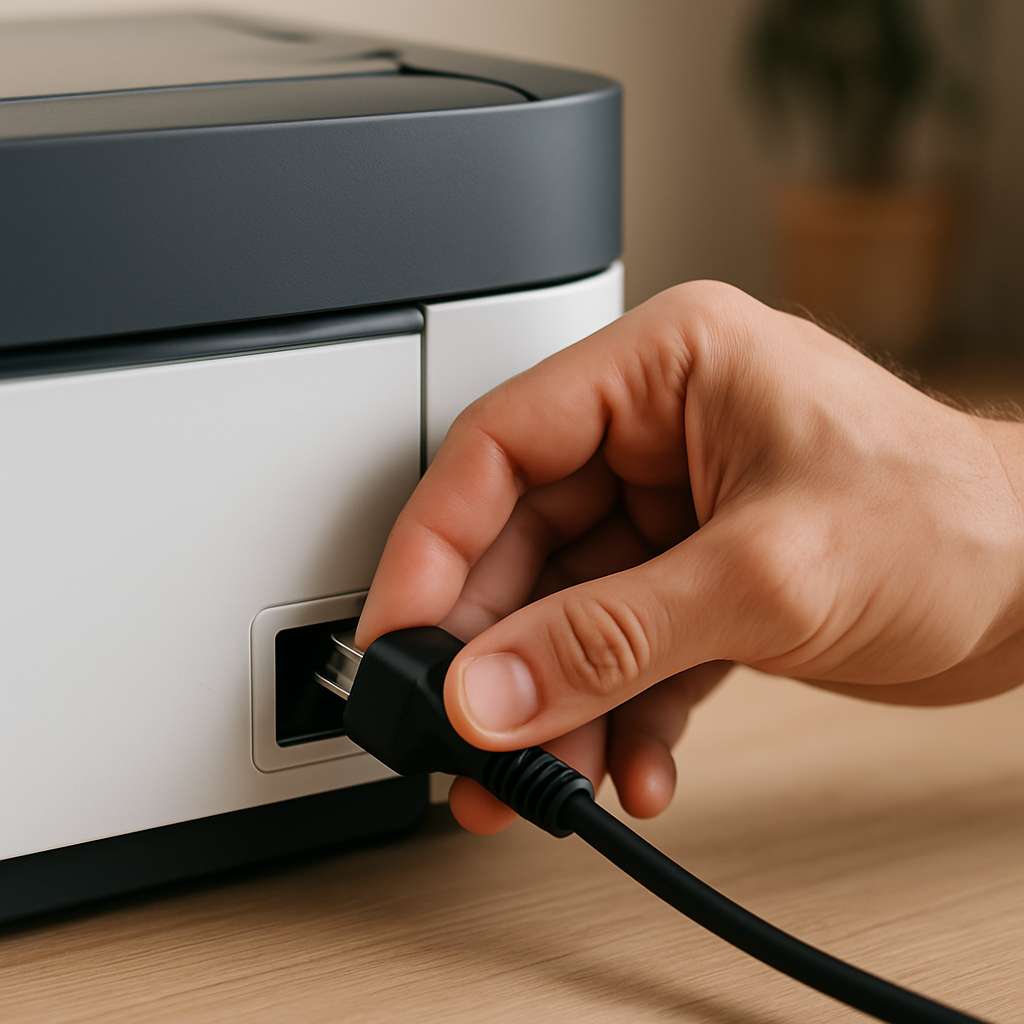
Unplug the power cord
-
Hold the Go button while plugging the printer back in
-
Keep holding until all lights turn on, then release
-
The printer will reset automatically
Need help installing your printer again after reset? Read our Driver Installation Guide.
You can also check the official HP Support site for model-specific reset instructions.
FAQ❓
What happens when I reset my printer to factory settings?
It erases all custom settings, including Wi-Fi, preferences, and paired devices.Does a factory reset fix all printer problems?
It can solve software-related issues, but hardware problems may still need service.Do I lose ink or toner after a reset?
No, your printer retains ink or toner levels during a reset.
🧼 Final Words
If your printer has been acting up lately, a factory reset can often solve the issue quickly and effectively. It’s a clean start that helps eliminate hidden settings conflicts or network errors. Just make sure to reconnect your device to Wi-Fi and reinstall any necessary drivers after the reset.