

Method 3: Color Touchscreen Models (HL-L2395DW, MFC-L2730DW, MFC-L2750DW, MFC-L2750DWXL, MFC-L2759DW)
Note that although the HL-L2390DW and HL-L2395DW look nearly identical externally, the HL-L2395DW features a color touchscreen and must be reset using this touchscreen procedure rather than physical arrow keys.
-
Verify that the printer is turned on and the front cover is closed.
-
If Replace Drum or Drum End Soon is currently blocking the touchscreen, press the physical red Cancel (X) button to dismiss the alert and return to the main home screen.
-
Locate the Toner icon in the bottom-right or lower area of the touchscreen. Press and hold your finger on the Toner icon for roughly 5 seconds until the screen switches to the hidden Reset menu.
-
Tap Drum on the touchscreen.
-
When prompted to confirm, tap Yes.
-
Wait for the screen to display Accepted, then press the Home button to return to the normal standby display.
How to Verify the Brother DR730 Reset Worked
After completing the reset sequence, check the internal parts counter to verify that the logic board registered 100% remaining drum life:
-
On 1-Line and 2-Line LCD Printers: Press Menu, use the Up or Down arrow key to scroll to Machine Info., and press OK. Scroll to Parts Life and press OK, then select Drum and press OK. The screen will display Drum 100% (or approximate remaining life). Press Stop/Exit or Back to return to Ready mode.
-
On Color Touchscreen Printers: Tap Settings (the gear icon) → All Settings → Machine Info. → Parts Life. The touchscreen will show the Drum life bar and percentage reset to 100%.
-
By Printing a Printer Settings Report: On LCD models, navigate to Menu → Print Reports (or Machine Info. on compact HL models) → Printer Settings (or User Settings) and press OK or Start. Check the printed maintenance section near the bottom of the page to confirm that remaining drum life reads 100% and verify that the text prints cleanly without streaks or faded areas.
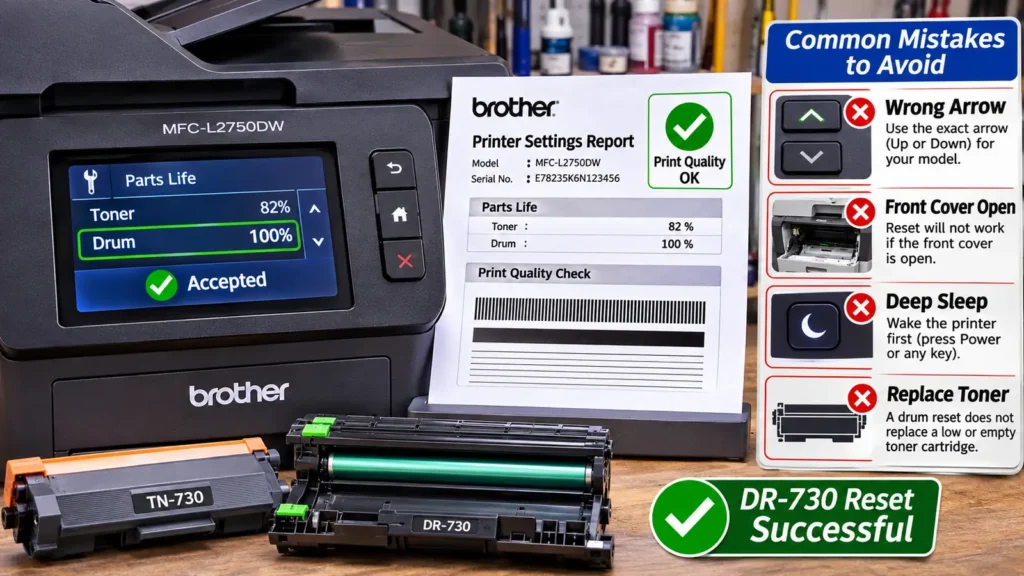
Troubleshooting When the Replace Drum Message Will Not Clear
If you followed the steps for how to reset drum on brother dr 730 and the warning remains on the screen, check these four common causes:
-
The Up and Down arrows were swapped at the final step: The single most frequent error is pressing the Up arrow on an HL-L2350DW or HL-L2370DW (which cancels the reset on 1-line LCD units) or pressing the Down arrow on a DCP-L2550DW or MFC-L2710DW (which cancels the reset on 2-line LCD units). Double-check the model table above and repeat the sequence.
-
The front cover was open: Older Brother drum units (such as the DR-630 or DR-420) required the front door to stay open during a reset. On all DR-730 printers, an open cover locks out the OK + Up Arrow and touchscreen reset shortcuts. Close the cover completely and wait for the Cover is Open message to disappear before pressing any keys.
-
The printer was in Deep Sleep or stuck on an active error screen: If the LCD says Deep Sleep, press any button first to wake the printer before pressing OK + Up Arrow. On touchscreen models, always clear the pop-up error with the Cancel (X) button before holding the Toner icon.
-
The message actually says Replace Toner instead of Replace Drum: Resetting the DR-730 drum counter has no effect on the toner cartridge counter. If the display reads Replace Toner or Toner Ended, the TN-730 or TN-760 toner cartridge must be replaced or its mechanical flag gear must be reset separately.