

Pre-Reset Check: Installing the DR-730 and Cleaning the Corona Wire
If you are installing a new DR-730 drum unit—or inspecting an existing unit because of vertical lines or a Drum ! alert—complete these physical checks before running the control panel reset:
-
Remove the drum and toner assembly: Make sure the printer is turned on, open the front cover, and pull the combined toner cartridge and drum unit assembly straight out of the machine. Place it on a clean, flat surface.
-
Protect the OPC cylinder: Never touch the green or dark-colored photosensitive roller on the underside of the drum unit with bare fingers, and never apply isopropyl alcohol or liquid solvents to the roller surface. Skin oils and alcohol permanently damage the photoconductive coating.
-
Transfer the toner cartridge: Push down the green lock lever on the left side of the drum unit and lift the toner cartridge out. If installing a new DR-730, unpack the new drum unit and push the toner cartridge firmly into the new drum cradle until it clicks into place and the green lock lever rises automatically.
-
Slide the corona wire cleaning tab: If your prints show vertical black streaks or the printer displayed Drum !, locate the green tab at the top of the drum unit. Gently slide the green tab all the way from left to right and back several times to wipe paper dust and fused toner off the internal primary corona wire.
-
Lock the green tab in the home position: Return the green tab all the way to the far left so the arrow on the tab aligns directly with the arrow molded into the drum housing. Leaving the tab even slightly out of position will produce a solid vertical black stripe down every printed page.
-
Reinstall the assembly and close the cover: Slide the drum and toner assembly back into the printer cavity and close the front cover completely. Wait for the main motor to finish spinning and the screen to settle before starting the reset sequence.
How to Reset Drum on Brother DR 730 (Step-by-Step by Control Panel)
Once the drum assembly is seated and the front cover is closed, follow the exact method below for your printer model to reset dr730 drum life to 100%.
Method 1: 1-Line LCD Models (HL-L2325DW, HL-L2350DW, HL-L2370DW, HL-L2370DWXL, HL-L2379DW)
Single-line LCD compact printers use the Down arrow key for the final confirmation step. Pressing the Up arrow at the end of this sequence will exit without resetting the counter.
-
Confirm that the printer is turned on and the front cover is completely closed.
-
Press and hold the OK button and the Up arrow key at the same time for about 2 seconds, then release both buttons when the screen displays Drum.
-
Press OK to select Drum.
-
Press the Down arrow key to reset the drum counter.
-
Wait for the LCD to display Accepted, after which the screen will return to the Ready state and clear the Replace Drum message.
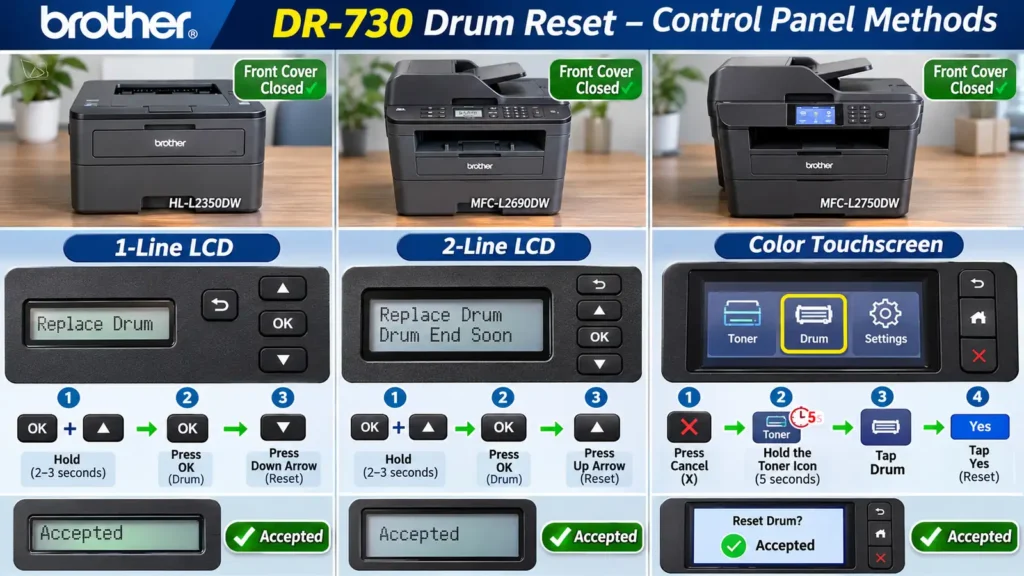
Method 2: 2-Line LCD Models (HL-L2390DW, DCP-L2550DW, MFC-L2690DW, MFC-L2710DW, MFC-L2717DW)
All-in-one models equipped with a 2-line monochrome LCD and physical navigation buttons use the Up arrow key for the final confirmation step. This sequence works identically whether your printer has a numeric keypad (such as the MFC-L2710DW) or no number pad (such as the HL-L2390DW and DCP-L2550DW).
-
Make sure the printer is powered on and the front cover is closed.
-
Hold down OK while pressing the Up arrow key at the same time until Drum appears on the top line of the display.
-
Press OK to select Drum. The second line of the LCD will prompt you to press Up to reset or Down to exit.
-
Press the Up arrow key to reset the drum counter.
-
Confirm that the LCD displays Accepted. The maintenance warning will clear within a few seconds.