

Verifying Cartridge Recognition in the Printer
After completing the reset, reinstall the chip into its plastic slot on the toner cartridge if it was removed, making sure the alignment notch locks into the retaining tab so the pads face the printer’s internal contact springs.
-
Install the refilled and reset cartridge into the HP printer and close the access door.
-
Listen for the normal initialization rotation and watch the control panel or status LEDs. Any previous “Replace Toner” or “Cartridge Depleted” halt condition should clear once the engine finishes initializing.
-
Print a Supplies Status Page from the printer control panel or the HP ToolboxFX / Embedded Web Server utility on a connected computer.
-
Check that the estimated toner gauge reads full (100%) and that the serial or supply memory status shows no communication faults.
Practical Limitation: Some HP printers store recent cartridge serial numbers in non-volatile memory or apply firmware rules that alter how refilled OEM vs. aftermarket chips display supply gauges. If a printer accepts the cartridge and prints normally without a red error light, minor differences in status-bar reporting do not prevent normal operation.
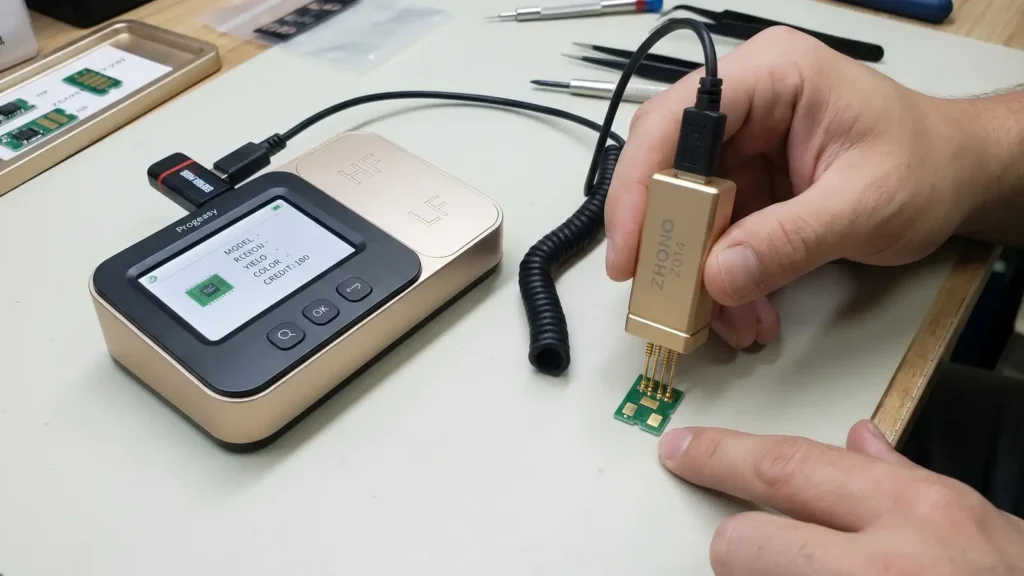
Troubleshooting Progeasy Reset Errors
If the device fails to read or reprogram the chip, use the symptom table below to isolate whether the fault lies with probe alignment, authorization, or an locked chip architecture.
| Progeasy Screen Message | Likely Cause | Corrective Action |
| Read Error / No Connection | Oxidized contact pads, reversed probe orientation, or uneven pin pressure | Clean the four gold pads, check the PCB notch orientation against the adapter guide, and press all four pins flat against the board. |
| Write Failed | Probe slipped during the write cycle, or the selected profile does not match the chip’s internal IC | Run the Search function first to verify the chip remains readable, brace your wrist on the bench to prevent movement, and retry with the exact matching profile. |
| Unsupported / Locked | The chip uses a one-time-programmable (OTP) aftermarket IC or an encrypted revision outside the device database | Confirm the cartridge model in Search mode. If the IC is write-locked or unsupported by your firmware version, replace the chip with a new compatible board. |
| Invalid Dongle / Credit Error | Loose USB dongle connection, depleted credit balance, or expired authorization file | Power off the Progeasy, reseat the USB dongle firmly, reboot to check the credit counter, and recharge credits through your Zhono distributor if depleted. |
| Printer Shows 10.00.XX After Reset | Chip shifted in the cartridge slot, bent printer contact springs, or wrong regional/color profile written | Inspect the cartridge slot to ensure the chip sits flush, verify that a Cyan profile was not written to a Magenta or Black CB540-series chip, and check the printer’s internal memory tag contacts. |