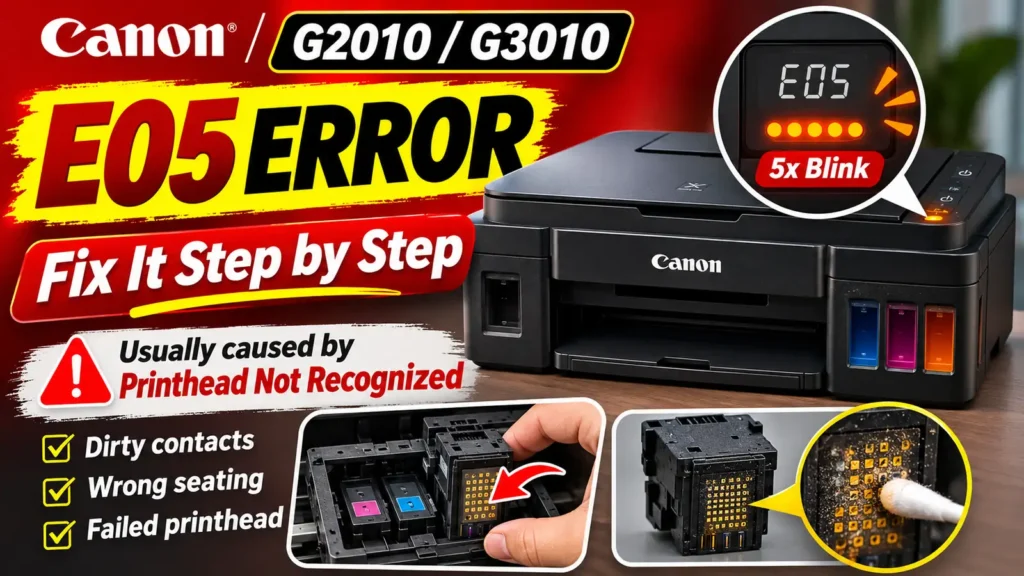
Performing a canon e05 error reset requires restoring physical and electrical communication between the printer carriage and the installed ink cartridges or print heads. Unlike standard low-ink warnings (such as Canon errors E13 or E16), which can be bypassed by holding down the Stop/Reset button for five seconds, error code E05 indicates that the printer cannot detect one or both print heads at all, detects an unsupported cartridge model, or senses an internal electrical fault in the print head circuit. Because the printer cannot print without an active nozzle circuit, pressing or holding buttons on the control panel will only cancel the current print job rather than clearing the fault.
To clear error E05 permanently, you must identify which companion support code your printer is reporting, clean or reseat the gold contact pads on the cartridges or print heads, verify that the carriage locking mechanism is fully engaged, or replace an electrically damaged print head. The exact procedure depends on whether you are using a standard two-cartridge Canon PIXMA model or a refillable MegaTank model such as the Canon PIXMA G3411.
What an E05 Error Code Printer Alert Actually Means
When an e05 error code printer state occurs on a Canon PIXMA machine with a segment LCD screen, the display alternates between the characters E, 0, and 5 while the orange Alarm lamp flashes five times. On entry-level PIXMA models without a numeric screen, the same fault is signaled by five consecutive flashes of the orange Alarm LED followed by a brief pause.
While the printer screen only shows E05, the Canon IJ Status Monitor on a connected Windows or macOS computer displays a four-digit Support Code that pinpoints why the carriage rejected the cartridge or print head:
| Support Code | Printer Family | Official Cause | Primary Diagnostic Focus |
| 1401 | FINE Cartridge PIXMA (TS, MG, MP, TR) | FINE cartridge is not installed or not detected | Missing cartridge, unlatched holder, or dirty contact pads |
| 1403 | Both FINE Cartridge and MegaTank (G-Series) | Print head or FINE cartridge error; print head may be damaged | Internal thermal sensor or resistor burnout inside the print head |
| 1430 | Both FINE Cartridge and MegaTank (G-Series) | Print head or cartridge cannot be recognized | Improper seating, unpressed joint buttons, or oxidized contacts |
| 1471 | MegaTank G-Series (including G3411 / G3010) | Print head cannot be recognized | Unseated print head or dirty carriage pin array |
| 1476 | MegaTank G-Series (including G3411 / G3010) | Appropriate print head is not installed | Incompatible print head model or swapped Black/Color slots |
| 1485 | FINE Cartridge PIXMA (TS, MG, MP, TR) | Appropriate ink cartridge is not installed | Wrong regional cartridge number or swapped left/right slots |
Understanding which hardware architecture your Canon printer uses is essential before opening the cover. Standard PIXMA models (such as the MG2250, MG2500, MP250, MP280, TS3100, and TS3300 series) use disposable FINE cartridges that combine the ink sponge and the print head nozzles into a single plastic body. In contrast, refillable ink tank models (such as the Canon PIXMA G3411, G3410, and G3010 series) store ink in front-mounted reservoirs and feed it through flexible tubes to two replaceable print heads locked into the carriage. Opening the print head latch on a tank printer without following the proper depressurization sequence will pull ink backward through the tubes and force a costly system flush.
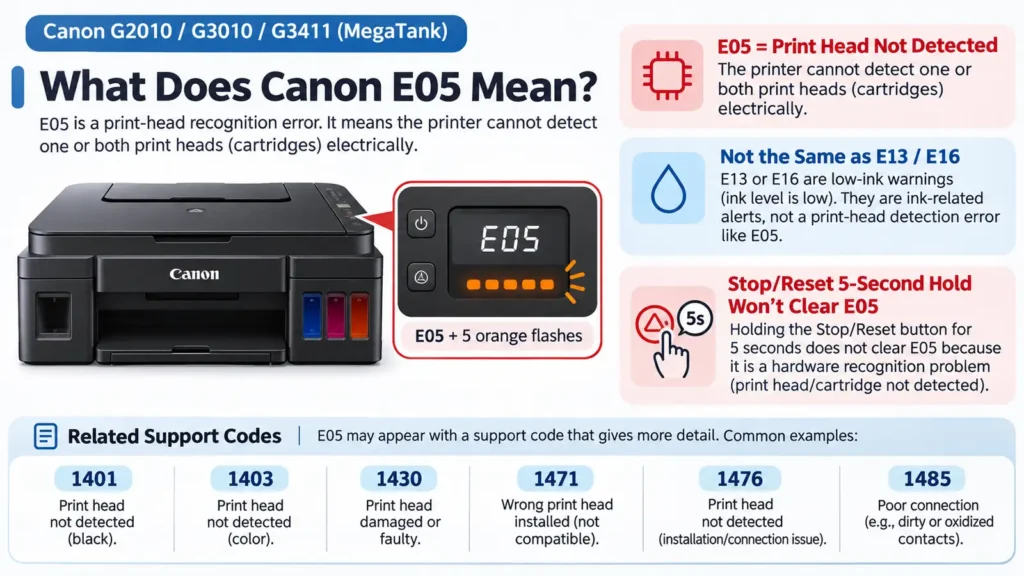
Why Button-Hold Reset Attempts Do Not Clear Error E05
Many troubleshooting guides instruct users to hold the Stop, Reset, or Resume button for five to ten seconds to force a canon e05 error reset. Understanding why that technique fails prevents wasted time and potential hardware damage:
-
Ink Level Override vs. Hardware Recognition: Holding the Stop button for five seconds is Canon’s built-in override for disabling remaining ink level detection when using refilled cartridges (which triggers errors E13 or E16). That command tells the firmware to ignore an empty ink counter on a cartridge that the printer already recognizes electrically.
-
E05 Signals an Open or Invalid Circuit: When error E05 is active, the main logic board cannot read the identification ROM or temperature diode on the print head. Pressing the Stop button during an E05 fault simply cancels the pending print job in the queue so the printer does not immediately start printing once you fix the hardware issue.
-
Why Factory Resets Do Not Fix E05: Resetting device settings from the control panel only restores network configurations, paper settings, and copy defaults. Because the printer checks print head continuity every time the carriage initializes, an E05 error caused by dirty contacts or a burned-out print head will return immediately after a settings reset.
A power-cycle reset is still useful, but only after you have physically cleaned and reseated the cartridges or print heads so the mainboard re-polls the carriage contacts from a cold boot.