web analytics
Shadow

REPAIR PRINTER

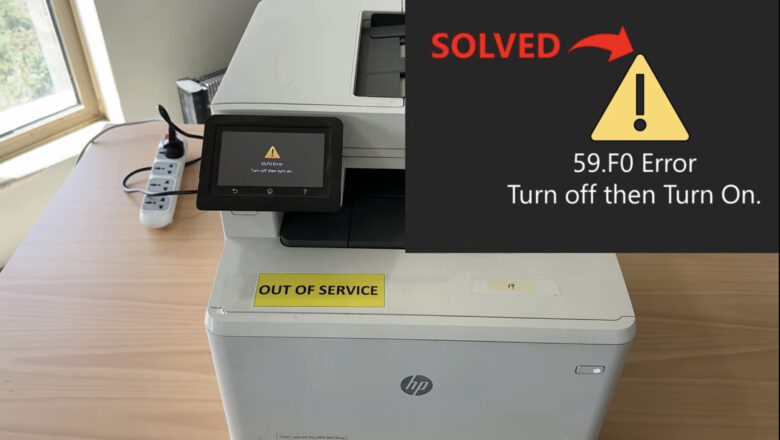
Resolving Error 59.F0 on HP LaserJet Printers

Resolving Error 59.F0 on HP LaserJet Printers

Non classé, REPAIR PRINTER, RESET PRINTER
Understanding Error 59.F0 Error 59.F0 on HP LaserJet printers can be a frustrating issue for many users. This error typically indicates a problem with the printer's internal hardware, specifically the main motor. When this error occurs, the printer may stop functioning altogether, disrupting your work and causing unnecessary stress. Resolving Error 59.F0 on HP LaserJet Printers: A Step-by-Step Guide If you are a proud owner of an HP LaserJet printer, you may have encountered the frustrating 59.F0 error message prompting you to power off and on your printer. However, a simple reboot won't do the trick in resolving this issue. This blog post will guide you through a two-step process to easily fix the error and get your printer back up and running smoothly. Troubleshooting Steps To resol...
Troubleshooting Printhead Cleaning Techniques You Need to Know

Troubleshooting Printhead Cleaning Techniques You Need to Know

Blog, REPAIR PRINTER
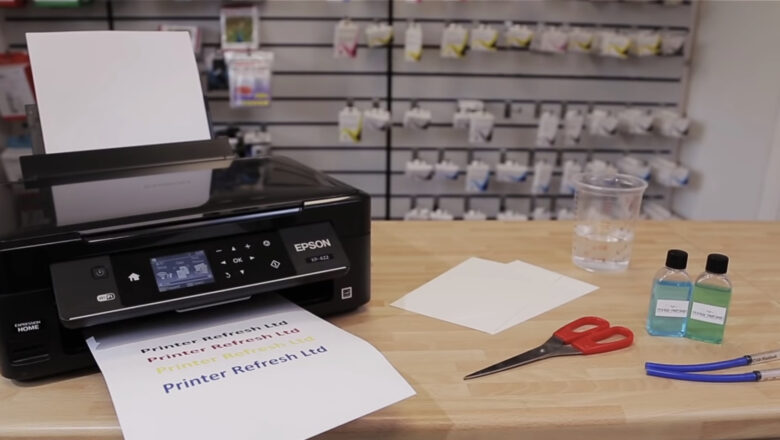
Revive Your Printer: Step-by-Step Printhead Cleaning Guide From time to time, your printer may start producing faded prints or streaks, indicating that its printheads require some care. Instead of panicking or rushing to a service center, you can easily clean the printheads yourself. Follow this comprehensive guide to restore your printer's performance with a few simple steps. Preparing for Printhead Cleaning To begin the process, you will need to gather a few supplies. You can use a photocopy or any form of printing to initiate the cleaning process. As the printer starts printing, remove the power cable from the rear of the machine. This action frees up the carriage holding the ink cartridges, making them easier to handle during the cleaning. Removing and Preparing the Ink Cartrid...
How to Make Xerox B210 Chipless Ink Chip Fix Reset Firmware

How to Make Xerox B210 Chipless Ink Chip Fix Reset Firmware

Blog, REPAIR PRINTER, RESET PRINTER
The Xerox B210 printer is a popular choice for many individuals and businesses. However, if you're looking to make your printer chipless, you're in luck. In this blog post, we will guide you through the process of making your Xerox B210 chipless using the ink chip fix reset firmware. This firmware will help you unlock additional capabilities for your printer, providing you with more control over your printing needs. Requirements Before we get started, let's go over the requirements for making your Xerox B210 chipless. You will need the following: A computer with a Windows operating system An internet connection A USB cable The Process Now that you have all the necessary requirements, let's dive into the process of making your Xerox B210 chipless. Follow these ste...
Xerox Phaser 3100 mfp Printer: Reset and Unlimited Chip

Xerox Phaser 3100 mfp Printer: Reset and Unlimited Chip

Non classé, REPAIR PRINTER, RESET PRINTER
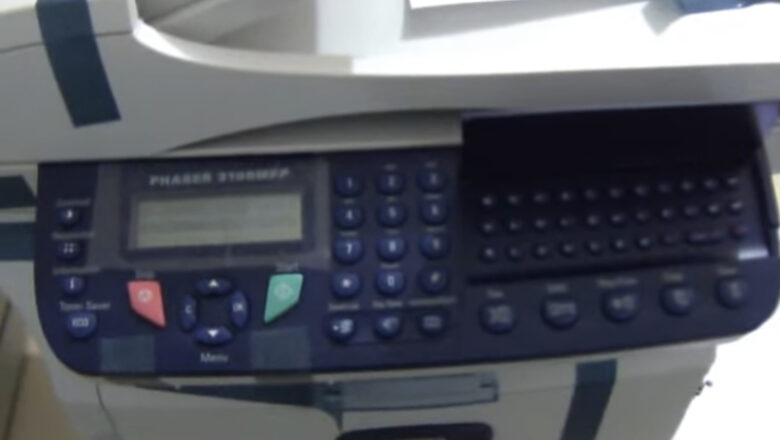
In today's market, chip cards for printers can be quite expensive. However, there is a solution to save money and print unlimitedly. In this blog, we are going to talk about the Xerox Phaser 3100 printer and how it is possible to reset it so that it no longer depends on the chip card. We will introduce an unlimited chip that can be soldered on to the printer's mather board, allowing it to work without restrictions. Follow this article and see how easy it is to have a Xerox Panzer 3100 printer with unlimited chips. The Unlimited Chip To reset the Xerox Phaser 3100 printer, we offer an unlimited chip. This chip, which is soldered onto the printer's mather board, allows it to be used without the need for the original chip card. By exchanging the original chip for the unlimited chip, ...
Xerox Phaser 3100 MFP bourrage paper

Xerox Phaser 3100 MFP bourrage paper

Blog, REPAIR PRINTER
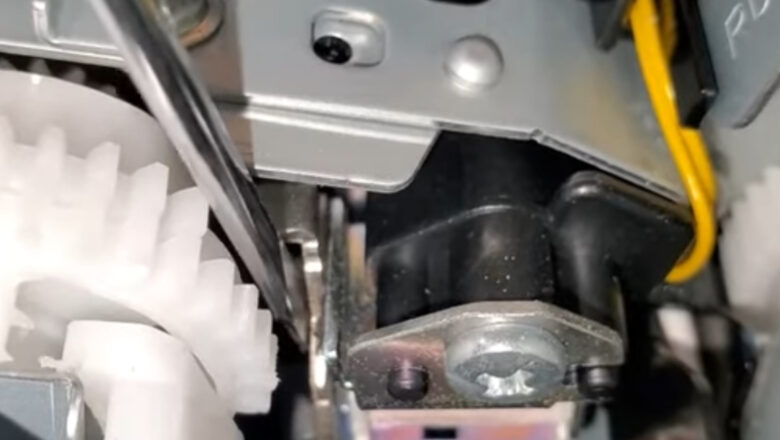
Take out the paper tray and check if the paper pickup roller is in motion or not. Initiate the printing of the document and inspect the MFP from the underside. Once the document is sent for printing, the clutch on the paper feed roller axle is supposed to activate, causing the roller to rotate. However, in this scenario, that doesn't occur, and the roller remains stationary. Moreover, the device fails to recognize the absence of paper. We removed the tray, expecting it to be indicated. Let's try printing using manual paper feed. We insert the sheet and send the document for printing. The printer is printing. The issue lies with the manual paper feed sensor. Open the front cover and take out the cartridge. Locate the sensor beneath the metal roller, as depicted in the ph...
Resetting ink counters on Brother inkjet printers

Resetting ink counters on Brother inkjet printers

Blog, REPAIR PRINTER, RESET PRINTER
  Procedure for DCP-110C, DCP-115C, DCP-116C, DCP-117C, DCP-120C, DCP-153C, DCP-195C, DCP-310CN, DCP-315CN, DCP-340CW, DCP-350C, DCP- 353C, DCP-560CN: 1. Turn on the machine. 2. Press, successively, ‘Menu’, ‘Mono On’, ‘Menu’, ‘Mono On’ in less than 5 seconds. 3. “│MAINTENANCE 10│” is then displayed. 4. With the up (▲) or down (▼) keys, display “80” and validate with “Menu” or “OK” 5. Press the ‘Mono Start’ button several times until the message “PURGE: 06400” is displayed. (Usually, The value exceeds 6400) 6. To reset the counter to "00000", you must enter the value "2783": successively display the numbers 2,7,8 and 3 with the (▲) or (▼) keys and confirm with the "OK" key each time. times. 7. To exit, press ‘Stop/Exit’ key. 8. Unplug the power cable from the machine for 5 seconds t...
Essential Equipment for Printer Repair: Tools of the Trade

Essential Equipment for Printer Repair: Tools of the Trade

Blog, REPAIR PRINTER
When your trusty printer starts acting up, there's no need to panic. With the right equipment and a bit of know-how, many printer issues can be resolved without the help of a professional technician. In this article, we'll explore the essential equipment for repairing printers, providing you with a handy guide to tackle common printer problems like a pro. 1. Screwdriver Set: A good set of screwdrivers is a fundamental tool for any printer repair job. Printers are often held together with various types and sizes of screws. A screwdriver set with both flathead and Phillips head options will ensure you're prepared for any disassembly or reassembly. 2. Multimeter: A multimeter is a versatile device used to measure electrical voltage, current, and resistance. It's invaluable for diagnosing ...
hp m180 m181 firmware downgrade: Safe Rollback Guide

hp m180 m181 firmware downgrade: Safe Rollback Guide

RESET PRINTER, REPAIR PRINTER
hp m180 m181 firmware downgrade: How to Roll Back HP Firmware Safely If you’re searching for hp m180 m181 firmware downgrade, you’re probably dealing with a familiar headache: the printer worked fine, you updated firmware, and suddenly you’re seeing new errors (supply communication problems, printing blocks, or strange behavior that wasn’t there before). Firmware updates are meant to improve stability and compatibility, but sometimes they introduce unexpected issues—especially if your printer environment includes older drivers, different operating systems, or supplies that were previously recognized without trouble. This guide explains how to update firmware correctly, how a downgrade works on HP LaserJet models like the M180/M181, what to check before you roll back, and how to keep your...
how to reset canon pixma mp250 cartridge: Fix “Ink Empty” & Cartridge Not Recognized

how to reset canon pixma mp250 cartridge: Fix “Ink Empty” & Cartridge Not Recognized

RESET PRINTER, REPAIR PRINTER
how to reset canon pixma mp250 cartridge is a common search when your Canon PIXMA MP250 refuses to recognize an ink cartridge, keeps showing an “Ink Empty” message after a refill, or throws cartridge installation errors even though everything looks correctly seated. The MP250 doesn’t “reset” the cartridge itself in the magical sense—what you usually do is reset/override the printer’s ink monitoring so it stops blocking printing based on the cartridge chip’s stored ink estimate. This guide gives you the clean, safe steps that actually work, explains what each reset does, and helps you avoid the #1 mistake that can damage print quality: printing with a truly empty cartridge. Why the Canon PIXMA MP250 stops recognizing cartridges The MP250 relies on ink monitoring (a chip + internal memo...
Samsung CLP-365w Drum Unit Reset — step-by-step guide (CLT-R406)

Samsung CLP-365w Drum Unit Reset — step-by-step guide (CLT-R406)

REPAIR PRINTER, RESET PRINTER
Samsung CLP-365w Drum Unit Reset — what it is and how it works Samsung CLP-365w Drum Unit Reset is the process of clearing the imaging unit’s page “odometer” so your printer can resume printing after it shows Replace/Prepare new imaging unit. The CLP-365w (and other models using the CLT-R406 imaging unit) tracks pages with a tiny fuse/“blow” circuit on the drum module. From the factory, the circuit presents low resistance; at first power-up, the printer detects that low value, resets the drum counter, and then blows the little fuse so it only “sees” a high resistance from that point forward and keeps counting. When the counter reaches its limit, printing stops even if the drum still looks fine. Resetting simply means recreating that new-unit low-resistance condition once—safely—so the pri...
🚫
AdBlock Detected!
It looks like you're using an AdBlock extension.
Ads help us provide free, high-quality content.
Please disable your AdBlocker for this website and refresh the page.

How to disable AdBlock:

  1. Click the AdBlock icon in your browser toolbar.
  2. Select "Don't run on this site" or "Pause on this site".
  3. Reload the page using the button below or press F5.
  4. If you still see this message, try temporarily disabling all ad-blocking extensions.