

Step-by-Step HP LaserJet MFP M436nda Transfer Roller Reset
Whether you operate a base M436n, a duplex M436dn, or need an HP LaserJet MFP M436nda transfer roller reset on the full-featured ADF configuration, the counter clearance is performed from the physical control panel keypad.
Step 1: Enter the Service Tech Menu
-
Make sure the printer is powered on and sitting at the idle Ready or maintenance warning screen.
-
Press the buttons below in a steady, continuous sequence on the control panel:
-
Press Menu
-
Press # (the hash key at the bottom-right of the numeric keypad)
-
Type 1 0 0 4 3 6 1 6
-
Press Menu
-
-
The top line of the LCD will change to display Tech Menu. Press OK to open it.
(If the standard user menu opens instead, press Back to return to the home screen and enter the sequence again without pausing between keystrokes.)
Step 2: Open Maintenance Counts
-
Inside the Tech Menu, press the left (
<) or right (>) arrow key until Maintenance Counts appears on the screen. -
Press OK.
-
Use the arrow keys to highlight Clear Counts and press OK.
Step 3: Enter the Clear Counts Passcode
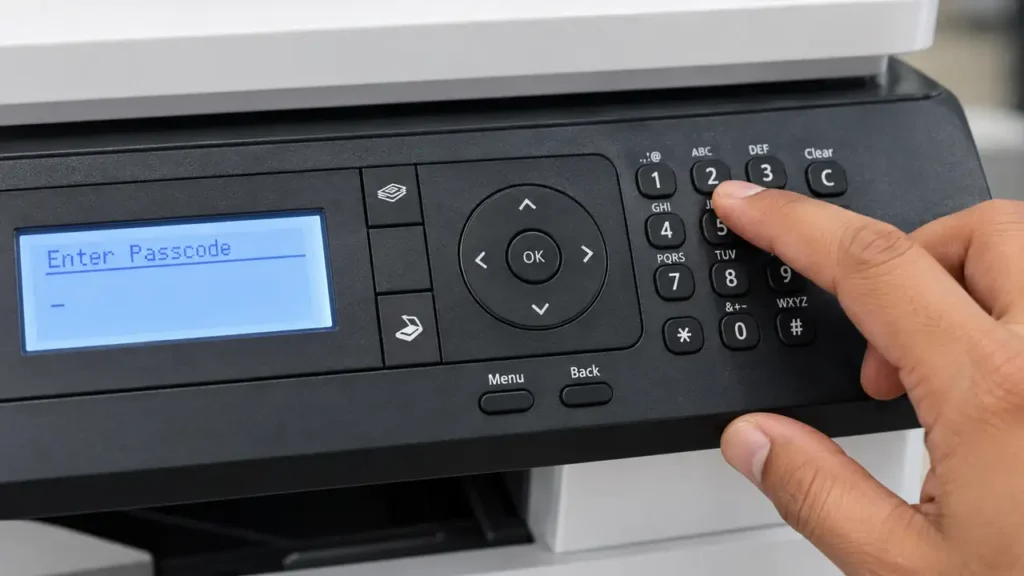
When you select Clear Counts, the printer prompts Enter Passcode to prevent accidental counter erasure.
-
Enter the service authorization sequence documented in the HP service manual:
-
Press Menu > # > 1 0 0 4 3 6 1 6 > Menu
-
(Note: On certain firmware revisions where a numeric cursor is already active under
Enter Passcode, typing 1 0 0 4 3 6 1 6 and pressing OK immediately unlocks the menu. If typing the digits alone does not advance the screen, enter the fullMenu > # > 10043616 > Menusequence.)
-
Step 4: Clear the Transfer Roller Counter
Once the passcode is accepted, the display lists individual life counters for each serviceable assembly (Document feeder Scan, Platen scan, Developer, Fuser, and Transfer Roller).
-
Press the
<or>arrow key until Transfer Roller (displayed as Transfer on some firmware builds) appears on the LCD. -
Press OK.
-
When prompted to confirm clearing the count, select Yes (or confirm with OK).
-
Press the Back button repeatedly to exit Tech Mode and return to the standard home screen.
-
Turn the printer off, wait 10 seconds, and turn it back on.