

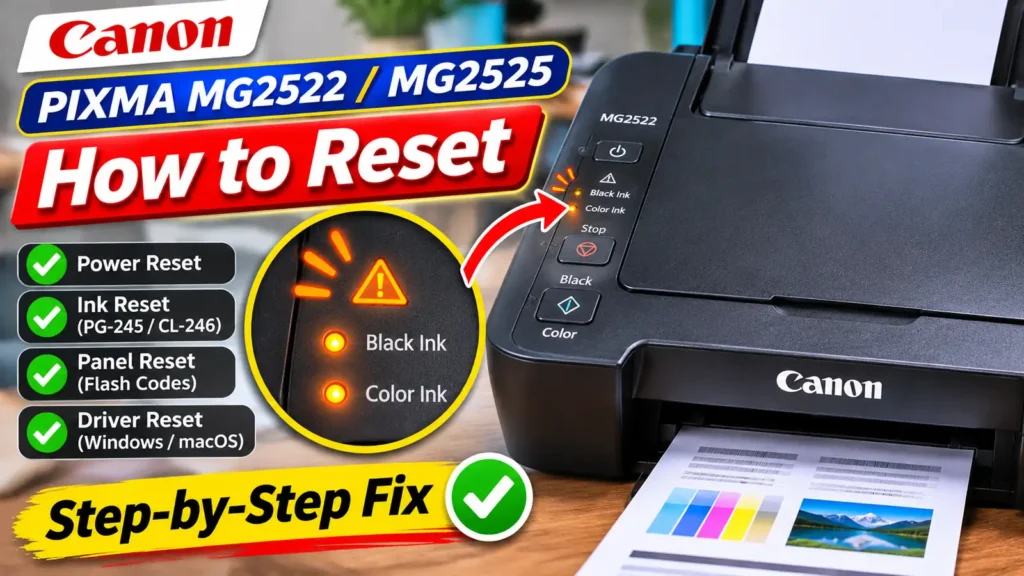
How to Reset Canon MG2522 Printer Ink Level Detection (Support Codes 1686 and 1688)
The most frequent reason users search for how to reset canon mg2522 printer ink is that the printer refuses to print even after installing a refilled, remanufactured, or freshly replaced PG-245 / PG-245XL (Black) or CL-246 / CL-246XL (Color) cartridge.
Unlike continuous ink tank printers, the Canon PIXMA MG2522 and MG2525 rely on integrated FINE cartridges where the print head nozzles and ink sponge sit inside the cartridge body. Each cartridge carries an electronic chip that counts droplet firings. Once a cartridge has been marked low or empty, the chip permanently stores that depleted status. Even if you refill the sponge with ink—or install a remanufactured cartridge whose chip was not electronically replaced—the printer reads the old chip data and halts with:
-
Support Code 1686 (13 orange Alarm flashes): The printer detects that a previously used or refilled cartridge is installed and cannot verify the remaining ink level.
-
Support Code 1688 (16 orange Alarm flashes): The printer registers the cartridge as completely empty and blocks all printing and copying.
How to Bypass the Ink Monitor Using the Stop Button
You cannot rewrite a standard PG-245 or CL-246 chip back to 100% full using the printer’s buttons, and the Canon Ink Status Monitor on your computer will continue to display the cartridge as empty or unknown. However, Canon built an official hardware override into the MG2500 series that disables remaining ink level detection so the printer works normally:
-
Keep the printer powered on with the cartridges installed. Confirm that both the black (PG-245) and color (CL-246) cartridges are locked firmly into their slots and the front cover is closed.
-
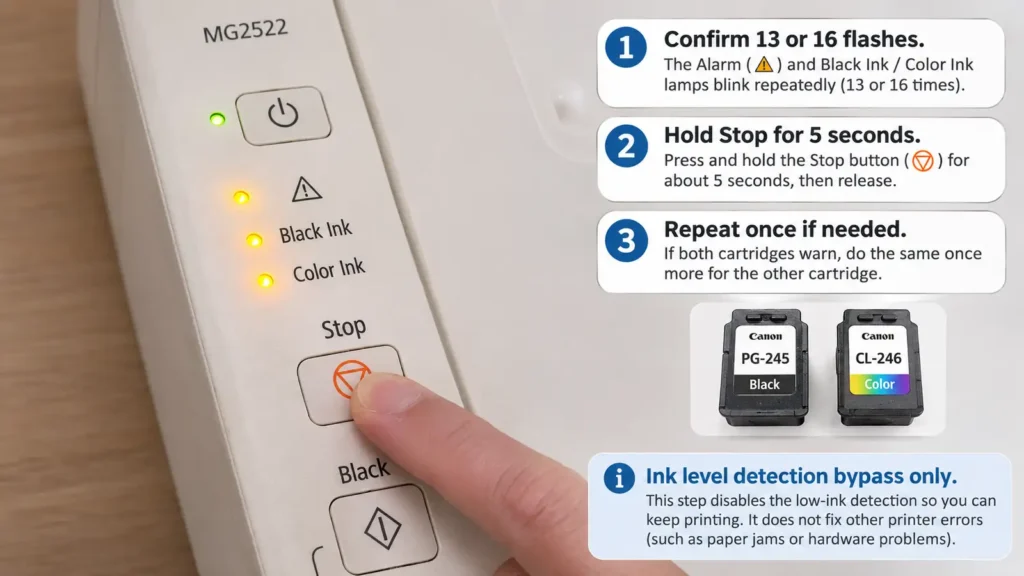
Confirm the 13-flash or 16-flash error is active. Look at the operation panel or your computer screen to verify that the orange Alarm lamp is blinking 13 times (Support Code 1686) or 16 times (Support Code 1688). The bypass only registers while the printer is actively displaying the ink error.
-
Press and hold the Stop button for at least 5 full seconds. Hold down the Stop button continuously for 5 to 7 seconds until you hear the internal carriage and feed mechanisms begin moving, then release the button.
-
Repeat if both cartridges trigger separate warnings. The 5-second override applies one cartridge at a time. If both your black and color cartridges are refilled or depleted, the orange Alarm lamp may stop briefly and then start blinking 13 or 16 times again for the second cartridge. Press and hold the Stop button for another 5 seconds and release it.
-
Verify normal operation. The orange Alarm lamp will turn off, the green ON lamp will remain steadily lit, and any stalled print job will begin printing.
Precautions When Printing with Ink Detection Disabled
Once you disable remaining ink level detection for a cartridge, the printer will keep firing the print head until you install a brand-new genuine Canon cartridge (which automatically re-enables ink tracking for that slot). Never run a PG-245 or CL-246 cartridge completely dry after bypassing Support Code 1686 or 1688. Because thermal inkjet nozzles rely on liquid ink for cooling, printing dozens of blank pages on an empty sponge can overheat and permanently burn out the cartridge’s built-in print head resistors.
Why the 5-Second Stop Reset Fails on 5, 14, or 15 Orange Flashes
If holding the Stop button for 5 seconds does nothing and the orange Alarm lamp keeps flashing, count the flashes again:
-
4 flashes (Support Code 1687): The cartridge is not pushed all the way up into the carriage latch. Open the cover and push upward on the bottom of the cartridge until it clicks into place.
-
5 flashes (Support Codes 1401, 1403, 1485) or 14/15 flashes (Support Codes 1684, 1682): The printer cannot read the cartridge’s electrical circuit at all. Turn the printer off, remove both cartridges, inspect for any leftover orange protective tape, and gently wipe the gold copper contact pads on the back of the cartridge (and the matching spring pins inside the carriage) using a dry, lint-free cotton swab or a swab lightly dampened with isopropyl alcohol. Let the contacts dry for 2 minutes, reinstall the cartridges, and close the cover. If 5, 14, or 15 flashes persist, the cartridge circuit ribbon is electrically shorted and the cartridge must be replaced.
Restoring Onboard Operation Panel Settings and Maintenance Modes
Because the Canon PIXMA MG2522 and MG2525 have no screen, Canon assigned multiple configuration and maintenance functions to the Stop button during normal standby mode (when the green ON lamp is solid and no error is present). Users who hold down the Stop button while trying to figure out how to reset a Canon MG2522 printer frequently change onboard settings by mistake—or accidentally launch heavy ink-draining cleanings.
If your printer suddenly starts rejecting print jobs with 11 orange flashes (Support Code 4102 — paper size mismatch), prints unusually slowly, or turns itself off unexpectedly, you can reset those onboard hardware settings directly from the operation panel.
1. Resetting Onboard Page Size Between Letter and A4 (10 Flashes)
When you make standalone copies or when the printer checks paper settings, it uses an internal page size setting toggled via the Stop button. If it gets switched from Letter to A4 (or vice versa), it can trigger mismatch errors:
-
Ensure the printer is powered on and the green ON lamp is lit steadily with no active error.
-
Press and hold the Stop button while watching the orange Alarm lamp.
-
Count carefully until the orange Alarm lamp flashes 10 times, then immediately release the Stop button. (The green ON lamp will begin flashing.)
-
Press the Black button to set the default page size to Letter, or press the Color button to set the default page size to A4.
2. Resetting Quiet Mode to Normal Print Speed (9 Flashes)
If your MG2522 or MG2525 suddenly prints at half its normal speed, Quiet Mode may have been enabled on the panel:
-
With the printer turned on and idle, press and hold the Stop button until the orange Alarm lamp flashes 9 times, then release the Stop button immediately.
-
Press the Black button to disable Quiet Mode and restore standard print speed (pressing Color enables Quiet Mode).
3. Resetting Auto Power Off and Auto Power On (13 and 14 Flashes)
To restore or change how the printer powers itself on and off when connected over USB:
-
To reset Auto Power Off: With the printer on and idle, hold the Stop button until the orange Alarm lamp flashes 13 times, release Stop, and press Color to enable Auto Power Off (or Black to disable it so the printer stays on continuously).
-
To reset Auto Power On: With the printer on and idle, hold the Stop button until the orange Alarm lamp flashes 14 times, release Stop, and press Black to disable Auto Power On (or Color to allow incoming computer print jobs to wake the printer automatically).