

Knowing how to manual reset Canon PIXMA G1000 G2000 G3000 G4000 printers begins with identifying which system has locked or misconfigured your machine. In Canon’s first-generation PIXMA G-series MegaTank lineup, the phrase “manual reset” refers to four completely different hardware procedures controlled by the physical buttons on the printer’s operation panel:
-
Waste Ink Counter / Ink Absorber Reset (Support Code 5B00 / 5B01, Error Code P07): The printer blocks all printing and flashes the ON/POWER lamp and Alarm lamp 7 times alternately because the internal waste ink counter has reached 100%.
-
Wireless LAN / Wi-Fi Settings Reset (G3000 and G4000 Series): Clears stored Wi-Fi router credentials, IP configurations, and network passwords when moving the printer to a new wireless network or resolving an offline connection.
-
Full Machine Settings / Factory Default Initialization (G2000, G3000, and G4000 Series): Restores copy, paper, network, and administrator settings to factory defaults.
-
Remaining Ink Level Counter Reset (Support Code 1640 / Steady or Flashing Ink and Alarm Lamps): Resets the digital ink estimation counter after you refill all four integrated ink tanks to their upper limit lines.
Because these four printers do not share the same control panel layout, a button sequence designed for one reset type—or one model—will not work if applied in the wrong printer state. A Service Mode sequence must be executed starting with the printer completely powered off, whereas Wi-Fi resets, factory settings initializations, and ink level counter resets must be performed while the printer is powered on in normal user mode.
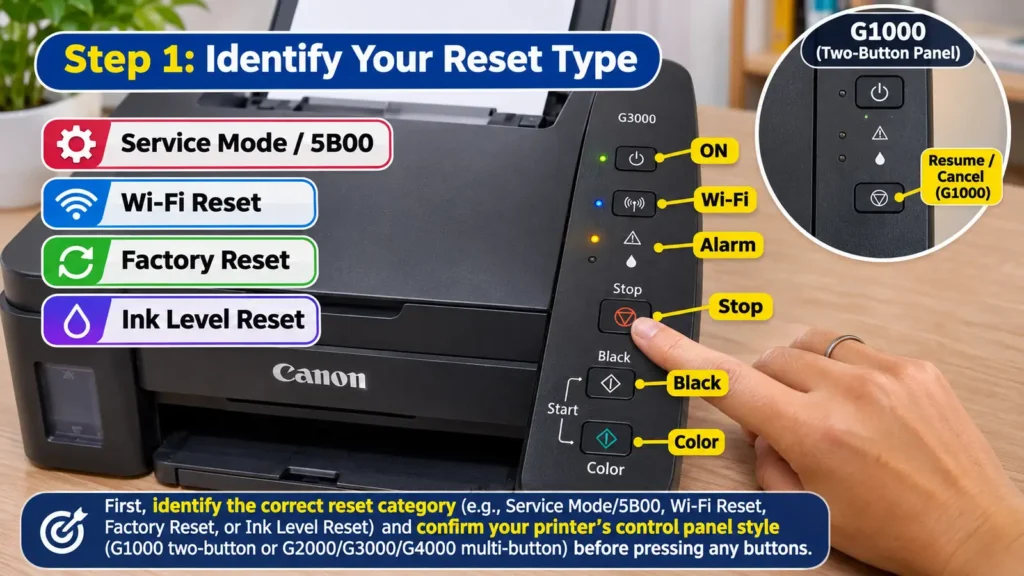
Understanding Control Panel Differences Across the G1000, G2000, G3000, and G4000
Before pressing any button combination, confirm which control panel architecture your printer uses. Canon divided the first-generation PIXMA G series into three hardware tiers:
-
Canon PIXMA G1000 Series (Single-Function USB Printer): Features no scanner, no Wi-Fi module, and no display screen. Its front panel contains only two physical buttons—ON (Power) and RESUME/CANCEL (triangle inside a circle)—paired with a green POWER lamp and an orange Alarm lamp. Whenever a reset procedure calls for the Stop button, G1000 owners must press the RESUME/CANCEL button instead.
-
Canon PIXMA G2000 and G3000 Series (Screenless 3-in-1 Multifunction Printers): Both models use a top operation panel with ON, Stop (red triangle inside a circle), Black, and Color buttons, alongside ON, Alarm, and Ink status lamps. The G3000 adds a dedicated Wi-Fi button and blue Wi-Fi LED above the Start buttons. Because neither model has an LCD screen, user-mode resets are selected by holding down the Stop button and counting how many times the orange Alarm lamp flashes.
-
Canon PIXMA G4000 Series (4-in-1 Wireless Multifunction with ADF and Fax): Replaces flash-counting for user settings with a Full Dot LCD screen, a Setup button (pliers-and-screwdriver icon), left/right navigation arrows, an OK button, a numeric keypad, Black/Color Start buttons, and a Stop button. While Service Mode still uses the ON and Stop buttons from a powered-off state, Wi-Fi, fax, ink counter, and factory resets are performed directly through the LCD menu.
| Reset Task | Required Starting State | Canon G1000 Method | Canon G2000 & G3000 Method | Canon G4000 Method |
| Enter Service Mode (5B00 / P07 Error) | Printer OFF | Hold RESUME/CANCEL + ON, release RESUME/CANCEL, press RESUME/CANCEL 5x, release ON | Hold Stop + ON, release Stop, press Stop 5x, release ON | Hold Stop + ON, release Stop, press Stop 5x, release ON |
| Reset Wi-Fi / Network Settings Only | Printer ON | Not applicable (USB-only model) | G3000: Hold Stop until Alarm lamp flashes 23 times, then release | Setup > Device settings > Reset setting > LAN settings > Yes |
| Restore All Machine Settings to Default | Printer ON | Controlled via Windows/Mac IJ Printer Driver | Hold Stop until Alarm lamp flashes 24 times, then release | Setup > Device settings > Reset setting > All data > Yes |
| Reset Remaining Ink Level Counter | Printer ON (Tanks filled to upper line) | Hold RESUME/CANCEL for 5+ seconds | Hold Black or Color button for 5+ seconds | Setup > Ink notification set. > Reset ink lev. count > Yes |
Recognizing how your specific control panel signals errors ensures you do not misinterpret a routine warning as a fatal service lockout.
How to Manual Reset Canon PIXMA G1000 G2000 G3000 G4000 for Error P07 / Support Code 5B00
When a Canon PIXMA G1000, G2000, G3000, or G4000 stops working and alternates flashes between the green ON/POWER lamp and the orange Alarm lamp 7 times per cycle—accompanied by Support Code 5B00 or 5B01 on a connected computer or P07 on models with a display—the printer’s internal waste ink counter has reached its 100% threshold.