

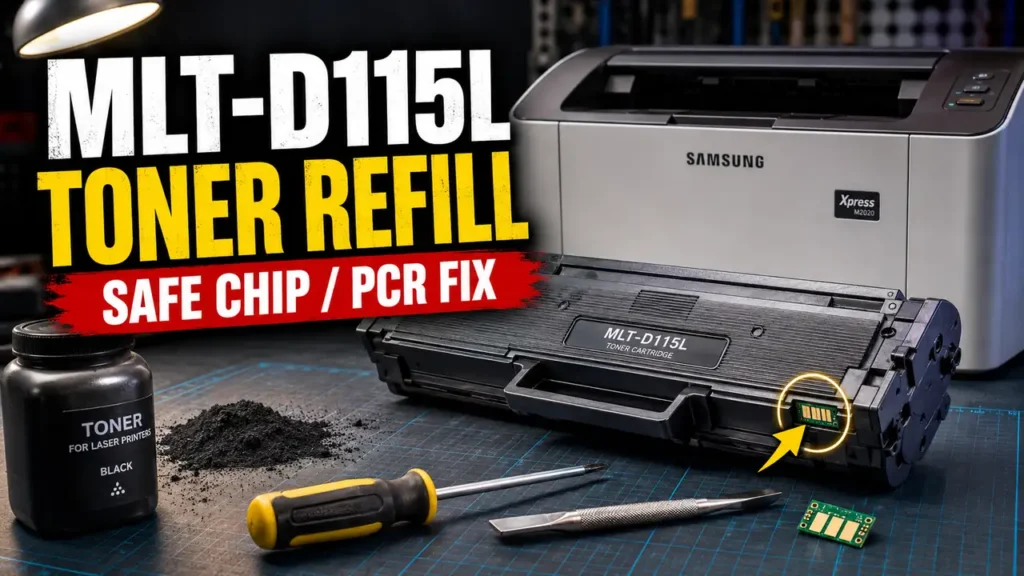
Understanding how to refill toner MLT-D115L is a practical way to significantly cut operational costs on Samsung Xpress mono printers while maintaining crisp, consistent output.
Unlike many modern cartridges, the MLT-D115L platform does not include a built-in drum shutter. New cartridges may include a removable protective shield to prevent transport damage to the drum and internal contact surfaces.
Before mastering how to refill toner MLT-D115L, technicians must understand the delicate balance of replacing region-coded chips, handling specialized conductive grease, and executing mechanical modifications.
This technical manual details a hands-on approach, moving from safe plastic rivet extraction to advanced PCR decontamination and hardware reassembly.
Safety Warning and Official Stance: According to OEM guidelines, modifying or refilling toner cartridges may lead to internal spillage or print defects and is not officially supported. The hardware interventions described below involve handling ultrafine carbon powder and modifying the plastic chassis. This guide is intended strictly for educational and troubleshooting purposes. Proceed at your own risk. Always work in a well-ventilated area.
Prerequisites and Diagnostic Limitations
To align with professional remanufacturing standards, please review the following limitations before attempting this procedure:
-
Chip Replacement: Replacement chips may be region-specific and must match the printer’s regional firmware and cartridge reference.
-
Contamination Risk: Never mix different toner powder formulations. Failing to completely empty the old powder will result in severe gray backgrounding.
-
Drum Sensitivity: The Organic Photo Conductor (OPC) drum is highly sensitive to UV light. Keep it shielded during the refill process to prevent permanent light-shock damage.
Recommended Tool Setup
To perform a thorough and clean refill, having the following items on your workbench is highly advised:
-
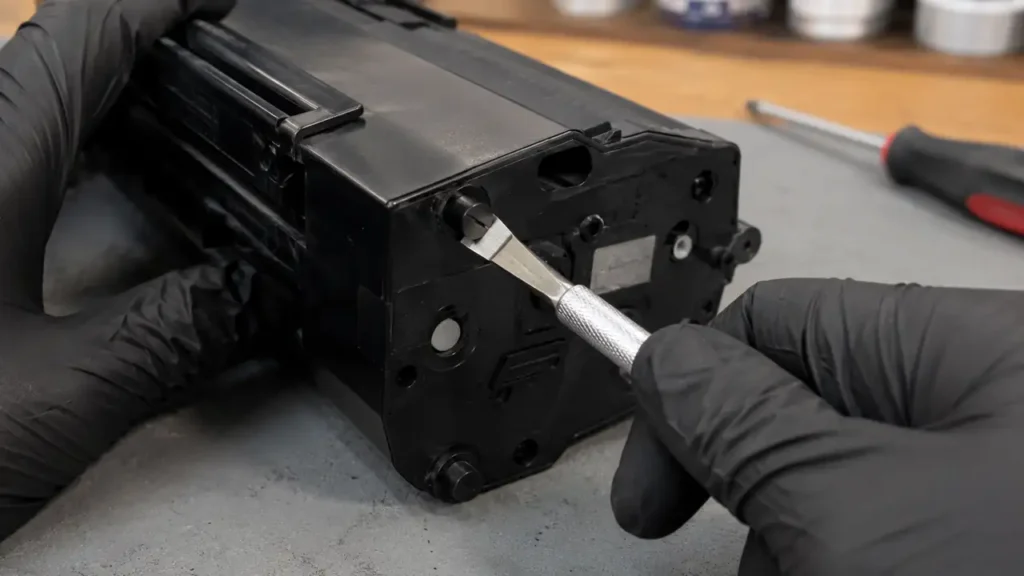
A chisel-blade knife or sharp flathead screwdriver (for rivet extraction).
-
A pin vise or micro-drill with matching small replacement screws.
-
A dedicated PCR cleaner (Do NOT use alcohol on an OEM PCR).
-
99% Isopropyl Alcohol (IPA) and lint-free foam swabs.
-
Conductive electrical grease.
Supported Printer Architectures
This refill methodology applies to several Samsung Xpress mono laser printers utilizing the specific D115L chassis.
| Cartridge Model | Supported Printers (Community Reported) | Standard Yield |
| Samsung MLT-D115L | Xpress SL-M2620, M2670, M2671 | ~3,000 Pages |
| Samsung MLT-D115L | Xpress SL-M2820DW, M2870FW | ~3,000 Pages |
Phase 1: Mechanical Disassembly and Rivet Extraction
The first step in how to refill toner MLT-D115L involves physically splitting the cartridge housing. Samsung secures the end caps with melted plastic rivets rather than traditional screws.
-
Position the cartridge on your bench with the handle facing up and the contact side facing you.
-
Using a sharp chisel blade, carefully slice off the heads of the three plastic rivets on the contact-side end cap. Leave the cap in place momentarily.
-
Repeat this exact process on the drum-gear-side end cap, slicing off its three rivet heads.
-
Rotate the drum shaft arm (labeled “R” for Right) straight down and pull it completely out.
-
Release the top, bottom, and front retention tabs to gently slide the contact-side end cap off.
-
On the gear side, remove the drum drive gear and the arm (labeled “L”). Press the retention tabs to remove this cap as well.
-
Lift the middle top cover slightly, separate the two cartridge halves, and extract the drum/waste assembly safely.
Phase 2: PCR and Waste Hopper Decontamination
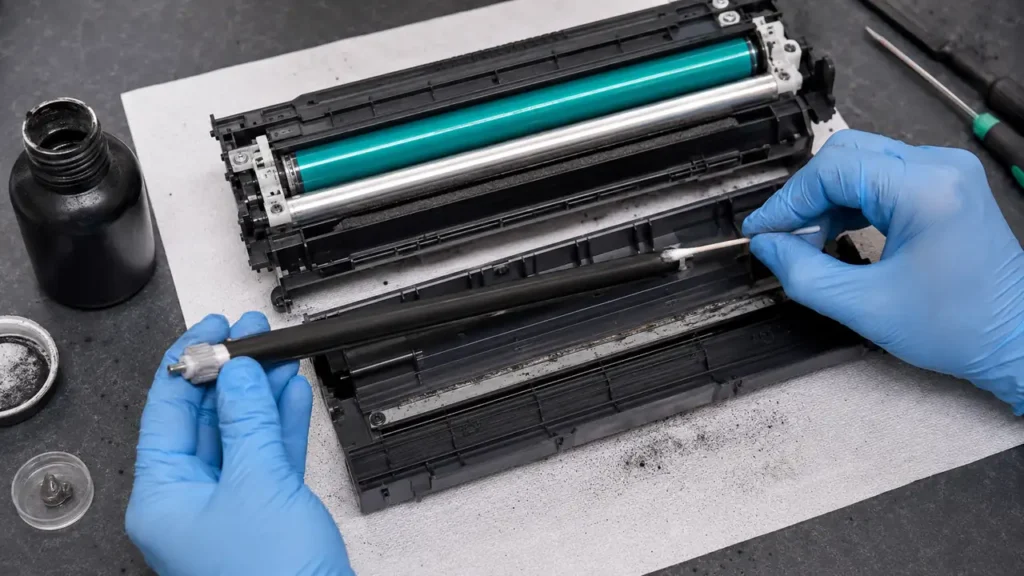
A critical aspect of how to refill toner MLT-D115L is proper cleaning. Failing to service the waste chamber will cause the cartridge to overflow and dump toner onto your pages.
-
Carefully extract the Primary Charge Roller (PCR) from its saddles.
-
Chemical Warning: Clean the OEM PCR exclusively with a dedicated PCR cleaner. Using Isopropyl Alcohol (IPA) will strip its semiconductive coating, leading to severe electrical banding on your prints.
-
Remove the three screws securing the metal wiper blade. Lift it slightly and slide it out without bending the fragile alignment pins.
-
Use a dedicated toner vacuum equipped with a proper toner/HEPA filtration system. Avoid blowing toner dust with compressed air.
-
Wipe the PCR saddle contacts with IPA. Once dry, apply a microscopic dab of fresh conductive grease to the black saddle.
-
Reseat the wiper blade securely, install the three screws evenly, and gently reinstall the cleaned PCR.
Phase 3: Toner Replenishment and EEPROM Chip Replacement
The core of how to refill toner MLT-D115L relies on utilizing high-quality, chemically matched toner powder and replacing the EEPROM chip.
-
On the supply hopper half, locate the recessed fill plug (typically black or orange).
-
Gently pry around the edges with a spudger until the plug pops out. Do not damage the plastic rim.
-
Vacuum out every trace of the old toner powder to prevent cross-contamination.
-
Fill the hopper with your compatible MLT-D115L toner to the recommended weight. Do not overfill, as excess pressure causes backgrounding and developer blade failure.
-
Reseat the fill plug firmly and check for microscopic leaks.
-
On the right side of the waste chamber, lift the seal above the chip holder. Swap the old chip for your new, compatible chip, ensuring the gold contacts face outward toward the chamber edge.
Phase 4: Reassembly and Hardware Calibration
Finishing how to refill toner MLT-D115L requires mechanical precision. You must rebuild the structural integrity previously held by the plastic rivets.
-
Join the two cartridge halves by hooking the wavy bottom clips of the waste section into the toner hopper. Roll them together until the side tabs snap.
-
Slide the middle top cover back into position, ensuring its lower edge slips correctly under the waste hopper lip.
-
On the gear-side end cap, apply fresh conductive grease to the large drum shaft. Snap the cap on, use a pin vise to drill three pilot holes where the rivets were, and install three micro-screws.
-
Repeat the drilling and screwing process for the contact-side end cap.
-
Reinstall the drum shaft arms exactly as removed (“L” on the contact side, “R” on the gear side), rotating slightly toward the rear to lock them in.
-
Rotate the gears manually. The movement must be perfectly smooth with no binding or grinding noises.
