web analytics
Shadow

REPAIR PRINTER

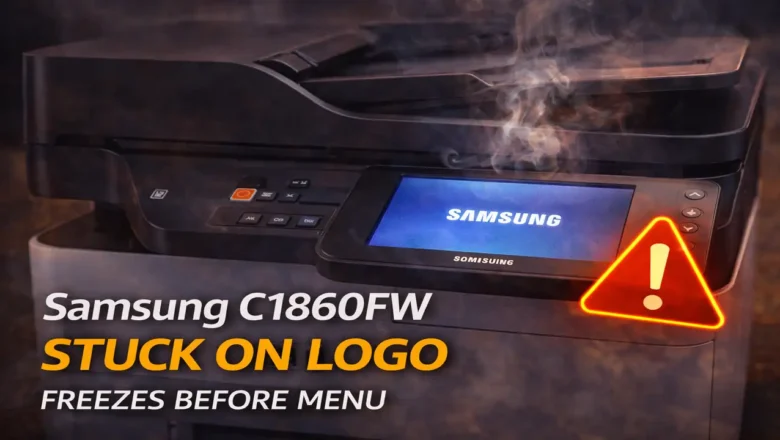
Samsung Printer Diagnostics: Official 2026 Support Guide

Samsung Printer Diagnostics: Official 2026 Support Guide

Blog, REPAIR PRINTER, RESET PRINTER
How to Use Samsung Printer Diagnostics for Support in 2026 Official software for legacy laser equipment is now managed through a single portal. If you need to resolve hardware errors or retrieve new files, utilizing the Samsung Printer Diagnostics utility is the most effective method for maintaining your device. By the year 2026, the landscape for technical assistance regarding these units has undergone a complete transition. Hardware maintenance responsibilities were moved by the original manufacturer to HP, meaning that legacy web portals no longer host the necessary files. Owners must now navigate to the HP Software and Driver Downloads page, which acts as the main digital location for all older printing hardware. Attempting to source files from retired web addresses may lead to out...
Konica waste toner box full Fixes and Maintenance Guide

Konica waste toner box full Fixes and Maintenance Guide

REPAIR PRINTER, Blog
Addressing the Konica waste toner box full Warning Understanding why your copier has stopped printing and how to manage the hardware sensors. When your printing workflow stops suddenly, the cause is often a physical hardware notification rather than a digital glitch. Seeing a Konica waste toner box full message indicates that the internal collection vessel has reached its maximum volume limit. While many users look for a software bypass or a hidden button to clear this notification, such an option does not exist. The system utilizes hardware-level detection to ensure that no overflow occurs inside the delicate internal components of the imaging system. Believing that a software-based command or a service menu button provides a solution for this alert is a common misunderstanding. Th...
streaks after replacing toner – How to Fix Laser Print Defects

streaks after replacing toner – How to Fix Laser Print Defects

REPAIR PRINTER, Blog
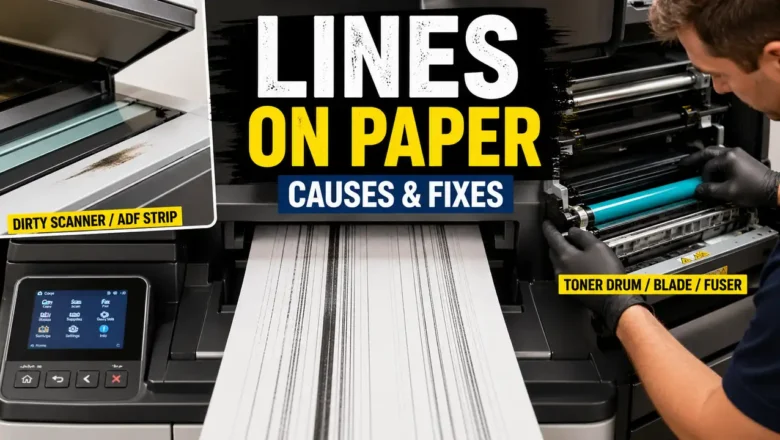
Resolving streaks after replacing toner in Laser Printers Fix vertical lines, shadows, and image defects after a cartridge swap Experiencing visual defects like streaks after replacing toner is a common issue that typically stems from installation errors or contaminated internal components. While a new cartridge is expected to produce crisp documents, improper handling of packaging materials or a lack of maintenance during the swap can lead to immediate print quality degradation. If your pages show vertical marks or repeating patterns, you must isolate whether the cause is the toner unit itself, the drum, or the fuser assembly. When you notice streaks after replacing toner, the first priority is to verify that the environment and the supplies are handled correctly. Laser printing te...
Color Laser Wrong Colors Fix: Troubleshooting Inaccurate Prints

Color Laser Wrong Colors Fix: Troubleshooting Inaccurate Prints

REPAIR PRINTER, Blog
Fixing Inaccurate Color Laser Prints Experiencing inconsistent color output, such as red displaying as brown or blue appearing green, often points to an issue with your printer's internal color mixing process or a critical hardware component nearing its operational limit. Addressing a color laser wrong colors fix typically involves systematic checks, starting with calibration and moving to hardware and software configurations. This guide outlines the essential steps to restore accurate color printing. When your laser printer struggles to reproduce secondary colors correctly, it signifies a breakdown in its ability to combine primary colors—cyan, magenta, yellow, and black—with the right intensity. This can lead to prints that look faded, discolored, or significantly different from the ...
Drum Counter Reset: Fix Printer’s “Replace Drum” Message

Drum Counter Reset: Fix Printer’s “Replace Drum” Message

REPAIR PRINTER, Blog
Resolve Printer's Drum Counter Reset Issue Printers, particularly Brother models, often display a "Replace Drum" message that can persist even after installing a new drum unit. This is rarely due to a faulty sensor. Instead, the notification is typically tied to an internal page counter that requires a specific, manual drum counter reset procedure from the user. Understanding and performing this reset is crucial for clearing the message and resuming normal operation. This persistent message indicates that the device has not registered the installation of a fresh drum unit. Rather than a physical detection, the printer tracks print volume. When this volume reaches a predetermined limit, it triggers the "Replace Drum" alert. The only way for the printer to acknowledge the new component i...
Zebra Label Misaligned Calibration: Expert Fixes for Perfect Prints

Zebra Label Misaligned Calibration: Expert Fixes for Perfect Prints

REPAIR PRINTER, Blog
Fixing Zebra Label Misaligned Calibration for Perfect Prints Achieve accurate label printing by resolving common misalignment problems. Label printers, whether a Dymo labelwriter or a Zebra device, are essential tools, but encountering misaligned labels can disrupt workflow and waste materials. This guide focuses on correcting zebra label misaligned calibration and similar issues on Dymo devices, ensuring your prints are consistently placed and fully legible. Addressing calibration, driver settings, and physical alignment points will restore your printer's accuracy. Understanding Zebra Label Misaligned Calibration Issues When labels print incorrectly, showing vertical shifts, horizontal errors, or skipping entirely, it points to a problem with how the printer reads or feeds the media...
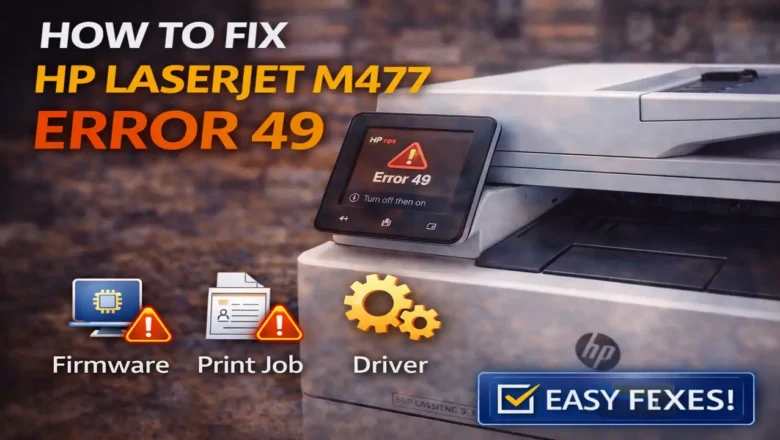
HP LaserJet 49 error fix: Resolve 49.x and 50.2 Fuser Errors

HP LaserJet 49 error fix: Resolve 49.x and 50.2 Fuser Errors

REPAIR PRINTER, Blog
Resolve HP LaserJet 49 error fix and Fuser Issues Addressing common operational faults in your HP LaserJet printer often involves specific troubleshooting methods. Errors like the HP LaserJet 49 error fix (identified as a firmware crash) or the "50.2 fuser warm up" message are frequent occurrences that can halt printing. These alerts point to distinct underlying problems, ranging from digital communication glitches to issues with critical heating components. Successfully resolving these problems requires a methodical approach, beginning with basic resets and progressing to more involved checks. This guide provides targeted instructions to diagnose and rectify these common printer messages. By following the outlined steps, you can systematically investigate the cause of each error and a...
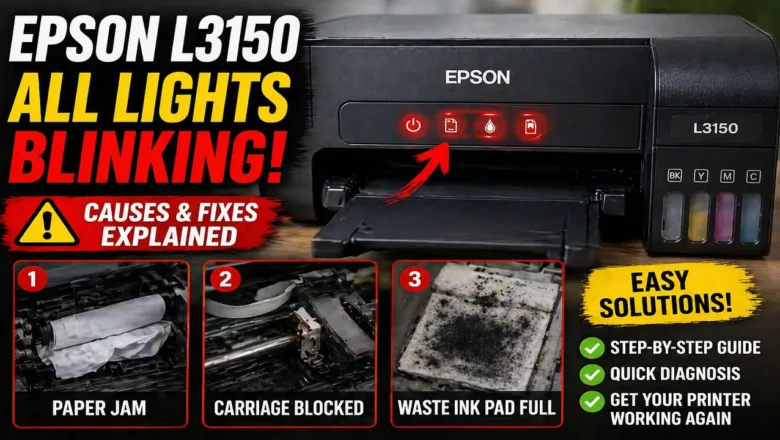
Epson service required waste ink pad: Fix EcoTank Error

Epson service required waste ink pad: Fix EcoTank Error

RESET PRINTER, Blog, REPAIR PRINTER
Resolving Epson service required waste ink pad Error on EcoTank When your Epson EcoTank printer displays a "Service required" alert, it usually indicates that the internal Epson service required waste ink pad counter has reached its preset operational limit. This warning means the absorbent pads, designed to collect surplus ink, are deemed full, and it's more involved than simply replacing a common maintenance box. Addressing this prompt is vital for continued printer functionality and preventing potential internal ink issues. You have two primary avenues for resolving this: engaging with official Epson support for professional repair or employing specific third-party software tools for a self-service solution. Each path involves distinct actions and carries specific implications for t...