

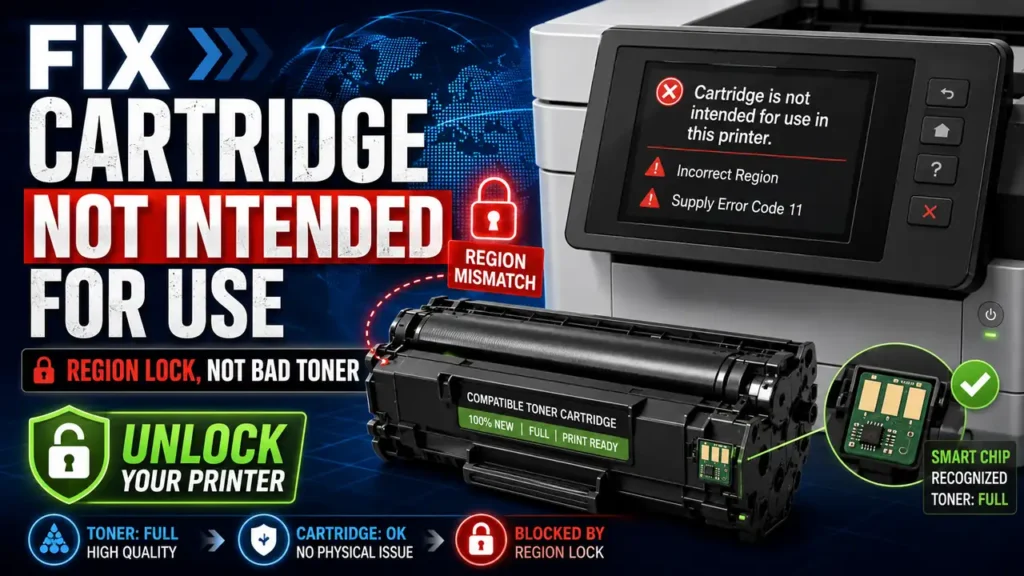
You bought a brand-new, high-quality compatible toner cartridge online. It physically fits perfectly into your laser printer’s slot. The chip looks pristine. Yet, the moment you close the door, your printer screen flashes a cold, blocking error message: “Cartridge is not intended for use in this printer,” “Incorrect Region,” or “Supply Error Code 11.”
Before you get angry at the third-party manufacturer or assume you received a broken product, you need to know the truth: your cartridge is flawless and full of toner. You have simply fallen into a hidden geographic trap set by printer manufacturers. They use regionalized firmware signatures to stop consumers from buying cost-effective chips from overseas markets.
This comprehensive technical guide will reveal the hidden programming behind this regional barrier and provide the exact engineering overrides to Fix Cartridge Not Intended for Use Error so you can unlock your printer right now.
The Quick Answer: How to Bypass the Regional Toner Lock Instantly
If you need to force your printer to accept an overseas or mismatched regional compatible toner cartridge immediately, follow this universal hardware-firmware handshake override:
-
Turn off your printer completely and disconnect the power cord from the wall.
-
Remove the offending compatible toner cartridge from the machine.
-
Access your printer’s Embedded Web Server (EWS) via your computer browser by typing the printer’s local IP address.
-
Go to Settings > System Setup > Supply Settings and turn Off both Cartridge Policy and Cartridge Protection.
-
Hold down the printer’s physical Power Button for 30 seconds while it is still unplugged to completely drain the NVRAM cache memory.
-
Plug the printer back in, insert the toner, and turn it on. The cleared cache will force the printer to re-read the chip’s base emulation code instead of its regional restriction block.
The Technical Anatomy: How Manufacturers Region-Lock Smart Chips
To outsmart your printer’s security, you must understand what is happening inside the microchip’s memory. Every modern compatible or remanufactured toner cartridge is equipped with a CRUM (Customer Replaceable Unit Monitor) chip. This chip contains an EEPROM (Electrically Erasable Programmable Read-Only Memory) partition.
Inside this EEPROM partition, manufacturers program a specific byte of data known as the Geographic Market Bit.
[Typical CRUM Chip EEPROM Data Layout]
-------------------------------------------------------------------------
| Page Count (20%) | Toner Level (30%) | Regional Bit: 01 (AMER) (50%)  |
-------------------------------------------------------------------------
                                                |
                                                v
                    Printer Firmware Checks This Code Against Hardware SKU
When a printer is manufactured, its internal motherboard is hardcoded to a specific regional market SKU. For example:
-
Zone 1 (AMER): United States, Canada, and Latin America.
-
Zone 2 (EMEA): Europe, Middle East, and Africa.
-
Zone 3 (APAC): Asia Pacific and Australia.
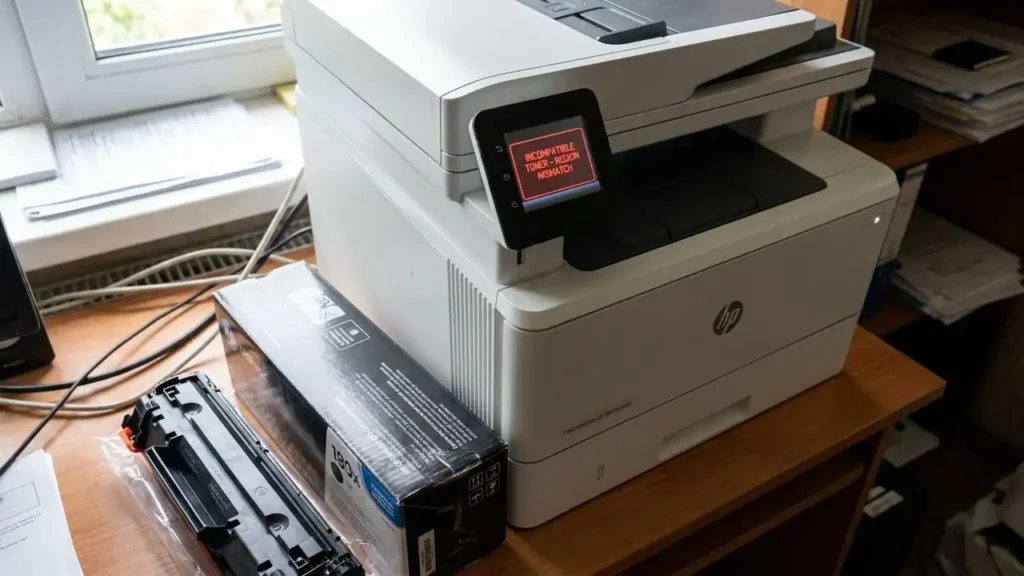
When you install a compatible toner cartridge manufactured or chipped for the European market into a printer bought in North America, the printer’s firmware performs a digital handshake. The firmware detects that the regional bit on the chip (Zone 2) does not match the printer’s internal regional code (Zone 1). The printer immediately stops working and throws the “Cartridge is not intended for use in this printer” error screen. This is not a hardware limitation; it is artificial market segmentation.
Advanced Troubleshooting Blueprint to Fix Cartridge Not Intended for Use Error
If the quick NVRAM drain did not clear the regional lock, you must implement deeper system modifications. Follow these three proven technician-level methods sequentially.
Method 1: Forcing a Region Reset via Service Menu (HP & Canon)
When a legitimate regional mismatch occurs (for instance, if you relocated to a different country with your printer), the printer allows a limited number of regional resets (usually 3 to 4 times max) through a hidden service menu.
-
Step 1: Ensure your printer is connected to a Windows PC via a physical High-Speed USB cable (Do not use Wi-Fi for this method).
-
Step 2: Open your printer’s software utility tool on your PC, or open a browser and log into the Embedded Web Server (EWS) as an Administrator.
-
Step 3: Access the hidden service screen. On most models, this is achieved by navigating to the Support tab and typing the secret service PIN code found on the sticker inside the cartridge door or assembly bay.
-
Step 4: Look for a parameter labeled Reset Region, Set Country Code, or Market Configuration.
-
Step 5: Change the printer’s internal region code to match the origin country of your compatible cartridge vendor (e.g., if you bought the chip from a Chinese seller, change the region to APAC or Global).
-
Step 6: Click Apply, allow the printer to reboot, and the regional error will disappear.
Method 2: Physical Chip Pin Masking (The Hardware Bypass)
On certain generations of Canon and Epson printers, the regional verification signal is transmitted through specific data pins on the chip contact pad rather than the main serial line. Masking these pins can drop the printer into a legacy compatibility mode.
-
Step 1: Remove the toner cartridge and place it on a clean, anti-static mat.
-
Step 2: Examine the small green microchip plate. You will see four or five gold-plated copper contact surfaces.
-
Step 3: Locate the Clock (CLK) or Data (DIO) peripheral contact pad (typically the far-left or far-right top pad depending on the model layout).
-
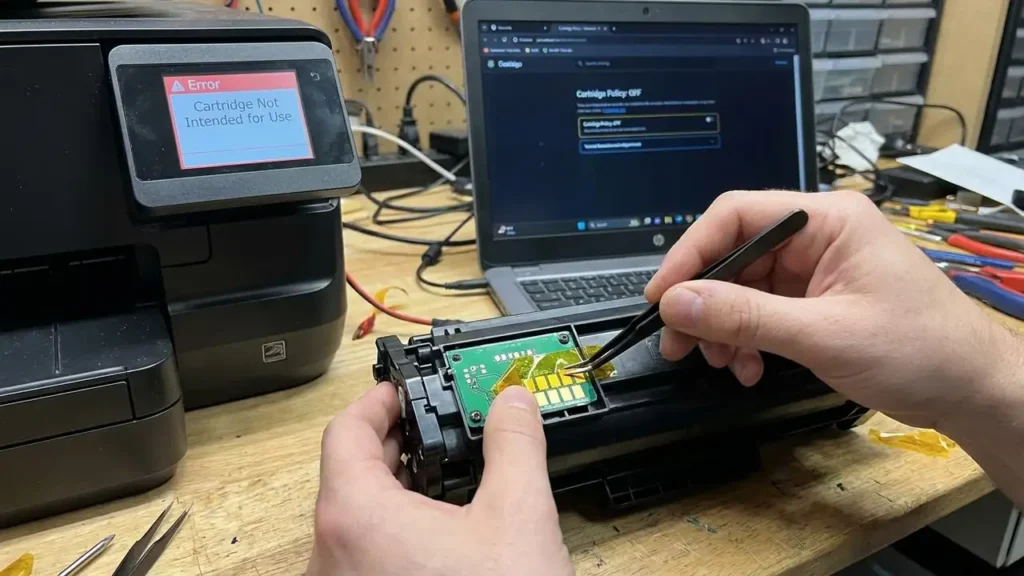
Step 4: Cut a microscopic piece of high-insulation Kapton tape or standard electrical tape.
-
Step 5: Carefully place the tape over that single contact pad, ensuring you do not cover the main power (VCC) or ground (GND) pads.
-
Step 6: Slide the cartridge back into the printer carcass. By blocking this specific data line, the printer firmware may default to a generic “Unknown Supply” status instead of a hard regional block, enabling you to print normally.
Regional SKU Tracking Matrix: Chip Code Mismatches
| Original Cartridge Part Number | Overseas Compatible Equivalent | Affected Regional Markets | Hardware Error Response |
| HP 148A / 148X | HP 149A / 149X | North America vs Europe | Supply Error Code 11 / Blocked |
| Canon CRG-070 | Canon CRG-070 (APAC Version) | EMEA vs Asia Pacific | Cartridge Mismatch Warning |
| Brother TN-2410 | Brother TN-2415 | Europe vs Australia | No Toner / Replace Cartridge |
| Samsung MLT-D111S | MLT-D111S/ELS vs MLT-D111S/XAA | Global Regionalization | Non-Genuine Cartridge Error |
Critical Maintenance Pitfalls to Avoid During Regional Overrides
Modifying firmware or system parameters requires precision. Avoid these common mistakes to prevent permanent damage to your hardware components:
-
Never Turn Off the Printer During a Region Reset: If you are applying a new country configuration code via the EWS or Service Menu, cutting the power mid-process will corrupt the system NVRAM. This causes a permanent “Fatal Error 55” code, effectively bricking the entire physical formatter board.
-
Avoid Using Third-Party Firmware Patch Files: Many sketchy internet forums offer free custom firmware downloads claiming to permanently eliminate regional blocks. These unverified files often contain malware or bad code configurations that disable your printer’s printhead voltage regulations, ruining your print quality forever. Stick to manual configuration overrides.
-
Check the Cartridge Box Suffix Before Opening: Save yourself time. Look at the full part number string on the box. If your printer requires an HP 134A and you ordered a compatible cartridge that says HP 134X-EU, do not open the protective plastic wrap. The “EU” suffix proves it has a European regional bit. Keeping it sealed allows you to exchange it with the seller easily.
